1. Introduction
This manual provides detailed instructions for the installation, configuration, and operation of your ASUS TUF-AX5400 Dual Band WiFi 6 Gaming Router. Designed for high-performance networking, this router incorporates advanced features such as WiFi 6 (802.11ax) technology, AiMesh support, and dedicated gaming functionalities to enhance your internet experience. Please read this manual thoroughly before using the device.
2. Safety Information
- Place the router in a well-ventilated area, away from direct sunlight, heat sources, and moisture.
- Use only the power adapter supplied with the device. Using unauthorized adapters may damage the router and void your warranty.
- Do not open the router casing. Servicing should only be performed by authorized personnel.
- Keep the device away from children.
- Ensure all cables are securely connected before powering on the device.
3. Package Contents
Verify that your package contains the following items:
- ASUS TUF-AX5400 WiFi 6 Gaming Router
- Power Adapter
- Ethernet Cable (RJ-45)
- Quick Start Guide
- Warranty Card
If any items are missing or damaged, please contact your retailer.
4. Physical Overview
Familiarize yourself with the ports and indicators on your ASUS TUF-AX5400 router.

Image: Rear view of the ASUS TUF-AX5400 router, highlighting its connectivity options. From left to right, the image shows the power port, power switch, USB 3.1 Gen1 port, four LAN ports (one labeled 'Gaming port'), a WPS button, a WAN port, and a reset button. Six fixed antennas are also visible, along with metal port protectors for enhanced durability.
- Power Port: Connects to the power adapter.
- Power Switch: Turns the router on or off.
- USB 3.1 Gen 1 Port: For connecting USB storage devices or 4G/5G dongles.
- LAN Ports (1-4): Connect wired devices such as computers, gaming consoles, or network-attached storage (NAS). LAN 1 is a dedicated Gaming Port.
- WPS Button: For quick and easy connection of WPS-compatible devices.
- WAN Port: Connects to your modem or internet service provider's (ISP) device.
- Reset Button: Press and hold for 5-10 seconds to restore factory default settings.
- Antennas: Six fixed antennas for optimal wireless signal coverage.
5. Setup
5.1 Hardware Connection
- Position the Router: Place the router in a central location to maximize WiFi coverage.
- Connect the Antennas: Ensure all six antennas are securely attached and oriented vertically for best performance.
- Connect to Modem: Connect one end of the provided Ethernet cable to the WAN port of the TUF-AX5400 router and the other end to your modem's LAN port.
- Power On: Connect the power adapter to the router's power port and plug it into an electrical outlet. Press the power switch to turn on the router.
- Wait for Indicators: Allow a few minutes for the router to boot up. The Power, 2.4GHz, 5GHz, and WAN LED indicators should illuminate.
5.2 Initial Configuration
You can configure your router via a web browser or the ASUS Router app.
Using a Web Browser:
- Connect to Router: Connect your computer to the router via an Ethernet cable (to any LAN port) or wirelessly using the default WiFi network name (SSID) and password found on the router's label.
- Access Web Interface: Open a web browser and navigate to
router.asus.comor192.168.50.1. - Follow Setup Wizard: The ASUS Setup Wizard will guide you through the initial configuration steps, including setting up your internet connection, WiFi network name (SSID), and password, and creating an administrator username and password for the router.
Using the ASUS Router App:
- Download App: Download the ASUS Router app from your mobile device's app store.
- Connect to Router: Connect your mobile device to the router's default WiFi network.
- Launch App: Open the ASUS Router app and follow the on-screen instructions to set up your router.
6. Operating Instructions
6.1 WiFi 6 (802.11ax) Features
The TUF-AX5400 leverages WiFi 6 technology to deliver enhanced performance and efficiency.

Image: An infographic detailing the advantages of WiFi 6 (802.11ax) technology. Key features highlighted are OFDMA, TWT (Target Wake Time), MU-MIMO, and 160MHz channels. It also shows improvements such as 4X efficiency for multi-devices, 2X WiFi speed, 7X battery life for client devices, and an 80% increase in WiFi range, with speeds up to 5400Mbps.
- OFDMA (Orthogonal Frequency Division Multiple Access): Improves network efficiency, especially in high-density environments, by allowing multiple devices to share a single channel simultaneously.
- MU-MIMO (Multi-User, Multiple-Input, Multiple-Output): Enables the router to communicate with multiple devices simultaneously, increasing overall network capacity and speed.
- 160 MHz Channels: Provides wider bandwidth for compatible devices, resulting in significantly faster wireless speeds.
- Target Wake Time (TWT): Reduces power consumption for connected devices by scheduling when they need to transmit or receive data.
6.2 Gaming Features
The TUF-AX5400 is optimized for gaming performance.

Image: A visual representation of the router's three gaming optimization modes. It depicts a user playing on a PC with a 'Dedicated Gaming Port' label, another user playing on a mobile device with a 'Mobile Game Mode' label, and a console controller with an 'Open NAT' label, illustrating how the router optimizes for various gaming scenarios.
- Dedicated Gaming Port: Connect your gaming PC or console to the dedicated LAN port to automatically prioritize its network traffic, ensuring lower latency and stable connections during gameplay.
- Mobile Game Mode: Activate this mode via the ASUS Router app to prioritize mobile gaming traffic, reducing lag for smartphone and tablet games.
- Open NAT (Network Address Translation): Simplifies port forwarding for online gaming, allowing for easier setup of game servers and improved connectivity for multiplayer games. This feature can be configured in the router's web interface.
6.3 AiMesh Support
Create a seamless whole-home mesh WiFi system with AiMesh-compatible routers.
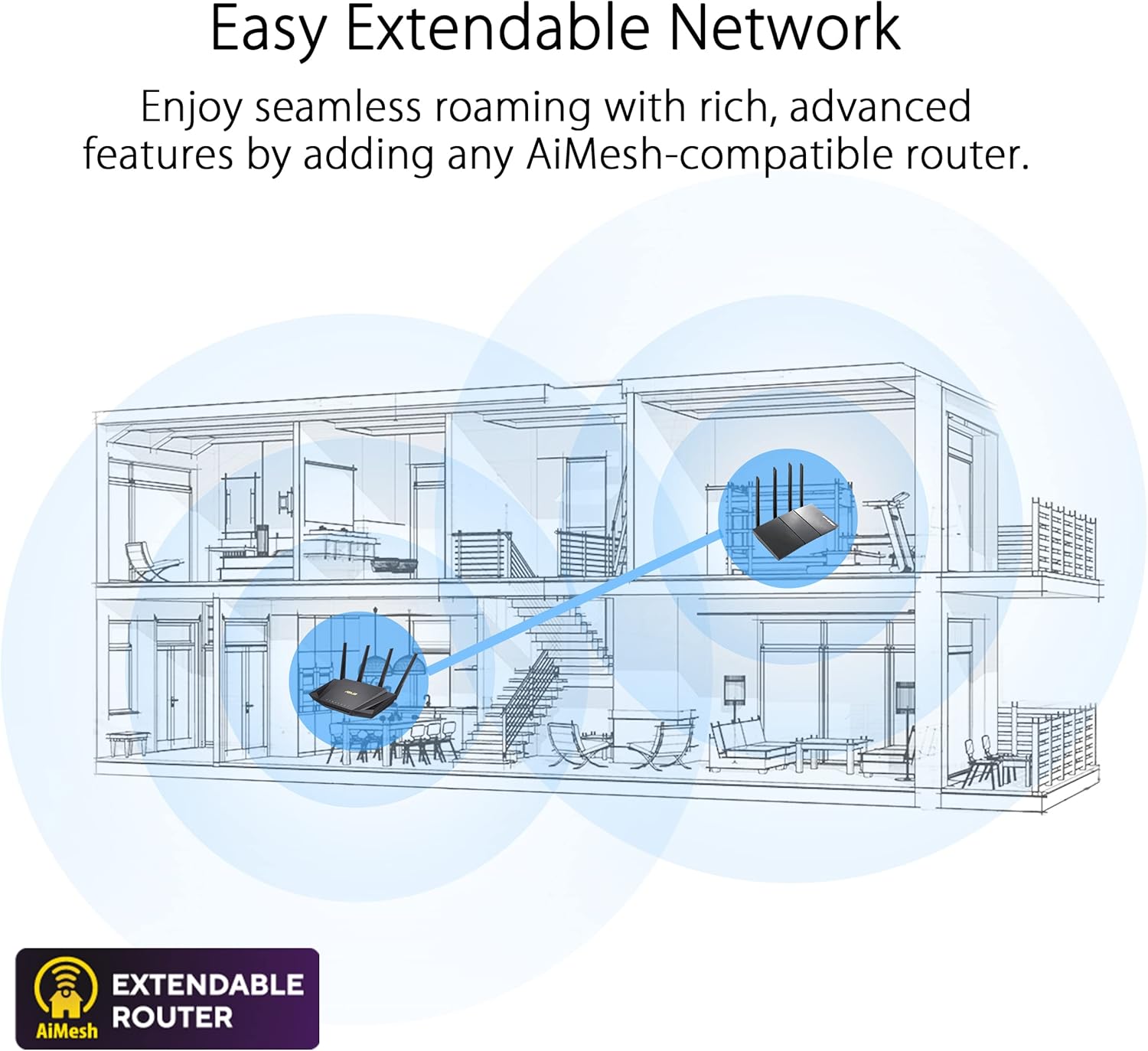
Image: A diagram illustrating an 'Easy Extendable Network' using ASUS AiMesh technology. It shows a multi-story house with a main router on the ground floor and an AiMesh-compatible router on the upper floor, working together to provide seamless WiFi coverage across the entire home, eliminating dead zones.
AiMesh allows you to combine multiple ASUS routers into a single, unified WiFi network, providing extended coverage and eliminating WiFi dead zones. Your devices will automatically switch to the strongest signal as you move around your home.
6.4 Advanced Parental Controls
Manage and monitor internet usage for family members.

Image: A visual representation of 'Advanced Parental Controls' for WiFi management. The image shows a child using a smartphone under a blanket, while an overlay highlights features like 'Timing' (setting internet access schedules), 'Filtering' (blocking inappropriate content), and 'Scheduling' (managing device online times).
Access these features through the router's web interface or the ASUS Router app to set time limits, filter content, and schedule internet access for specific devices.
6.5 Access Point (AP) Mode
The TUF-AX5400 can function as an Access Point, extending an existing wired network with wireless capabilities. In AP mode, the router disables its NAT functions and acts as a switch and wireless access point.
7. Maintenance
- Firmware Updates: Regularly check for and install firmware updates via the router's web interface. Updates often include security patches, performance improvements, and new features.
- Regular Reboot: Rebooting your router periodically (e.g., once a month) can help maintain optimal performance and resolve minor network issues.
- Cleaning: Use a soft, dry cloth to clean the router's exterior. Do not use liquid cleaners or solvents. Ensure ventilation openings are free from dust.
- Backup Configuration: It is recommended to back up your router's configuration settings before performing major changes or firmware updates.
8. Troubleshooting
8.1 No Internet Connection
- Check if the WAN LED indicator is lit. If not, ensure the Ethernet cable from your modem is securely connected to the router's WAN port.
- Reboot your modem and then your router. Wait for both devices to fully boot up.
- Verify your internet connection settings in the router's web interface. Contact your ISP if the issue persists.
8.2 Slow WiFi Speed
- Ensure your devices are WiFi 6 compatible to fully utilize the router's capabilities.
- Check for interference from other electronic devices (e.g., microwaves, cordless phones).
- Adjust router placement to minimize obstacles and maximize signal strength.
- Update your router's firmware to the latest version.
8.3 Cannot Access Router Web Interface
- Ensure your device is connected to the router (wired or wirelessly).
- Try clearing your browser's cache or using a different browser.
- Verify you are using the correct IP address (
router.asus.comor192.168.50.1). - If you forgot your login credentials, you may need to perform a factory reset (see Physical Overview for Reset Button location).
9. Specifications
| Feature | Specification |
|---|---|
| Model Name | TUF-AX5400 |
| Network Standard | IEEE 802.11a, IEEE 802.11b, IEEE 802.11g, WiFi 4 (802.11n), WiFi 5 (802.11ac), WiFi 6 (802.11ax), IPv4, IPv6 |
| AX Technology | Yes |
| Data Rate | AX5400 ultimate AX performance: 574+4804 Mbps (up to 5400 Mbps total) |
| Antenna | External antenna x 6 |
| Transmit/Receive | 2.4 GHz 2 x 2, 5 GHz 4 x 4 |
| Processor | 1.5 GHz tri-core processor |
| Memory | 256 MB Flash, 512 MB RAM |
| Boosts Speed | OFDMA, Beamforming, 1024-QAM, 20/40/80/160 MHz bandwidth |
| Operating Frequency | 2.4G Hz / 5 GHz |
| Ports | RJ45 for Gigabits BaseT for WAN x 1, RJ45 for Gigabits BaseT for LAN x 4, USB 3.2 Gen 1 x 1 |
| Buttons | WPS Button, Reset Button, Power Button |
| LED Indicator | Power x 1, 2.4GHz x 1, 5GHz x 1, WAN x 1, LAN x 4 |
| Product Weight | 600 g |
| Product Dimensions | 29.7 x 33.5 x 6.8 cm |
| Special Features | Access Point Mode, AiMesh Support, AiProtection Pro |
10. Warranty and Support
The ASUS TUF-AX5400 router comes with a manufacturer's warranty. Please refer to the warranty card included in your package for specific terms and conditions. For technical support, driver downloads, and further product information, please visit the official ASUS support website.
ASUS Support Website: www.asus.com/support/


