
OWC OWCTB4HUB5P
OWC 5 Port Thunderbolt Hub Instruction Manual
Model: OWCTB4HUB5P | Brand: OWC
Introduction
This manual provides comprehensive instructions for the OWC 5 Port Thunderbolt Hub. It covers setup, operation, maintenance, and troubleshooting to ensure optimal performance and longevity of your device. The OWC Thunderbolt Hub expands the connectivity of your computer, offering multiple Thunderbolt 4 ports and a USB 3.2 Gen 2 Type-A port, along with power delivery capabilities.
Safety Information
- Do not expose the device to moisture or extreme temperatures.
- Use only the power adapter supplied with the hub.
- Avoid blocking ventilation openings to prevent overheating.
- Do not attempt to disassemble or repair the device yourself. Refer all servicing to qualified personnel.
- Keep the device away from strong magnetic fields.
Package Contents
Verify that all items are present in your package:
- OWC 5 Port Thunderbolt Hub
- Power Adapter
- Thunderbolt 4 Cable
- Quick Start Guide (not included in this digital manual)
Product Overview
The OWC 5 Port Thunderbolt Hub is designed to expand your computer's connectivity, providing additional Thunderbolt 4 and USB 3.2 Gen 2 Type-A ports. It features a compact design suitable for various setups.

Figure 1: Front view of the OWC 5 Port Thunderbolt Hub, showing the OWC logo and the USB 3.2 10Gb/s port.
Port Layout
The hub features a variety of ports to connect your devices:
- Host Port: One Thunderbolt 4 port (up to 40 Gb/s) for connecting to your computer.
- Device Ports: Three Thunderbolt 4 ports for connecting external drives, displays, and other Thunderbolt devices.
- USB-A Port: One USB 3.2 Gen 2 Type-A port (up to 10 Gb/s) for connecting USB peripherals. This port is backwards compatible with USB 2.0/3.0.
- Power Input: DC IN 20V 5.5A for connecting the power adapter.

Figure 2: Top and bottom views of the hub, illustrating the arrangement of the DC power input, host Thunderbolt port, three device Thunderbolt ports, and the USB 3.2 port.
Setup
- Connect Power: Plug the provided power adapter into the DC IN port on the OWC Thunderbolt Hub, then connect the adapter to a power outlet.
- Connect to Host Computer: Use the included Thunderbolt 4 cable to connect the host Thunderbolt 4 port on the hub to an available Thunderbolt 3 or Thunderbolt 4 port on your computer. For USB-C equipped devices, connect to a USB-C port.
- Install Drivers (if necessary): For most modern operating systems (macOS 11.1 Big Sur or later, Windows 10/11 with Thunderbolt 4), drivers are automatically installed. If prompted, follow on-screen instructions.
- Connect Peripherals: Connect your Thunderbolt devices, USB devices, and displays to the available ports on the hub.

Figure 3: The hub in use, demonstrating multiple devices connected for full performance.
Operating Instructions
Power Delivery
- The Thunderbolt 4 host port provides up to 60W of power to charge your connected host computer.
- Each Thunderbolt 4 device port provides 15W of power for external drives and other devices.
- The USB 3.2 Gen 2 Type-A port provides up to 1.5A of power for bus-powered drives and device charging.

Figure 4: The hub actively charging a laptop and providing power to connected peripherals.
Display Support
The OWC Thunderbolt Hub supports various display configurations:
- Up to one 8K display at 60Hz.
- Up to one 4K display at 120Hz.
- Up to two 4K displays at 60Hz.
- Up to two 5K displays at 60Hz.
- Display support via Thunderbolt 4: Up to 8K @ 60Hz or 4K @ 120Hz via a native Thunderbolt 4 display or other display that supports USB-C connections and DisplayPort 1.4.
- Note: Actual display support may vary based on your computer's specifications. Intel-based Apple Mac models and Thunderbolt 4 PCs typically support two displays.
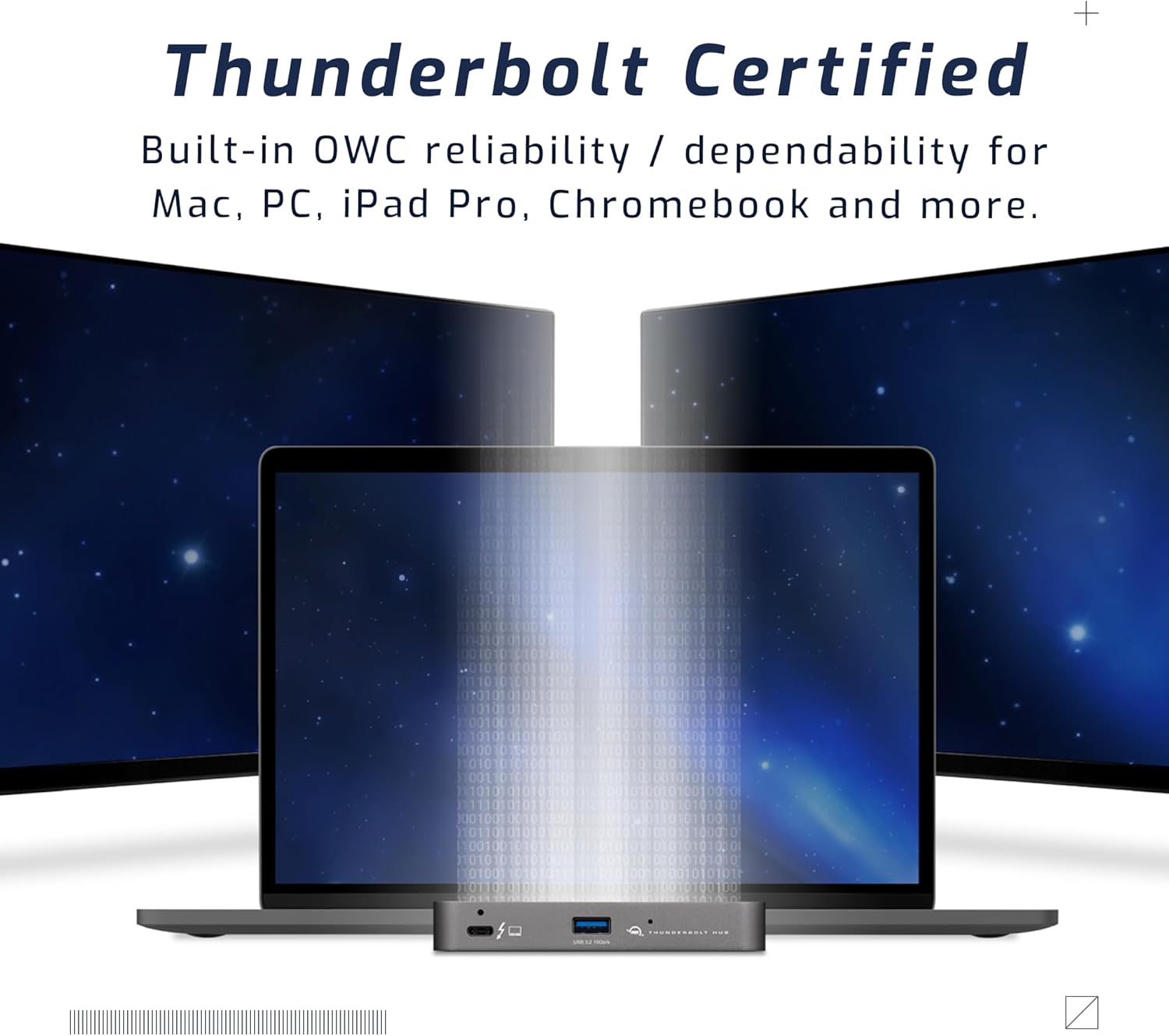
Figure 5: A setup demonstrating the hub's capability to connect a laptop to multiple external displays.
Compatibility
The hub is compatible with a wide range of devices:
- Macs with an available Thunderbolt 3 or later port running macOS 11.1 Big Sur or later.
- Windows PCs with an available Thunderbolt 4 port.
- Non-Thunderbolt USB-C machines like Chromebooks and iPads.
- USB-C equipped MacBooks, iPads, Chromebooks, and Android devices.
- Note: Thunderbolt/Thunderbolt 2 Mac models are supported via USB-A host connection, but Thunderbolt/Thunderbolt 2 host connection is not directly supported. USB connection may limit some functionality.
Maintenance
- Cleaning: Use a soft, dry, lint-free cloth to clean the exterior of the hub. Do not use liquid cleaners or aerosols.
- Storage: When not in use for extended periods, store the hub in a cool, dry place away from direct sunlight.
- Cable Management: Ensure cables are not excessively bent or strained to prevent damage to the ports or cables.
Troubleshooting
Common Issues and Solutions
- No Power/Device Not Recognized:
- Ensure the power adapter is securely connected to the hub and a working power outlet.
- Verify the Thunderbolt cable is firmly connected to both the hub and your computer.
- Try a different Thunderbolt port on your computer, if available.
- Restart your computer.
- Display Issues (No Signal, Flickering):
- Check all display cables (HDMI, DisplayPort, USB-C to display) are securely connected.
- Ensure your display is set to the correct input source.
- Verify your computer's display settings (resolution, refresh rate) are compatible with the connected display and hub capabilities.
- Update your computer's graphics drivers.
- Slow Data Transfer Speeds:
- Ensure you are using high-quality Thunderbolt or USB 3.2 cables.
- Confirm the connected device supports the speeds advertised by the hub (e.g., a USB 2.0 device will not achieve USB 3.2 speeds).
- Avoid connecting too many high-bandwidth devices simultaneously if experiencing slowdowns.
Specifications
| Feature | Detail |
|---|---|
| Model Number | OWCTB4HUB5P |
| Brand | OWC |
| Product Dimensions | 19.69 x 19.69 x 11.02 inches |
| Item Weight | 7 ounces |
| Color | Also Black/Gray |
| Hardware Interface | Thunderbolt |
| Special Feature | Powered |
| Host Port | 1x Thunderbolt 4 (up to 40 Gb/s) |
| Device Ports | 3x Thunderbolt 4, 1x USB 3.2 Gen 2 Type-A (10 Gb/s) |
| Host Power Delivery | Up to 60W |
| Device Power Delivery | 15W per Thunderbolt 4 port, 1.5A for USB-A port |
| Display Support | Up to 8K @ 60Hz or 4K @ 120Hz (single display); Up to two 4K @ 60Hz or two 5K @ 60Hz (dual displays) |
| Compatible Devices | Macs with Thunderbolt 3+, Windows PCs with Thunderbolt 4, USB-C equipped MacBooks, iPads, Chromebooks, Android devices |
Warranty Information
The OWC 5 Port Thunderbolt Hub comes with a 2 Year OWC Limited Warranty. For detailed terms and conditions, please refer to the official OWC website or contact customer support.
Support
For further assistance, technical support, or warranty claims, please visit the official OWC support website or contact their customer service department.
- OWC Support Website: www.owcdigital.com/support
- Online Resources: FAQs, drivers, and additional documentation may be available online.
Ask a question about this manual
Ask about setup, troubleshooting, compatibility, parts, safety, or missing instructions. Manuals+ will review the question and use this page’s manual context to help answer it.