
1. Introduction
This manual provides essential information for setting up, operating, maintaining, and troubleshooting your Lenovo ThinkPad P14s Gen 2 mobile workstation. Please read this manual thoroughly to ensure proper use and to maximize the performance and longevity of your device.
2. Product Overview
The Lenovo ThinkPad P14s Gen 2 is a 14-inch mobile workstation designed for professionals requiring high performance and portability. It features an Intel Core i7 11th Gen processor, 32 GB RAM, a 1 TB SSD, and NVIDIA Quadro T500 graphics.
2.1 Key Features
- Intel Core i7 11th Gen processor for high-speed computing.
- 32 GB DDR4 RAM for efficient multitasking.
- 1 TB Solid State Drive (SSD) for fast storage and system responsiveness.
- 14-inch Full HD (1920 x 1080) display.
- NVIDIA Quadro T500 discrete graphics with 4 GB dedicated memory for professional applications.
- Integrated 802.11ax Wi-Fi and Bluetooth connectivity.
- Pre-installed Windows 10 Pro operating system.
2.2 Package Contents
Verify that all items are present in the package:
- Lenovo ThinkPad P14s Gen 2 Mobile Workstation
- AC Adapter
- Documentation (Quick Start Guide, Safety Information)
2.3 Visual Components

Figure 1: Front view of the Lenovo ThinkPad P14s Gen 2 with the lid open, displaying the keyboard, trackpad, and screen with the Windows operating system desktop.

Figure 2: Side profile of the Lenovo ThinkPad P14s Gen 2, illustrating its slim design.

Figure 3: Rear view of the Lenovo ThinkPad P14s Gen 2, showing the hinge and back panel.
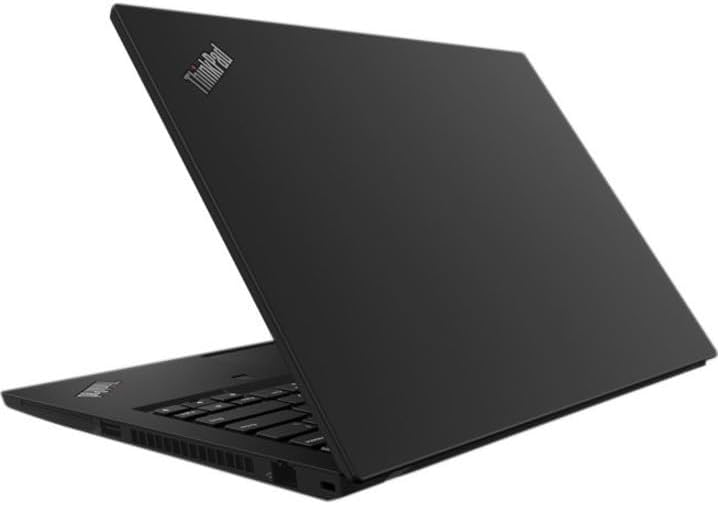
Figure 4: Angled view of the Lenovo ThinkPad P14s Gen 2 with the lid partially open, highlighting the ThinkPad logo on the lid.

Figure 5: Two individuals collaborating, viewing a CAD design on the screen of a Lenovo ThinkPad P14s Gen 2, demonstrating its use in professional environments.
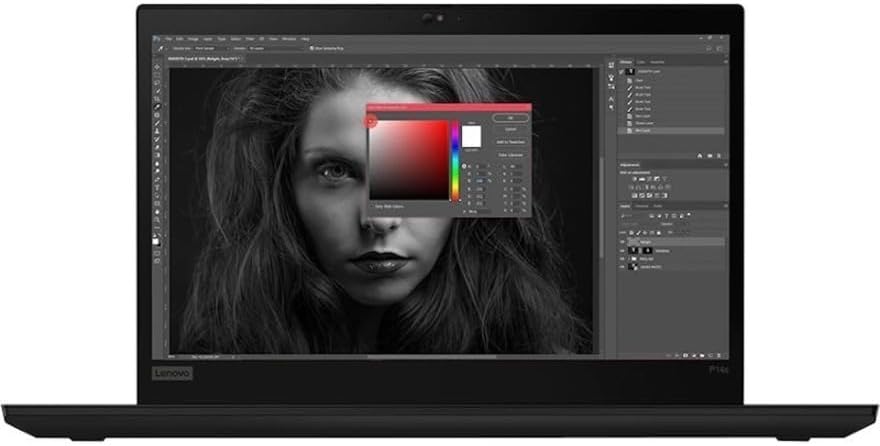
Figure 6: The Lenovo ThinkPad P14s Gen 2 displaying image editing software on its screen, showcasing its capability for creative tasks.
3. Setup Instructions
3.1 Initial Power-On
- Unpack the workstation and AC adapter from the box.
- Connect the AC adapter to the power connector on the workstation and then to a power outlet.
- Open the lid of the workstation.
- Press the power button, typically located above the keyboard or on the side, to turn on the device.
- Follow the on-screen instructions to complete the initial Windows 10 Pro setup, including language selection, network connection, and user account creation.
3.2 Connecting Peripherals
Your ThinkPad P14s Gen 2 includes various ports for connecting external devices:
- USB Ports: Connect USB devices such as external hard drives, mice, or keyboards.
- HDMI Port: Connect an external monitor or projector.
- Audio Jack: Connect headphones or external speakers.
- Ethernet Port (if available): Connect to a wired network.
4. Operating Instructions
4.1 Power Management
- Turning On: Press the power button.
- Shutting Down: Click the Start button, then Power > Shut down.
- Restarting: Click the Start button, then Power > Restart.
- Sleep Mode: Close the lid or click the Start button, then Power > Sleep.
4.2 Keyboard and Trackpad
The ThinkPad P14s Gen 2 features a full-sized keyboard and a precision trackpad. It also includes the iconic TrackPoint pointing device for precise cursor control.
- TrackPoint: Use the red TrackPoint cap in the center of the keyboard to move the cursor. The three buttons below the spacebar function as left-click, scroll, and right-click for the TrackPoint.
- Trackpad: Use the multi-touch trackpad for navigation, gestures, and clicking.
4.3 Display and Graphics
The 14-inch Full HD display provides clear visuals. The NVIDIA Quadro T500 graphics card is optimized for professional design and engineering applications.
- External Display: Connect an external monitor via the HDMI port. Adjust display settings in Windows (Right-click desktop > Display settings).
- Graphics Drivers: Ensure graphics drivers are up-to-date for optimal performance. Visit the Lenovo support website for the latest drivers.
5. Maintenance
5.1 Cleaning the Workstation
- Screen: Use a soft, lint-free cloth lightly dampened with water or a screen cleaner. Do not spray liquid directly onto the screen.
- Keyboard and Chassis: Use a soft, dry cloth. For stubborn dirt, a slightly damp cloth with mild soap solution can be used, ensuring no liquid enters openings.
- Ventilation: Keep ventilation openings clear of dust and debris to prevent overheating. Use compressed air to gently clear dust from vents.
5.2 Software Updates
Regularly update your operating system and drivers to ensure security, stability, and optimal performance.
- Windows Updates: Go to Start > Settings > Update & Security > Windows Update.
- Driver Updates: Visit the official Lenovo support website for your specific model (20VX007EUS) to download the latest drivers and firmware.
5.3 Battery Care
To prolong battery life:
- Avoid extreme temperatures.
- Do not fully discharge the battery frequently.
- If storing the workstation for an extended period, charge the battery to approximately 50-60%.
6. Troubleshooting
This section addresses common issues you might encounter with your ThinkPad P14s Gen 2.
6.1 Power Issues
- Workstation does not turn on:
- Ensure the AC adapter is securely connected to both the workstation and a working power outlet.
- Verify the power outlet is functional by plugging in another device.
- If the battery is completely drained, allow it to charge for a few minutes before attempting to power on.
- Battery not charging:
- Check the AC adapter and cable for damage.
- Ensure the power connector is firmly seated.
- Try a different power outlet.
6.2 Display Issues
- No display on screen:
- Ensure the workstation is powered on.
- Connect an external monitor to check if the issue is with the internal display.
- Try adjusting the screen brightness using the function keys (Fn + F5/F6).
- External monitor not detected:
- Verify the HDMI cable is securely connected.
- Ensure the external monitor is powered on and set to the correct input source.
- Update graphics drivers.
6.3 Performance Issues
- Workstation is slow:
- Close unnecessary applications.
- Check Task Manager for processes consuming high CPU or RAM.
- Ensure sufficient free space on the SSD.
- Run a virus scan.
- Update Windows and drivers.
7. Specifications
| Feature | Specification |
|---|---|
| Model | Lenovo ThinkPad P14s Gen 2 (20VX007EUS) |
| Processor | Intel Core i7-1165G7 (11th Gen) Quad-core, 2.80 GHz |
| RAM | 32 GB DDR4 |
| Storage | 1 TB SSD |
| Display | 14-inch Full HD (1920 x 1080) |
| Graphics | NVIDIA Quadro T500 with 4 GB GDDR6 |
| Operating System | Windows 10 Pro |
| Wireless Connectivity | 802.11ax Wi-Fi, Bluetooth |
| Ports | USB, HDMI, Audio Jack (specific port types and quantities may vary) |
| Dimensions (LxWxH) | 8.9 x 12.95 x 0.7 inches |
| Weight | 3.9 pounds |
| Color | Black |
8. Warranty and Support
8.1 Product Warranty
Your Lenovo ThinkPad P14s Gen 2 is covered by a limited warranty. For detailed warranty terms and conditions, please refer to the warranty documentation included with your product or visit the official Lenovo support website. Warranty periods and coverage may vary by region.
8.2 Technical Support
For technical assistance, driver downloads, and further support resources, please visit the official Lenovo Support website:
When contacting support, please have your product model (20VX007EUS) and serial number ready.