
AZDOME PG02S
AZDOME Mirror Dash Cam PG02S User Manual
Model: PG02S
Brand: AZDOME
1. Introduction
The AZDOME Mirror Dash Cam PG02S is an advanced vehicle recording system designed to enhance driving safety and provide comprehensive video evidence. This manual provides detailed instructions for the proper installation, operation, and maintenance of your device.
2. Key Features
- High-Definition Dual Camera System: Equipped with a 1440P front camera and a 1080P rear camera, both featuring a 170° wide-angle lens for comprehensive coverage and super sharp video recording.
- Smart Voice Control: Offers hands-free operation with intuitive voice commands, allowing you to control essential functions safely while driving.
- Split-Screen Display & GPS Functionality: Simultaneously view front and rear camera feeds on the screen. Integrated GPS records real-time location, driving track, and speed for detailed journey logs.
- Superior Night Vision & WDR Technology: Utilizes an advanced Sony sensor and Wide Dynamic Range (WDR) to capture clear videos with enhanced detail in low-light conditions and manage varying light intensities effectively.
- Loop Recording & Parking Assistance: Ensures continuous recording by overwriting old footage (locked accident videos are protected). The parking assistance feature provides guide lines for safer reversing.
- Durable Design: The rear camera boasts IP68 waterproof rating and anti-fog/dust properties, ensuring reliable performance in various weather conditions.
3. Package Contents
Please check the package contents carefully upon unboxing. If any items are missing or damaged, contact customer support.
- AZDOME Mirror Dash Cam Unit
- Rear Camera with Cable
- GPS Module
- Power Cable (Car Charger)
- Mounting Straps/Bands
- User Manual
- 32GB MicroSD Card (may vary by package)

Image: Overview of the AZDOME Mirror Dash Cam PG02S and its included accessories, such as the main mirror unit, rear camera, GPS antenna, and a 32GB microSD card.
4. Setup and Installation
4.1 Installing the Main Unit
- Secure the mirror dash cam over your vehicle's existing rearview mirror using the provided rubber straps. Ensure it is firmly attached and does not obstruct your view.
- Connect the power cable to the dash cam's power input port and route it neatly along the windshield trim to the vehicle's cigarette lighter socket.
- Insert the MicroSD card into the designated slot on the dash cam. Ensure it is inserted correctly until it clicks into place.
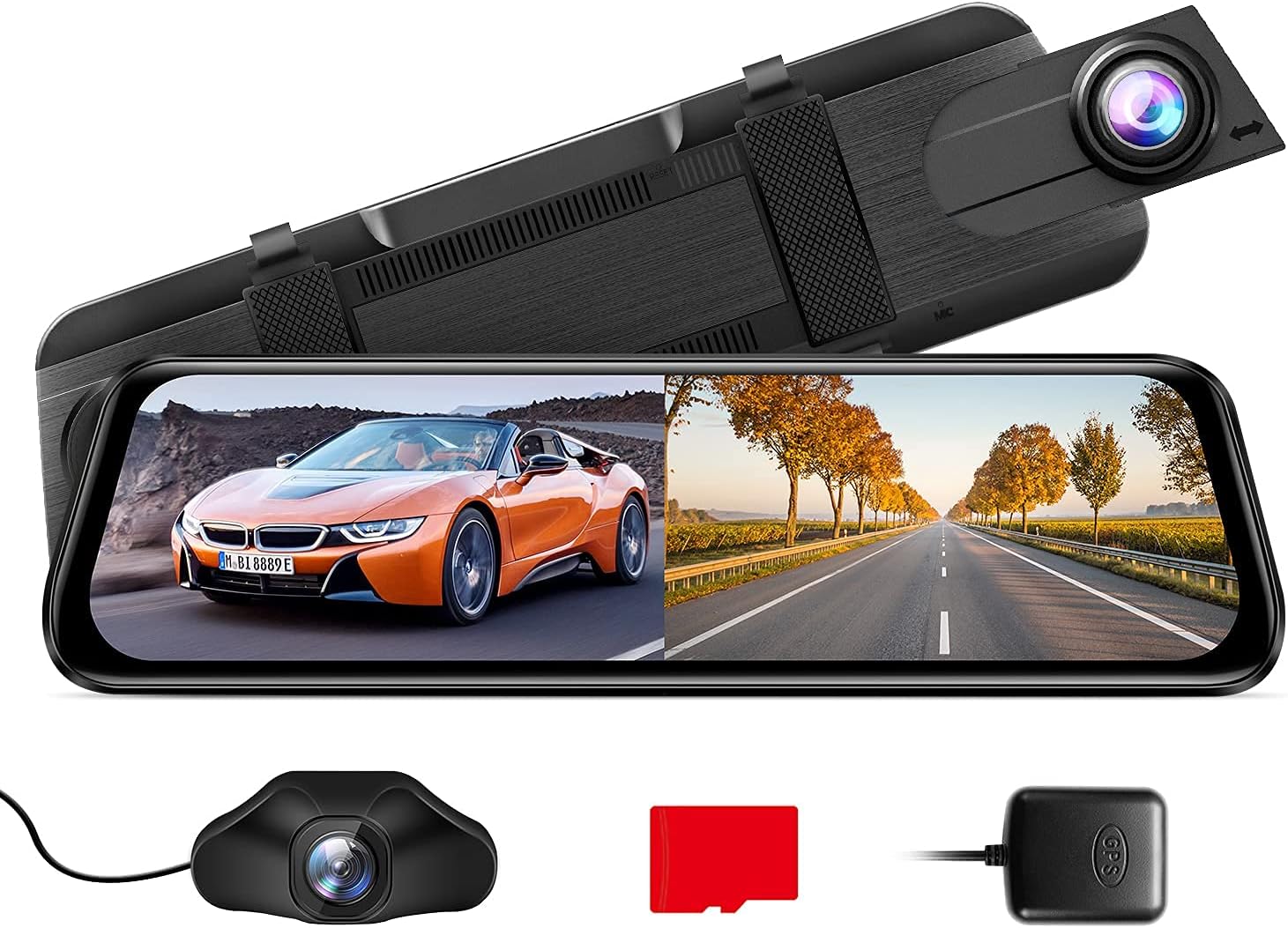
Image: The AZDOME Mirror Dash Cam PG02S main unit, designed to clip over the existing rearview mirror, displaying a split view of the road ahead and behind.
4.2 Installing the Rear Camera
- Mount the rear camera at the back of your vehicle, typically above the license plate or inside the rear window, ensuring a clear view.
- Connect the rear camera cable to the rear camera input port on the main dash cam unit.
- Route the rear camera cable discreetly along the vehicle's interior trim to the main unit. If connecting to reverse lights for parking assistance, consult a professional.
4.3 Connecting the GPS Module
- Connect the GPS module to the dedicated GPS port on the dash cam.
- Position the GPS module on your dashboard or windshield where it has a clear view of the sky for optimal signal reception.
5. Operating Instructions
5.1 Powering On/Off
The dash cam will automatically power on and begin recording when your vehicle's ignition is turned on. It will power off automatically when the ignition is turned off.
5.2 Smart Voice Control
The PG02S supports voice commands for hands-free operation. Speak clearly and directly towards the device.
- "Open Recording": Starts video recording.
- "Turn off Display": Turns off the screen while recording continues.
- "Turn off Recording": Stops video recording.
- "Lock the video": Protects the current recording from being overwritten.
- "Take Picture": Captures a still image.
- "Show front camera": Displays only the front camera view.
- "Show rear camera": Displays only the rear camera view.

Image: An illustration of a driver utilizing the smart voice control feature to operate the dash cam hands-free, showing example commands like "Open screen" and "Lock The Video".
5.3 Display Modes and Touch Screen Operation
The device features a responsive touch screen. You can switch between display modes (front view, rear view, split-screen) by swiping on the screen or using on-screen icons. Adjust settings and review footage directly on the touch screen.

Image: A hand interacting with the touch screen of the AZDOME Mirror Dash Cam, demonstrating its intuitive user interface for controlling recording and viewing options.
5.4 Parking Assistance System
When the vehicle is put into reverse (if the rear camera is wired to the reverse light), the screen will automatically display the rear view with parking guide lines. These lines assist in safe parking maneuvers.

Image: The dash cam display showing the reversing aid system with green and red parking guide lines overlaid on the rear camera feed, assisting with safe parking.
6. Maintenance
- Cleaning: Use a soft, dry cloth to clean the dash cam screen and lenses. Avoid using abrasive cleaners or solvents.
- MicroSD Card: Format the MicroSD card regularly (e.g., once a month) to ensure optimal performance and prevent data corruption. Back up important videos before formatting. Replace the card if it shows signs of degradation.
- Firmware Updates: Periodically check the AZDOME official website for available firmware updates. Updates can improve performance and add new features. Follow the instructions provided with the firmware carefully.
- Rear Camera Durability: The rear camera is IP68 waterproof. However, regular checks for dirt or debris on the lens will ensure clear footage.

Image: A comparison illustrating the superior clarity of the Mirror Dash Cam PG02S streaming media view in rainy or foggy conditions compared to a traditional rearview mirror, highlighting its IP68 waterproof and anti-fog features.
7. Troubleshooting
| Problem | Possible Cause / Solution |
|---|---|
| Dash cam does not power on. | Check the power connection to the cigarette lighter socket. Ensure the vehicle's ignition is on. Test the power cable in another vehicle or with another compatible device. |
| Recording stops unexpectedly. | The MicroSD card may be full or corrupted. Format the MicroSD card. Ensure you are using a high-speed (Class 10 or U3) MicroSD card. |
| Video footage is blurry or unclear. | Clean the camera lenses. Ensure the protective film has been removed from the lenses. Check if the camera is securely mounted and not vibrating. |
| GPS signal is weak or not found. | Ensure the GPS module is placed in an open area with a clear view of the sky (e.g., dashboard). Avoid placing it under metallic objects or tinted windows that block signals. |
| Voice control not responding. | Speak clearly and at a normal volume. Ensure there is no excessive background noise. Check if the voice control feature is enabled in the settings. |
8. Specifications
| Feature | Detail |
|---|---|
| Model | PG02S |
| Front Camera Resolution | 1440P (2.5K HD) |
| Rear Camera Resolution | 1080P |
| Lens Angle | Dual 170° Wide Angle |
| Control Method | Voice, Touch Screen |
| Night Vision | Super Night Vision with Sony Sensor |
| Special Features | WDR, Loop Recording, G-Sensor, Parking Monitor, GPS, Split-Screen Display |
| Rear Camera Water Resistance | IP68 |
| First Available Date | August 16, 2021 |

Image: An illustration detailing the 2.5K UHD recording capability of the front camera (1440P) and the 1080P recording of the rear camera, emphasizing high-resolution capture.

Image: A visual representation of the dash cam's super night vision capability, showing a clear image of a busy street at night, supported by WDR, F/1.8 Aperture, and a 6-glass lens.
9. Warranty and Support
For detailed warranty information, product registration, and technical support, please refer to the official AZDOME website or contact their customer service directly.
You can also visit the AZDOME Store on Amazon for more product information and support resources.
Related documentsPG02S


Ask a question about this manual
Ask about setup, troubleshooting, compatibility, parts, safety, or missing instructions. Manuals+ will review the question and use this page’s manual context to help answer it.