
BINNUNE BH02
BINNUNE BH02 USB Headset User Manual
Model: BH02
1. Introduction
This manual provides detailed instructions for the setup, operation, maintenance, and troubleshooting of your BINNUNE BH02 USB Headset. Please read this manual thoroughly before using the product to ensure proper functionality and longevity.

Image 1.1: The BINNUNE BH02 USB Headset, featuring both USB and 3.5mm connectivity options and an in-line control unit.
2. Package Contents
Please verify that all items are present in your package:
- BINNUNE BH02 USB Headset (Mono)
- User Manual (this document)
3. Product Features
- Dual Connectivity: Connects via USB for computers (PC/Mac/Windows) or 3.5mm jack for mobile devices.
- Noise-Cancelling Microphone: Designed to reduce background noise for clear voice transmission.
- In-line Controls: Easy access to volume adjustment and microphone mute functions.
- Lightweight Design: Engineered for extended wear comfort.
- Adjustable Boom Mic: Microphone can be positioned for optimal voice capture and rotated for use on either the left or right ear.
- Durable Construction: Features a stainless-steel headband for enhanced reliability.

Image 3.1: The BINNUNE BH02 headset demonstrating its corded USB and 3.5mm connectivity options, suitable for various devices.

Image 3.2: A user wearing the BINNUNE BH02 headset, highlighting its design for all-day comfort with memory foam ear cushions and an angled ear cup.

Image 3.3: A close-up view of the BINNUNE BH02 headset's headband, emphasizing its stainless-steel construction for maximum durability.
4. Setup Instructions
4.1 Connecting via USB
- Locate an available USB port on your computer (PC or Mac).
- Plug the USB connector of the headset into the USB port.
- Your operating system should automatically detect and install the necessary drivers. This may take a few moments.
- Once installed, navigate to your computer's sound settings (e.g., Sound Control Panel on Windows, System Preferences > Sound on Mac) to ensure the BINNUNE BH02 Headset is selected as the default input and output device.
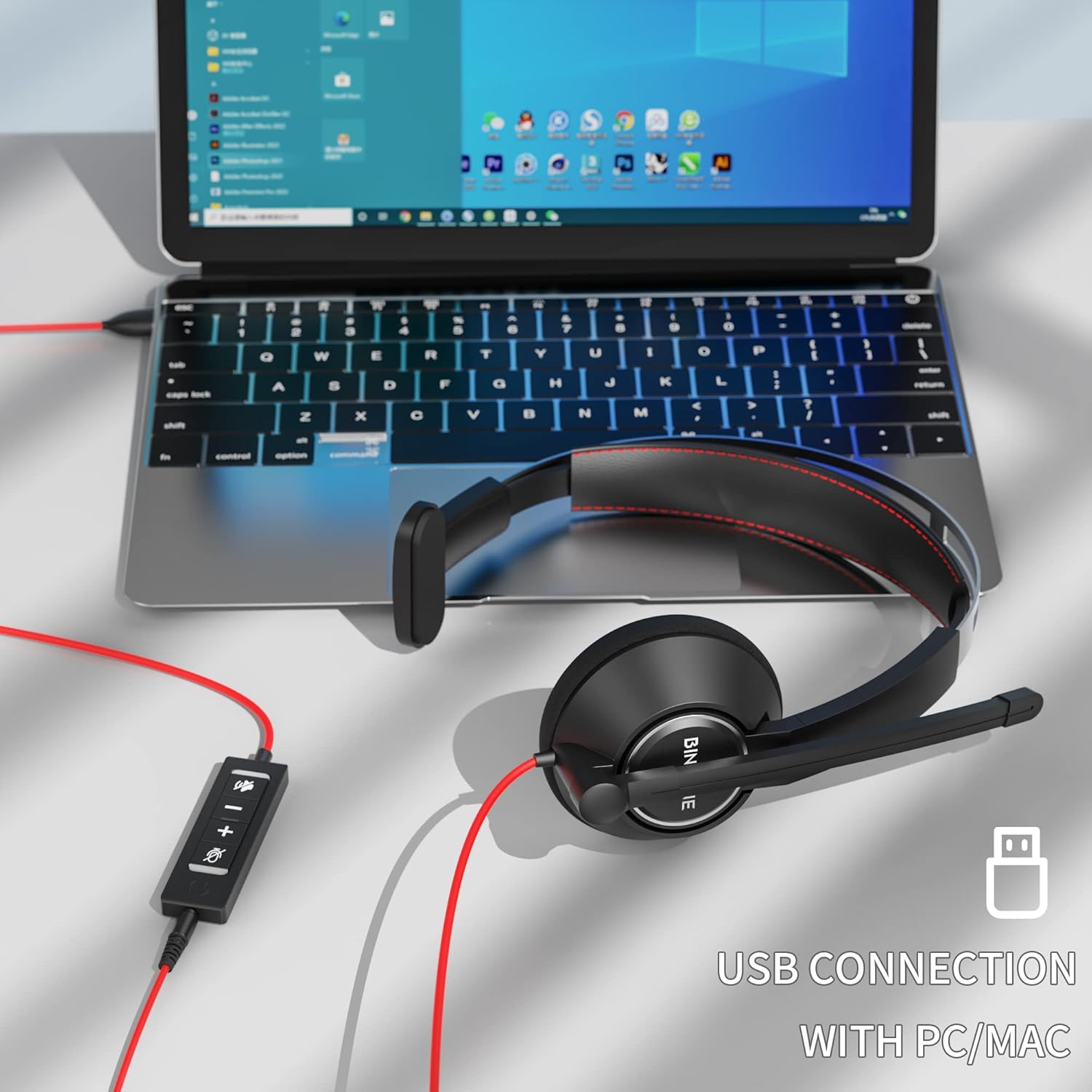
Image 4.1: The BINNUNE BH02 headset connected to a laptop via its USB cable, ready for use with PC or Mac systems.
4.2 Connecting via 3.5mm Jack
- Locate the 3.5mm audio jack on your mobile device, tablet, or computer.
- Plug the 3.5mm connector of the headset into the audio jack.
- The device should recognize the headset. Adjust volume directly on your device.

Image 4.2: A user engaging with a tablet while wearing the BINNUNE BH02 headset, demonstrating its 3.5mm connection capability for mobile devices.
5. Operating Instructions
5.1 Wearing the Headset
- Place the ear cup over one ear and adjust the headband for a comfortable fit.
- The microphone boom can be rotated to position the microphone on either your left or right side.

Image 5.1: Two individuals wearing the BINNUNE BH02 headset, illustrating the microphone's flexibility to be worn on either the right or left side.
5.2 Adjusting the Microphone
- Gently bend the flexible microphone boom to position the microphone approximately 1-2 inches (2.5-5 cm) from your mouth.
- Ensure the microphone is aligned with your mouth for optimal voice pickup and noise cancellation.
5.3 Using In-line Controls (USB Connection Only)
The in-line control unit provides convenient access to audio functions:
- Volume Up (+): Press to increase the listening volume.
- Volume Down (-): Press to decrease the listening volume.
- Microphone Mute Button: Press to mute or unmute the microphone. An indicator light on the control unit may show the mute status.

Image 5.2: A user wearing the BINNUNE BH02 headset while working on a laptop, illustrating its suitability for online communication platforms like Microsoft Teams, Zoom, Skype, and FaceTime.

Image 5.3: A woman smiling while wearing the BINNUNE BH02 headset, symbolizing clear and effective communication during calls.
6. Maintenance
6.1 Cleaning
- Wipe the headset surfaces with a soft, dry cloth.
- For stubborn dirt, use a slightly damp cloth with mild soap, then wipe dry immediately.
- Do not use harsh chemicals, solvents, or abrasive cleaners.
- Avoid getting moisture into the ear cups or microphone.
6.2 Storage
- Store the headset in a cool, dry place away from direct sunlight and extreme temperatures.
- Avoid tangling the cable by coiling it neatly.
7. Troubleshooting
| Problem | Possible Cause | Solution |
|---|---|---|
| No sound from headset |
|
|
| Microphone not working |
|
|
| Static or poor audio quality |
|
|
| Headset not recognized by computer |
|
|
8. Specifications
| Feature | Detail |
|---|---|
| Model | BH02 |
| Connectivity Technology | Wired (USB, 3.5mm) |
| Headphones Jack | USB, 3.5mm |
| Compatible Devices | Computers (Mac, PC, Windows), Mobile Devices |
| Microphone Format | Boom (Noise Cancelling) |
| Control Type | Volume Control, Microphone Mute |
| Style | Mono (On Ear) |
| Impedance | 32 Ohms |
| Material | Plastic |
| Item Weight | 0.2 Kilograms |
9. Warranty and Support
For warranty information and technical support, please refer to the documentation provided with your purchase or visit the official BINNUNE website. Contact details for customer service are typically available on the product packaging or the manufacturer's support page.
Related documentsBH02


Ask a question about this manual
Ask about setup, troubleshooting, compatibility, parts, safety, or missing instructions. Manuals+ will review the question and use this page’s manual context to help answer it.