1. Introduction
The FeiyuTech Pocket 2 is a compact, 3-axis stabilized gimbal camera designed for capturing smooth 4K video and high-resolution photos. Its integrated design, wide-angle lens, and intelligent features make it ideal for vlogging, travel, and everyday content creation. This manual provides detailed instructions to help you get the most out of your device.

Figure 1: FeiyuTech Pocket 2 Action Camera. This image shows the compact, handheld gimbal camera with its integrated screen and controls.
2. What's in the Box
Upon unboxing your FeiyuTech Pocket 2, please ensure all the following items are present:
- Camera Body
- Data Cable
- Anti-loss rope
3. Setup Guide
3.1 Initial Charging
Before first use, fully charge your FeiyuTech Pocket 2 using the provided data cable. Connect the USB-C end of the cable to the camera's charging port and the USB-A end to a compatible USB power adapter (not included).
Video 1: Initial Charging. This video demonstrates how to connect the charging cable to the FeiyuTech Pocket 2.
3.2 Memory Card Installation
The FeiyuTech Pocket 2 requires a microSD card (not included) for storing photos and videos. A UHS-I Speed Grade 3 (U3) rated card is recommended. Insert the card into the designated slot on the side of the camera. For first-time installation, it is recommended to format the card using the camera's settings menu.
Video 2: Memory Card Installation. This video shows the correct way to insert a microSD card into the camera.
3.3 Powering On/Off
To power on the camera, long press the power button located on the side. The gimbal will activate and the screen will display the current camera parameters. To power off, long press the power button again.
3.4 Removing Protective Covers
Before operation, gently remove any protective films or covers from the lens and screen to ensure clear visuals and proper gimbal movement.
Video 3: Powering On and Removing Protective Covers. This video illustrates the power-on sequence and the removal of protective films.
4. Operating Instructions
4.1 Overview of Controls
The FeiyuTech Pocket 2 features an intuitive control layout:
- Integrated Screen: Displays live view, settings, and playback. It is a touch-sensitive OLED screen.
- 5-Way Joystick: Controls gimbal movement (pan and tilt).
- Shutter Button: Short press to start/stop recording or take a photo. Long press to activate Wi-Fi.
- Function Button: Toggles between different shooting modes and re-centers the gimbal.

Figure 2: FeiyuTech Pocket 2 Controls and Features. This image highlights the main controls and various shooting modes available.
4.2 Shooting Modes
You can switch between various shooting modes by short pressing the power button or swiping left on the screen. Available modes include:
- Photo Mode: Capture still images (Max 12MP).
- Video Mode: Record standard video (up to 4K 60FPS).
- Slow-Mo Mode: Capture slow-motion footage.
- Time-lapse Mode: Create time-lapse videos.
- Pano Mode: Capture panoramic photos (e.g., 3x3 panorama).
Video 4: Gimbal Mode Introduction. This video provides an overview of the different shooting modes and how to select them.
4.3 Gimbal Control
The 3-axis gimbal provides smooth and stable footage. You can control its movement and behavior:
- Joystick Control: Use the 5-way joystick to precisely control the pan and tilt of the camera.
- Follow Mode: The camera smoothly follows your movements.
- Pan Mode: The camera pans left and right while maintaining a steady vertical axis.
- All Follow Mode: The camera follows all movements, including pan, tilt, and roll.
- Smooth Mode: Provides extra smooth movements for cinematic shots.
- Flip Mode: Flips the camera to face the user for selfie/vlog recording.
- Recenter: Double-click the function button to quickly re-center the gimbal.
Video 5: Gimbal Control Modes. This video demonstrates how to switch between different gimbal modes and their effects.
4.4 Digital Zoom
The camera supports 4x digital zoom. You can adjust the zoom level by pressing and holding the zoom slider on the screen and sliding up or down.
4.5 Face Tracking
The FeiyuTech Pocket 2 features intelligent face tracking, allowing the camera to automatically follow a subject's face, keeping them in the center of the frame without manual control.
Video 6: Face Tracking Demonstration. This video illustrates the camera's face tracking capabilities.
4.6 Breakpoint Shooting
This feature allows you to pause and resume video recording, enhancing film efficiency by letting you combine multiple takes into a single continuous video file.
Video 7: Breakpoint Shooting. This video shows how to use the pause and resume recording function.
4.7 Feiyu Cam APP
The Feiyu Cam APP provides extended control and features for your Pocket 2. Connect via Wi-Fi to access remote control, live view, content transfer, and advanced editing options.
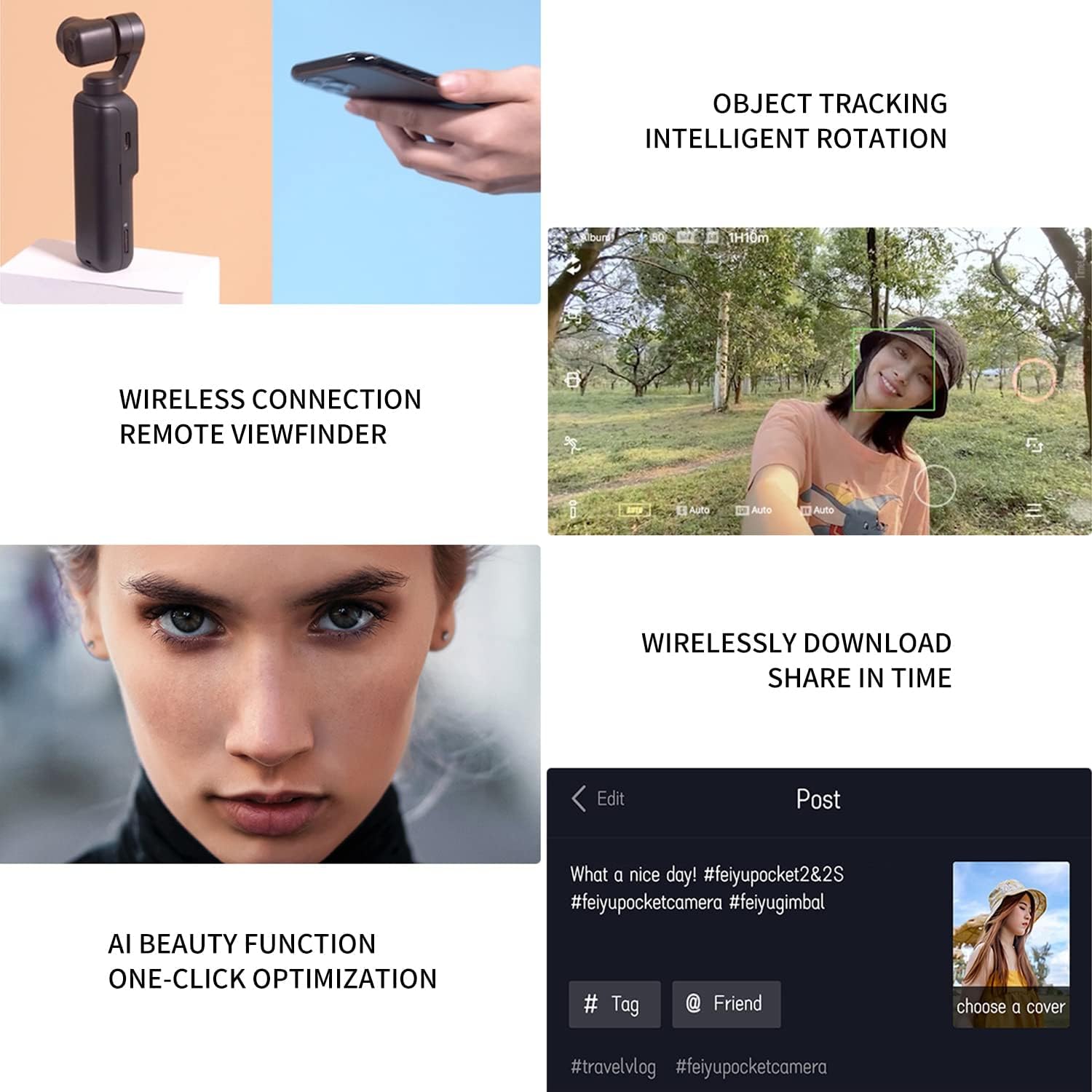
Figure 3: Wireless Connection and AI Beauty. This image shows the camera's wireless capabilities and AI beauty function.
5. Maintenance
5.1 Storage
When not in use, always place the FeiyuTech Pocket 2 back into its protective case to prevent damage to the gimbal and lens.
Video 8: Storing the Pocket Camera. This video demonstrates how to properly store the camera in its protective case.
5.2 Cleaning
Use a soft, lint-free cloth to clean the camera body and screen. For the lens, use a specialized lens cleaning cloth and solution. Avoid harsh chemicals or abrasive materials.
5.3 Gimbal Calibration
If the gimbal exhibits abnormal vibration or misalignment, perform a calibration. Place the camera vertically on a flat, stable surface and initiate calibration through the settings menu. Do not touch the device during calibration.
Video 9: Gimbal Calibration. This video guides you through the gimbal calibration process.
6. Troubleshooting
6.1 Gimbal Protection / Limit Prompt
If the gimbal experiences violent shaking or is obstructed, it may trigger a 'Gimbal Protected' or 'Limit' prompt to prevent damage. Tap the screen to resume normal operation. Avoid intentionally shaking the device during use or calibration.
Video 10: Gimbal Protection Mechanism. This video explains the gimbal protection feature and how to resolve related prompts.
6.2 SD Card Not Recognized / Error
Ensure you are using a compatible microSD card (UHS-I Speed Grade 3 or higher). If the card is new or causing errors, format it using the camera's settings menu. Incorrect insertion can also lead to recognition issues.
6.3 Flickering Issues in Video
If you notice flickering in your recorded videos, especially under certain lighting conditions, adjust the anti-flicker setting in the camera's menu (e.g., switch between 50Hz and 60Hz) to match your local power frequency.
7. Specifications
| Feature | Detail |
|---|---|
| Brand | FeiyuTech |
| Model Number | A1001891 |
| Item Weight | 12.5 ounces |
| Product Dimensions | 1.17 x 4.91 x 1.6 inches |
| Color | Black |
| Photo Sensor Technology | CMOS |
| Video Capture Resolution | 4K 60FPS (Max), 720p, 480p |
| Maximum Aperture | 2 f |
| Flash Memory Type | Micro SD (up to 512GB) |
| Video Capture Format | MP4 |
| Supported Audio Format | AAC |
| Screen Size | 1.3 Inches |
| Connectivity Technology | Wi-Fi |
| Special Features | Audio recording, 130° ultra-wide-angle lens, Magnetic Body, 4x Digital Zoom, Built-in speaker |
8. Warranty and Support
For warranty information and technical support, please refer to the official FeiyuTech website or contact their customer service directly. Keep your purchase receipt as proof of purchase.
Visit the official FeiyuTech Store: FeiyuTech Store on Amazon


