1. Introduction
The NIIMBOT D110 Label Maker is a portable, wireless label printer designed for efficient organization in office, home, and school environments. This device connects to your smartphone via Bluetooth, offering a wide range of templates and customization options through its dedicated application. It utilizes thermal printing technology, eliminating the need for ink or toner, and features a rechargeable battery for convenience.

Figure 1: NIIMBOT D110 Label Maker. This image shows the compact blue label maker with a roll of white labels, highlighting its portable design.
Key features include:
- Wireless Bluetooth connectivity for smart device integration.
- Support for various texts, numbers, graphics, symbols, logos, barcodes, and QR codes.
- Intelligent recognition of voices and pictures for easy label creation.
- Rechargeable battery providing up to 2 months of use on a single charge.
- BPA-Free Direct Thermal Technology, requiring no ink or toner.
- High-speed chips and 203 DPI for clear, high-definition printing.
2. Setup
2.1. Package Contents
Before starting, ensure all components are present in the package:
- NIIMBOT D110 Label Maker
- Label Tape Roll
- Type C Cable
- User Manual / Quick Start Guide
- Packing Box

Figure 2: Package Contents. This image displays the label maker, label tape, Type C cable, user manual, and packing box.
2.2. Charging the Device
The NIIMBOT D110 Label Maker comes with a built-in rechargeable battery. Before first use, it is recommended to fully charge the device using the provided Type C cable. The indicator light will show charging status.

Figure 3: Charging the Label Maker. The image illustrates the label maker connected to a power source via its USB-C port, indicating its rechargeable nature.
2.3. Installing Label Paper
To install the label paper:
- Open the paper cover by sliding the switch on the side of the device.
- Insert the label roll into the compartment, ensuring the tip of the tape is facing upwards and extends slightly out of the machine.
- Close the paper cover securely.

Figure 4: Label Paper Installation. This image highlights the internal mechanism for label paper, including the RFID chip for automatic recognition.
2.4. Downloading and Connecting the App
The NIIMBOT D110 operates via a dedicated smartphone application. Follow these steps to get started:
- Download the "NIIMBOT" app from your device's App Store (iOS) or Google Play Store (Android).
- Ensure Bluetooth is enabled on your smartphone.
- Long press the power button on the label maker to turn it on. The blue indicator light will flash.
- Open the NIIMBOT app and tap "Connect" to search for nearby printers.
- Select your D110 printer from the list to establish a Bluetooth connection.
Video 1: D110 Label Maker Operation Video. This video demonstrates the process of connecting the label maker to the NIIMBOT app and basic operation steps.
3. Operating Instructions
3.1. Creating and Printing Labels
The NIIMBOT app provides a user-friendly interface for designing and printing labels:
- Once connected, the app will automatically identify the template of the label paper in the printer.
- Tap on the displayed label template to enter the editing page.
- Use the various editing tools to add text, images, icons, barcodes, QR codes, and more. You can adjust font styles, sizes, alignment, and other properties.
- After designing your label, tap the "Print" button.
- Adjust the number of copies and print density as needed, then confirm to start printing.

Figure 5: Easy to Use for Beginners. This image shows a user creating labels on the NIIMBOT app, demonstrating its intuitive design interface.
3.2. Label Customization Options
The NIIMBOT app offers extensive customization:
- Text: Input custom text, numbers, and symbols.
- AI Design: Utilize intelligent recognition for voice and picture input.
- Image/Icon: Add pre-designed icons or import your own images.
- Barcode/QR Code: Generate and print various types of barcodes and QR codes.
- Templates: Access a library of multiple templates for different uses (e.g., kitchen, clothing, school, office).
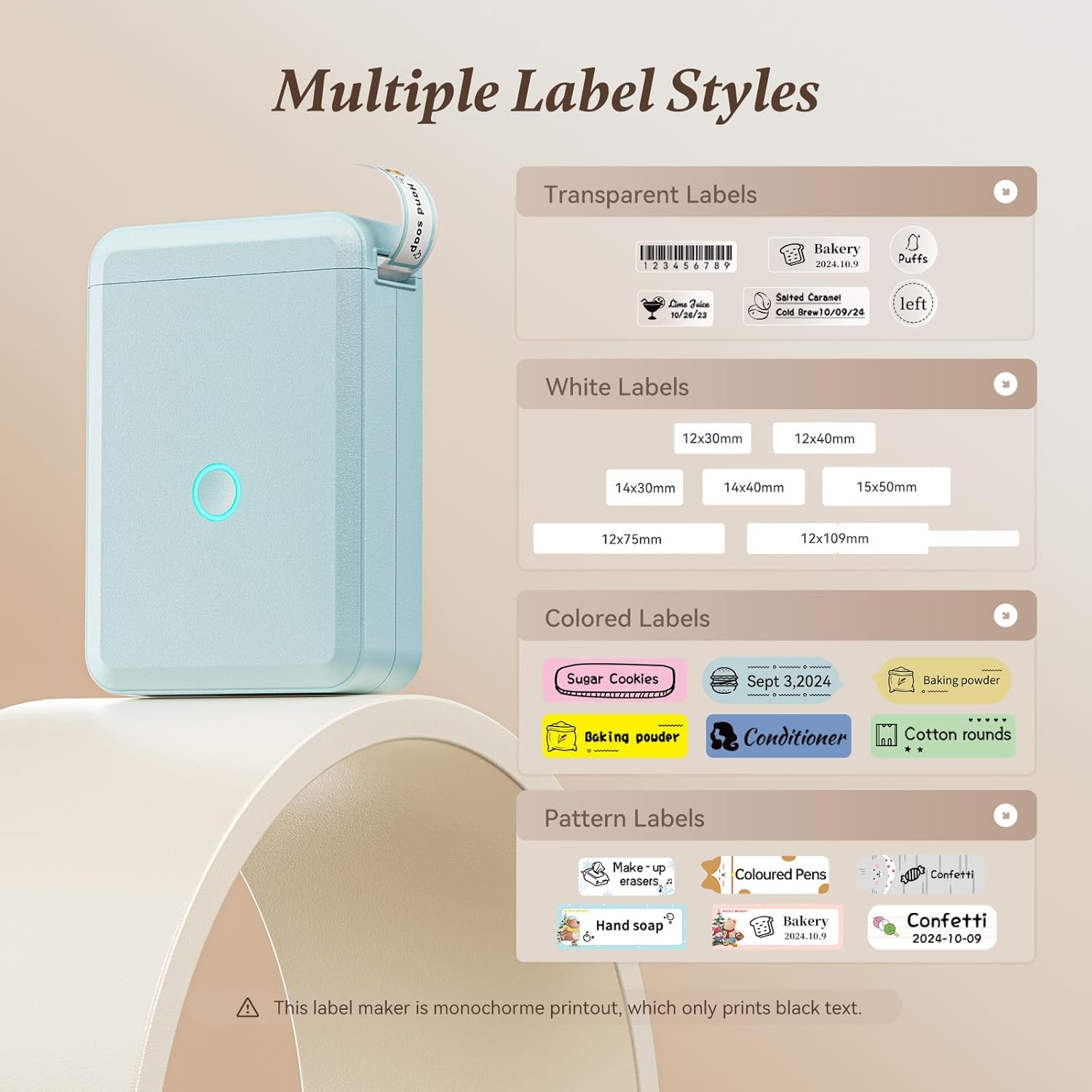
Figure 6: Multiple Label Styles. This image showcases the variety of label types supported, including transparent, white, colored, and pattern labels.
The labels are suitable for various applications:
- Home Organization: Kitchen storage, jar labels, classifying cosmetics, organizing clothes.
- School: Name labels, study notes, cable identification.
- Office: File classification, asset tagging, price tags for small businesses.

Figure 7: Best for Home Organization. This image illustrates practical uses of the label maker in kitchen storage, as name stickers, for jar labels, and organizing items in drawers.
4. Maintenance
4.1. Label Quality and Durability
The NIIMBOT D110 uses BPA-Free Direct Thermal Technology, meaning it does not require ink or toner. The labels are designed for durability:
- Waterproof: Labels maintain integrity when exposed to water.
- Oil-proof: Resistant to oil smudges and degradation.
- No Residue: Labels can be removed without leaving sticky residue.
For optimal print quality and automatic recognition, always use genuine NIIMBOT label paper.
Video 2: Small Label Maker for Phone Easy to Use Home Organization. This video highlights the ease of use and various applications of the label maker, including its waterproof labels.
5. Troubleshooting
5.1. Indicator Light Meanings
The indicator light on the device provides important status information:
- Blue light, slowly flashing: Standby mode.
- Blue light, fastly flashing: Charging.
- Steady Blue light: Bluetooth connected.
- Red light, slowly flashing: Battery low in Standby.
- Red light, fastly flashing: Battery low in Charging.
- Steady Red light: Battery low in Bluetooth connected.

Figure 8: Indicator Light Guide. This diagram explains the different states indicated by the blue and red lights on the label maker.
5.2. Connection Issues
If the printer is not connecting to the app:
- Ensure the label maker is powered on and the blue light is flashing or steady.
- Verify Bluetooth is enabled on your smartphone.
- Check the battery level of the label maker using the indicator light.
- Restart both the label maker and the smartphone's Bluetooth, then try connecting again.
6. Specifications
| Feature | Specification |
|---|---|
| Brand | NIIMBOT |
| Model Name | N-D-11 (D110) |
| Connectivity Technology | Bluetooth |
| Printing Technology | Thermal |
| Printer Output | Monochrome |
| Resolution | 203 x 203 DPI |
| Max Print Speed (Monochrome) | 45 ppm |
| Item Weight | 10.2 ounces |
| Product Dimensions | 0.8 x 2.7 x 3.9 inches |
| Batteries | 1 Lithium Ion batteries required (included) |
| Compatible Devices | Smartphones (Android, iOS) |
| Special Feature | Portable |
7. Warranty and Support
For warranty information and customer support, please refer to the contact details provided in your product's packaging or visit the official NIIMBOT website. Keep your purchase receipt for any warranty claims.


