
1. Introduction and Overview
The BOMGE 04F is a versatile 4-channel mini DJ audio sound mixer interface designed for various audio applications, including karaoke, live performances, church singing, podcast streaming, and more. It features a built-in sound card and audio interface for ultra-low noise recording to PC, mobile phones, or U disk. With its comprehensive connectivity options and 24-bit digital effects processor, the 04F mixer offers robust functionality in a compact design.

This image displays the compact and intuitive layout of the BOMGE 04F mixer, highlighting its various knobs and input/output ports for easy access and control.
2. Product Features
- Strong Compatibility & Low Noise: Built-in sound card and audio interface for ultra-low noise recording to PC, mobile phone, or U disk.
- Versatile Connectivity: Includes 2 mono inputs (XLR and unbalanced 1/4" plugs), 2 48V phantom power inputs, 1 stereo input, and USB/Bluetooth input. Features 6.3mm XLR and RCA sockets for connecting various devices.
- 24 DSP Effects: Integrated 24-bit digital effect processor with effects like soprano, devil bass, children's voice, 7 levels of delay, and 14 levels of Echo+delay.
- Multi-Mobile Live Broadcast Support: Connects with mobile phones via RCA, USB, and 6.5mm for simultaneous multi-mobile live broadcasting.
- Bluetooth Functionality: Allows users to stream music wirelessly from Pad, mobile phone, and computer, with built-in one-key controls for play, pause, and song switching.

This image illustrates the various input and output options available on the mixer, including XLR, 1/4" (6.35mm), RCA, and USB ports, facilitating diverse audio connections.
3. Setup Guide
3.1 Powering On
The BOMGE 04F mixer can be powered via USB. Connect the mixer to a compatible USB power source (e.g., computer USB port, USB wall adapter, or power bank) using a USB cable. Ensure the power source provides 5V DC.
3.2 Connecting Microphones and Instruments
- For microphones requiring phantom power (e.g., condenser microphones), connect them to the XLR inputs (MIC/LINE 1 or 2). Activate the +48V phantom power switch for the respective channel.
- For dynamic microphones or line-level instruments, use either the XLR or 1/4" (6.35mm) inputs.
- Stereo devices can be connected to the stereo input (IN L/R 3/4) using 1/4" (6.35mm) or RCA cables.

This image highlights the +48V phantom power switches for microphone inputs, essential for condenser microphones.
3.3 Connecting to PC/MAC for Recording
The BOMGE 04F can function as an audio interface for your computer. No special drivers are typically required for PC or MAC systems.
- Connect the mixer to your PC/MAC using a USB cable.
- Dial the button on the back of the BMG-04F to the "PC" end.
- Your computer should recognize the device (e.g., as "JiaLi BR21").
- You can now use the mixer for recording and audio editing with your preferred software.

This diagram provides a visual guide for connecting the mixer to a computer via USB for recording and outlines the various cable options for connecting to mobile phones for live streaming.
4. Operating Instructions
4.1 Adjusting Levels and EQ
- Use the GAIN knobs to adjust the input sensitivity for each channel.
- The HIGH and LOW knobs control the treble and bass frequencies for individual channels, allowing for sound shaping.
- Adjust the LEVEL knobs for each channel to set the individual volume in the mix.
- The MAIN OUT knob controls the overall output volume of the mixer.
4.2 Using DSP Effects
The BOMGE 04F features a 24-bit digital signal processor (DSP) with 24 built-in effects. Use the PROGRAM knob to select the desired effect. The EFF knob adjusts the amount of effect applied to the channels.
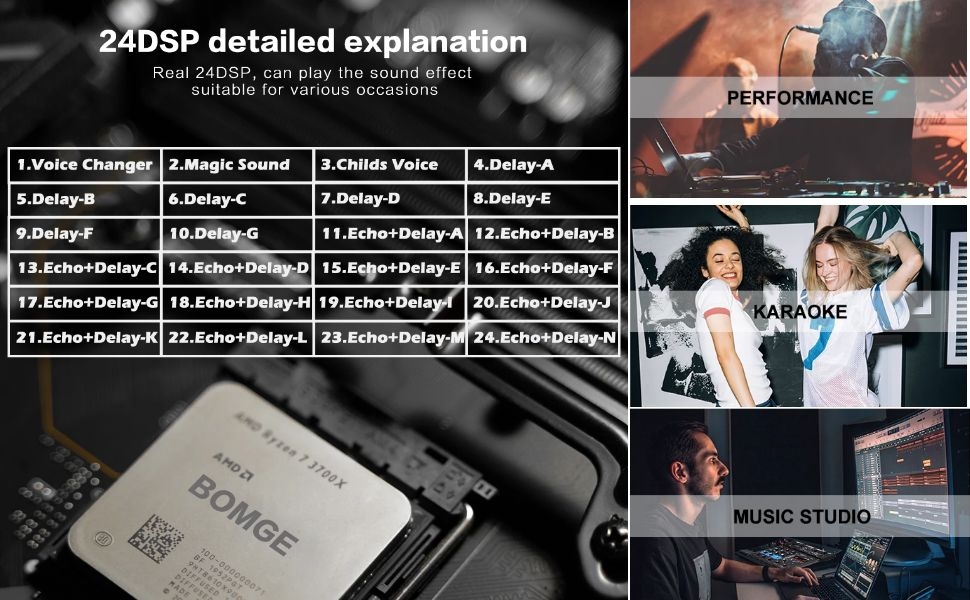
This image lists the 24 different DSP effects, including various voice changers, magic sounds, and multiple delay and echo+delay combinations, suitable for diverse audio needs.
4.3 Bluetooth Connectivity
To connect a Bluetooth device (e.g., smartphone, tablet, or computer) to the mixer:
- Ensure the mixer is powered on.
- Activate Bluetooth on your device and search for available devices.
- Select "BMG-24DSP" from the list to pair.
- Once connected, you can stream audio from your device to the mixer. Use the one-key controls (play, pause, switch songs) on the mixer for convenience.

This image shows how to connect a mobile device to the mixer via Bluetooth, enabling wireless audio streaming for music mixing or backing tracks.
4.4 Multi-Mobile Live Broadcast
The 04F mixer supports simultaneous live broadcasting to multiple mobile phones. You will need appropriate connecting cables and conversion plugs (not included in the product package).
- Connect your mobile phones to the mixer using RCA, USB, or 6.5mm cables, depending on your phone's input capabilities and the required adapters (e.g., OTG converters for USB).
- Ensure proper audio routing within your mobile broadcasting applications.
4.5 Compatible Devices

This image showcases the wide range of devices that can be connected to the mixer, including guitars, microphones, speakers, amplifiers, electronic organs, CDs, computers, headphones, and USB drives.
5. Recording
The BOMGE 04F allows for stereo recording directly to a U disk or to a PC/MAC via USB.
5.1 Recording to U Disk
- Insert a U disk (USB flash drive) into the designated USB port on the mixer.
- Press the REC button to start recording. The mixer will record the mixed audio directly to the U disk.
- Press REC again to stop recording.
5.2 Recording to PC/MAC
As detailed in Section 3.3, connect the mixer to your computer via USB. The mixer will act as an audio interface, allowing you to record the output using any digital audio workstation (DAW) software on your computer.

This image visually explains how to record audio directly to a USB flash drive or connect the mixer to a laptop for computer-based recording, highlighting the USB data cable connection.
6. Maintenance
- Cleaning: Use a soft, dry cloth to clean the surface of the mixer. Avoid using abrasive cleaners or solvents that may damage the finish.
- Storage: Store the mixer in a cool, dry place away from direct sunlight and extreme temperatures.
- Handling: Handle the mixer with care to prevent damage to knobs, faders, and ports. Avoid dropping or subjecting it to strong impacts.
7. Troubleshooting
- No Sound Output: Check all cable connections, ensure input levels (GAIN, LEVEL) are appropriately set, and verify the MAIN OUT volume is up. Confirm speakers or headphones are properly connected and powered.
- Microphone Not Working (Condenser): Ensure +48V phantom power is activated for the connected XLR channel. Check microphone cable integrity.
- Bluetooth Connection Issues: Ensure the mixer's Bluetooth mode is active and your device is within range. Disconnect and reconnect the Bluetooth pairing.
- Recording Problems: Verify the U disk is properly inserted and has sufficient free space. For PC recording, ensure the mixer is selected as the audio input device in your computer's sound settings and DAW software.
8. Specifications
| Feature | Specification |
|---|---|
| Item Weight | 1.08 pounds (490 Grams) |
| Product Dimensions | 9.65 x 9.46 x 2.76 inches (9.65"D x 9.46"W x 2.76"H) |
| Model Number | 04F |
| Color Name | WHITE-04F |
| Connector Type | RCA, USB, 1/4" plugs, XLR, 6.35mm |
| Hardware Interface | Bluetooth, USB 2.0 |
| Mixer Channel Quantity | 4 |
| Power Source | Corded Electric |
| Voltage | 48 Volts (Phantom Power) |
| Connectivity Technology | XLR, USB, Bluetooth |
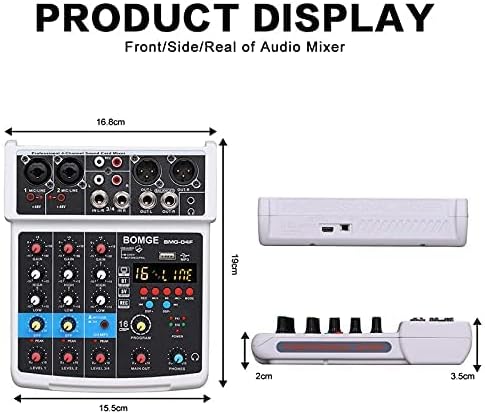
This image provides a visual representation of the mixer's dimensions in centimeters, indicating its compact size.
9. Official Product Video
This official product video from BOMGE MUSIC US provides a comprehensive overview of the 04F audio mixer, demonstrating its features, connectivity, and various DSP effects in action. It showcases the mixer's capabilities for different audio setups and applications.
10. Warranty and Support
For detailed warranty information, please refer to the manufacturer's official website or the warranty card included with your product. For further assistance or technical support, please contact BOMGE customer service.
An official User Guide (PDF) is available for download: Download User Guide (PDF)


