
1. Introduction
The Duex Max DS Portable Monitor is designed to enhance your productivity by providing an additional 14.1-inch Full HD IPS display for your laptop. This ultra-slim and lightweight monitor offers versatile connectivity options and multiple display modes, making it an ideal solution for professionals and students on the go.
2. Package Contents
Ensure all items are present in the box:
- DUEX MAX DS Mobile Pixels Monitor (x1)
- USB-C cable with USB-A adapter (x1)
- Mini HDMI to HDMI cable (x1)
- Metal adhesive plate (for laptops) (x4)
- Instruction manual (x1)
3. Key Features
- Ultra-Portable Design: A super light-weighted and ultra-slim 14.1-inch external screen, 30% lighter and nearly 50% slimmer than previous generations.
- Stable Mounting: Features a new mounting structure with a slimmer magnet system for stable support, preventing sliding.
- Flexible Orientation: Magnet dual sliding system and auto-orientation sensor allow seamless switching between left-side and right-side setups.
- Versatile Display Modes: Full 270° rotation with 180° Presentation Mode, Portrait (vertical) Mode, and Landscape (horizontal) Mode to fit various usage scenarios.
- Wide Compatibility: Works with Windows and Apple laptops, and other devices via USB C/USB A/HDMI.
- Plug and Play: Simple setup with minimal configuration required.
4. Setup Guide
4.1 Attaching the Monitor to Your Laptop
- Clean Laptop Surface: Use the included alcohol pad to clean the back surface of your laptop where the magnets will be placed. Allow 10 seconds for the surface to dry completely.
- Place Magnets: Carefully place the metal adhesive plates (magnets) towards the monitor side on the back of your laptop. Ensure they are centered and firmly adhered.
- Mount the Monitor: Align the Duex Max DS monitor with the installed magnets on your laptop. The monitor will securely attach magnetically.
4.2 Connecting the Monitor
The Duex Max DS offers flexible connectivity:
- USB-C Connection: If your laptop has a USB-C port with DisplayPort Alternate Mode (DP Alt Mode), connect the monitor using only the provided USB-C cable.
- USB-C with HDMI: For laptops with a USB-C port (without DP Alt Mode) and an HDMI port, connect the USB-C cable for power and the mini HDMI to HDMI cable for video signal.
- USB-A with HDMI: For laptops with only USB-A and HDMI ports, use the USB-C to USB-A adapter for power and the mini HDMI to HDMI cable for video signal.
The monitor is designed for plug-and-play functionality. Drivers should install automatically upon connection.
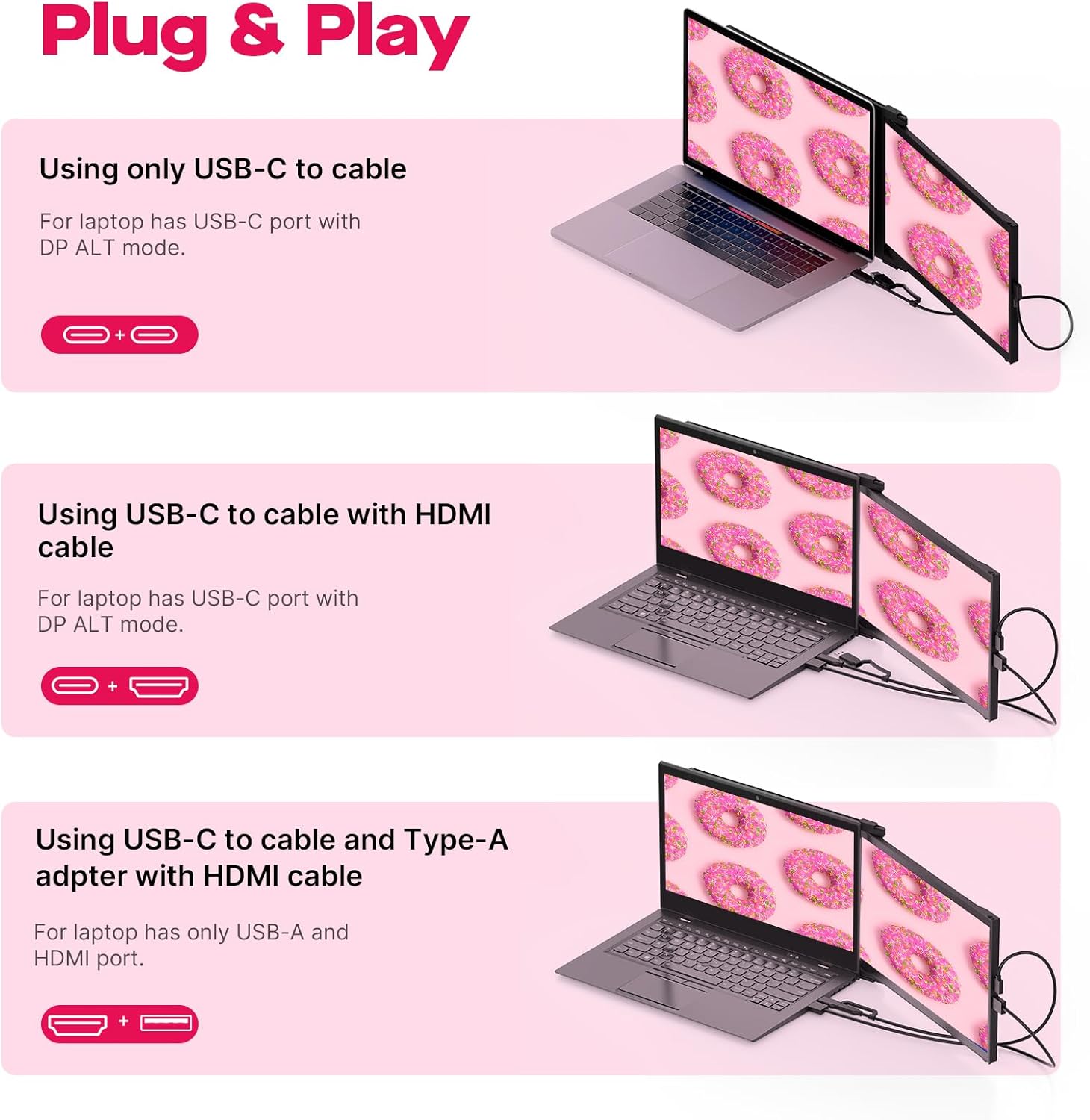
Figure 1: Connection options for the Duex Max DS monitor.
Video: Learn how to easily set up and connect your Duex Max DS portable monitor to your laptop.
5. Operating Instructions
5.1 Display Modes and Rotation
The Duex Max DS offers several flexible display modes:
- Landscape Mode: Standard horizontal display, ideal for general use and extending your desktop.
- Portrait Mode: Rotate the monitor 90 degrees for vertical display, suitable for coding, document viewing, or long web pages.
- Presentation Mode: Rotate the monitor 180 degrees to face an audience, perfect for sharing content during meetings.
- Kickstand Mode: Detach the monitor and use it as a standalone display with its integrated kickstand.
The auto-orientation sensor allows the device to quickly adjust the display orientation when switching between modes.

Figure 2: Versatile display modes and 270° rotation.
5.2 Adjusting Display Settings
The monitor features control buttons on its side for adjusting settings such as backlight, contrast, saturation, and color temperature. Refer to the on-screen menu for detailed options.
Video: See the Duex Max DS monitor in action, demonstrating its ability to enhance productivity.
6. Specifications
| Feature | Detail |
|---|---|
| Product Dimensions | 12.6 x 8.9 x 0.6 inches |
| Item Weight | 1.8 pounds |
| Standing Screen Display Size | 14.1 Inches |
| Aspect Ratio | 16:9 |
| Resolution | 1920 x 1080 Pixels (FHD 1080p) |
| Image Brightness | 300 nit |
| Total USB Ports | 1 (USB-C) |
| Screen Surface Description | Glossy |
7. Maintenance
- Cleaning: Use a soft, lint-free cloth to clean the screen. For stubborn smudges, lightly dampen the cloth with water or a screen-cleaning solution. Avoid harsh chemicals.
- Handling: Always handle the monitor with care. Avoid dropping it or applying excessive force.
- Storage: When not in use, fold the monitor securely against your laptop or store it in a protective sleeve to prevent scratches.
8. Troubleshooting
- No Display/Signal:
- Ensure all cables are securely connected to both the monitor and your laptop.
- Verify your laptop's display settings to ensure the external monitor is detected and configured correctly (e.g., extended or duplicated display).
- Try a different USB-C or HDMI port on your laptop, or a different cable if available.
- Flickering Screen:
- Check cable connections for looseness.
- Ensure your laptop is providing sufficient power to the monitor. If using USB-A, ensure the USB-A port provides enough power or try a powered USB hub.
- Update your laptop's graphics drivers.
- Incorrect Resolution/Scaling:
- Adjust the display resolution and scaling settings in your operating system (Windows Display Settings or macOS System Preferences).
9. Warranty and Support
The Duex Max DS attachable monitor for laptop comes with after-sales support. Our dedicated support team is always ready to assist with inquiries, provide technical support, and promptly resolve any concerns.
For further assistance, please refer to the contact information provided in your product packaging or visit the official Mobile Pixels website.

Figure 3: U.S. Local Customer Service available for support.


