
Introduction
The Infomir MAG 522W1 is a high-performance Linux set-top box designed to deliver a seamless user experience for 4K content. Powered by an Amlogic S905X2 chipset and a 25% more powerful ARM Cortex-A53 CPU, this device supports smooth 4K content playback at 60 frames per second. It offers robust features for streaming and media consumption, ensuring high-quality entertainment.
- Built-in 1 GB RAM and a 1T1R n Wi-Fi module for reliable connectivity.
- Runs on Linux 4.9 for optimal performance and user experience.
- Supports 4K resolution and HEVC (High Efficiency Video Coding) for superior video quality.
Product Overview
The MAG 522W1 is a compact and efficient device, measuring approximately 12 x 7.8 x 2.1 cm and weighing 431g. Its design focuses on functionality and ease of integration into your home entertainment system.
Device Layout

Figure 1: Angled front view of the Infomir MAG 522W1 Set-Top Box, showing a USB port on the side.

Figure 2: Rear view of the Infomir MAG 522W1 Set-Top Box, highlighting the power input, AV port, HDMI port, LAN port, USB port, and Fn button.
Ports and Connections
- Power Button: On/Off switch for the device.
- 12V 1A Power Input: Connect the provided power adapter here.
- AV Port: For analog audio/video output.
- HDMI 2.1 Output: Connect to your TV or display for high-definition video and audio. Supports HDCP.
- Ethernet (LAN) Port: For wired network connection (up to 100 Mbps).
- USB 2.0 Ports (x2): For connecting external storage devices (e.g., USB flash drives) or other peripherals.
- S/PDIF: Digital audio output.
Remote Control
The device comes with a compact remote control for easy navigation and control. It features dedicated shortcut buttons for popular streaming services.
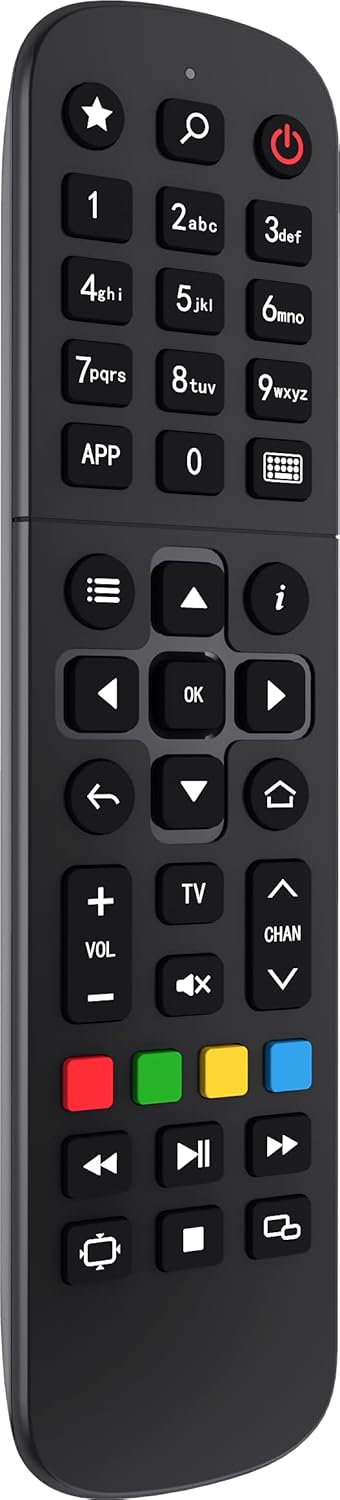
Figure 3: Close-up view of the remote control, showing navigation buttons, number pad, and dedicated buttons for Netflix, Disney+, YouTube, and Prime Video.
- Power Button: Turns the device on/off.
- Navigation Pad (OK button): For menu navigation and selection.
- Home Button: Returns to the main Google TV interface.
- Volume/Channel Buttons: Adjust volume and change channels.
- Voice Search Button: Activates Google Assistant for voice commands.
- Dedicated App Buttons: Quick access to Netflix, Prime Video, Disney+, and YouTube.
Package Contents
Upon unboxing your Infomir MAG 522W1, you should find the following items:
- Infomir MAG 522W1 Set-Top Box
- Remote Control
- 12V 1A Power Adapter
- HDMI Cable
- 2 x AAA Batteries (for remote control)
- User Manual
- USB Flash Drive (for additional storage)

Figure 4: The MAG 522W1 Set-Top Box alongside its remote control, illustrating the main components included in the package.
Setup Guide
Follow these steps to set up your Infomir MAG 522W1 and begin enjoying your media content.
1. Initial Connection
- Connect one end of the HDMI cable to the HDMI port on the MAG 522W1.
- Connect the other end of the HDMI cable to an available HDMI input on your television.
- Plug the 12V 1A power adapter into the power input port on the MAG 522W1.
- Plug the power adapter into a wall outlet.
- Turn on your television and select the correct HDMI input source.
Video 1: Unboxing and initial connection of a MAG555 Google TV box (0:00-0:10, 0:25-0:30, 0:40-0:50, 3:05-3:40, 4:05-4:15, 5:00-5:10, 5:30-5:40). The connection process is similar for the MAG 522W1. (Source: INFOMIR, Seller)
2. Remote Control Setup
- Open the battery compartment on the back of the remote control.
- Insert the 2 AAA batteries, ensuring correct polarity (+/-).
- Close the battery compartment.
3. Powering On and Initial Configuration
- Press the power button on the MAG 522W1 device. The Infomir logo should appear on your TV screen.
- Follow the on-screen prompts to select your language and region.
- You will be prompted to set up the device using the Google Home app on your smartphone or tablet. Scan the QR code displayed on the screen or manually enter the setup code. This method simplifies Wi-Fi and Google account setup.
- Alternatively, you can choose "Set up on TV instead" and follow the on-screen instructions to connect to your Wi-Fi network and log in with your Google account using the remote control.
- The device may download and install system updates. Allow this process to complete.
Video 2: Demonstration of the initial setup process for a MAG555 Google TV box, including powering on, language selection, and Google Home app integration (7:40-8:00, 8:00-8:10, 8:10-8:20, 8:20-8:30, 8:55-9:25, 9:40-9:50). The setup steps are largely similar for the MAG 522W1. (Source: INFOMIR, Seller)
4. Installing Apps and Customization
Once the initial setup is complete, you can customize your Google TV experience:
- Google Play Store: Access over 10,000 applications, including streaming services, games, and utilities.
- Magic Launcher: The device includes pre-installed apps like Magic Launcher and Ministra Pro from Infomir, which can enhance your IPTV experience.
- Multiple Profiles: Create different user profiles, including children's profiles with parental controls, to tailor recommendations and watchlists.
Operating Your MAG 522W1
The Google TV interface provides a centralized hub for all your entertainment needs.
Navigating the Google TV Interface
- For You: Personalized recommendations based on your viewing habits.
- Live: Access live TV channels from various providers (requires compatible apps/subscriptions).
- Apps: Browse and launch installed applications.
- Library: View your purchased movies and shows, and manage your watchlist.
Video 3: Overview of the Google TV interface on a MAG555 box, showcasing app navigation, live TV, and content recommendations (9:50-10:00, 10:00-10:10, 11:10-11:20, 11:20-11:30, 12:20-12:30, 12:40-12:50, 13:30-13:40). (Source: IntelliPath, Seller)
Streaming Services
The MAG 522W1 supports a wide range of streaming services, including Netflix, Disney+, Prime Video, Hulu, Tubi, and YouTube. Many of these can be accessed directly via dedicated buttons on the remote control.
Voice Control with Google Assistant
Use the built-in Google Assistant for hands-free control. Press the Voice Search button on your remote and speak your commands to search for content, open apps, or control smart home devices.
Media Playback via USB
Connect a USB flash drive to one of the USB 2.0 ports to play local media files. The device supports various video and audio formats, including MKV, MPG, MOV, MP3, and OGG.
Wireless Connectivity
- Wi-Fi: Connect to your home network wirelessly using the built-in 1T1R n Wi-Fi module.
- Bluetooth 5.0: Pair Bluetooth headphones or other audio devices for private listening.
- Google Cast (Chromecast): Wirelessly cast content from compatible apps on your smartphone, tablet, or computer directly to your TV.
Maintenance
To ensure the longevity and optimal performance of your Infomir MAG 522W1, follow these maintenance guidelines:
- Cleaning: Use a soft, dry cloth to clean the device. Avoid liquid cleaners or abrasive materials.
- Ventilation: Ensure the device is placed in a well-ventilated area to prevent overheating. Do not block any ventilation openings.
- Software Updates: Regularly check for and install system updates to ensure you have the latest features and security patches.
- Power Cycle: If the device becomes unresponsive, use the physical power button to turn it off and on again.
Troubleshooting
If you encounter issues with your MAG 522W1, refer to the following common problems and solutions:
- No Signal on TV:
- Ensure the HDMI cable is securely connected to both the MAG 522W1 and your TV.
- Verify that your TV is set to the correct HDMI input source.
- Check if the MAG 522W1 is powered on (the power button should be pressed).
- Disable HDMI-CEC on your TV if the box randomly turns off or affects other devices.
- Wi-Fi Connectivity Issues:
- Ensure the device is within range of your Wi-Fi router.
- Verify that your Wi-Fi password is entered correctly.
- Restart your Wi-Fi router and the MAG 522W1.
- Consider using a wired Ethernet connection for a more stable connection.
- Device Unresponsive or Freezing:
- Press and hold the power button on the device to perform a hard reset.
- Ensure the device has adequate ventilation to prevent overheating.
- Check for and install any pending system updates.
- Remote Control Not Working:
- Ensure the AAA batteries are correctly inserted and not depleted.
- Point the remote directly at the device.
- Check if the remote needs a software update (indicated on-screen during setup or in settings).
Specifications
| Feature | Detail |
|---|---|
| Model Name | Mag 522W1 (Item model number: MAG522W3) |
| Brand | Infomir |
| Operating System | Linux 4.9 |
| Chipset | Amlogic S905X2 |
| CPU | ARM Cortex-A53 (25% more powerful than previous models) |
| RAM | 1 GB |
| Storage | 512 MB NAND (expandable via USB) |
| Video Resolution | 4K (3840x2160) at 60 fps |
| Video Codecs | HEVC (H.265), HDR10 |
| Audio Support | AAC, Dolby Digital |
| Wi-Fi | Built-in 1T1R n Wi-Fi module |
| Bluetooth | Not explicitly listed for 522W1, but common in similar models. |
| Ports | HDMI 2.1, USB 2.0 x 1, Ethernet, AV, S/PDIF, 12V 1A Power Input |
| Dimensions | 12 x 7.8 x 2.1 cm |
| Weight | 431 g |
Warranty and Support
Warranty information for your Infomir MAG 522W1 is typically included in the user manual provided in the product packaging. For detailed warranty terms, technical support, and customer service, please refer to the official Infomir website or contact their customer support directly.
Always keep your proof of purchase for warranty claims.