
1. Setup and Installation
This section guides you through the initial setup of your ViewSonic TD2223 touch screen monitor.
1.1 Unboxing and Package Contents
Carefully remove all components from the packaging. Ensure all items listed below are present.

Figure 1.1: Package Contents. The box includes the TD2223 monitor, power cable, USB-C cable, USB Type-B Uplink Cable, and a QuickStart Guide.
1.2 Attaching the Stand
- Place the monitor face down on a soft, clean surface to prevent scratches.
- Align the stand base with the mounting holes on the back of the monitor.
- Secure the stand to the monitor using the provided screws.
1.3 Connecting Cables
The TD2223 offers flexible connectivity options. Connect the necessary cables as follows:
- Power Cable: Connect one end to the monitor's power input and the other to a power outlet.
- Video Input: Connect an HDMI, VGA, or DVI cable from your computer to the corresponding port on the monitor.
- USB Uplink Cable: For touch functionality, connect the USB Type-B uplink cable from the monitor to an available USB port on your computer.
- USB Hub: Use the integrated USB Type-A ports to connect peripherals.
- Audio: Connect audio cables to the Audio In/Out ports if external speakers or headphones are desired.
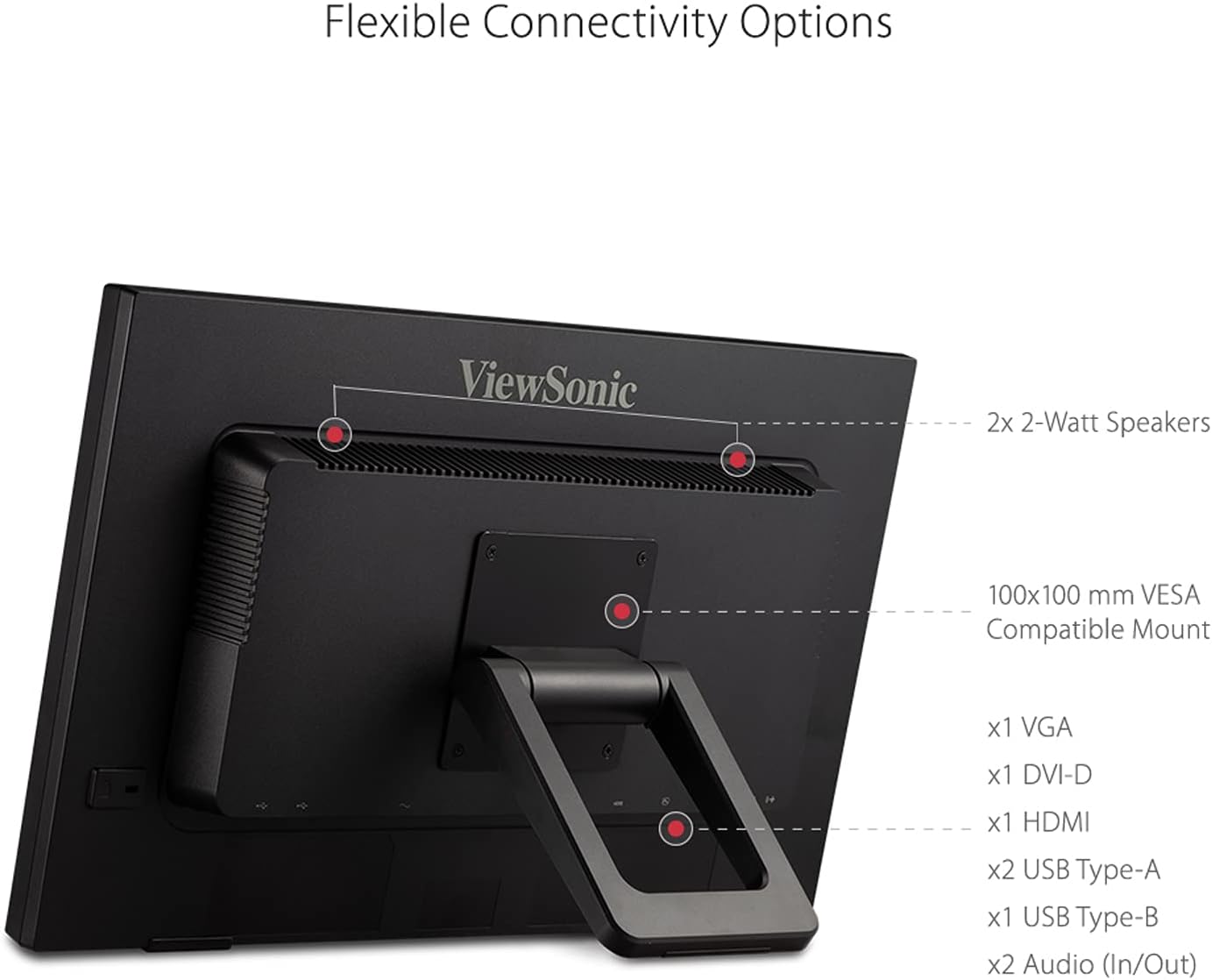
Figure 1.2: Flexible Connectivity Options. This image highlights the various input and output ports available on the back of the monitor.
2. Operating Instructions
Learn how to effectively use the features of your TD2223 monitor.
2.1 Touch Functionality
The TD2223 features robust 10-point IR touch technology, allowing for intuitive interaction with your content. Simply use your fingers to tap, swipe, pinch, and zoom.

Figure 2.1: 10-Point IR Touch. This image illustrates the multi-touch capabilities of the monitor.
2.2 Multi-OS Support
The monitor is compatible with various operating systems, including Windows, Android, Chrome OS, and Linux. For macOS users, touch and gesture controls can be accessed via ViewSonic's vTouch driver (not available for iPhone and iPad).

Figure 2.2: Multi-OS Compatibility. The monitor supports a wide range of operating systems for versatile use.
2.3 Eye Care Features
The TD2223 incorporates Flicker-Free technology and a built-in Blue Light Filter to reduce eye strain and fatigue during extended viewing periods, promoting improved productivity.
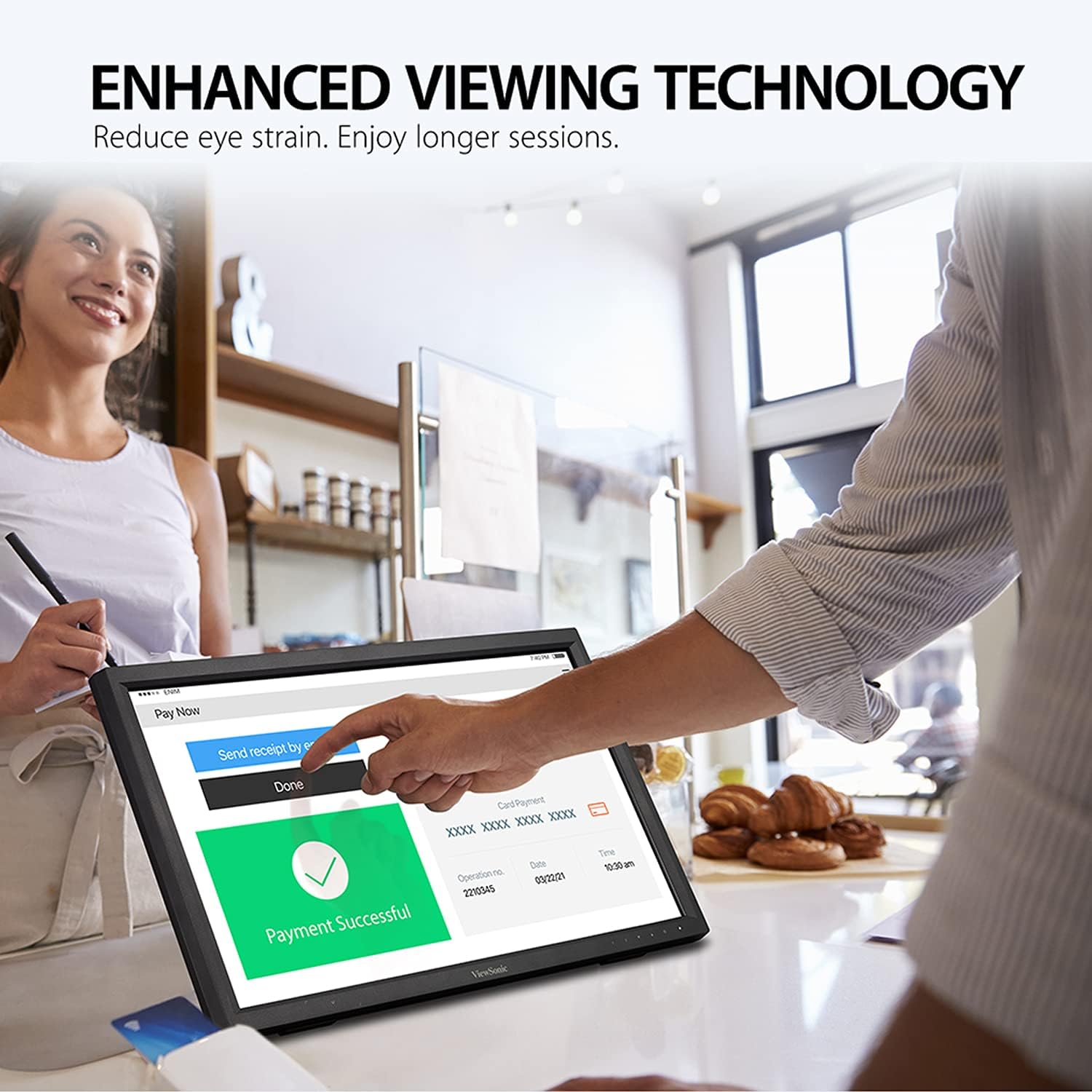
Figure 2.3: Enhanced Viewing Comfort. This image highlights the monitor's features designed to reduce eye strain.
2.4 On-Screen Display (OSD) Menu
Access the OSD menu using the buttons located on the bottom right of the monitor to adjust settings such as brightness, contrast, color temperature, and input source.
3. Maintenance
Proper care ensures the longevity and optimal performance of your monitor.
3.1 Cleaning the Monitor
- Always power off the monitor and unplug it before cleaning.
- Use a soft, lint-free cloth lightly dampened with water or a mild, non-abrasive screen cleaner.
- Do not spray liquid directly onto the screen or casing.
- Avoid using harsh chemicals, abrasive pads, or solvents.
3.2 Handling Precautions
The TD2223 features a 7H scratch-resistant surface, but proper handling is still recommended to prevent damage.
- Avoid placing heavy objects on the monitor.
- Do not expose the monitor to extreme temperatures or humidity.
- Transport the monitor carefully, preferably in its original packaging or a protective case.
4. Troubleshooting
This section addresses common issues you might encounter with your monitor.
4.1 No Display
- Ensure the power cable is securely connected to both the monitor and the power outlet.
- Verify that the video cable (HDMI, VGA, or DVI) is properly connected to both the monitor and your computer.
- Check if your computer is powered on and not in sleep mode.
- Press the 'Input' button on the monitor to cycle through available video inputs and select the correct one.
4.2 Touch Functionality Not Working
- Ensure the USB Type-B uplink cable is securely connected from the monitor to your computer.
- For macOS, ensure the ViewSonic vTouch driver is installed and configured correctly.
- Restart your computer and the monitor.
4.3 Image Quality Issues
- Adjust brightness, contrast, and color settings via the OSD menu.
- Ensure your computer's display resolution is set to 1920x1080 (Full HD) for optimal clarity.
- Check for any physical damage to the video cable or monitor screen.
5. Specifications
Key technical details for the ViewSonic TD2223 monitor.
| Feature | Specification |
|---|---|
| Product Dimensions | 4 x 20.5 x 13.1 inches |
| Item Weight | 9.9 pounds |
| Screen Size | 22 Inches |
| Resolution | 1920 x 1080 Pixels (FHD 1080p) |
| Aspect Ratio | 16:9 |
| Refresh Rate | 75Hz |
| Touch Technology | 10-Point Infrared (IR) Touch |
| Screen Surface | Glossy, 7H Scratch Resistant |
| Image Brightness | 250 cd/m² |
| Static Contrast Ratio | 1000:1 |
| Connectivity | HDMI, VGA, DVI, 3x USB Ports (1x USB Type-B Uplink, 2x USB Type-A Downstream), Audio In/Out |
| Special Features | Eye Care (Flicker-Free, Blue Light Filter), VESA-Mount Compatible (100x100 mm) |
6. Warranty and Support
This product is a manufacturer refurbished item. Please refer to the specific warranty information provided at the time of purchase for details regarding coverage and duration.
For technical support or service inquiries, please visit the official ViewSonic website or contact their customer service department. Ensure you have your model number (TD2223) and purchase details available.