
Kodak S2085F
KODAK S2085F Scanner User Manual
Model: S2085F
Introduction
This manual provides detailed instructions for the installation, operation, maintenance, and troubleshooting of your KODAK S2085F Scanner. The KODAK S2085F is a high-performance document scanner designed for efficient and reliable document capture, featuring an integrated A4 flatbed for handling exception documents and built-in image processing capabilities.
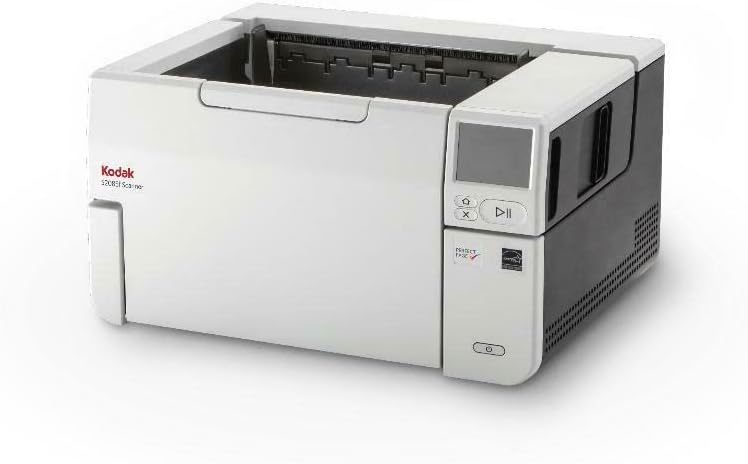
Figure 1: Front view of the KODAK S2085F Scanner, showing the document feeder and control panel.
1. Setup
1.1 Unpacking and Placement
Carefully remove the scanner and all accessories from the packaging. Place the scanner on a stable, flat surface with adequate space for document feeding and output. Ensure proper ventilation around the unit.
1.2 Connecting the Scanner
- Power Connection: Connect the power adapter to the scanner's power input and then to a suitable electrical outlet.
- Data Connection: Connect the scanner to your computer using the provided USB 3.0 cable or to your network via an Ethernet cable for network scanning capabilities.
1.3 Software Installation
Before operating the scanner, install the necessary drivers and scanning software from the included disc or the manufacturer's official website. Follow the on-screen instructions for a complete installation. The bundled software facilitates sending scanned data to various destinations.
2. Operating the Scanner
2.1 Loading Documents
- Automatic Document Feeder (ADF): For multiple pages, stack documents neatly in the ADF tray. Adjust the paper guides to fit the document width. The ADF supports up to 300 sheets.
- Integrated A4 Flatbed: For single pages, delicate documents, or bound materials, lift the flatbed cover and place the document face down on the glass. Close the cover gently.
2.2 Using the Color Touch Screen
The scanner features a color touch screen for easy navigation and operation. Use the touch screen to select scanning profiles, adjust settings, and initiate scans. Refer to the software documentation for configuring custom scan profiles and destinations.
2.3 Initiating a Scan
After loading documents and selecting your desired settings on the touch screen or through the scanning software, press the 'Scan' button on the control panel or initiate the scan from your computer. The scanner's built-in image processing will enhance OCR accuracy and reduce file sizes automatically.
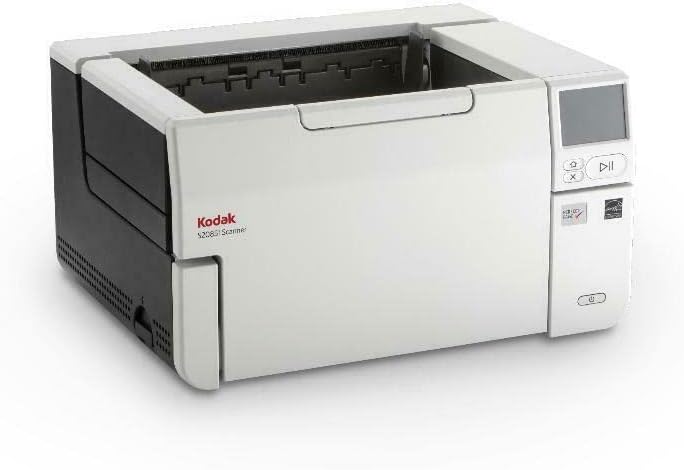
Figure 2: KODAK S2085F Scanner with the automatic document feeder (ADF) open, ready for document loading.
3. Maintenance
Regular maintenance ensures optimal performance and extends the lifespan of your scanner. Always power off and unplug the scanner before performing any cleaning or maintenance.
3.1 Cleaning the Scanner
- Exterior Cleaning: Use a soft, lint-free cloth lightly dampened with water or a mild, non-abrasive cleaner to wipe the exterior surfaces.
- Glass Flatbed: Clean the flatbed glass with a soft cloth and a non-abrasive glass cleaner. Ensure no streaks or residue remain.
- Imaging Hardware/Rollers: Periodically clean the imaging strips and rollers within the document feeder. Refer to the scanner's internal diagrams in the full user guide for precise locations. Use a specialized cleaning kit or a lint-free cloth with isopropyl alcohol as recommended by Kodak. Proper cleaning of these components is crucial to prevent image quality issues and error messages.
3.2 Consumables Replacement
Over time, certain parts like rollers may wear out. Consult the full product manual or Kodak's support website for information on replacement parts and recommended replacement intervals.
4. Troubleshooting
This section addresses common issues you might encounter. For more complex problems, refer to the comprehensive troubleshooting guide available on the Kodak support website.
4.1 Common Error Messages
- "Clean Imaging Hardware" Error: This error typically indicates that the internal imaging strips or rollers require cleaning. Follow the steps outlined in Section 3.1 for cleaning these components. If the error persists after cleaning, contact Kodak support.
- Paper Jam: If a paper jam occurs, the scanner will stop. Carefully open the scanner access covers and remove any jammed paper. Ensure all paper guides are correctly set for the document size.
4.2 Connectivity Issues
- Scanner Not Detected: Ensure the USB or Ethernet cable is securely connected to both the scanner and the computer/network. Verify that the scanner drivers are correctly installed. Try restarting both the scanner and the computer.
- Network Scanning Problems: Check network cable connections, IP address settings, and firewall configurations on your computer and network.
5. Specifications
| Feature | Detail |
|---|---|
| Product Dimensions | 14.6 x 18 x 10 inches |
| Item Weight | 37.1 pounds |
| Item Model Number | S2085F |
| Manufacturer | Kodak |
| Scanner Type | Document Scanner with Integrated A4 Flatbed |
| Connectivity Technology | USB 3.0, Ethernet |
| Resolution | 600 dpi |
| Color Depth | 48 bpp |
| Standard Sheet Capacity (ADF) | 300 sheets |
| Scanning Speed | 85 ppm (pages per minute) |
| Wattage | 36 watts |
6. Warranty and Support
For detailed warranty information, terms, and conditions, please refer to the warranty card included with your product or visit the official Kodak Alaris support website. Technical support and service options are available through Kodak Alaris. Please note that service calls or repairs outside of warranty terms may incur additional costs.
Contact Information: Please visit the Kodak Store on Amazon or the official Kodak Alaris website for the most current support contact details.
Ask a question about this manual
Ask about setup, troubleshooting, compatibility, parts, safety, or missing instructions. Manuals+ will review the question and use this page’s manual context to help answer it.