1. Introduction
Thank you for choosing the ZONKO 10-inch Android 11.0 Tablet. This device is designed for versatile use, offering a powerful computing experience with its Android 11 operating system, dual-band Wi-Fi connectivity, and ample storage. This manual will guide you through the setup, operation, and maintenance of your new tablet and its accompanying accessories.

2. What's in the Box
Please check the contents of your package to ensure all items are present:
- ZONKO 10-inch Android Tablet
- Wireless Keyboard
- Wireless Mouse
- Tablet Case
- Stylus
- USB-C Charging Cable
- Power Adapter

3. Product Overview
Familiarize yourself with the tablet's physical components and specifications.
Key Features:
- Display: 10.1-inch IPS FHD Screen (1280x800 resolution)
- Operating System: Android 11.0 (Google Certified)
- Processor: 1.6 GHz Quad-core
- Memory (RAM): 4GB
- Internal Storage (ROM): 64GB (Expandable up to 128GB via Micro SD Card)
- Battery: 6000mAh
- Connectivity: Dual-band Wi-Fi (2.4GHz + 5GHz), Bluetooth 5.0
- Cameras: 5MP Front, 13MP Rear

4. Setup
4.1 Initial Charging
Before first use, fully charge your tablet. Connect the USB-C cable to the tablet's charging port and the power adapter to a wall outlet. The battery indicator will show charging status.

4.2 Power On/Off
- To Power On: Press and hold the Power button until the ZONKO logo appears.
- To Power Off: Press and hold the Power button until a menu appears, then select "Power off".
4.3 Connecting to Wi-Fi
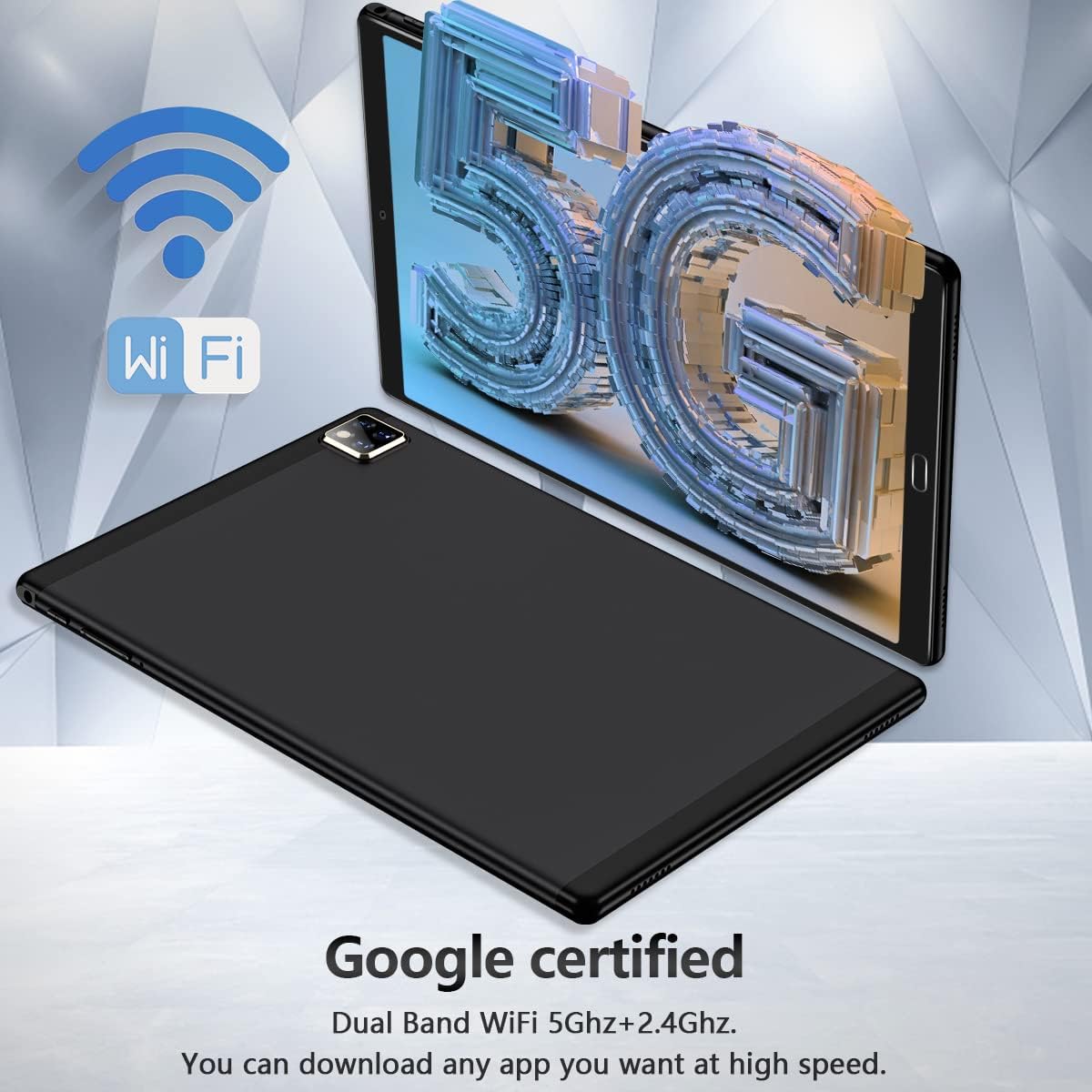
Your tablet supports both 2.4GHz and 5GHz Wi-Fi networks for optimal connectivity.
- Go to Settings > Network & internet > Internet.
- Turn on Wi-Fi.
- Select your desired Wi-Fi network from the list.
- Enter the password if prompted, then tap Connect.
4.4 Inserting a Micro SD Card
To expand storage, insert a Micro SD card (up to 128GB, not included) into the designated slot on the tablet. Ensure the tablet is powered off before inserting or removing the card.

4.5 Pairing Bluetooth Accessories (Keyboard & Mouse)
The included wireless keyboard and mouse connect via Bluetooth.
- Ensure the keyboard/mouse is charged and in pairing mode (refer to their individual manuals if needed).
- On your tablet, go to Settings > Connected devices > Pair new device.
- Select the keyboard/mouse from the list of available devices.
- Follow any on-screen prompts to complete pairing.
5. Operating the Tablet
5.1 Android 11 OS Basics
The tablet runs on Android 11, offering an intuitive user interface. Swipe down from the top for quick settings and notifications. Navigate using gestures or the traditional navigation bar.
5.2 Using the Google Play Store
As a Google Certified tablet, you have full access to the Google Play Store. Tap the "Play Store" icon on your home screen to browse and download millions of apps, games, movies, and books.
5.3 Camera Functionality
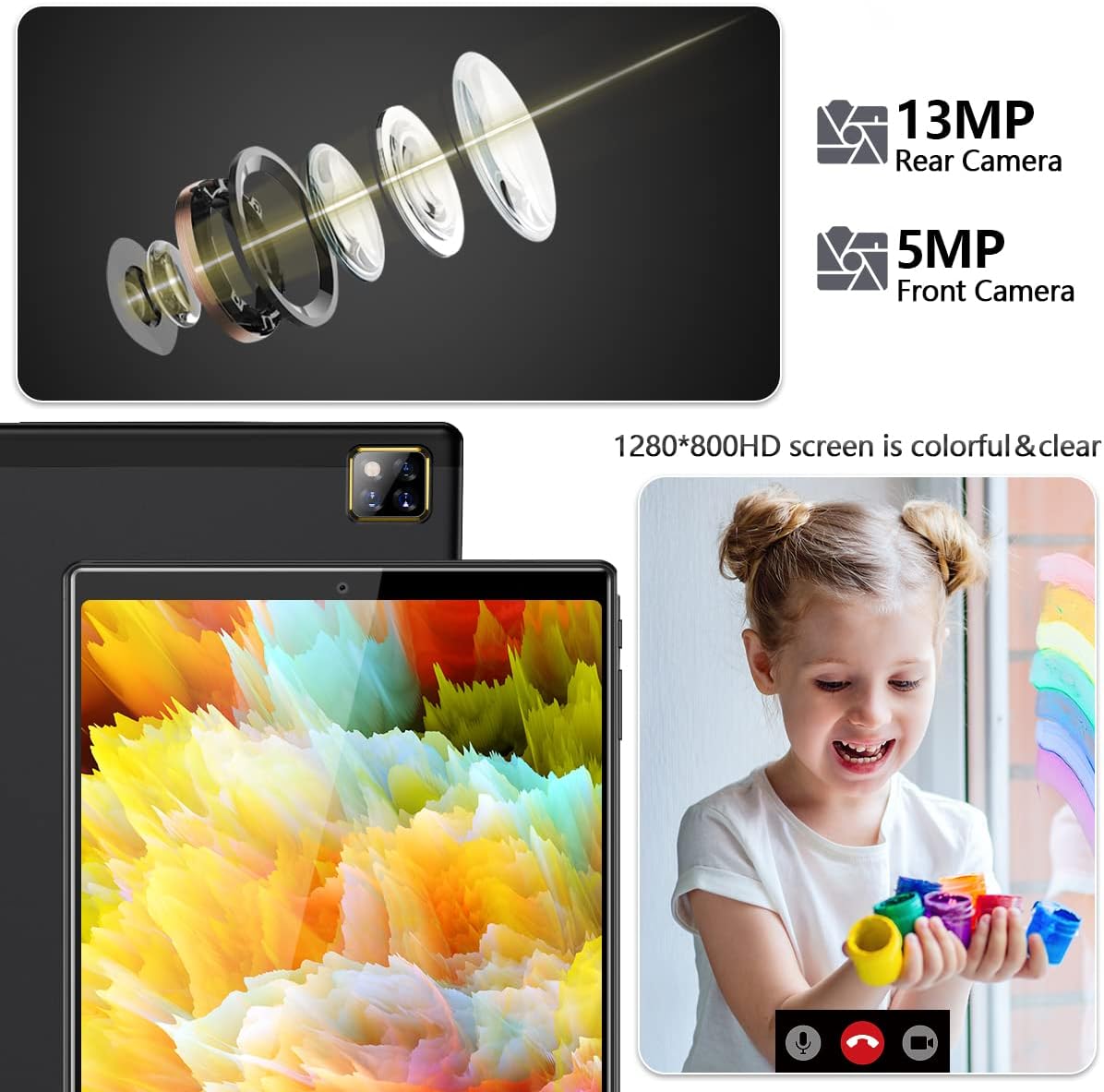
The tablet features a 5MP front camera and a 13MP rear camera for photos and video calls.
- Open the Camera app.
- Switch between front and rear cameras using the camera toggle icon.
- Tap the shutter button to take a photo or record a video.
6. Maintenance
6.1 Cleaning the Tablet
Use a soft, lint-free cloth to clean the screen and body of the tablet. Avoid using harsh chemicals or abrasive materials.
6.2 Software Updates
Periodically check for system updates to ensure optimal performance and security. Go to Settings > System > System update.
6.3 Storage Management
To maintain performance, regularly manage your tablet's storage. Delete unnecessary files, uninstall unused apps, and utilize the Micro SD card for media storage.
7. Troubleshooting
| Problem | Possible Solution |
|---|---|
| Tablet won't turn on | Ensure the tablet is charged. Press and hold the power button for 10-15 seconds to force a restart. |
| Wi-Fi connection issues | Check if Wi-Fi is enabled. Restart your router. Forget the network and reconnect. |
| Bluetooth accessories not pairing | Ensure accessories are in pairing mode and charged. Restart Bluetooth on the tablet. |
| Slow performance | Close unused apps. Clear cache. Free up storage space. Restart the tablet. |
| Apps crashing | Clear the app's cache and data (Settings > Apps). Reinstall the app. |
8. Specifications
| Feature | Detail |
|---|---|
| Model Number | K113 |
| Screen Size | 10.1 Inches |
| Screen Resolution | 1280 x 800 (HD) |
| Max Screen Resolution | 1920x1080 Pixels |
| Processor | 1.6 GHz Quad-core (Allwinner) |
| RAM | 4 GB |
| Hard Drive (ROM) | 64 GB |
| Expandable Storage | Up to 128GB via Micro SD Card |
| Operating System | Android 11 |
| Battery Capacity | 6000mAh Lithium Polymer |
| Front Camera | 5 MP |
| Rear Camera | 13 MP |
| Connectivity | 2.4G+5G Dual Band WiFi, Bluetooth 5.0 |
| Item Weight | 3.05 pounds |
| Product Dimensions | 9.45 x 6.3 x 0.31 inches |
| Color | Iron Black |
9. Warranty and Support
ZONKO offers lifetime technical support and a 365-day warranty for your tablet. If you encounter any problems with your product, please do not hesitate to contact us. Have your order number ready when contacting support for faster service.
For support, please visit the ZONKO store on Amazon or contact customer service through your purchase platform.


