1. Introduction
The HUION Kamvas Pro 16 (4K) is a professional pen display designed for digital art, graphic design, and creative work. This device features a 4K UHD display, full lamination, anti-glare glass, and a battery-free stylus with PenTech 3.0 technology. It is compatible with various operating systems and software, offering a natural and precise drawing experience.
Please note: The Kamvas Pro 16 (4K) Pen Display is not a standalone product. It requires connection to a computer, laptop, or Android device to function.
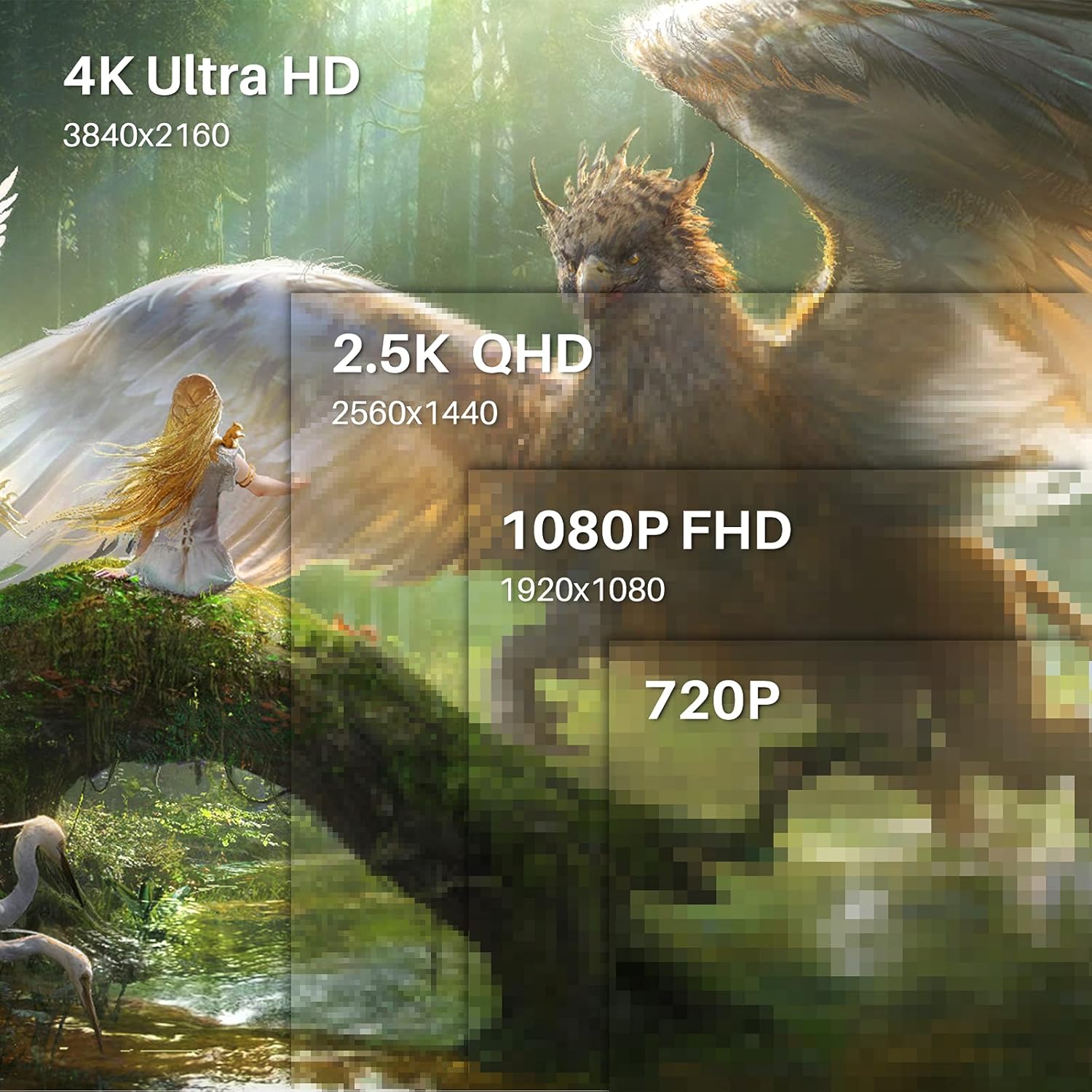
Image 1.1: The HUION Kamvas Pro 16 (4K) UHD Drawing Tablet.
2. What's in the Box
Verify that all items are present in the package:
- Pen Display
- Digital Pen
- Pen Holder PH05A
- Pen Nib x 10
- Pen Case
- Nib Clip
- 3-in-1 Cable
- USB Extension Cable
- USB-C to USB-C cable
- USB Power cable
- USB Power Adapter
- Foldable Stand
- Glove
- Cleaning Cloth
- Quick Start Guide

Image 2.1: All items included in the Kamvas Pro 16 (4K) package.
3. Setup
3.1 Connecting to a PC
The Kamvas Pro 16 (4K) offers flexible connectivity options. You can connect it via a single 3-in-1 HDMI cable or a full-featured USB-C cable and a power cable. Ensure your device supports USB 3.1 Gen1 and DP1.2 for full-featured USB-C connection.
Video 3.1: Instructions on how to connect the Kamvas Pro 16 (4K) to a PC.
3.2 Setting Screen Resolution (macOS)
For macOS users, it is important to correctly set the screen resolution to ensure optimal display quality. The native resolution of the Kamvas Pro 16 (4K) is 3840x2160.
Video 3.2: Guide on setting the screen resolution for Kamvas Pro 16 (4K) on macOS.
3.3 Adjustable Stand
The included multi-angle adjustable stand allows you to set the tablet at an angle between 20° and 80° for comfortable drawing. This helps in reducing strain during extended use.
4. Operating
4.1 Using the Digital Pen
The digital pen PW517 features PenTech 3.0, offering 8192 levels of pressure sensitivity and ±60° tilt support for precise and natural strokes. The pen is battery-free, eliminating the need for charging.

Image 4.1: Features of the HUION PenTech 3.0 Stylus.
4.2 Adjusting OSD Menu
The On-Screen Display (OSD) menu allows you to adjust various display settings such as brightness and color temperature. The PW517 digital pen can be used to navigate and adjust these settings.
Video 4.2: Guide on how to adjust the OSD Menu on Kamvas Pro 16 (4K).
5. Key Features
5.1 4K UHD Display
Experience stunning visual clarity with a 4K UHD resolution of 3840x2160 (16:9). This provides four times more pixels than a Full HD screen, revealing intricate details in your artwork. The display boasts a 120% sRGB color gamut volume and 16.7 million display colors for vibrant and natural color presentation.

Image 5.1: Comparison illustrating the clarity of 4K UHD display.
5.2 Full-Laminated Anti-Glare Screen
The full-laminated anti-glare screen minimizes reflections and reduces eye strain. It also ensures minimal parallax between the pen tip and the cursor, providing a natural pen-on-paper drawing experience.

Image 5.2: Illustration of anti-glare etched glass reducing reflections.
5.3 Dual USB-C Ports
Dual USB-C ports offer versatile connectivity, allowing easy connection to PCs, Macs, and Android devices. This simplifies cable management and provides a tidy workspace.
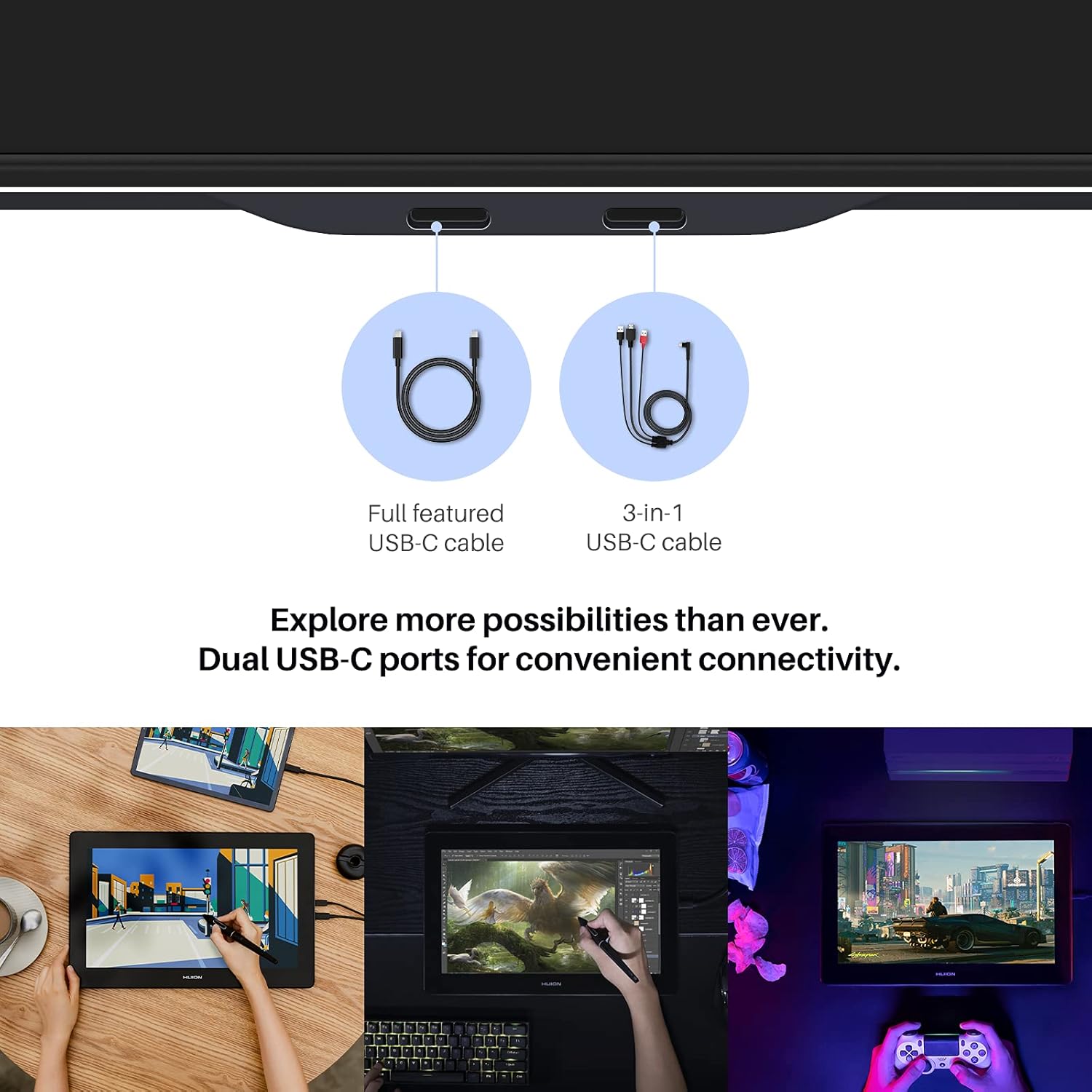
Image 5.3: Dual USB-C ports for convenient connectivity.
6. Compatibility
The Kamvas Pro 16 (4K) is broadly compatible with various operating systems and mainstream design software.
6.1 Supported Operating Systems
- Windows 7 or higher
- macOS 10.12 or higher
- Linux (Ubuntu 20.04 LTS)
- Android phones and tablets (supporting USB3.1 GEN and DP1.2)
6.2 Compatible Software
Works seamlessly with popular creative software including, but not limited to:
- Adobe Photoshop
- Corel Painter
- Comic Studio
- SAI
- Zbrush
- Medibang Paint

Image 6.1: Overview of compatible operating systems and software.
7. Specifications
| Feature | Detail |
|---|---|
| Product Dimensions | 13.6 x 7.65 x 0.1 inches |
| Item Weight | 7.65 pounds |
| Item Model Number | GT1561 |
| Connectivity Technology | USB-C to USB-C |
| Pressure Sensitivity | 8192 Levels |
| Operating System Compatibility | Android 6.0+, Linux (Ubuntu 20.04 LTS), Windows 7+, macOS 10.12+ |
| Special Features | 4K UHD resolution, 60° Tilt Support, Anti-Glare Glass, Full Lamination, USB-C Connection |
8. Maintenance
To ensure the longevity and optimal performance of your Kamvas Pro 16 (4K), follow these maintenance guidelines:
- Cleaning: Use the provided cleaning cloth to gently wipe the screen. Avoid harsh chemicals or abrasive materials.
- Storage: When not in use, store the tablet in a clean, dry place away from direct sunlight and extreme temperatures.
- Stylus Nibs: Replace the pen nibs when they show signs of wear to maintain drawing precision. Use the included nib clip for easy replacement.
- Cable Care: Handle connection cables carefully to prevent damage. Avoid bending or twisting them excessively.
9. Troubleshooting
If you encounter any issues with your Kamvas Pro 16 (4K), consider the following:
- No Display/Power: Ensure all cables are securely connected and the power adapter is functioning. If using a USB-C to USB-C connection, confirm your device provides sufficient power or connect the additional power cable.
- Pen Not Responding: Check if the pen nib is properly inserted. Reinstall the tablet driver on your computer.
- Incorrect Resolution: Refer to Section 3.2 for instructions on setting the screen resolution, especially for macOS.
- Driver Issues: Download the latest drivers from the official HUION website for your specific operating system.
10. Warranty and Support
For warranty information and technical support, please refer to the warranty policy document included in your product package or visit the official HUION website. Keep your purchase receipt as proof of purchase for warranty claims.
Official Website: www.huion.com