1. Introduction
Thank you for choosing the Bisofice Poooli Mini Thermal Photo Printer L1. This compact and portable printer allows you to print photos, labels, notes, and more directly from your smartphone via Bluetooth. This manual provides essential information for safe and effective use, including setup, operation, maintenance, and troubleshooting.
2. Safety Information
Please read all safety instructions before using the device to prevent injury or damage.
- Keep the printer away from water and high humidity.
- Do not expose the printer to extreme temperatures or direct sunlight.
- Avoid dropping or subjecting the printer to strong impacts.
- Use only the specified thermal paper. Other paper types may damage the print head.
- Do not attempt to disassemble or repair the printer yourself. Contact customer support for assistance.
- Keep out of reach of children.
- Charge the printer using the provided USB cable and a compatible power adapter (not included).
3. Package Contents
Verify that all items are present in your package:
- Bisofice Poooli Mini Thermal Photo Printer L1
- Thermal Paper Rolls (7 rolls total, including one pre-installed)
- USB Charging Cable
- Quick Start Guide

4. Product Overview
Familiarize yourself with the components of your Poooli L1 printer.

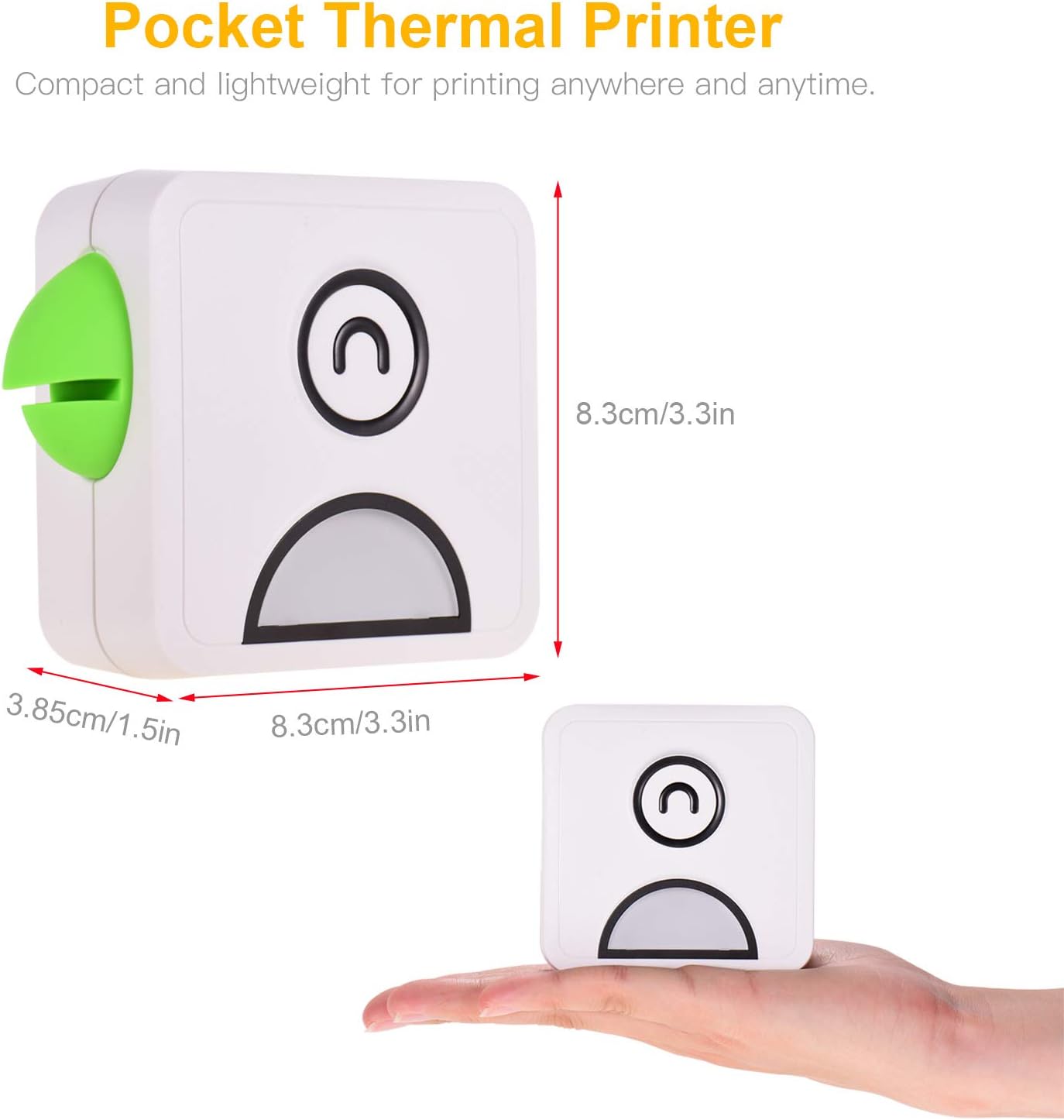
- Power Button: Located on the top surface, typically indicated by a circular icon.
- Paper Exit Slot: Where printed thermal paper emerges.
- Integrated Cutter: A safe and convenient mechanism for tearing off printed paper.
- USB Charging Port: For connecting the USB cable to charge the device.
- Indicator Light: Provides status information (e.g., charging, connected, printing).
- Parrot Beak Design: A decorative and functional element, featuring a built-in magnet for attaching notes or securing the printer to metallic surfaces.

5. Setup
5.1 Charging the Printer
Before first use, fully charge the printer. Connect the provided USB cable to the printer's charging port and the other end to a USB power adapter (e.g., phone charger) or a computer's USB port. The indicator light will show charging status (e.g., red for charging, green for fully charged).
5.2 Loading Thermal Paper
- Gently slide the printer cover to open it.
- Insert a roll of thermal paper into the compartment, ensuring the paper feeds out from the top.
- Pull a small length of paper out beyond the cutter.
- Close the printer cover firmly until it clicks into place.
5.3 App Installation
The Bisofice Poooli L1 printer requires a dedicated mobile application for operation. Search for "Poooli" in your smartphone's app store (Google Play Store for Android, Apple App Store for iOS) and install it. The app is compatible with Android 5.0 or above and iOS 10 or above.
5.4 Bluetooth Pairing
- Ensure the printer is charged and powered on. The indicator light may flash, indicating it's ready for pairing.
- Enable Bluetooth on your smartphone.
- Open the "Poooli" application.
- Within the app, navigate to the device connection or pairing section.
- Select the "Poooli L1" or a similar device name from the list of available Bluetooth devices.
- Once successfully paired, the printer's indicator light will typically turn solid blue or green, and the app will confirm the connection.

6. Operating Instructions
The Poooli app provides various functions for printing. Ensure your printer is connected via Bluetooth before proceeding.
6.1 Printing Photos and Images
- Open the Poooli app and select the "Photo Print" or "Image" option.
- Choose an image from your phone's gallery.
- Adjust the image as needed using the app's editing tools (e.g., filters, crop, rotate).
- Tap the print icon to send the image to the printer.
6.2 Printing Text and Notes
The app supports printing various text-based content:
- Messages/Notes: Type or paste text directly into the app's note editor.
- Lists: Create to-do lists or shopping lists.
- OCR Text Recognition: Use the app to scan text from an image and print it.
- Web Printing: Enter a web address to print the content of a webpage.


6.3 Using App Features
The Poooli app offers a variety of templates, emojis, and themes to customize your prints. Explore the app's interface to discover all available options for creative and functional printing.
7. Maintenance
7.1 Cleaning the Printer
To maintain optimal print quality and device longevity:
- Ensure the printer is powered off before cleaning.
- Use a soft, dry, lint-free cloth to wipe the exterior of the printer.
- If the print head appears dirty or print quality degrades, gently wipe the print head with a cotton swab lightly dampened with isopropyl alcohol. Allow it to dry completely before use.
- Do not use abrasive cleaners or solvents.
7.2 Replacing Thermal Paper
When the paper roll is depleted, follow the steps in section 5.2 "Loading Thermal Paper" to replace it with a new roll. Ensure you use thermal paper of the correct size (58mm width x 30mm diameter).

8. Troubleshooting
If you encounter issues with your printer, refer to the following common problems and solutions:
| Problem | Possible Cause | Solution |
|---|---|---|
| Printer does not turn on. | Low battery or no charge. | Charge the printer fully using the USB cable. |
| Cannot connect via Bluetooth. | Bluetooth is off on phone, printer is off, or not in pairing mode. | Ensure Bluetooth is enabled on your phone. Turn the printer off and on again. Re-attempt pairing through the Poooli app. |
| Poor print quality (faint, blank, or streaky prints). | Incorrect paper loading, low battery, dirty print head, or non-thermal paper. | Check if thermal paper is loaded correctly. Charge the printer. Clean the print head (see Section 7.1). Ensure you are using thermal paper. |
| Paper jam. | Improper paper loading or foreign object. | Open the cover, carefully remove any jammed paper, and re-load the paper correctly. |
| App not detecting printer. | App issue, Bluetooth connection lost. | Restart the Poooli app. Disconnect and re-pair the printer in your phone's Bluetooth settings and then in the app. |
9. Specifications
| Feature | Detail |
|---|---|
| Brand | Bisofice |
| Model Name | L1 |
| Print Technology | Thermal |
| Printer Output | Monochrome (Black and White) |
| Resolution | 200 DPI |
| Connectivity Technology | Bluetooth 4.0 (Wireless), USB (for charging) |
| Compatible Devices | Smartphones (Android 5.0+, iOS 10+) |
| Print Medium | Thermal Paper (Sticker, Label, Poster Paper) |
| Paper Roll Size | 58mm (width) x 30mm (diameter) |
| Battery | 1000 mAh (Built-in Lithium Battery) |
| Battery Energy Content | 2 Watt Hours |
| Special Feature | Portable, Inkless Printing, Magnetic Design |
| Product Dimensions | Approx. 8.3 x 8.3 x 3.85 cm (3.3 x 3.3 x 1.5 inches) |
| Product Weight | Approx. 500 grams |
| Color | White with Green accent (as pictured) |
10. Warranty and Support
Specific warranty details are not provided in the product information. For warranty claims or technical support, please refer to the retailer's return policy or contact Bisofice customer service directly through their official website or the contact information provided with your purchase.


