Introduction
The XTREME Studio PRO Web CAM (Model XCA21007BLK) is designed for high-definition video streaming and recording. It features 720P HD resolution, a built-in microphone for clear audio, and intelligent functions like auto-focus and auto white balance to ensure optimal video quality. This device offers a simple plug-and-play experience, requiring no additional software or drivers for installation.
Setup Instructions
Follow these steps to set up your XTREME Studio PRO Web CAM:
- Unpack the Webcam: Carefully remove the webcam from its packaging.
- Position the Webcam:
The webcam features a universal mounting bracket. Gently open the bracket and securely place the webcam on top of your computer monitor or laptop screen. Ensure it is stable and facing the desired direction.
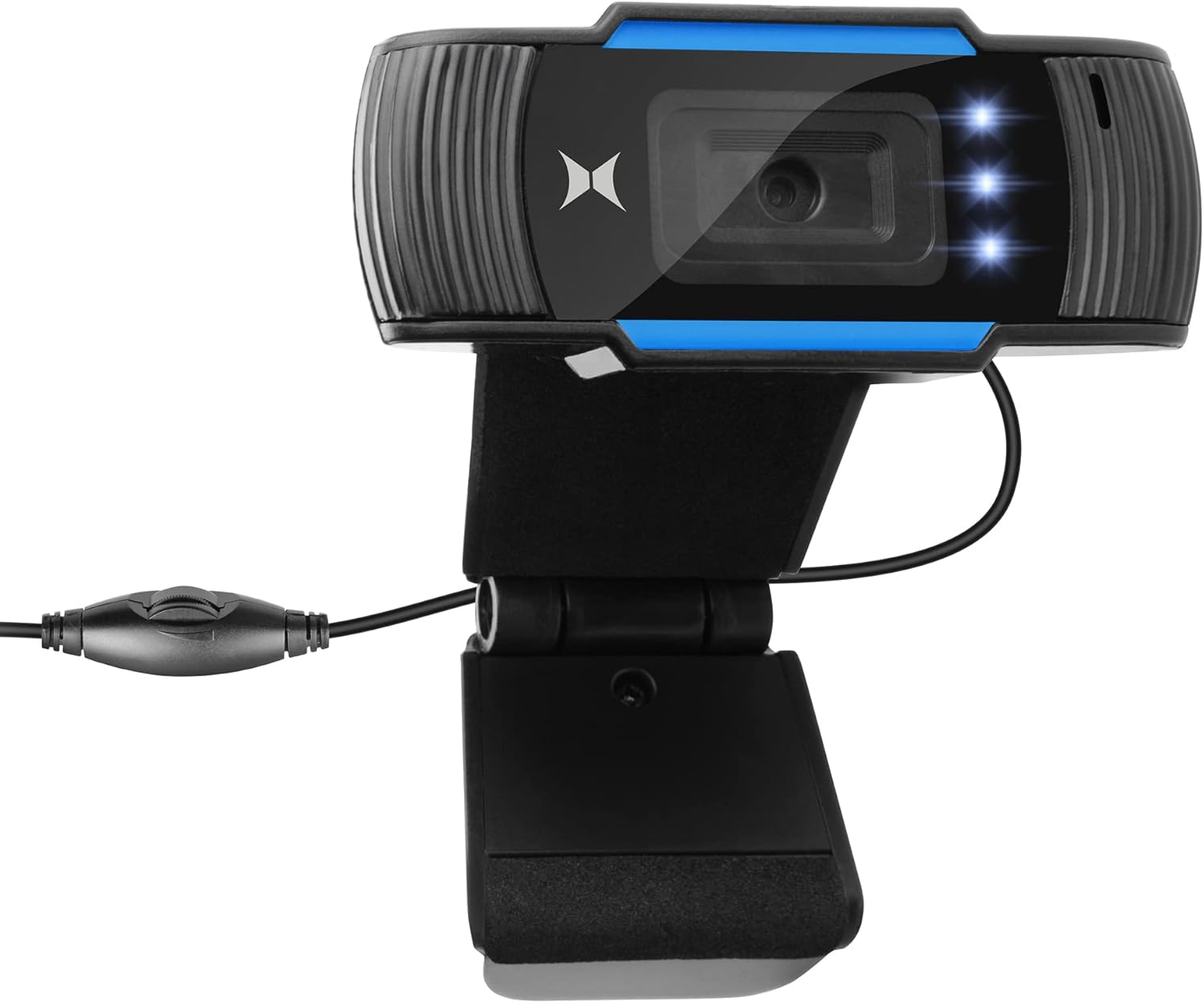
Image: The XTREME Studio PRO Web CAM securely mounted on top of a computer monitor, showing its adjustable bracket.
- Connect to Your Computer:
Locate the integrated USB cable attached to the webcam. Plug the USB connector into an available USB port on your PC. No additional tools or drivers are needed for installation.

Image: Front view of the XTREME Studio PRO Web CAM, highlighting the USB cable and the inline brightness control.
- Verify Connection: Your computer should automatically detect the webcam. You can verify its connection through your operating system's device manager or by opening a video conferencing application.
Operating Instructions
The XTREME Studio PRO Web CAM is designed for ease of use with various applications. Here’s how to operate it:
- Using with Applications:
Once connected, open your preferred video conferencing software (e.g., Zoom, Skype, Microsoft Teams) or streaming platform (e.g., OBS Studio, YouTube Live). Select the "XTREME Studio PRO Web CAM" as your video input device and its built-in microphone as your audio input device within the application's settings.
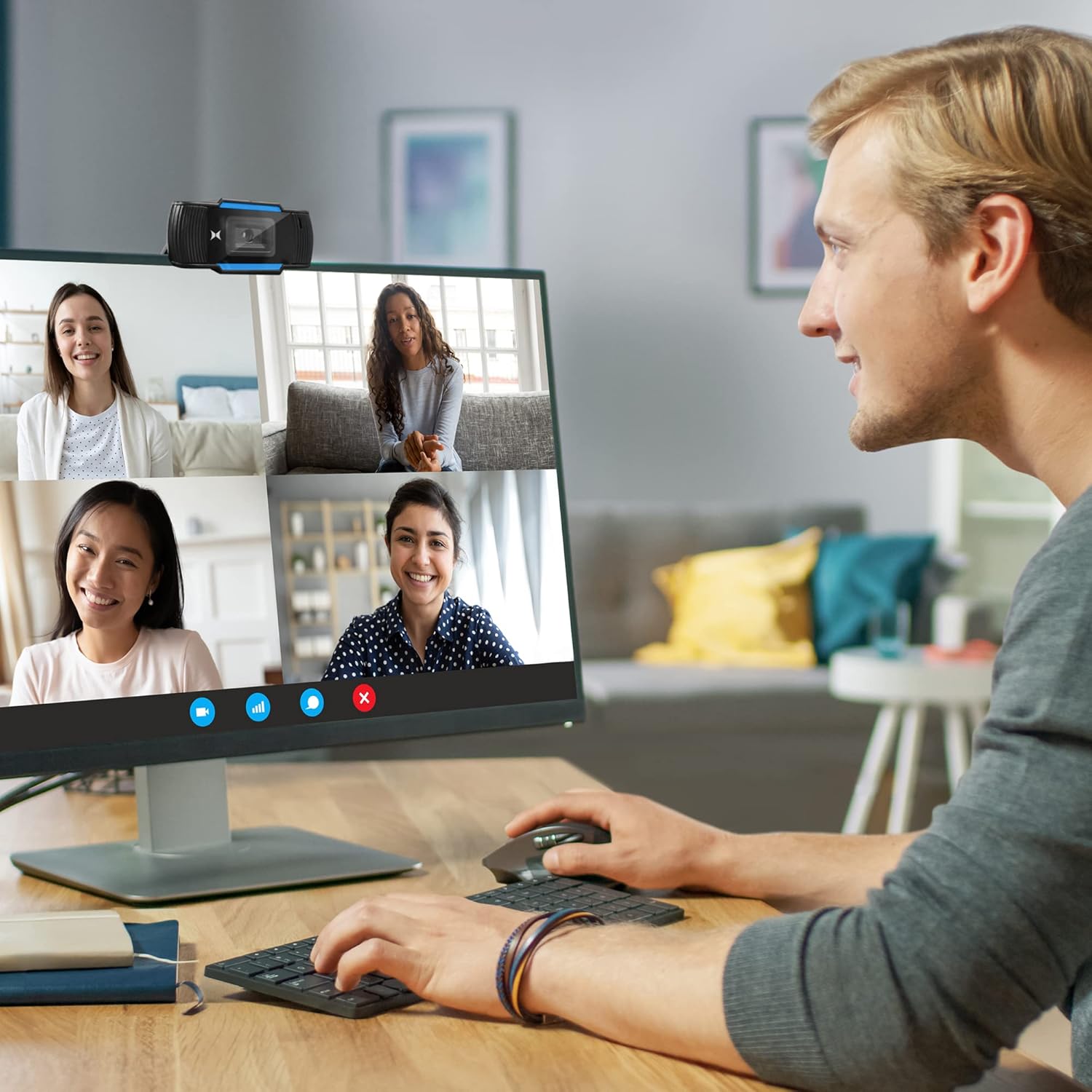
Image: A user engaged in a video conference call, with the XTREME Studio PRO Web CAM visible on top of their monitor.
- Auto-Focus Feature: The webcam automatically adjusts its focus to keep you clear and sharp, even if you move slightly. This feature works continuously to prevent blurry or pixelated images.
- Auto White Balance: This function automatically adjusts the color temperature to ensure natural and accurate colors in various lighting conditions, preventing your image from appearing too light or too dark.
- Built-in Microphone: The integrated microphone captures your voice clearly. Ensure it is selected as the audio input in your application settings for optimal sound quality.
- LED Brightness Control: If your model includes an inline brightness control on the USB cable, use it to adjust the intensity of the built-in LED lights for improved illumination in low-light environments.
Maintenance
To ensure the longevity and optimal performance of your webcam, follow these simple maintenance guidelines:
- Cleaning the Lens: Gently wipe the webcam lens with a soft, lint-free cloth. For stubborn smudges, slightly dampen the cloth with a lens cleaning solution. Avoid abrasive materials or harsh chemicals.
- Cleaning the Body: Use a dry, soft cloth to clean the body of the webcam. Do not use liquid cleaners directly on the device.
- Storage: When not in use for extended periods, store the webcam in a clean, dry place away from direct sunlight and extreme temperatures.
- Cable Care: Avoid bending or twisting the USB cable excessively to prevent internal damage.
Troubleshooting
If you encounter issues with your XTREME Studio PRO Web CAM, refer to the following common solutions:
| Problem | Possible Solution |
|---|---|
| Webcam not detected by computer. |
|
| No video feed in application. |
|
| No audio from the built-in microphone. |
|
| Image appears blurry or out of focus. |
|
| Video is too dark or too bright. |
|
Specifications
Key technical specifications for the XTREME Studio PRO Web CAM (Model XCA21007BLK):
- Model Number: XCA21007BLK
- Product Dimensions: 2.13 x 3.46 x 2.13 inches
- Item Weight: 4.5 ounces
- Connectivity Technology: USB
- Video Capture Resolution: 480p (Note: The product description states 720P HD, but specifications list 480p. Please refer to product packaging for definitive resolution.)
- Photo Sensor Technology: BSI CMOS
- Maximum Focal Length: 1
- Supported Audio Format: WMA
- Video Capture Format: ASF
- Screen Size: 2.3 Inches (This specification typically refers to a display screen, which may not be present on all webcam models.)
- Color: ONE COLOR (Black with blue accents)
- Manufacturer: XTREME
Note: Specifications are subject to change without notice. For the most accurate and up-to-date information, please refer to the product packaging or manufacturer's official website.
Warranty Information
This product is covered by a limited manufacturer's warranty. Please refer to the warranty card included in your product packaging or visit the official XTREME website for detailed terms and conditions, including warranty period and claim procedures.
Customer Support
For technical assistance, troubleshooting not covered in this manual, or general inquiries, please contact XTREME customer support. Contact information can typically be found on the product packaging or the official XTREME website.
Online Resources: Visit the XTREME website for FAQs, updated drivers (if applicable), and additional support materials.