
1. Introduction
Thank you for choosing the GIM CF-P30 120mm RGB LED Case Fan. This product is designed to provide efficient cooling for your computer system while offering customizable RGB lighting effects. This manual provides detailed instructions for installation, operation, and maintenance to ensure optimal performance and longevity of your fans.
2. Product Features
- Strong Heat Dissipation: 120mm fan with 800-1500 RPM speed, capable of improving airflow up to 48.5 CFM for effective cooling.
- Synchronizable RGB Lighting: Compatible with 5V 3-pin addressable RGB headers on motherboards for software control (e.g., ASUS Aura Sync, Gigabyte RGB FUSION, MSI Mystic Light Sync).
- RF Wireless Remote Control: Allows easy adjustment of fan speed, LED speed, lighting effects, and brightness without opening the PC case.
- Quiet Operation & Long Lifespan: Features a revised curve blade design and hydraulic bearing technology, resulting in a maximum noise level of 21 dB(A) and a lifespan exceeding 40,000 hours.
- Multiple RGB Lighting Modes: Offers 7 solid colors in Solid Mode and 87 dynamic color modes in Multicolor mode.
3. Package Contents
Please check the package contents upon unboxing:
- 3 x GIM CF-P30 120mm RGB LED Case Fans
- 1 x RF Wireless Remote Control
- 1 x Control Hub/Controller
- Mounting Screws (quantity sufficient for 3 fans)
4. Setup and Installation
4.1 Physical Installation
- Identify suitable mounting locations within your PC case (e.g., front, top, rear, bottom).
- Align each fan with the screw holes on the case or radiator.
- Secure each fan using the provided mounting screws. Ensure the fan is oriented correctly for desired airflow (intake or exhaust).
4.2 Wiring Diagram
Follow the wiring diagram below to connect the fans and control hub to your power supply and motherboard.

Image: Wiring diagram illustrating the connections for the GIM RGB LED Case Fans. It shows fans connecting to a central control hub, which then connects to a SATA power source, a 4-pin PWM header on the motherboard for fan speed control, and a 5V 3-pin ARGB header on the motherboard for RGB lighting synchronization.
- Connect each GIM RGB LED Case Fan to the designated ports on the control hub.
- Connect the SATA power cable from the control hub to an available SATA power connector from your PC's power supply unit (PSU).
- For fan speed control, connect the 4-pin PWM cable from the control hub to a 4-pin PWM fan header on your motherboard.
- For RGB lighting synchronization with your motherboard, connect the 5V 3-pin ARGB cable from the control hub to a compatible 5V 3-pin addressable RGB header on your motherboard. Note: Do not connect to a 12V RGB header, as this may damage the LEDs.
5. Operating Instructions
5.1 Using the RF Wireless Remote Control
The included RF wireless remote control allows for convenient adjustment of fan and lighting settings.

Image: Two GIM RGB LED Case Fans showcasing different color modes, with text indicating '87 Multicolor modes' and '7 Solid Modes', highlighting the variety of lighting options available.
- Power On/Off: Use the designated button to turn the fan lights on or off.
- Fan Speed Adjustment: Increase or decrease the fan's rotational speed.
- LED Speed Adjustment: Control the speed of dynamic lighting effects.
- Lighting Effects Selection: Cycle through various pre-programmed RGB lighting modes, including 7 solid colors and 87 multicolor options.
- Brightness Adjustment: Adjust the intensity of the LED lighting.
5.2 Motherboard Synchronization
If connected to a compatible 5V 3-pin ARGB header on your motherboard, you can control the fan lighting through your motherboard's RGB software (e.g., ASUS Aura Sync, Gigabyte RGB FUSION, MSI Mystic Light Sync). Refer to your motherboard's manual for specific instructions on using its RGB control software.
6. Maintenance
Regular maintenance helps ensure the longevity and optimal performance of your GIM CF-P30 fans.
- Dust Removal: Periodically clean the fan blades and housing to prevent dust buildup, which can impede airflow and increase noise. Use compressed air or a soft brush. Ensure the PC is powered off before cleaning.
- Inspection: Occasionally check fan cables for secure connections and signs of wear or damage.
7. Troubleshooting
- Fans Not Spinning:
- Ensure the SATA power cable from the control hub is securely connected to the PSU.
- Verify that the 4-pin PWM cable from the control hub is correctly connected to the motherboard.
- Check BIOS/UEFI settings to ensure fan headers are enabled and configured correctly.
- RGB Lights Not Working/Incorrect Colors:
- Confirm the 5V 3-pin ARGB cable from the control hub is securely connected to a 5V 3-pin addressable RGB header on the motherboard, not a 12V 4-pin header.
- If using motherboard sync, ensure the motherboard's RGB software is installed and configured correctly.
- If using the remote control, ensure it has a working battery and is pointed towards the control hub (if line-of-sight is required, though RF typically doesn't).
- Remote Control Not Responding:
- Check the battery in the remote control and replace if necessary.
- Ensure the control hub is receiving power.
8. Specifications
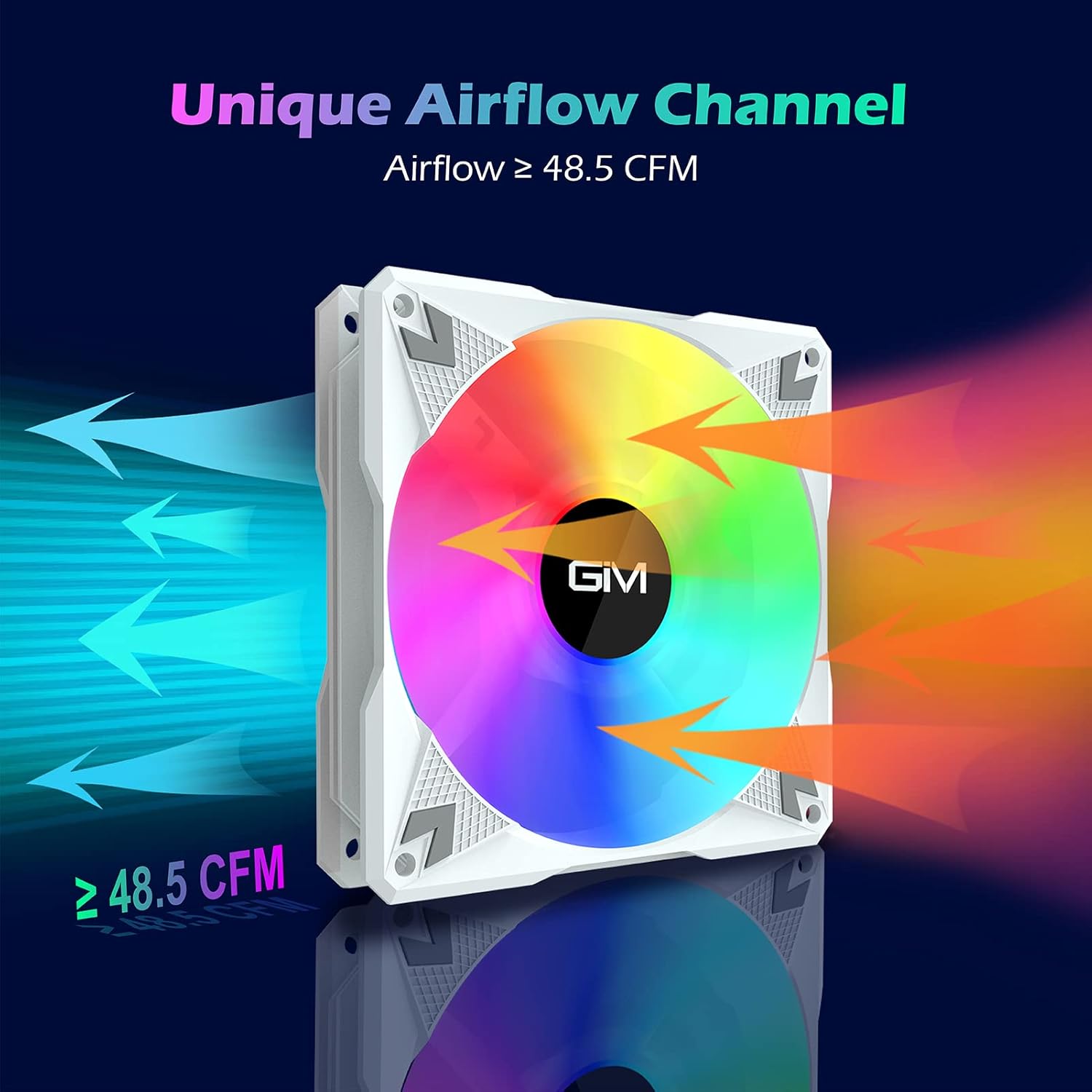
Image: A GIM RGB LED Case Fan illustrating its unique airflow channel, with arrows indicating airflow direction and a label showing 'Airflow ≥ 48.5 CFM', emphasizing its strong heat dissipation capability.
| Feature | Specification |
|---|---|
| Brand | GIM |
| Model | CF-P30 |
| Fan Size | 120mm |
| Rotational Speed | 800-1500 RPM |
| Airflow | Up to 48.5 CFM |
| Noise Level | Max. 21 dB(A) |
| Bearing Type | Hydraulic Bearing |
| Lifespan | > 40,000 hours |
| Power Connector (Fan) | 3-Pin |
| Power Connector (Hub) | SATA |
| RGB Connector | 5V 3-Pin Addressable RGB |
| Voltage | 12V (Fan), 5V (RGB) |
| Material | Polycarbonate |
| Compatible Devices | Desktop PC |

Image: An exploded view diagram illustrating the hydraulic bearing technology within the GIM fan, highlighting its quiet operation (≤ 21 dB(A)) and extended lifetime (≥ 40,000 hours).
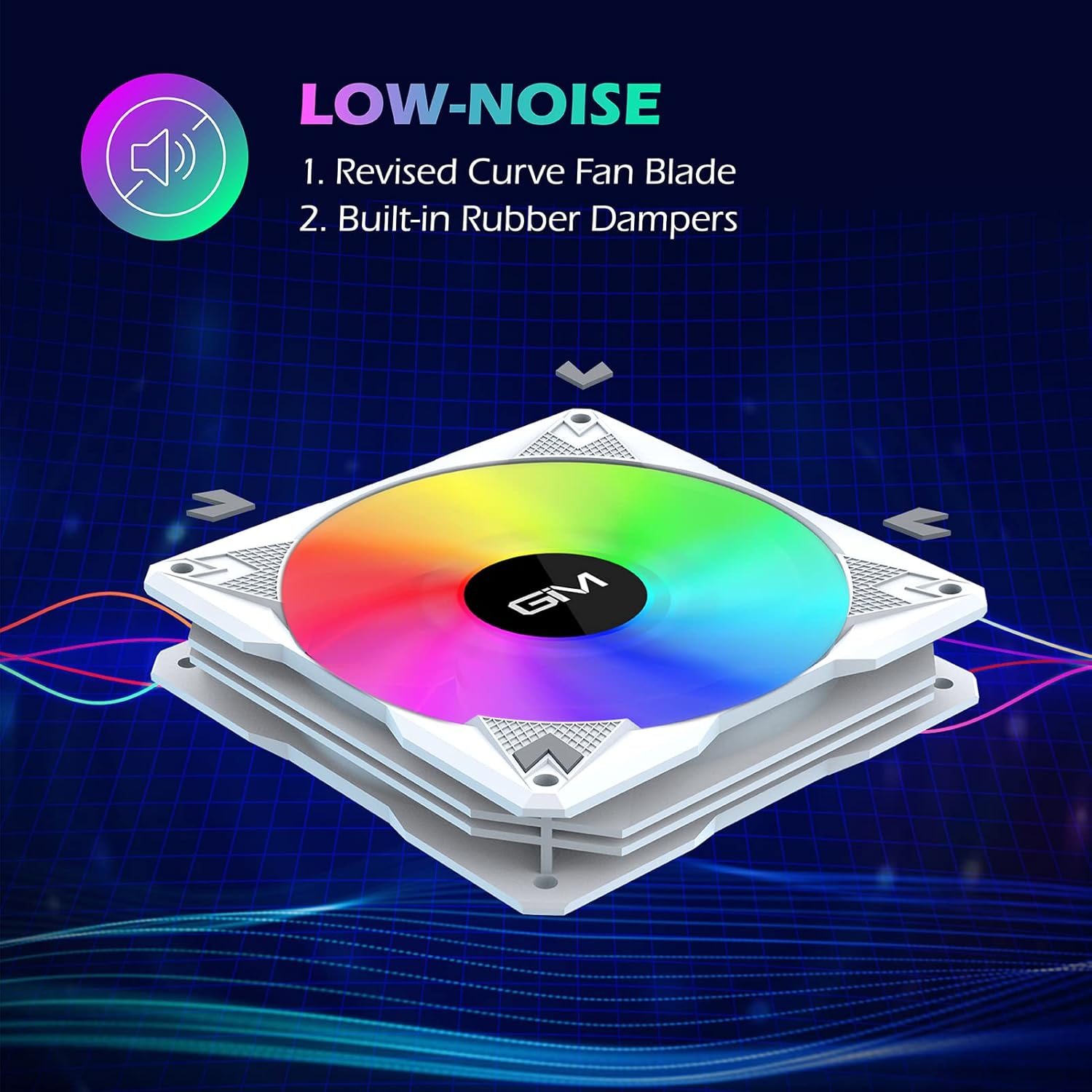
Image: A GIM fan emphasizing its low-noise design, pointing out the revised curve fan blade and built-in rubber dampers as key features contributing to quiet operation.
9. Warranty and Support
GIM products are manufactured to high-quality standards. For specific warranty information or technical support, please refer to the warranty card included with your product or visit the official GIM website. Keep your purchase receipt as proof of purchase for warranty claims.