
1. Introduction
Thank you for purchasing the PMW Mini Wireless Controller. This manual provides essential information for setting up, operating, and maintaining your controller. Please read it carefully before use and keep it for future reference.
This controller is designed for use with Nintendo Switch, Switch Lite, Switch OLED, and PC, offering a comfortable and feature-rich gaming experience.
2. Product Overview
2.1 Key Features
- Cat Ear Design: Delicate and compact, suitable for women and children.
- Continuous Fire Function: Allows rapid firing without holding the button.
- Wake-up from Sleep: Press the HOME button to wake up the Switch console.
- 6-Axis Gyro Sensor: Provides precise control for motion-sensing games.
- Vibration Function: Four adjustable levels (None/Weak/Standard/Strong) for immersive feedback.
- 3.5mm Headphone Jack: Supports wired headphones (wired mode only).
- Large Capacity Battery: Built-in 300mAh battery for 8-10 hours of continuous play.
- Dual Connectivity: Supports both Bluetooth wireless and USB wired connections.
2.2 Package Contents
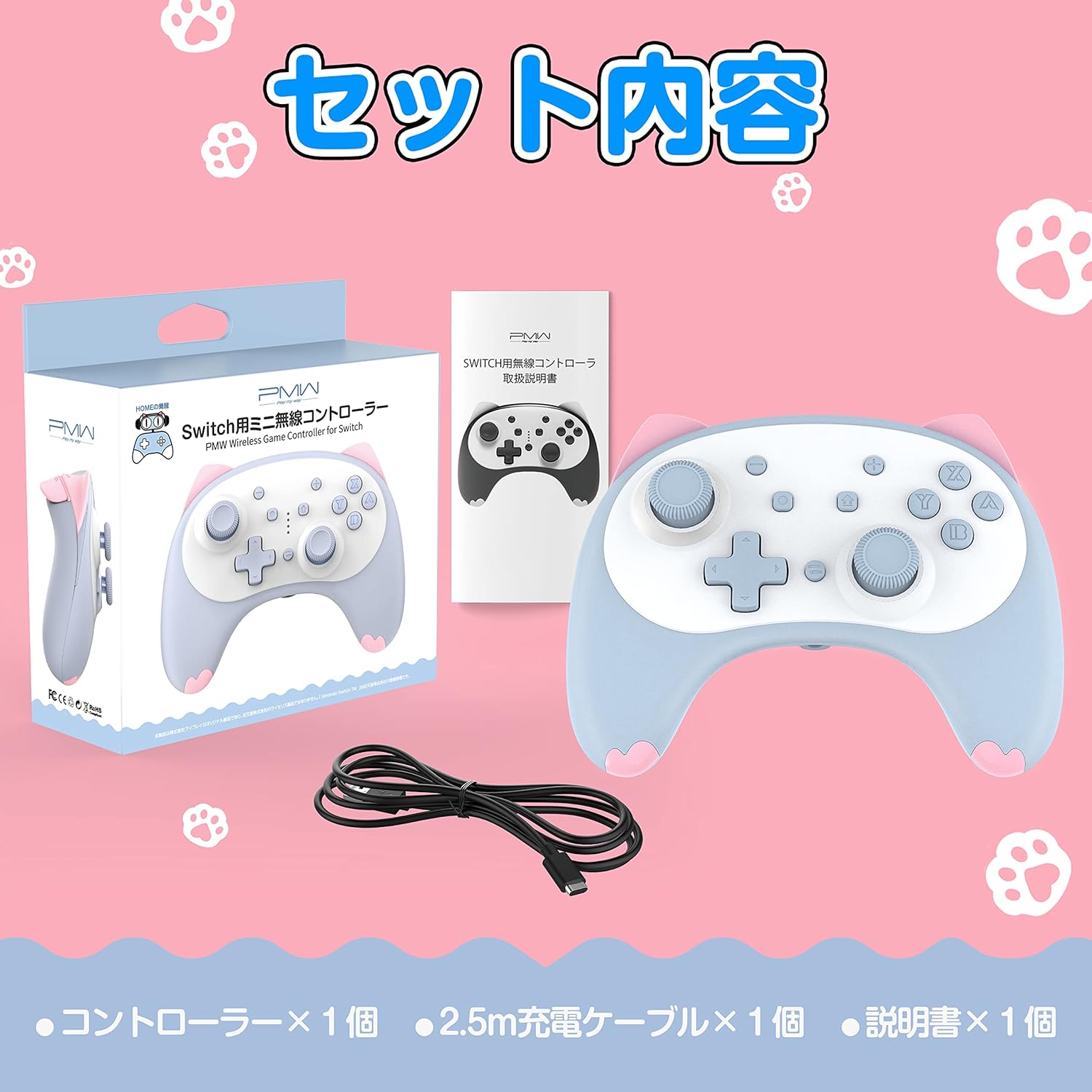
Image: Package contents showing the controller, a charging cable, and the instruction manual.
- PMW Mini Wireless Controller x 1
- 2.5m USB Type-C Charging Cable x 1
- Instruction Manual x 1
2.3 Controller Layout

Image: Detailed diagram illustrating the layout and names of all buttons and ports on the controller.
| No. | Part Name |
|---|---|
| 1 | Left Stick |
| 2 | Directional Pad (D-Pad) |
| 3 | 3.5mm Headphone Jack |
| 4 | Menu Select Button |
| 5 | Capture Button |
| 6 | Turbo Button |
| 7 | HOME Button |
| 8 | Menu Select + Button |
| 9 | Right Stick |
| 10 | Action Buttons (A/B/X/Y) |
| R | R Button |
| L | L Button |
| ZR | ZR Button |
| ZL | ZL Button |
| Type-C | Type-C Charging Port |
| Sync | Wireless Connection Button |
3. Setup
3.1 Wireless Connection (First Time Setup for Nintendo Switch)

Image: Visual instructions for the initial wireless pairing process with a Nintendo Switch.
- Turn on your Nintendo Switch console.
- From the HOME Menu, select Controllers > Change Grip/Order to enter the controller connection screen.
- Press and hold the Wireless Connection Button (Sync button) on the back of the controller for 2 seconds. Release the button when the four LED indicators start flashing.
- The Switch console and controller will begin pairing. Once connected, the LED indicator on the controller will light up steadily.
3.2 Wired Connection (for Nintendo Switch and PC)
- Connect the controller to your Nintendo Switch dock or PC using the provided USB Type-C charging cable.
- The controller will automatically be recognized and ready for use.
4. Operating Instructions
4.1 Wake-up from Sleep Mode

Image: The controller's HOME button can be used to conveniently wake up the Nintendo Switch console.
To wake up your Nintendo Switch console from sleep mode, simply press the HOME Button on the controller.
4.2 Continuous Fire (Turbo) Function

Image: The controller's continuous fire function, which allows for repeated button presses without constant input.
The controller features a continuous fire hold function. Once activated, it will maintain rapid firing even after you release the button. This is particularly useful for games requiring fast, repeated button presses.
4.3 6-Axis Gyro Sensor

Image: The 6-axis gyro sensor enables precise motion control for characters and vehicles in compatible games.
The built-in 6-axis gyro sensor allows for precise control of in-game characters and vehicles by detecting rotations and changes in direction. This enhances the gaming experience for titles that support somatosensory actions, shooting, and aiming.
4.4 Vibration Function
The controller includes built-in vibration motors with four adjustable levels: None, Weak, Standard, and Strong. You can customize the vibration intensity to enjoy immersive feedback during gameplay.
4.5 Headphone Jack Usage

Image: The controller's 3.5mm headphone jack in use, demonstrating that wired headphones are supported when the controller is in wired mode.
The controller is equipped with a 3.5mm headphone jack. Important Note: The headphone function is only available when the controller is connected via wired mode (USB cable).
5. Charging

Image: Visual representation of the controller's battery, highlighting its 8-10 hour usage time and 2-hour charging time.
- The controller has a built-in 300mAh large capacity battery.
- A full charge takes approximately 2 hours.
- Once fully charged, the controller provides 8 to 10 hours of continuous use.
- To charge, connect the controller to a USB power source (e.g., Switch dock, PC, USB wall adapter) using the provided USB Type-C cable.
6. Specifications
| Feature | Detail |
|---|---|
| Model | Mini Wireless Controller |
| Compatibility | Nintendo Switch, Switch Lite, Switch OLED, PC |
| Connectivity | Bluetooth (Wireless), USB Type-C (Wired) |
| Battery Type | 1 Lithium Ion Battery (included) |
| Battery Capacity | 300mAh |
| Charging Time | Approx. 2 hours |
| Continuous Use Time | 8-10 hours |
| Dimensions | 127 x 95 x 52 mm |
| Weight | Approx. 138g |
| Special Features | 6-Axis Gyro, Vibration (4 levels), Continuous Fire, 3.5mm Headphone Jack (wired only) |
7. Troubleshooting
- Controller does not connect wirelessly:
- Ensure the Switch console is on and you are on the 'Change Grip/Order' screen.
- Press and hold the Sync button on the back of the controller for 2 seconds until LEDs flash.
- Make sure the controller is charged.
- If issues persist, try restarting both the Switch console and the controller.
- Headphone jack not working:
- The headphone jack only functions when the controller is connected via a wired USB cable. Ensure it is in wired mode.
- Check if the headphones are properly plugged in and functional.
- Controller not responding:
- Check battery level and charge if necessary.
- Try resetting the controller by pressing the small reset button (if available, usually a pinhole) or by turning it off and on.
- Reconnect the controller to the console/PC.
- Vibration is too strong/weak or not working:
- Adjust the vibration intensity settings on the controller or within the game/console settings.
8. Maintenance
- Keep the controller away from extreme temperatures, direct sunlight, and moisture.
- Clean the controller with a soft, dry cloth. Do not use harsh chemicals or abrasive materials.
- Avoid dropping the controller or subjecting it to strong impacts.
- When not in use for extended periods, store the controller in a cool, dry place.
9. Warranty and Support
Specific warranty information for this product is not available in the provided data. Please refer to the product packaging or contact the retailer/manufacturer directly for warranty details and customer support.
