1. Introduction
This manual provides essential information for the installation, operation, and maintenance of your WiZ Smart LED Imageo Spotlight. Please read these instructions carefully before use and retain them for future reference.

Image 1.1: WiZ Smart LED Imageo Spotlight and its packaging.
2. Product Overview
The WiZ Smart LED Imageo Spotlight is a versatile lighting solution designed to enhance your home environment. It features adjustable white and colored light, dimming capabilities, and smart control options.
Key Features:
- Adjustable white light (warm to cool) and millions of colors.
- Dimmable light output.
- SpaceSense Technology for motion detection without additional sensors.
- Voice control compatibility with Alexa, Apple HomeKit, and Google Home.
- Easy plug-and-play installation.

Image 2.1: Product dimensions of the WiZ Smart LED Imageo Spotlight.
3. Setup
3.1 Unpacking
Carefully remove all components from the packaging. Ensure all parts listed in the 'Included Components' section are present and undamaged.
3.2 Installation
- Mounting: Install the spotlight fixture in your desired location. This product is designed for easy DIY installation.
- Power Connection: Connect the spotlight to a power source.
3.3 Connecting to WiZ App
To unlock the full smart features of your Imageo Spotlight, connect it to the WiZ app.
- Download the WiZ App: Download the WiZ app from your device's app store (available for iOS and Android).
- Create an Account: Open the app and follow the on-screen instructions to create a WiZ account or log in if you already have one.
- Add Device: In the app, select 'Add Device' and follow the prompts to connect your Imageo Spotlight to your home Wi-Fi network. Ensure your Wi-Fi network is 2.4GHz.

Image 3.1: The WiZ app allows for easy control and configuration of your smart lights.
4. Operating Instructions
4.1 Basic Light Control
Once connected to the WiZ app, you can control your spotlight:
- On/Off: Toggle the light on or off.
- Brightness: Adjust the light intensity using the dimmer slider.
- White Light: Select from a range of warm to cool white tones.
- Color: Choose from millions of colors to create your desired ambiance.

Image 4.1: The spotlight can display a wide spectrum of colors.
4.2 SpaceSense Technology
The Imageo Spotlight features SpaceSense technology, which detects movement within the room without requiring additional external motion sensors. This allows the lights to turn on automatically when you enter a room and off when you leave.
- Activation: Enable SpaceSense in the WiZ app settings for your spotlight.
- Sensitivity Adjustment: Adjust the sensitivity of motion detection to suit your environment and preferences.

Image 4.2: SpaceSense technology automatically illuminates the room upon detecting movement.
4.3 Voice Control
Integrate your WiZ Smart LED Imageo Spotlight with popular voice assistants for hands-free control.
- Supported Platforms: Alexa, Apple HomeKit, Google Home.
- Setup: Follow the instructions within the respective voice assistant app to link your WiZ account.
- Commands: Use voice commands such as "Alexa, turn on the living room light" or "Hey Google, set the spotlight to blue."
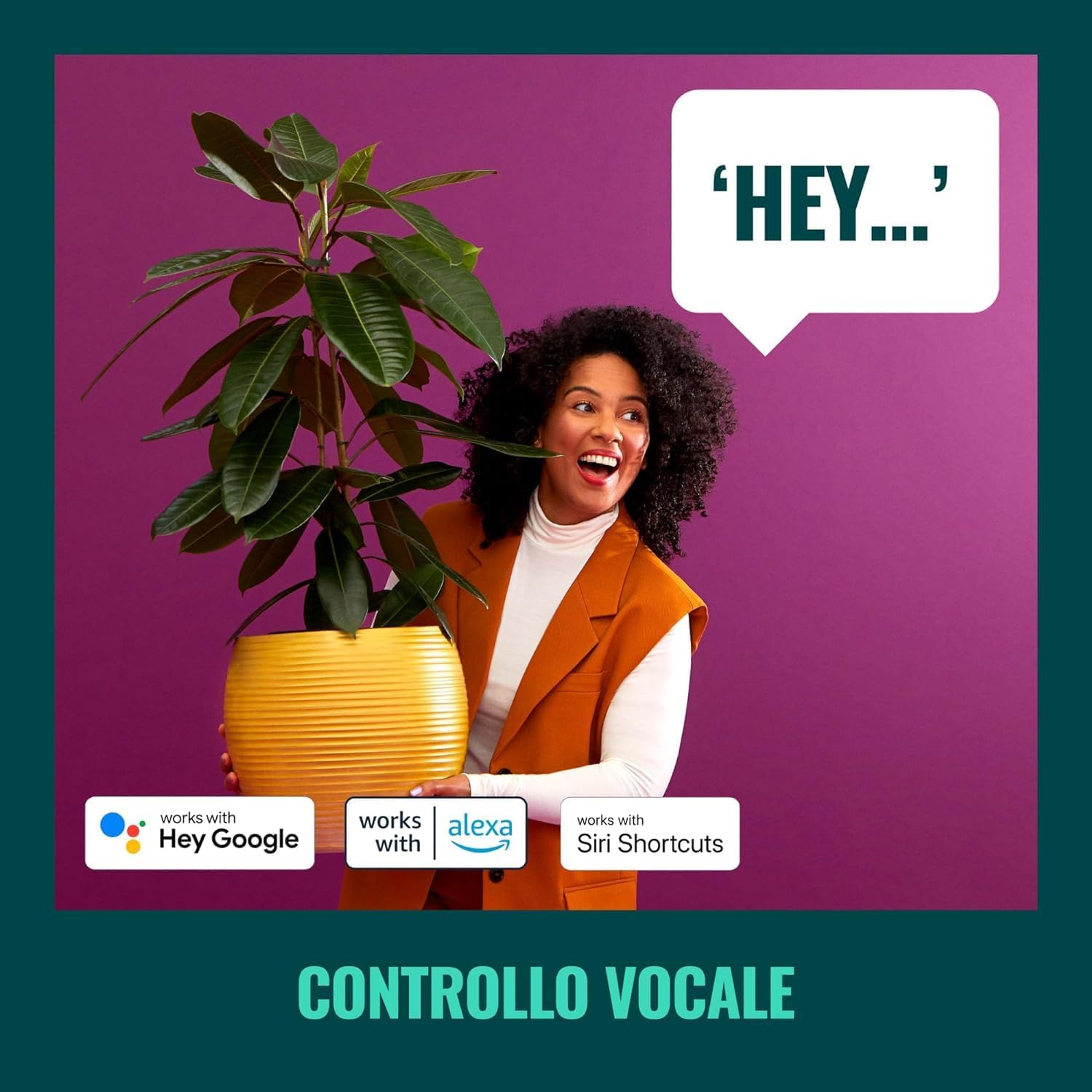
Image 4.3: Voice control allows for convenient operation of your smart spotlight.
4.4 Pre-set Modes and Scenes
The WiZ app offers various pre-set modes and allows you to create custom scenes for different activities or moods.
- Dynamic Modes: Explore pre-programmed light effects like 'Ocean', 'Fireplace', or 'Party'.
- Custom Scenes: Create and save your own combinations of colors, brightness, and white tones.

Image 4.4: Examples of pre-set lighting scenes for various ambiances.
5. Maintenance
5.1 Cleaning
To clean your WiZ Smart LED Imageo Spotlight, ensure it is powered off and disconnected from the power source. Use a soft, dry cloth to wipe the surface. Do not use abrasive cleaners or solvents, as these may damage the finish.
5.2 Light Source
The LED light source in this product is integrated and not user-replaceable. If the light source fails, the entire fixture should be replaced.
6. Troubleshooting
If you encounter issues with your WiZ Smart LED Imageo Spotlight, refer to the following common problems and solutions:
| Problem | Possible Cause | Solution |
|---|---|---|
| Light does not turn on. | No power, loose connection, or light source failure. | Check power supply. Ensure connections are secure. If the light source is integrated, contact support if the unit is under warranty. |
| Cannot connect to Wi-Fi. | Incorrect Wi-Fi password, 5GHz network, or too far from router. | Verify Wi-Fi password. Ensure you are connecting to a 2.4GHz network. Move the spotlight closer to the router. |
| Voice control not working. | Voice assistant not linked, or incorrect commands. | Check WiZ app and voice assistant app for proper linking. Use correct voice commands. |
| SpaceSense not detecting movement. | Sensitivity too low, or obstruction. | Increase SpaceSense sensitivity in the WiZ app. Ensure no objects are blocking the detection area. |
7. Specifications
| Feature | Detail |
|---|---|
| Brand | WiZ |
| Model Number | 929002659101 |
| Product Dimensions | 25 x 25 x 12.3 cm |
| Weight | 620 grams |
| Color | Black |
| Material | Plastic |
| Light Source | Integrated LED (2x5W RGB 690 LM) |
| Connectivity | Wi-Fi (2.4GHz) |
| Voice Control | Alexa, Apple HomeKit, Google Home |
| Batteries Required | No |
| Included Components | LED track light with 2 elements WiZ 2x5W RGB 690 LM black color |
8. Warranty
This WiZ Smart LED Imageo Spotlight comes with a 2-year manufacturer's warranty. Please retain your proof of purchase for warranty claims. The warranty covers defects in materials and workmanship under normal use.
9. Support
For further assistance, technical support, or warranty inquiries, please visit the official WiZ website or contact their customer service. You can find contact information on the WiZ product packaging or their official website.


