
Introduction
This manual provides detailed instructions for the installation, operation, maintenance, and troubleshooting of your 360 G500H Dash Cam. Please read this guide thoroughly to ensure proper use and optimal performance of your device.

Image: The 360 G500H Dash Cam, showing both the front and rear camera units.
1. Setup and Installation
1.1 Package Contents
- 360 G500H Front Dash Cam
- Rear Camera
- Power Cable (USB)
- Car Charger (Cigarette Lighter Adapter)
- Mounting Adhesive
- User Manual
1.2 Front Camera Installation
- Clean Windshield: Wipe the front windshield thoroughly to ensure the surface is dry and clean before mounting the dash cam.
- Mount Dash Cam: Mount the front camera directly onto the proper location of the windshield using the provided 3M adhesive. Ensure it does not obstruct your view.
- Connect Power: Remove the protective film from the mounting location, then plug the power cable into the dash cam.
- Route Cable: Walk the power wire up to the headliner and tuck the cable into the headliner's edge. Continue tucking the wire behind the A-pillar down to the glove compartment area.
- Connect to Power Outlet: Run the cable down from the glove compartment area and connect it to the car's cigarette lighter power outlet using the car charger adapter.

Image: The front dash cam mounted on the vehicle's windshield.
1.3 Rear Camera Installation
- Route Rear Camera Cable: Walk the rear camera wire along the headliner from the front camera, continuing past the B-pillar and C-pillar.
- Extend to Trunk: Push the wire into the crevice of the rear seat and extend it to the trunk area.
- Connect to License Plate: Get the wire through the license plate area. Connect the rear camera to its line.
- Mount Rear Camera: Remove the protective film from the 3M adhesive on the rear camera and stick the camera securely on the top of the license plate or a suitable location on the rear of the vehicle.

Image: Diagram illustrating the routing of the rear camera cable from the front of the car to the trunk.
Video: A detailed guide on how to install the 360 G500H Dash Cam, covering both front and rear camera setup.
2. Operating Your Dash Cam
2.1 Power On/Off
When connected to your vehicle's power outlet, the camera will automatically power on and begin recording when the vehicle is started. It will power off when the vehicle is turned off.
2.2 Incident Detection and G-Sensor
The 360 G500H automatically saves video footage when it detects an incident, such as a sudden impact or collision, using its built-in G-Sensor. These videos are locked to prevent overwriting.

Image: Visual representation of the G-Sensor feature, showing how it detects and records incidents like collisions.
2.3 GPS Functionality
With built-in GPS, the dash cam records location and speed data, providing proof of exactly when and where events occurred. This data can be accessed via the companion app.

Image: A smartphone displaying a map with recorded driving details, highlighting the GPS tracking feature.
2.4 Parking Surveillance Mode
The 24-hour parking monitor feature records motion in front of and behind your vehicle when it is parked and turned off. If a shock or vibration is detected, the camera automatically starts recording.

Image: An overhead view of cars in a parking lot, illustrating the 24-hour parking surveillance motion detection area.
2.5 Loop Recording
The dash cam records continuously. When the memory card is full, the oldest videos are automatically overwritten by new ones. Important clips saved by the G-Sensor are protected from overwriting.
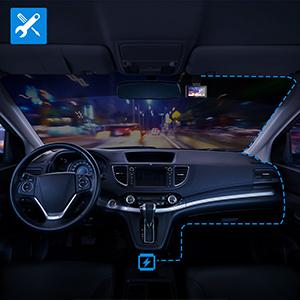
Image: A circular graphic depicting the continuous loop recording process, where older footage is replaced by new recordings.
2.6 Night Vision
The 360 G500H features color night vision, allowing for clear, full-color footage in low-light conditions, unlike traditional black and white recordings.

Image: A night driving scene showcasing the dash cam's HD Night Vision capability, capturing details in low light.
3. Maintenance
3.1 Memory Card Management
Regularly format the memory card to ensure optimal performance and prevent data corruption. Back up important footage before formatting.
3.2 Cleaning the Lenses
Gently clean the front and rear camera lenses with a soft, lint-free cloth to maintain clear video quality. Avoid abrasive materials.
3.3 Firmware Updates
Check the official 360 website or app for available firmware updates to ensure your dash cam has the latest features and improvements.
4. Troubleshooting
4.1 Camera Not Powering On
- Ensure the power cable is securely connected to both the dash cam and the car's cigarette lighter outlet.
- Verify the vehicle's power outlet is functional.
4.2 Poor Video Quality at Night
- While the G500H features color night vision, extreme low-light conditions or glare from oncoming headlights can affect clarity.
- Ensure the windshield and camera lens are clean.
4.3 App Connectivity Issues
- If experiencing issues connecting to the dash cam via the app, try restarting both the dash cam and your mobile device.
- Reinstalling the app may also resolve the issue.
- Ensure Wi-Fi is enabled on your phone and connected to the dash cam's Wi-Fi network.
4.4 Footage Not Saving
- Check if the memory card is properly inserted and not full.
- Format the memory card if necessary (after backing up important files).
- Ensure the G-Sensor sensitivity is set appropriately for incident detection.
5. Specifications
| Model Name | G500H |
| Brand | 360 |
| Front Camera Resolution | 2K (1440p) |
| Rear Camera Resolution | 1080p |
| Front Field of View | 160° Wide Angle |
| Rear Field of View | 130° |
| Special Features | G-Sensor, Loop Recording, Color Night Vision, 24H Parking Monitor, Built-in GPS |
| Connectivity Technology | USB, Wireless (App Control) |
| Mounting Type | Adhesive Mount |
| Item Weight | 1.17 pounds |
| Package Dimensions | 5.87 x 5.39 x 3.62 inches |
6. Warranty and Support
6.1 Warranty Information
360 Smart Life provides a 12-month warranty for the G500H Dash Cam. Please retain your proof of purchase for warranty claims.
6.2 Customer Support
For technical assistance or warranty inquiries, please contact 360 Smart Life customer support. Refer to the product packaging or official website for contact details.


