
1. Introduction
This manual provides comprehensive instructions for the installation, operation, and maintenance of your BESDERSEC 1080P WiFi Pan Tilt Home Security Camera. Please read this manual thoroughly before using the product to ensure proper functionality and safety.
2. Product Overview
The BESDERSEC Security Camera is a full HD 1080P outdoor surveillance camera designed for home security. It features pan and tilt capabilities, two-way audio, motion detection, and enhanced night vision for comprehensive monitoring.
2.1 Package Contents
- 1 x HD 1080P PanTilt WiFi Camera
- 1 x User Manual
- 1 x DC12V 2A Power adapter
- 1 x Reset Pin
- 1 x Mounting Screw bag
- 1 x Waterproof Lid
2.2 Key Features
- Full HD 1080P (1920x1080) Resolution
- WiFi & Wired Connection (2.4GHz WiFi only)
- 355° Pan and 90° Tilt for Wide Monitoring Area
- Motion Detection with Light & Sound Alarms
- AI Light On When Someone Passes by at Night
- Plug & Play, Easy Setup via ICSee App
- Auto-Tracking Functionality
- Two-Way Audio Communication
- Full Day Recording & Smart Alarm Recording
- Smart Playback & Recording Downloading
- IP66 Weather-Proof Design for Outdoor Use
- Supports up to 128GB TF (Micro SD) Card (Not Included)

Figure 2.2.1: BESDERSEC Security Camera and Live View on Smartphone.

Figure 2.2.2: Overview of BESDERSEC Camera Features including Dual Antennas, Pan&Tilt, IP66, Night View, Auto-Tracking, TF Card, Two-Way Audio, and Multi Remote Access.
3. Setup Guide
3.1 Before You Begin
- Ensure your WiFi network is 2.4GHz. This camera does not support 5GHz WiFi.
- Insert an SD card (max 128GB, not included) into the camera before powering it on for local storage.
- Have your smartphone ready with the ICSee app downloaded from your app store (iOS or Android).
3.2 Physical Installation
The camera can be mounted on a wall or ceiling. Use the provided mounting screw bag for secure installation. Ensure the camera is positioned to cover the desired monitoring area and has access to a power outlet.

Figure 3.2.1: Detailed view of camera components and dimensions, including lens, LEDs, IR sensor, TF card slot, speaker, microphone, and antennas. Also shows included accessories like extension cord, power supply, product manual, screws, and waterproof lid.
3.3 Network Connection
- Power on the camera using the provided DC12V 2A power adapter.
- Open the ICSee app on your smartphone.
- Follow the in-app instructions to add a new device. This typically involves scanning a QR code displayed by the camera or on the manual.
- Ensure your phone is connected to the 2.4GHz WiFi network you intend to connect the camera to.
- Complete the connection process as guided by the app. A stronger WiFi antenna and optional LAN cable connection are available for stable connectivity.
4. Operating Instructions
4.1 Using the ICSee App
The ICSee app is your primary interface for controlling and monitoring the camera. From the app, you can view live feeds, access recorded footage, configure settings, and receive alerts.
4.2 Pan & Tilt Control
Utilize the pan (355°) and tilt (90°) functions within the ICSee app to adjust the camera's viewing angle remotely. This allows for wide monitoring coverage without blind spots.
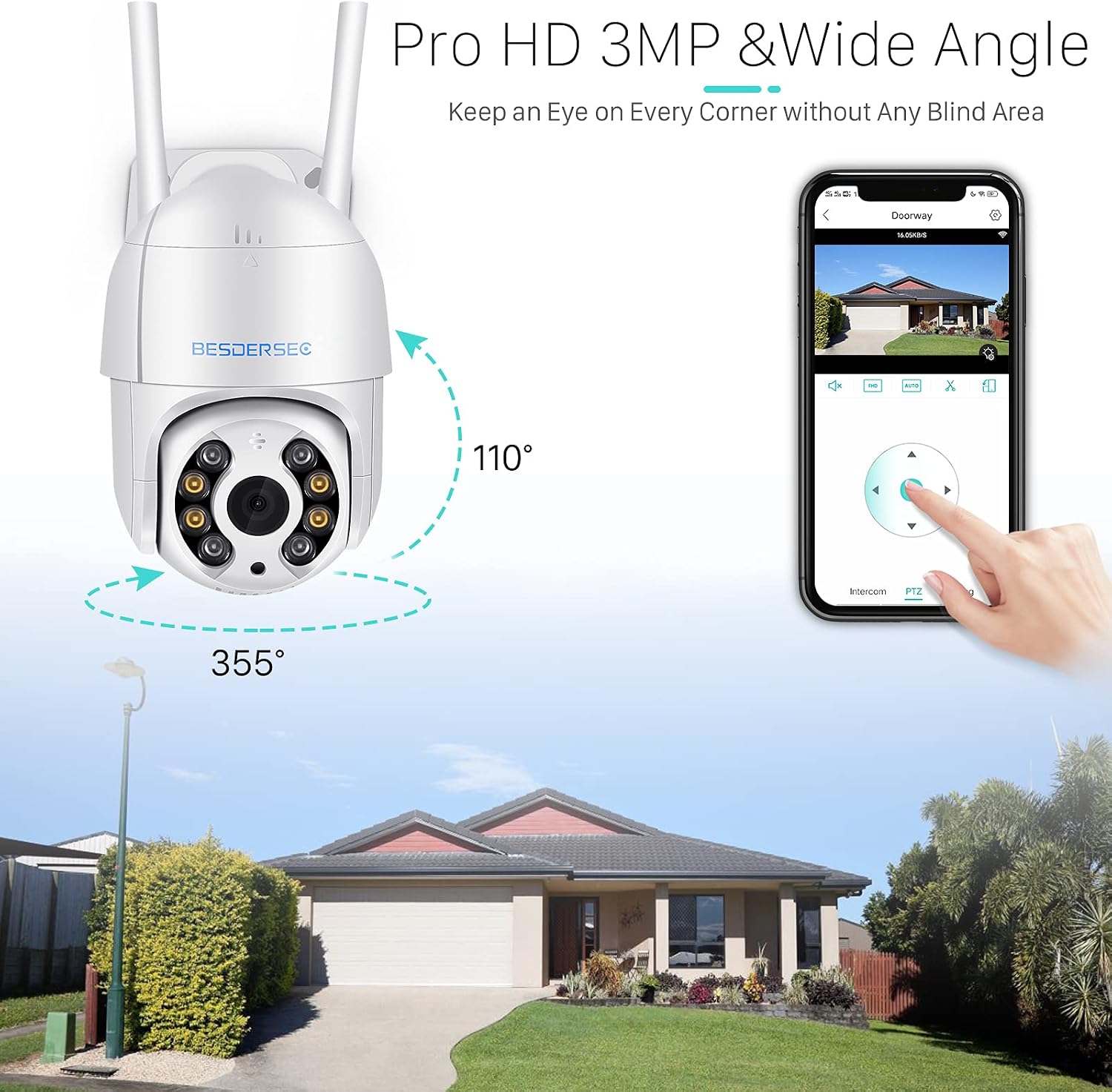
Figure 4.2.1: Camera demonstrating 355° pan and wide-angle view, controlled via the app.
4.3 Motion Detection & Alarms
The camera features customizable motion detection. When motion is detected, the camera can trigger light and sound alarms and send instant notifications to your smartphone. It also supports auto-tracking of detected human shapes.

Figure 4.3.1: Illustration of motion detection triggering sound and light alarms, with app notification.
4.4 Two-Way Audio
With built-in noise cancellation technologies on the microphone and speaker, you can hear and speak directly through the camera using the ICSee app. This feature is useful for communicating with visitors or deterring intruders.

Figure 4.4.1: Example of two-way audio communication through the camera.
4.5 Night Vision Modes
The camera offers multiple night vision modes to ensure clear visibility in low-light conditions:
- IR Night Vision: Infrared light automatically activates for black and white night vision.
- Full Color Night Vision: Utilizes white LEDs to provide full-color images at night.
- Smart Night Vision: Automatically switches between IR and full-color modes based on detected motion or light conditions.

Figure 4.5.1: Comparison of Infrared Night Vision, Full Color Night Vision, and Smart Night Vision modes.
5. Maintenance
5.1 Cleaning
To maintain optimal performance, periodically clean the camera lens and housing with a soft, dry cloth. Avoid using harsh chemicals or abrasive materials that could damage the camera.
5.2 SD Card Management
If using an SD card for storage, ensure it is properly inserted. The camera supports continuous recording, which will overwrite older footage once the card is full. Regularly back up important recordings if needed. Format the SD card periodically through the app for optimal performance.
5.3 Firmware Updates
Check the ICSee app regularly for available firmware updates. Keeping your camera's firmware up-to-date ensures access to the latest features, security enhancements, and bug fixes.
6. Troubleshooting
- Camera not powering up: Ensure the DC12V 2A power adapter is correctly connected and the power outlet is functional. Try using another power supply if available.
- Cannot connect to WiFi:
- Verify your WiFi network is 2.4GHz. The camera does not support 5GHz.
- Ensure the camera is within range of your WiFi router.
- Check WiFi password accuracy during setup.
- Try resetting the camera using the reset pin.
- Camera goes offline frequently: Check your WiFi signal strength at the camera's location. Consider moving the camera closer to the router or using a wired LAN connection if possible.
- Motion detection issues: Adjust sensitivity settings in the ICSee app. Environmental factors like strong winds or heavy rain can sometimes trigger false alarms.
- Camera points straight down and hangs: This may indicate a calibration issue. Try restarting the camera or performing a factory reset via the reset pin. If the issue persists, contact customer support.
- Poor image quality: Ensure the lens is clean. Check your network connection speed, as slow internet can affect streaming quality.
7. Specifications
| Feature | Detail |
|---|---|
| Video Capture Resolution | 1080p (1920x1080) |
| Pan/Tilt Range | 355° Pan, 90° Tilt |
| Lens (mm) | 3.6mm fixed lens |
| IR Distance | 98ft (30m) |
| Connectivity Protocol | Wi-Fi (2.4GHz only) |
| Storage | TF (Micro SD) Port, max 128G (Not Included) |
| Power Input | DC12V 2A |
| Power Consumption | 3W |
| Operating Temperature | -10℃~+50℃ (4°F ~ 122°F) |
| Operating Humidity | 10%~95% RH |
| International Protection Rating | IP66 (Weather-Proof) |
| Mounting Type | Wall & Ceiling Mount |
| Material | ABS Plastic |
| Dimensions | 7.56 x 6.61 x 4.29 inches (Package) |
| Item Weight | 1.61 pounds |
8. Warranty and Support
For warranty information, technical support, or any inquiries regarding your BESDERSEC Security Camera, please refer to the contact information provided with your product packaging or visit the official BESDERSEC website. If you encounter issues not covered in this manual, please contact customer service for assistance.
Important Note: If the security camera could not be powered up, please use another power supply to check it and contact us first. If you could not use this camera normally, please contact us first, we will help you more first.
