1. Introduction
The BESTEK 4K 3-in-1 HDMI Switch allows you to connect up to three HDMI source devices to a single HDMI display. This device supports 4K resolution, 3D content, and deep color, providing a high-quality audio and video experience. It features an IR wireless remote control for convenient switching between connected devices.
Key Features:
- 3 HDMI Inputs, 1 HDMI Output: Connect multiple devices to one display.
- 4K Resolution Support: Experience high-definition video up to 4K.
- 3D Compatibility: Supports 3D video formats.
- IR Wireless Remote Control: Switch inputs conveniently from a distance.
- Wide Compatibility: Works with devices such as Nintendo Switch, Blu-ray players, PS4, PS3, Xbox, HD-DVD, SKY-STB, and other audio/video equipment.
2. Package Contents
Please check the package contents upon opening to ensure all items are present and undamaged:
- BESTEK 4K 3-in-1 HDMI Switch Unit
- IR Wireless Remote Control
- AC Power Adapter
- User Manual (this document)
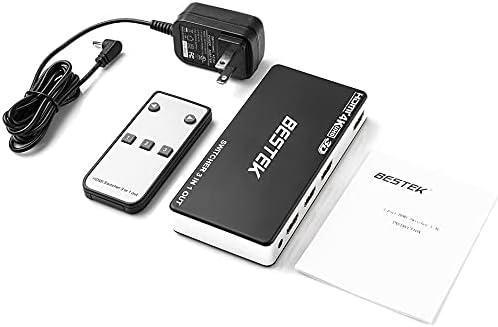
Image: Contents of the BESTEK 4K 3-in-1 HDMI Switch package, including the main unit, IR remote, power adapter, and instruction manual.
3. Product Overview
Familiarize yourself with the ports and indicators on the HDMI switch:

Image: Front view of the BESTEK HDMI switch. It features three HDMI input ports labeled 1, 2, and 3, a DC 5V power input, and a single HDMI output port.
- HDMI Input 1, 2, 3: Connect your source devices (e.g., game console, Blu-ray player).
- HDMI Output: Connect to your display device (e.g., TV, monitor, projector).
- DC 5V: Power input port for the included AC adapter.
- IR Receiver: Receives signals from the remote control.
- Input Select Button: Manually switch between HDMI inputs.
- LED Indicators: Show which input is currently active.
4. Setup Instructions
Follow these steps to connect your BESTEK HDMI Switch:
- Connect HDMI Source Devices: Plug up to three HDMI source devices (e.g., gaming console, DVD/Blu-ray player, cable box) into the HDMI Input ports (1, 2, or 3) on the HDMI switch using HDMI cables.
- Connect to Display: Connect one end of an HDMI cable to the HDMI Output port on the switch and the other end to the HDMI input on your HDTV, monitor, or projector.
- Connect Power Adapter: Plug the included AC power adapter into the DC 5V port on the HDMI switch, then plug the adapter into a standard electrical outlet.
- Power On Devices: Power on your HDMI source devices and your display.
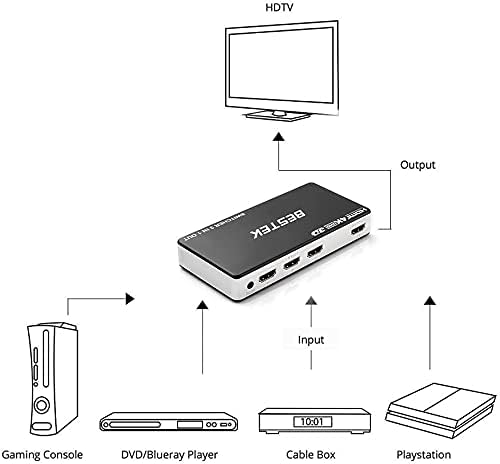
Image: Connection diagram illustrating how to connect a gaming console, DVD/Blu-ray player, and cable box to the HDMI switch's input ports, and the switch's output to an HDTV.
The HDMI switch will automatically detect the active input or you can manually select it.
5. Operating Instructions
There are two methods to switch between your connected HDMI source devices:
Using the IR Wireless Remote Control:
- Ensure the remote control has batteries installed.
- Point the remote control towards the front of the HDMI switch where the IR receiver is located.
- Press the corresponding number button (1, 2, or 3) on the remote to select the desired HDMI input.
Manual Switching:
- Press the "Input Select" button on the front of the HDMI switch.
- Each press will cycle through the available HDMI inputs (1 → 2 → 3 → 1, etc.).
- The LED indicator on the switch will illuminate to show which input is currently active.
6. Maintenance
To ensure the longevity and optimal performance of your BESTEK HDMI Switch, follow these maintenance guidelines:
- Cleaning: Use a soft, dry cloth to clean the exterior of the device. Do not use liquid cleaners or aerosols, as they may damage the unit.
- Ventilation: Ensure the switch is placed in a well-ventilated area to prevent overheating. Do not block any ventilation openings.
- Storage: When not in use for extended periods, store the device in a cool, dry place away from direct sunlight and extreme temperatures.
- Power: Always use the provided AC power adapter. Disconnect power during electrical storms or when unused for long periods.
7. Troubleshooting
If you encounter issues with your HDMI switch, refer to the following common problems and solutions:
| Problem | Possible Solution |
|---|---|
| No video or audio output. |
|
| Remote control not working. |
|
| Intermittent signal or flickering. |
|
8. Specifications
Technical specifications for the BESTEK 4K 3-in-1 HDMI Switch:
- Model: B09C25BBBT
- Inputs: 3 x HDMI
- Output: 1 x HDMI
- Supported Resolutions: Up to 4K (3840x2160)
- Supported Features: 3D, Deep Color
- Connector Type: HDMI
- Power Supply: DC 5V (via included AC adapter)
- Control: Manual button, IR remote control
- Compatible Devices: DVD Player, Gaming Console (PS4, Xbox, Nintendo Switch), Monitor, Projector, Television
- Item Weight: Approximately 8.4 ounces (238 grams)
- Package Dimensions: 6.93 x 4.49 x 1.69 inches (17.6 x 11.4 x 4.3 cm)
9. Warranty and Support
BESTEK products are designed and manufactured to the highest quality standards. This product is covered by a limited warranty from the date of purchase. Please retain your proof of purchase for warranty claims.
Warranty Information:
- The warranty covers defects in materials and workmanship under normal use.
- It does not cover damage caused by misuse, accident, unauthorized modification, or external causes such as power surges.
- For specific warranty terms and conditions, please refer to the warranty card included with your product or visit the official BESTEK website.
Customer Support:
If you require technical assistance or have questions regarding your BESTEK 4K 3-in-1 HDMI Switch, please contact our customer support team:
- Website: www.bestek.com (for product registration, FAQs, and support contact information)
- Email: Refer to the contact section on the official website.
- Phone: Refer to the contact section on the official website.
Please have your product model number (B09C25BBBT) and purchase details ready when contacting support.


