
NIIMBOT B21
NIIMBOT B21 Label Maker Machine User Manual
Model: B21
1. Introduction
The NIIMBOT B21 is a portable thermal label printer designed for various labeling needs, including home organization, office use, and small business applications. It utilizes direct thermal technology, eliminating the need for ink, and connects wirelessly via Bluetooth to your mobile devices for convenient label creation and printing.

Image: The NIIMBOT B21 label maker, a compact and portable device.
Key Features:
- Inkless Thermal Printing: No ink cartridges required, reducing running costs.
- Bluetooth Connectivity: Easily connect to smartphones and tablets via the NIIMBOT app.
- Portable Design: Compact and lightweight for on-the-go labeling.
- Versatile Labeling: Supports various label sizes (20-50 mm width) for diverse applications.

Image: An infographic highlighting the key features of the NIIMBOT B21 label maker, including inkless printing, Bluetooth connectivity, lightweight design, maximum print speed of 50mm/s, app editing capabilities, and auto paper rewind.
2. What's in the Box
Upon unboxing your NIIMBOT B21 Label Maker, please ensure all the following components are present:

Image: The contents of the NIIMBOT B21 package, showing the label maker, charging cable, a roll of 50x30mm white labels, and the user manual.
- NIIMBOT B21 Label Maker
- Charging Cable
- 1 Roll of 50x30mm White Labels
- User Manual (this document)
3. Setup Guide
3.1 Charging the Device
Before first use, fully charge the NIIMBOT B21 label maker. Connect the provided charging cable to the device's charging port and a suitable USB power adapter (not included). The indicator light will show charging status and turn off when fully charged.
3.2 Loading Labels
- Open the label compartment cover by sliding the latch or pressing the release button (refer to device specific design).
- Insert the label roll with the printing surface facing upwards, ensuring it is properly aligned within the guides.
- Pull a small portion of the label paper out beyond the print head.
- Close the label compartment cover securely.
3.3 App Installation and Bluetooth Connection
The NIIMBOT B21 operates via the dedicated NIIMBOT app, available for both iOS and Android devices.
- Download the App: Search for "NIIMBOT" in the Apple App Store (for iOS) or Google Play Store (for Android) and install the official application.
- Power On: Press and hold the power button on the NIIMBOT B21 until the indicator light turns on.
- Enable Bluetooth: Ensure Bluetooth is enabled on your mobile device.
- Connect in App: Open the NIIMBOT app. The app will automatically search for nearby NIIMBOT devices. Select your B21 from the list to establish a connection.

Image: Instructions for downloading the NIIMBOT app from the App Store or Google Play, and a visual representation of the label maker connected to a smartphone via Bluetooth. Note: Bluetooth and USB cannot be connected simultaneously.
4. Operating Instructions
4.1 Creating and Editing Labels
The NIIMBOT app provides a user-friendly interface for designing your labels.
- Select Template or Create New: Choose from a variety of pre-designed templates or start with a blank canvas.
- Add Text: Type your desired text. Customize font, size, style (bold, italic), and alignment.
- Insert Elements: Add symbols, icons, barcodes, QR codes, dates, and even small images.
- Adjust Layout: Arrange elements on the label to fit your design.
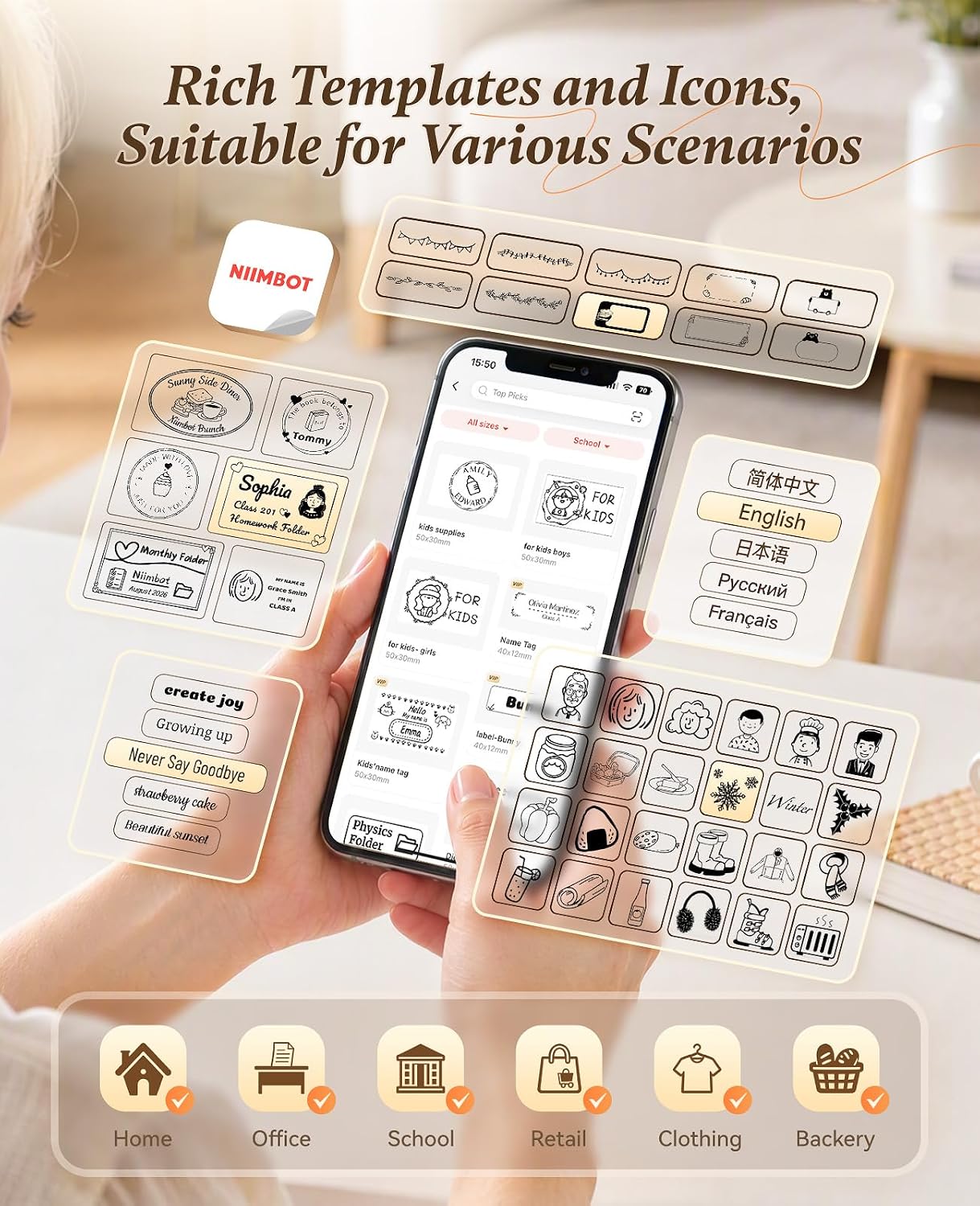
Image: The NIIMBOT app interface displaying a wide selection of templates and icons suitable for different labeling scenarios, such as home, office, school, retail, clothing, and bakery.
4.2 Printing Labels
Once your label design is complete:
- Review your label design on the app screen.
- Tap the "Print" button within the app.
- Confirm the number of copies if prompted.
- The label maker will print the labels. Carefully tear off the printed label along the serrated edge.
4.3 Practical Applications
The NIIMBOT B21 is suitable for a wide range of labeling tasks:
- Home Organization: Labeling pantry items, storage bins, spice jars, and more.
- Office Use: Organizing files, folders, cables, and office supplies.
- Retail & Small Business: Pricing, product identification, inventory management, and gift personalization.

Image: A woman using the NIIMBOT B21 label maker to label various food jars in a kitchen setting, demonstrating its use for home organization.

Image: The NIIMBOT B21 label maker positioned next to perfume bottles and other decorative items, illustrating its use for labeling personal care products or for decorative purposes.

Image: The NIIMBOT B21 label maker shown in a setting with gift-wrapped items and envelopes, demonstrating its capability to create personalized labels for special touches.
5. Maintenance
To ensure optimal performance and longevity of your NIIMBOT B21 label maker, follow these maintenance guidelines:
- Cleaning the Print Head: Periodically clean the thermal print head with a soft, lint-free cloth lightly dampened with isopropyl alcohol. Ensure the device is powered off before cleaning.
- Exterior Cleaning: Wipe the exterior of the device with a dry, soft cloth. Avoid using abrasive cleaners or solvents.
- Storage: Store the label maker in a cool, dry place away from direct sunlight and extreme temperatures.
- Battery Care: If storing for an extended period, charge the battery to about 50% and recharge every few months to prevent deep discharge.
6. Troubleshooting
If you encounter issues with your NIIMBOT B21, refer to the following common problems and solutions:
| Problem | Possible Cause | Solution |
|---|---|---|
| Device does not power on | Low battery; Power button not pressed correctly | Charge the device; Press and hold the power button for a few seconds. |
| Cannot connect via Bluetooth | Bluetooth off; Device out of range; App issue | Ensure Bluetooth is on; Move device closer; Restart app and device. |
| Poor print quality or blank labels | Label roll inserted incorrectly; Print head dirty; Low battery | Re-insert label roll correctly (printing side up); Clean print head; Charge device. |
| Labels not feeding correctly or jamming | Label roll misaligned; Obstruction in paper path | Ensure label roll is seated properly; Check for and remove any debris. |
| App crashes or freezes | Software glitch; Outdated app version | Restart the app; Check for app updates in your app store. |
7. Specifications
| Feature | Detail |
|---|---|
| Brand | NIIMBOT |
| Model Name | B21 |
| Item Model Number | B21 |
| Product Dimensions | 6.1D x 9.4W x 13H centimeters (6.1 x 9.4 x 12.95 cm; 317.51 g) |
| Connectivity Technology | Bluetooth |
| Print Technology | Thermal (Inkless) |
| Special Feature | Portable |
| Printer Output | Monochrome |
| Maximum Print Speed (Black & White) | 35 Parts per minute |
| Resolution | 300 x 300 dpi |
| Maximum Media Size | 50 x 30 mm (Max label width 5.1 cm) |
| Compatible Devices | Mobile devices, Smartphones, USB (for charging/data transfer, not simultaneous with Bluetooth) |
| Battery | 1 A battery(ies) required (1500 mAh capacity) |
| Power Consumption | 1.08 Watt |
| Total USB Ports | 1 (USB 2.0) |
| Specific Product Applications | General label printing, home organization, office organization, industrial labeling, supermarket labeling, store labeling, clothing labeling, jewelry labeling, small business labeling |
8. Warranty and Support
8.1 Warranty Information
The NIIMBOT B21 Label Maker comes with a lifetime warranty. Please retain your proof of purchase for warranty claims.
8.2 Customer Support
For further assistance, technical support, or warranty inquiries, please refer to the official NIIMBOT website or contact their customer service directly. Contact details can typically be found on the manufacturer's packaging or website.
Related documentsB21


Ask a question about this manual
Ask about setup, troubleshooting, compatibility, parts, safety, or missing instructions. Manuals+ will review the question and use this page’s manual context to help answer it.