1. Introduction
This manual provides detailed instructions for the installation, operation, and maintenance of your CAMECHO 7 Inch Android Car Stereo Double Din, Model Q3469A3-IT-C170. Please read this manual thoroughly before using the product to ensure proper function and safety.
2. Safety Information
- Do not operate the device in a manner that distracts you from driving. Always prioritize road safety.
- Ensure professional installation to prevent damage to the unit or vehicle.
- Avoid exposing the unit to extreme temperatures, direct sunlight for prolonged periods, or moisture.
- Do not attempt to disassemble or modify the unit. This may void the warranty and cause damage.
- Use only specified power cables and accessories.
3. Package Contents
Verify that all items listed below are included in your package:

Figure 3.1: Package Contents. This diagram illustrates the various components included with the CAMECHO car stereo, such as the main unit, power cord, RCA cables, reverse input cable, USB cables, GPS antenna, mounting brackets, user manual, and rear camera.
- CAMECHO Android Car Stereo Unit
- Power Cord
- RCA Cable Set
- Reverse Input Cable
- USB Cables (x2)
- GPS Antenna
- Mounting Brackets
- User Manual
- Rear Camera
4. Product Overview and Features
The CAMECHO Android Car Stereo is a versatile double din unit designed to enhance your in-car entertainment and navigation experience. It features a 7-inch HD touchscreen and runs on the Android operating system.
4.1 Key Features
- 7-inch HD Capacitive Touchscreen: Responsive and clear display with 1024x600 resolution.
- Android Operating System: Access to various Android applications.
- Built-in GPS Navigation: Supports online and offline navigation with an external GPS antenna.
- WiFi Connectivity: For online content streaming and app downloads.
- Bluetooth 4.0: Hands-free calling and audio streaming.
- Mirror Link: Connects with Android and iOS smartphones for screen mirroring.
- Rear Camera Input: Supports backup camera for parking assistance.
- Steering Wheel Control: Compatible with existing steering wheel controls for convenience.
- Multiple USB and AUX Inputs: For external media devices.
- FM Audio Receiver: For radio broadcasts.
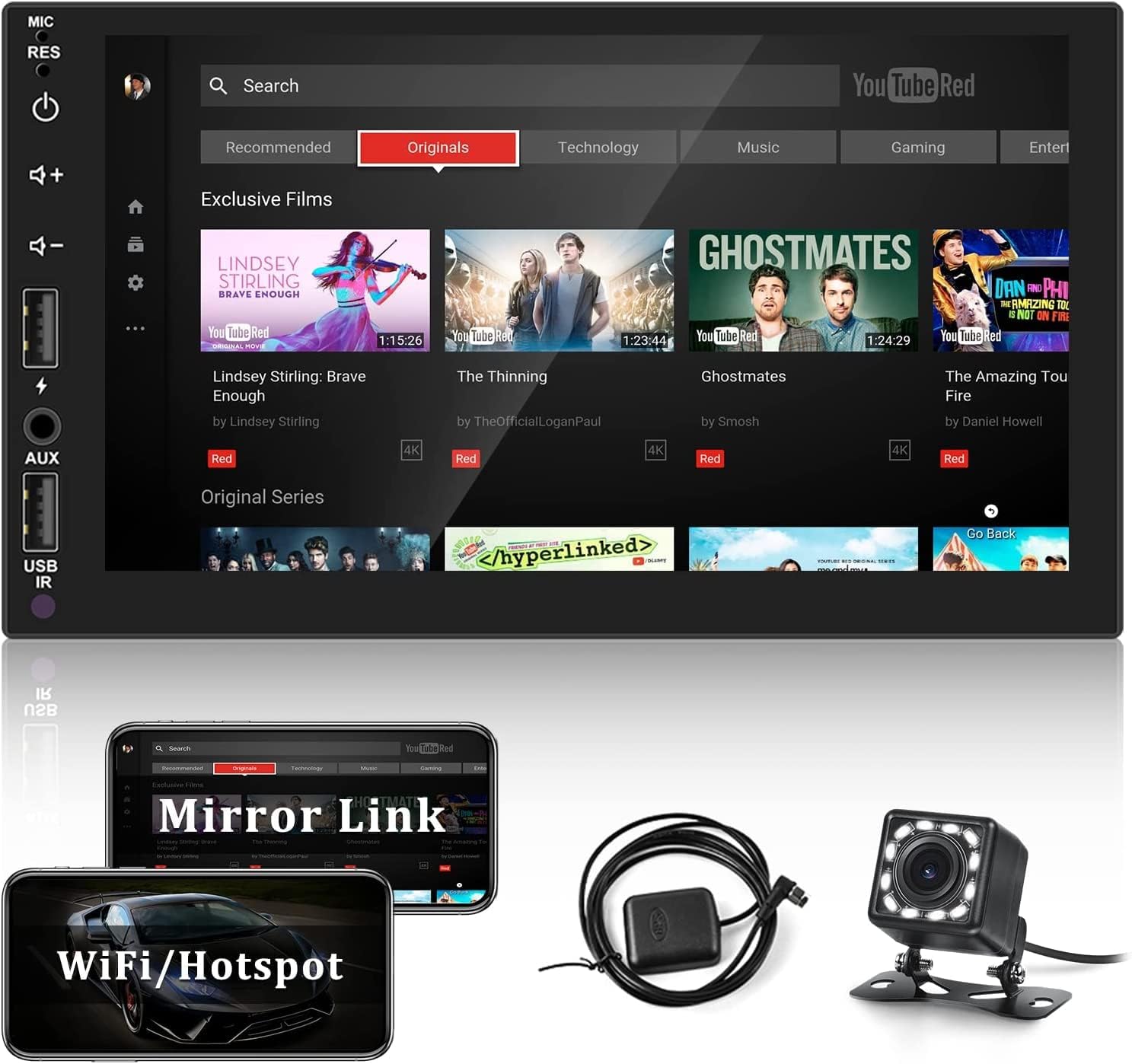
Figure 4.1: Main Interface. This image shows the main screen of the CAMECHO car stereo, displaying a YouTube-like interface with various content categories and control buttons on the left side.

Figure 4.2: GPS Navigation and WiFi Function. This image illustrates the GPS navigation interface with a map and route information, alongside icons for various Android navigation apps. It also highlights the WiFi function for online content and app downloads.

Figure 4.3: Mirror Link. This image demonstrates the Mirror Link feature, showing a smartphone screen mirrored onto the car stereo display.
5. Setup and Installation
Proper installation is crucial for the optimal performance and safety of your car stereo. It is recommended to have this unit installed by a qualified professional.
5.1 Dimensions and Mounting
The unit is a standard double din size. Ensure your vehicle's dashboard opening is compatible with the following dimensions:
- Front Panel Width: 178mm
- Front Panel Height: 102mm
- Chassis Depth: 45mm
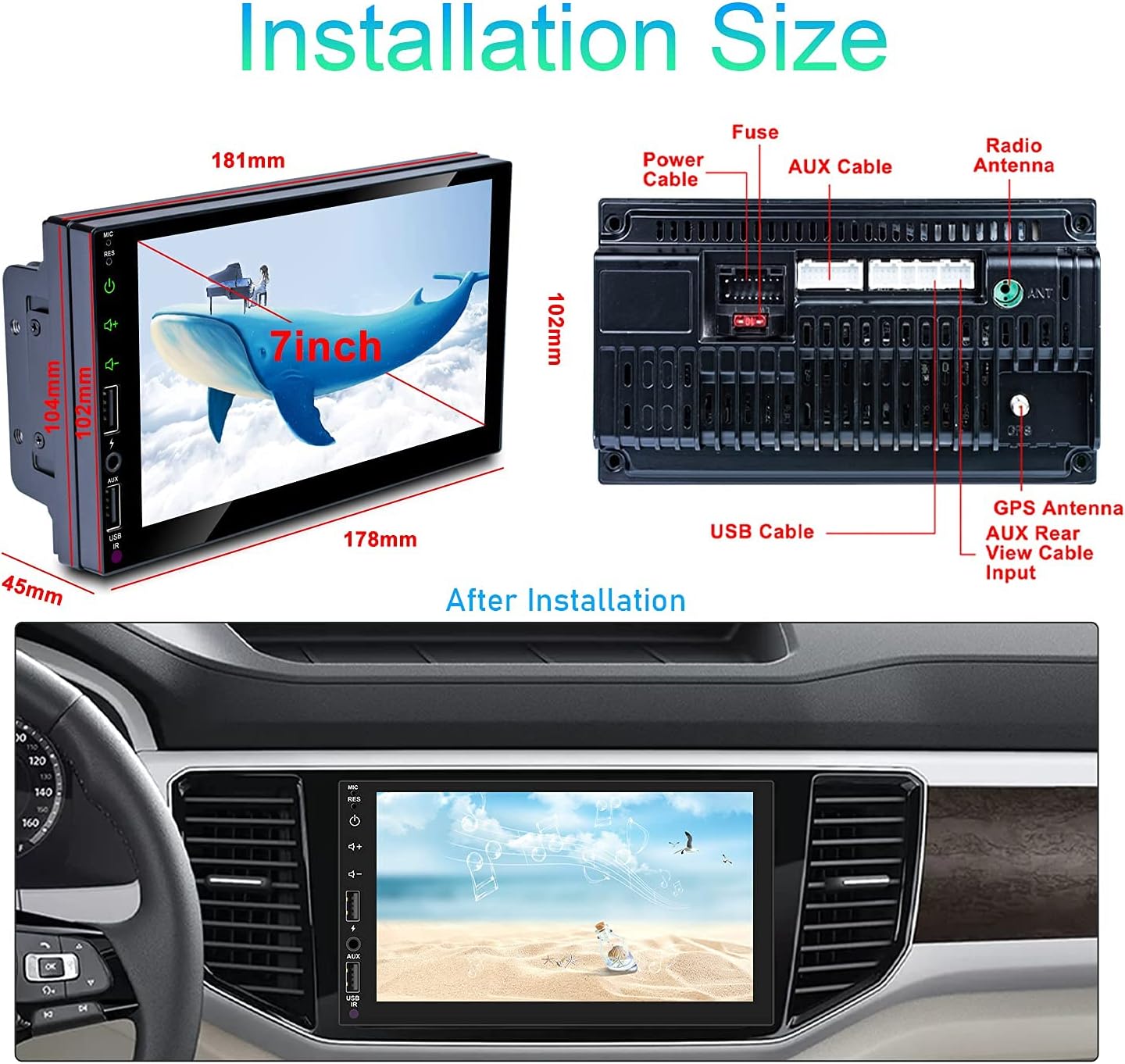
Figure 5.1: Installation Dimensions. This image provides a diagram of the car stereo's dimensions (181mm width, 102mm height, 45mm depth) and shows the rear panel with various ports labeled, including Power Cable, Fuse, AUX Cable, Radio Antenna, USB Cable, GPS Antenna, AUX Rear View Cable Input.
5.2 Wiring Diagram
Refer to the detailed wiring diagram below for connecting the power, speakers, antenna, and other accessories. Incorrect wiring can cause damage to the unit or vehicle's electrical system.

Figure 5.2: Main Wiring Diagram. This diagram illustrates the connections for the car stereo, including speaker wires (Front L/R, Rear L/R), steering wheel control lines (SW1, SW2), reverse input, illuminate backlight (ILL), ACC (ignition switch), B+ (constant power), and GND (ground). It also shows connections for the auto antenna, steering wheel control, and rear camera.
5.3 Rear Camera Connection
To install the rear camera, connect the camera's video output to the "REVERSE IN" port on the stereo. Power the camera by connecting its red wire to the vehicle's reversing light positive (+) and the black wire to ground (-).

Figure 5.3: Rear Camera Connection. This diagram shows the wiring for the rear camera, detailing how to connect the camera's power to the backup light and its video signal to the car stereo's reverse input. A visual of the camera and the stereo screen displaying a parking assist view are also included.
6. Operating Instructions
6.1 Basic Operation
The unit features a capacitive touchscreen for most operations. Physical buttons on the left side provide quick access to power, volume, and input selection.
- Power Button: Press to turn on/off. Short press for standby.
- Volume Buttons (+/-): Adjust audio volume.
- MIC/RES: Microphone input / Reset button (small hole, use a thin object to press).
- AUX Input: Connect external audio devices.
- USB IR: USB port and Infrared receiver.
6.2 GPS Navigation
The stereo comes with a built-in GPS module and an external antenna for accurate positioning. You can use pre-installed navigation apps or download others from the Google Play Store via WiFi.
- Ensure the GPS antenna is properly installed and has a clear view of the sky.
- Tap the "Navigation" icon on the main screen to launch the GPS application.
- Follow the on-screen prompts to set your destination and start navigation.
6.3 Bluetooth Functionality
Connect your smartphone via Bluetooth for hands-free calling and audio streaming.

Figure 6.1: Bluetooth Features. This image displays the Bluetooth 4.0 interface, showing a numeric keypad for dialing, connection status, and a phonebook icon. It illustrates the hands-free calling capability.
- Go to "Settings" > "Bluetooth" and enable Bluetooth.
- On your phone, search for available devices and select "CAMECHO" (or similar device name).
- Confirm the pairing code on both devices.
- Once connected, you can access your phonebook, make/receive calls, and stream music.
6.4 Mirror Link
Mirror Link allows you to display your smartphone's screen on the car stereo. This feature supports both Android and iOS devices.
- Connect your phone to the stereo via USB cable or WiFi (depending on phone type and app).
- Open the "Mirror Link" application on the stereo.
- Follow the on-screen instructions to establish the connection.
6.5 WiFi Connectivity
Connect to a WiFi hotspot to access online features, download apps, and stream content.
- Go to "Settings" > "Network & Internet" > "Wi-Fi".
- Turn on Wi-Fi and select your desired network.
- Enter the password if prompted and connect.
6.6 Steering Wheel Control
If your vehicle supports steering wheel controls, you can configure them to operate the stereo.

Figure 6.2: Steering Wheel Control Setup. This image shows the interface for configuring steering wheel controls. It depicts a steering wheel with control buttons and the stereo screen displaying a "Begin learn" button and various function icons to be assigned.
- Ensure the SW1 and SW2 wires are correctly connected during installation.
- Go to "Settings" > "Steering Wheel Control".
- Follow the on-screen instructions to "learn" each button function.
6.7 FM Radio
Access the FM radio tuner for local broadcasts.

Figure 6.3: FM Receiver. This image displays the FM radio interface, showing the current frequency (e.g., 90.50 MHz) and controls for scanning, tuning, and presets.
- Tap the "Radio" icon on the main screen.
- Use the scan function to find available stations or manually tune to a frequency.
- Save your favorite stations as presets.
6.8 Multimedia Playback
The unit supports various audio and video formats via USB or internal storage.

Figure 6.4: Car Multimedia System. This image shows the multimedia playback interface, indicating support for various input sources like smartphones, USB drives, AUX, and SD cards. The screen displays a music player interface.
- Connect a USB drive to one of the USB ports.
- Tap the "Video" or "Music" icon to browse and play media files.
- Supported video formats include RMVB, RM, VOB, MOV, AVI, MPG, MP4, FLV, DAT, 3GP, WMV, MKV, M4V.
7. Maintenance
- Cleaning the Screen: Use a soft, lint-free cloth to gently wipe the touchscreen. Do not use abrasive cleaners or solvents.
- Software Updates: Periodically check for software updates to ensure optimal performance and access to new features. Updates can usually be found on the manufacturer's website or through the device's settings if connected to WiFi.
- General Care: Keep the unit free from dust and debris. Avoid spilling liquids on the device.
8. Troubleshooting
| Problem | Possible Cause | Solution |
|---|---|---|
| Unit does not power on. | Incorrect wiring, blown fuse, insufficient power. | Check power connections (B+, ACC, GND). Inspect vehicle's fuse box and the unit's fuse. Ensure stable 12V power supply. |
| No sound. | Volume too low, incorrect audio source, speaker wiring issues. | Increase volume. Select correct audio source. Verify speaker connections. |
| GPS signal weak or inaccurate. | GPS antenna obstructed or improperly installed. | Ensure GPS antenna has a clear view of the sky and is securely connected. |
| Bluetooth connection issues. | Bluetooth not enabled, device not discoverable, interference. | Ensure Bluetooth is enabled on both devices. Make sure the stereo is in pairing mode. Try restarting both devices. |
| Rear camera not displaying. | Incorrect wiring, camera malfunction, reverse signal not detected. | Check camera power and video signal connections. Ensure the reverse trigger wire is correctly connected to the vehicle's reverse light. |
| Touchscreen unresponsive. | Software glitch, screen damage. | Try resetting the unit using the MIC/RES button. If issue persists, contact support. |
9. Specifications
| Feature | Detail |
|---|---|
| Model Number | Q3469A3-IT-C170 |
| Brand | CAMECHO |
| Operating System | Android |
| Screen Size | 7 Inches |
| Resolution | 1024 x 600 |
| Memory Storage Capacity | 16 GB |
| Bluetooth Version | 4.0 |
| Special Features | Bluetooth, Touchscreen, Waterproof (Note: 'Waterproof' feature likely refers to the included rear camera, not the main head unit.) |
| Audio Output Mode | AUX, Stereo |
| Human Interface Input | Buttons |
| Control Method | App, Touch |
| Product Dimensions | 3.94 x 11.42 x 4.33 inches (10.0 x 29.0 x 11.0 cm) |
| Item Weight | 2.07 pounds (0.94 kg) |
10. Warranty and Support
For warranty information and technical support, please refer to the documentation included with your product or visit the official CAMECHO website. Keep your purchase receipt as proof of purchase for warranty claims.
If you encounter issues not covered in this manual, please contact CAMECHO customer service for assistance.


