
1. Introduction
This manual provides essential information for setting up, operating, maintaining, and troubleshooting your Lenovo ThinkCentre M90s 11D1000YUS Desktop Computer. Please read this manual thoroughly before using your computer to ensure proper function and safety.
Package Contents
- Lenovo ThinkCentre M90s 11D1000YUS Desktop Computer
- Keyboard
- Mouse
- Power Cord
- Documentation (this manual, warranty information)
2. Safety Information
Observe the following safety precautions to prevent damage to your computer and to ensure your personal safety:
- Always connect the power cord to a grounded electrical outlet.
- Do not expose the computer to water or excessive humidity.
- Avoid placing the computer in direct sunlight or near heat sources.
- Ensure adequate ventilation around the computer to prevent overheating.
- Do not open the computer casing unless instructed by qualified service personnel.
- Keep the computer away from strong magnetic fields.
3. Product Overview
Familiarize yourself with the components and ports of your ThinkCentre M90s desktop computer.
Front View
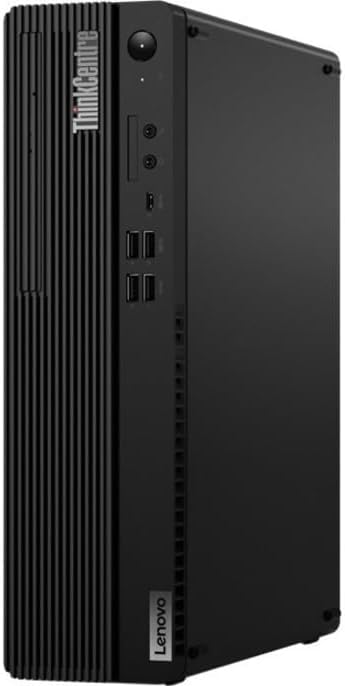
Image: Front view of the Lenovo ThinkCentre M90s desktop computer. This image highlights the vertical orientation of the small form factor chassis, featuring the power button, front USB ports, and the optical drive bay.
Rear View

Image: Rear view of the Lenovo ThinkCentre M90s desktop computer. This image displays the array of connectivity options including video outputs (DisplayPort, VGA), USB ports, Ethernet, and the power input.
Side View
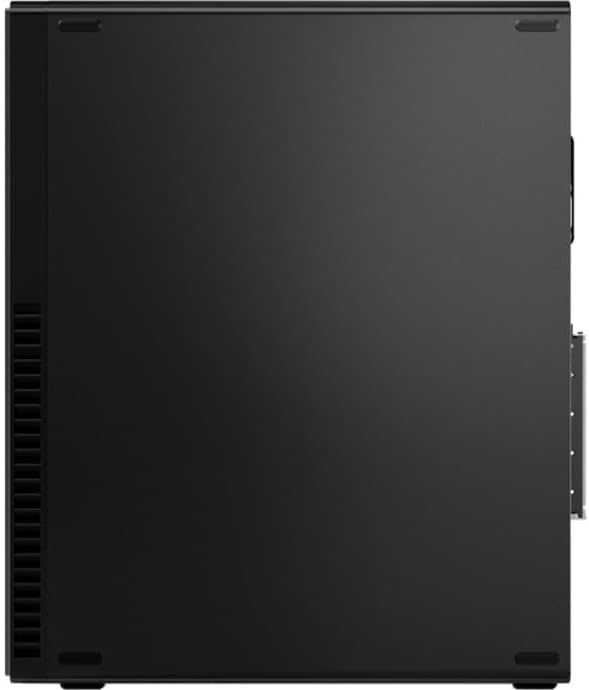
Image: Side view of the Lenovo ThinkCentre M90s desktop computer. This image shows the ventilation grilles along the side panel, designed for optimal airflow and cooling.
4. Setup Instructions
Follow these steps to set up your new Lenovo ThinkCentre M90s desktop computer.
- Unpack the Computer: Carefully remove the computer and all accessories from the packaging.
- Connect Peripherals:
- Connect the keyboard to an available USB port.
- Connect the mouse to an available USB port.
- Connect your monitor to a video output port (e.g., DisplayPort, VGA) on the rear of the computer.
- If using an Ethernet cable for internet, connect it to the RJ-45 port.
- Connect Power: Plug the power cord into the power connector on the rear of the computer, then plug the other end into a grounded electrical outlet.
- Power On: Press the power button located on the front of the computer. The system will begin to boot up.
- Initial Windows 10 Pro Setup: Follow the on-screen instructions to complete the initial setup of Windows 10 Pro, including language selection, network connection, and user account creation.
5. Operating Your Computer
This section covers basic operation of your ThinkCentre M90s.
Power On/Off and Restart
- Power On: Press the power button on the front panel.
- Shut Down: Click the Start button in Windows, then select Power > Shut down.
- Restart: Click the Start button in Windows, then select Power > Restart.
Using the Optical Drive
Your computer is equipped with a DVD-Writer optical drive for reading and writing CDs and DVDs.
- To open the tray, press the eject button on the drive.
- Place the disc label-side up on the tray and gently push the tray back into the computer.
Windows 10 Pro Features
Leverage the multitasking capabilities of Windows 10 Pro:
- Snap Assist: Drag a window to the side of the screen to snap it into place. Windows will suggest other open windows to fill the remaining space.
- Virtual Desktops: Use Task View (Windows key + Tab) to create and manage multiple virtual desktops for organizing your work.
6. Maintenance
Regular maintenance helps ensure the longevity and optimal performance of your computer.
Cleaning
- Use a soft, lint-free cloth slightly dampened with water or a mild cleaning solution to clean the exterior surfaces.
- Do not spray liquids directly onto the computer.
- Use compressed air to clear dust from ventilation grilles periodically.
Software Updates
Keep your operating system and drivers updated:
- Windows Updates: Go to Settings > Update & Security > Windows Update to check for and install updates.
- Driver Updates: Visit the official Lenovo support website for your model to download the latest drivers.
Data Backup
Regularly back up your important data to an external drive or cloud storage to prevent data loss.
7. Troubleshooting
This section provides solutions to common issues you might encounter.
No Power
- Ensure the power cord is securely connected to both the computer and the electrical outlet.
- Verify the electrical outlet is functional by plugging in another device.
- Check the power supply unit (PSU) fan for operation.
No Display on Monitor
- Confirm the monitor is powered on and its power indicator light is active.
- Check that the video cable is securely connected to both the computer and the monitor.
- Try connecting the monitor to a different video output port on the computer, if available.
- Ensure the correct input source is selected on your monitor.
Slow Performance
- Close unnecessary applications running in the background.
- Check for and install any pending Windows updates.
- Run a disk cleanup utility to free up storage space.
- Scan for malware or viruses using reputable antivirus software.
8. Specifications
Detailed technical specifications for the Lenovo ThinkCentre M90s 11D1000YUS Desktop Computer.
| Feature | Detail |
|---|---|
| Model Name | ThinkCentre M90s |
| Item Model Number | 11D1000YUS |
| Processor | Intel Core i5-10500 Hexa-core (6 Core) 3.10 GHz |
| RAM | 8 GB DDR4 SDRAM |
| Storage | 256 GB M.2 PCI Express NVMe 3.0 x4 SSD |
| Operating System | Windows 10 Pro |
| Graphics Card | Intel UHD Graphics |
| Optical Drive Type | DVD-Writer |
| Hardware Platform | PC |
| Color | Raven Black |
| Item Weight | 11.68 pounds |
| Product Dimensions (LxWxH) | 11.72 x 3.64 x 13.37 inches |
| Included Components | Keyboard, Mouse |
9. Warranty and Support
Your Lenovo ThinkCentre M90s desktop computer comes with a standard manufacturer's warranty. For detailed warranty terms and conditions, please refer to the warranty documentation included with your product or visit the official Lenovo support website.
For technical support, driver downloads, and additional resources, please visit the Lenovo support website:
When contacting support, please have your model number (11D1000YUS) and serial number ready.