
EXLENE EXPAD1
Exlene Wireless Controller User Manual
Model: EXPAD1
Introduction
Thank you for choosing the Exlene Wireless Controller. This controller is designed to enhance your gaming experience across multiple platforms, including Nintendo Switch/Lite, PC (Windows 7/8/10/XP, Steam), Android phones/tablets/TV boxes, and iOS iPhones/iPads. It features precise joysticks, adjustable vibration, turbo function, and motion control for immersive gameplay.

Image: The Exlene Wireless Controller in white, showing its buttons, joysticks, and the included USB wireless receiver.
Package Contents
- Exlene Pro Switch Controller x 1
- Charging cable x 1
- Bluetooth Receiver x 1 (for PC Win 10, Switch Pro, Android)
Setup and Connection
Multi-Platform Compatibility
The Exlene Wireless Controller supports a wide range of devices:
- Nintendo Switch / Nintendo Switch Lite
- PC: Windows 7, 8, 10, XP; Steam
- Android: Phones, Tablets, TV Boxes
- iOS: iPhones, iPads

Image: Icons representing compatibility with Nintendo Switch, PC, iOS, Android, and Steam platforms.
Pairing Modes
1. Bluetooth Pairing Mode
This mode is used for Nintendo Switch, Nintendo Switch Lite, PC, and Steam (via Bluetooth receiver or direct Bluetooth if supported by PC).
- For Nintendo Switch/Lite:
- From the HOME Menu, select "Controllers" > "Change Grip/Order".
- On the controller, press and hold the Home button for 3 seconds until the indicator lights flash rapidly.
- Once connected, the player indicator light(s) on the controller will remain lit.
- For Android Devices: Press and hold "A + Home" buttons simultaneously to enter Bluetooth pairing mode.
- For iOS Devices: Press and hold "Y + Home" buttons simultaneously to enter Bluetooth pairing mode.
2. Bluetooth Receiver Pairing Mode (for PC Win 10, Switch Pro, Android)
Use the included Bluetooth receiver for a stable wireless connection, especially recommended for PC (Windows 10).
- Plug the USB Bluetooth receiver into an available USB port on your PC or device.
- Press the small pairing button on the side of the USB receiver until its indicator light flashes rapidly.
- On the controller, press and hold the Home button for approximately 3 seconds until the indicator lights flash rapidly.
- The controller will vibrate lightly and the indicator lights will become solid once connected.

Image: The Exlene controller shown alongside its USB Bluetooth receiver, illustrating its "Plug N' Play" capability for Windows systems.
3. Reconnect Mode
To wake up and reconnect to a previously paired Nintendo Switch console, simply press the Home button on the controller.

Image: The Exlene controller positioned below a Nintendo Switch console, with an arrow pointing from the controller's Home button to the console, indicating the "One Key to Wake Up Switch Console" feature.
4. USB Wired Mode
Connect the controller directly to your device using the provided USB Type-C cable. The controller will automatically recognize the platform (Switch, PC, Android).
Operating Instructions
Battery and Charging
The controller features a built-in 1000mAh battery, providing approximately 40 hours of gameplay on a full charge. A quick 5-minute charge can provide 3-5 hours of use.
- Charging Time: Approximately 2 hours for a full charge.
- Connect the controller to a USB power source using the included Type-C charging cable.
- The indicator lights will show charging status and turn off when fully charged.

Image: An exploded view of the Exlene controller showing its internal 1000mAh battery, with text indicating "40h using time" for a full charge and "3-5 hours" for a 5-minute charge.
Joystick Calibration and Precision
The controller utilizes ALPS joysticks for enhanced precision and to prevent drift. It includes an automatic intelligent calibration function for accurate positioning.

Image: A close-up of the Exlene controller's joysticks, highlighting them as "ALPS Joysticks" for "More Precise, Refuse Drift; No Hurt Finger."
Button Swapping (PC Mode)
To avoid button confusion when playing PC games, you can easily swap the A, B, X, Y button layout to match an Xbox controller layout.
- While connected to PC, simultaneously press and hold the A, B, X, and Y buttons for 3 seconds.
- The controller will vibrate, indicating the button layout has been swapped. Repeat the process to revert to the original layout.
Turbo Function
The AUTO Turbo function allows for rapid, continuous button presses, making certain actions easier in games. There are 3 levels of Turbo speed.
- To activate Turbo: Press the "Turbo" button once, then press the button you wish to set to Turbo (e.g., A, B, X, Y, L, R, ZL, ZR).
- To adjust Turbo speed: Press the "Turbo" button and then press the "+" (Plus) button to increase speed, or "-" (Minus) button to decrease speed.
- To clear Turbo: Press the "Turbo" button and then press the button that has Turbo activated. Repeat for all Turbo-enabled buttons.
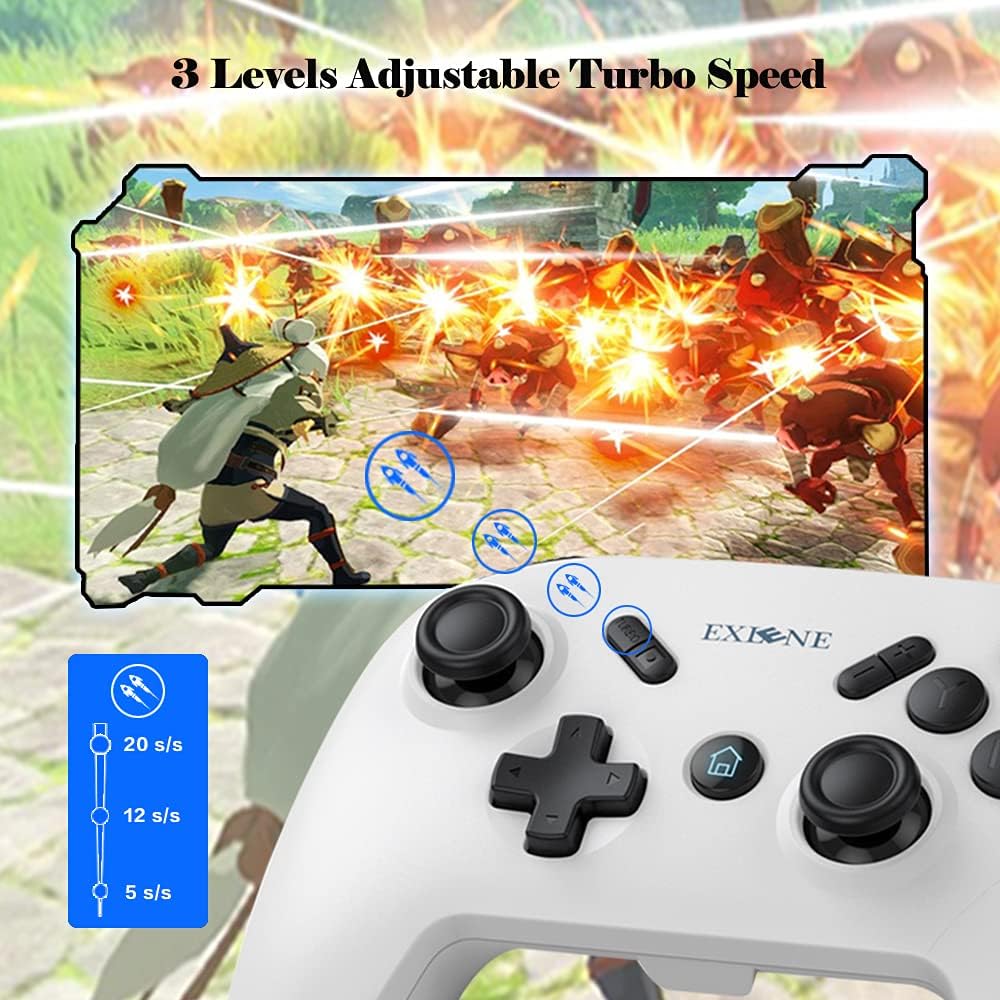
Image: The Exlene controller with an overlay showing the "Turbo" button and instructions to press "Turbo" and "+" to increase speed, or "-" to decrease speed. It also illustrates 3 levels of adjustable turbo speed (5 s/s, 12 s/s, 20 s/s).
Adjustable Vibration
The controller features dual motors with 5 levels of adjustable vibration intensity (0%, 20%, 40%, 70%, 100%) to enhance game immersion and feedback.
- To adjust vibration: Press the "Turbo" button and then press the Up or Down direction on the D-pad to cycle through vibration levels.
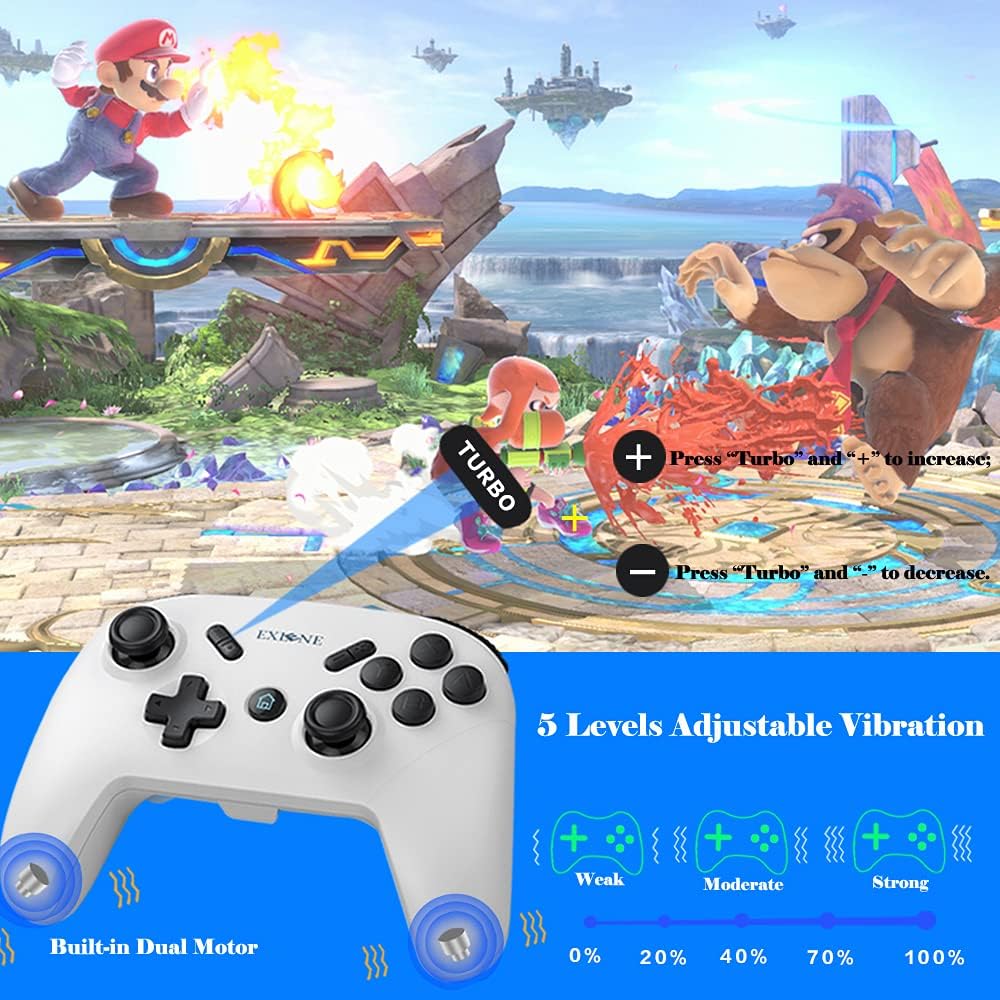
Image: The Exlene controller with an overlay showing "Built-in Dual Motor" and a diagram illustrating 5 levels of adjustable vibration: 0%, 20% (Weak), 40% (Moderate), 70%, and 100% (Strong).
Motion Control
The controller supports motion control, providing an additional layer of interaction for compatible games, particularly on Nintendo Switch.

Image: The Exlene controller shown with arrows indicating various motion control directions (front & back, left & right, up & down movement) in a gaming context.
Maintenance
- Keep the controller clean by wiping it with a soft, dry cloth.
- Avoid exposing the controller to extreme temperatures, humidity, or direct sunlight.
- Do not disassemble the controller, as this may void the warranty and cause damage.
- Store the controller in a safe place when not in use to prevent accidental damage.
Troubleshooting
- Controller not connecting: Ensure the controller is fully charged. Try re-pairing the controller according to the "Setup and Connection" instructions. For PC, ensure the Bluetooth receiver is properly plugged in and paired.
- Buttons are mapped incorrectly on PC: If A/B and X/Y buttons are swapped, use the button swapping feature (press and hold A+B+X+Y for 3 seconds) to switch the layout.
- Gyro/Motion control not working or inaccurate: Ensure the controller is connected to a platform that supports motion control (e.g., Nintendo Switch). Try recalibrating the controller's motion sensors through the console's settings if available.
- Controller disconnects frequently: Ensure there are no strong electromagnetic interferences nearby. Try moving closer to the console/PC. Ensure the controller is fully charged.
- Controller not charging: Check the charging cable and USB power source. Try a different cable or port.
Specifications
| Feature | Detail |
|---|---|
| Model Number | EXPAD1 |
| Manufacturer | Exlene |
| Dimensions | 15 x 10 x 5 cm |
| Weight | 350 g |
| Battery Capacity | 1000mAh |
| Battery Life | Approx. 40 hours (full charge) |
| Charging Time | Approx. 2 hours |
| Connectivity | Bluetooth, USB Wired |
| Vibration | 5 Levels Adjustable |
| Turbo | 3 Levels Adjustable |
| Motion Control | Supported |
Warranty and Support
For warranty information and technical support, please refer to the product packaging or contact Exlene customer service through the retailer where the product was purchased. Keep your proof of purchase for any warranty claims.
Ask a question about this manual
Ask about setup, troubleshooting, compatibility, parts, safety, or missing instructions. Manuals+ will review the question and use this page’s manual context to help answer it.