
1. Introduction
The Tronsmart Studio Metal Speaker is a portable Bluetooth speaker designed to deliver high-definition surround sound. Featuring 30W output, SoundPulse technology, and TuneConn for multi-speaker synchronization, it offers a versatile audio experience. Its durable metal construction and IPX4 water resistance make it suitable for various indoor and outdoor environments.

Image 1.1: The Tronsmart Studio Metal Speaker, showcasing its sleek design on a music sheet.
2. Package Contents
Upon opening the Tronsmart Studio Metal Speaker package, you should find the following items:
- Tronsmart Studio Metal Speaker
- USB-C Charging Cable
- 3.5mm AUX Audio Cable
- User Manual
- Warranty Card

Image 2.1: All items included in the Tronsmart Studio Metal Speaker retail package.
3. Product Overview
Familiarize yourself with the speaker's controls and ports for optimal use.
3.1 Top Panel Controls

Image 3.1: Top panel of the speaker with control buttons.
- Power Button: Press and hold to power on/off.
- Volume Down (-): Decrease volume.
- Play/Pause Button: Play or pause audio playback.
- Previous Track Button: Skip to the previous track.
- Next Track Button: Skip to the next track.
- Bluetooth Button: Press to enter Bluetooth pairing mode.
- Mode Button: Switch between input modes (Bluetooth, AUX, Micro SD).
- SoundPulse Button: Activate/deactivate SoundPulse audio enhancement.
- Broadcast Mode Button: Initiate or join multi-speaker synchronization.
3.2 Side Ports

Image 3.2: Side panel of the speaker with various input ports.
- USB-C Charging Port: For charging the speaker.
- AUX-in Port: For wired audio connection using a 3.5mm cable.
- Micro SD Card Slot: For playing audio directly from a Micro SD card.
4. Setup
4.1 Charging the Speaker
- Connect the provided USB-C charging cable to the speaker's USB-C port.
- Connect the other end of the cable to a compatible USB power adapter (not included).
- The charging indicator lights will illuminate to show charging status.
- Once fully charged, the indicator lights will change or turn off.
4.2 Powering On/Off
- To power on, press and hold the Power Button for approximately 2 seconds until you hear an audible prompt.
- To power off, press and hold the Power Button for approximately 2 seconds until you hear an audible prompt.
4.3 Bluetooth Pairing
- Ensure the speaker is powered on and in Bluetooth mode (the Bluetooth indicator light will be blinking). If not, press the Mode Button to switch to Bluetooth mode.
- On your device (smartphone, tablet, laptop), enable Bluetooth and search for available devices.
- Select "Tronsmart Studio" from the list of devices.
- Once connected, the Bluetooth indicator light will become solid, and you will hear a confirmation sound.
4.4 AUX Connection
- Connect one end of the 3.5mm AUX audio cable to the speaker's AUX-in port.
- Connect the other end to the audio output jack of your device.
- The speaker will automatically switch to AUX mode, or you may need to press the Mode Button to select AUX.
4.5 Micro SD Card Playback
- Insert a Micro SD card (with audio files) into the Micro SD card slot on the speaker.
- The speaker will automatically switch to Micro SD mode and begin playing audio, or you may need to press the Mode Button to select Micro SD.
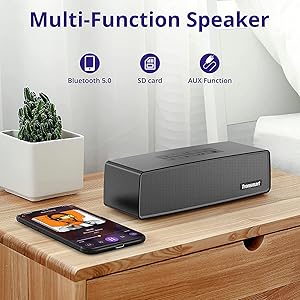
Image 4.1: The Tronsmart Studio speaker supports multiple input methods including Bluetooth, Micro SD, and AUX.
5. Operating Instructions
5.1 Basic Audio Control
- Volume Adjustment: Press the Volume Up (+) or Volume Down (-) buttons.
- Play/Pause: Press the Play/Pause Button.
- Next Track: Press the Next Track Button.
- Previous Track: Press the Previous Track Button.
5.2 SoundPulse Technology
Press the SoundPulse Button to activate or deactivate the SoundPulse audio enhancement. This technology is designed to provide a more dynamic and detailed sound experience with enhanced bass.

Image 5.1: SoundPulse technology enhances the audio output of the Tronsmart Studio speaker.
5.3 TuneConn (Multi-Speaker Synchronization)
The Tronsmart Studio speaker features patented TuneConn technology, allowing you to synchronize audio across 100+ compatible speakers for an immersive sound experience.
- Ensure all Tronsmart Studio speakers are powered on and in Bluetooth mode.
- Connect your device to one speaker via Bluetooth (this will be the primary speaker).
- On the primary speaker, press the Broadcast Mode Button. The indicator light will flash.
- On other Tronsmart Studio speakers (secondary speakers), press their Broadcast Mode Buttons. They will automatically search for and connect to the primary speaker.
- Once connected, all speakers will play synchronized audio.

Image 5.2: Multiple Tronsmart Studio speakers synchronized using TuneConn technology for a home theater setup.
5.4 Voice Assistant
To activate your device's voice assistant (e.g., Siri, Google Assistant, Cortana), press and hold the Voice Assistant button (often indicated by a microphone icon) for 2 seconds. This feature works when the speaker is connected via Bluetooth to a compatible smartphone.
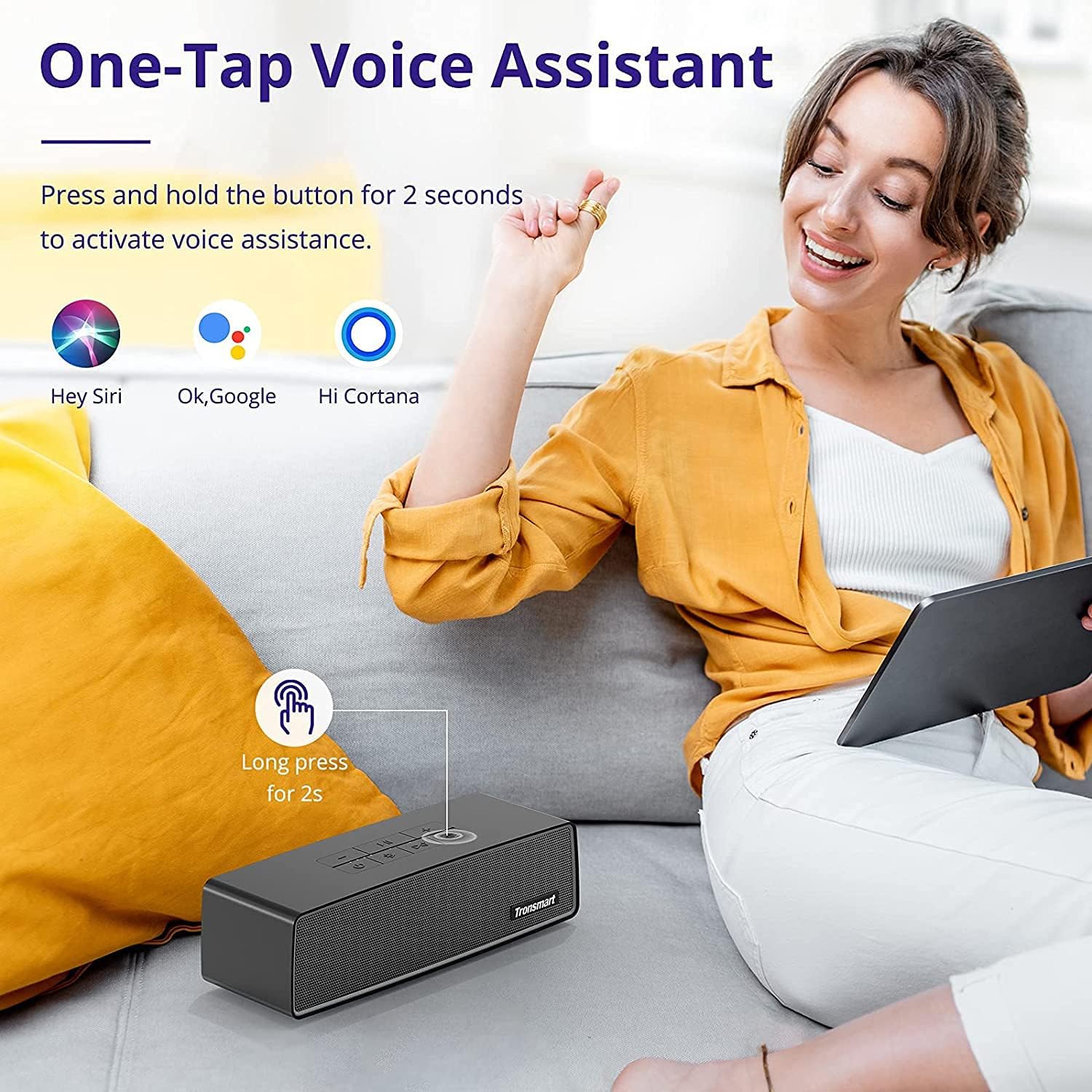
Image 5.3: Activating the voice assistant feature on the Tronsmart Studio speaker.
6. Charging & Battery
The Tronsmart Studio speaker is equipped with a built-in 5000mAh battery, providing up to 15 hours of playtime on a single charge. Actual battery life may vary based on volume level, audio content, and usage of features like SoundPulse or TuneConn.

Image 6.1: The Tronsmart Studio speaker offers up to 15 hours of playtime.
7. Water Resistance
The Tronsmart Studio speaker has an IPX4 water resistance rating. This means it is protected against splashing water from any direction. It is suitable for use in environments where it might encounter light splashes or rain, but it should not be submerged in water.

Image 7.1: The speaker's IPX4 rating provides protection against splashes.
8. Maintenance
- Clean the speaker with a soft, dry cloth. Do not use abrasive cleaners or solvents.
- Avoid exposing the speaker to extreme temperatures, direct sunlight, or high humidity.
- Store the speaker in a cool, dry place when not in use for extended periods.
- Do not attempt to disassemble or repair the speaker yourself, as this will void the warranty.
9. Troubleshooting
| Issue | Possible Cause | Solution |
|---|---|---|
| Speaker does not power on. | Low battery. | Charge the speaker fully. |
| Cannot pair via Bluetooth. | Speaker not in pairing mode; device Bluetooth off; too far from speaker. | Ensure speaker is in Bluetooth pairing mode. Turn device Bluetooth off/on. Move device closer to speaker. |
| Audio cuts out in AUX mode. | Loose cable connection; faulty cable. | Ensure 3.5mm cable is securely connected. Try a different AUX cable. |
| Buttons are hard to see. | Low light conditions. | Operate the speaker in well-lit environments. |
| Battery life is shorter than expected. | High volume usage; continuous use of SoundPulse/TuneConn. | Reduce volume. Limit continuous use of power-intensive features. |
10. Specifications
| Feature | Detail |
|---|---|
| Brand | Tronsmart |
| Model Number | Tronsmart Studio US |
| Speaker Maximum Output Power | 30 Watts |
| Connectivity Technology | Bluetooth |
| Audio Output Mode | Stereo, Surround |
| Mounting Type | Freestanding |
| Speaker Type | Surround Sound |
| Additional Features | Portable |
| Controller Type | Button |
| Is Waterproof | True (IPX4) |
| Control Method | App |
| Speaker Size | 7 Centimeters |
| Wireless Technology | Bluetooth |
| Connectivity Protocol | Bluetooth |
| Audio Driver Type | Dynamic Driver |
| Number of Audio Channels | 2.1 |
| Compatible Devices | Laptop, Smartphone, Tablet |
| Power Source | Battery Powered |
11. Official Product Video
Video 11.1: An official overview of the Tronsmart Studio Portable Speaker, highlighting its features and design.
12. Warranty & Support
The Tronsmart Studio Metal Speaker comes with a limited warranty. Please refer to the included Warranty Card in your package for specific terms and conditions, including warranty duration and coverage details. For further support, product registration, or to access updated drivers and firmware, please visit the official Tronsmart website or contact their customer service.
For more information, visit the Tronsmart Store on Amazon.