
1. Introduction to Your Fire HD 8 Tablet
The Amazon Fire HD 8 tablet, 12th generation (2022 release), is designed for portable entertainment and productivity. It features an 8-inch HD display, a hexa-core processor for enhanced performance, and up to 13 hours of battery life. This manual provides essential information for setting up, operating, maintaining, and troubleshooting your device.

Image: The Fire HD 8 tablet in multiple colors, showcasing its interface with popular applications.
2. Getting Started: Setup
2.1 Unboxing and Initial Charge
Your Fire HD 8 tablet package includes:
- Fire HD 8 tablet
- USB-C (2.0) cable
- 5W power adapter
- Quick Start Guide
Before first use, fully charge your tablet. Connect the USB-C cable to the tablet's USB-C port and the 5W power adapter to a wall outlet. A full charge takes approximately 5 hours. For faster charging, a 9W adapter (sold separately) can charge it in under 3 hours, and a 15W adapter with a USB-C to C cable (sold separately) in under 2.5 hours.
2.2 Powering On and Initial Configuration
- Press and hold the power button until the Amazon logo appears.
- Follow the on-screen instructions to select your language, connect to a Wi-Fi network, and register your device with your Amazon account.
- If you do not have an Amazon account, you will be prompted to create one.
3. Operating Instructions
3.1 Basic Navigation
The Fire HD 8 features a high-definition touchscreen. Use gestures such as tapping, swiping, pinching, and spreading to navigate the interface, open apps, scroll through content, and zoom.
3.2 Wi-Fi Connectivity
To connect to a Wi-Fi network:
- Swipe down from the top of the screen to open Quick Settings.
- Tap the Wi-Fi icon.
- Select your desired network from the list and enter the password if prompted.
The tablet supports dual-band 802.11a/b/g/n/ac standards with WEP, WPA3 OWE, WPA/WPA2/WPA3 Personal, and WPA/WPA2/WPA3 Enterprise security. Wi-Fi 6 (802.11 ax) is not supported.
3.3 Using Alexa
Your Fire HD 8 tablet integrates Alexa. To activate Alexa, say "Alexa" or tap the Alexa icon. You can ask Alexa to play music, get news and weather updates, manage shopping lists, set reminders, control smart home devices, and make video calls using compatible apps like Zoom.
3.4 Entertainment and Apps
Stream or download content from Prime Video, Netflix, Disney+, and HBO. Access apps like Facebook, Hulu, Instagram, and TikTok through the Amazon Appstore. Google Play is not supported. Subscriptions may be required for some apps and services.
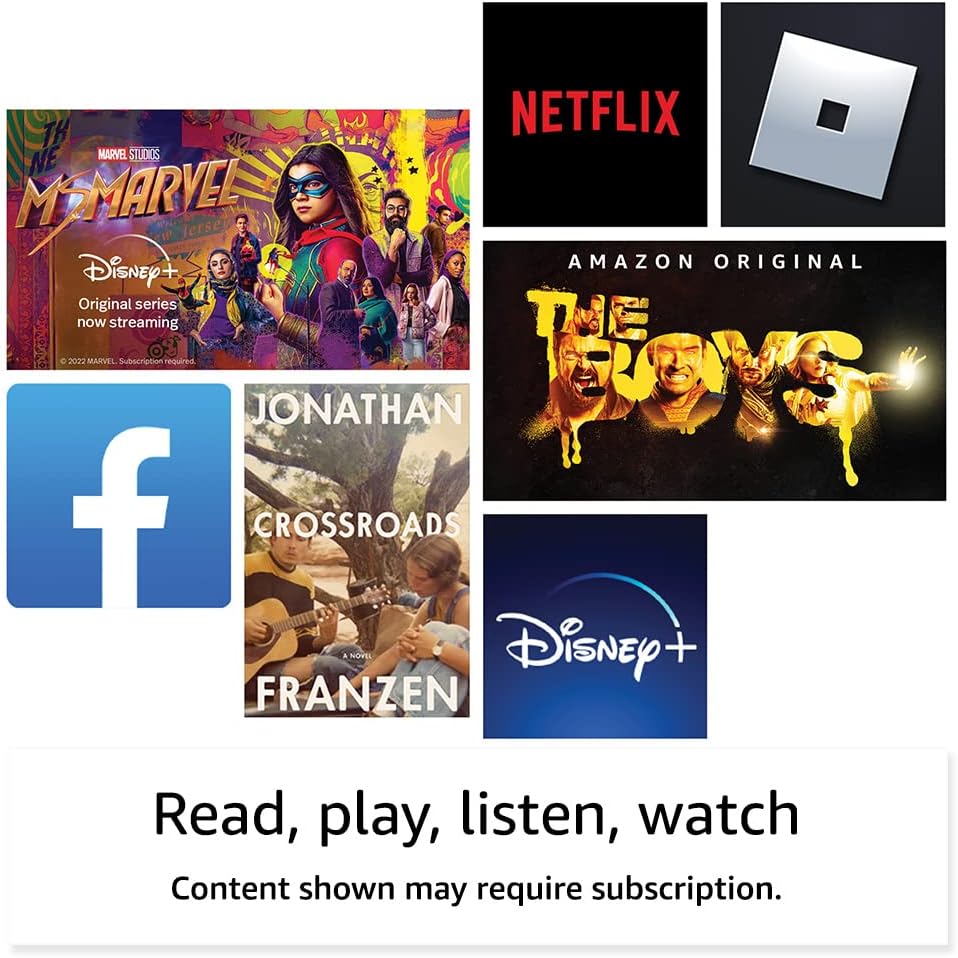
Image: Examples of entertainment content and applications available on the Fire HD 8 tablet.

Image: The Fire HD 8 tablet being used for reading in a portable setting.
3.5 Storage Management
Your tablet comes with either 32 GB (25.2 GB available) or 64 GB (54.5 GB available) of internal storage. You can expand storage up to 1 TB using a microSD card (sold separately). Some apps may require installation on internal storage.
3.6 Camera Usage
The Fire HD 8 has a 2 MP front-facing camera and a 2 MP rear-facing camera, both capable of 720p HD video recording. Open the Camera app to take photos or videos.
3.7 Bluetooth Connectivity
The tablet features built-in Bluetooth 5.2, supporting A2DP compatible stereo headphones, speakers, microphones, and LE accessories. To pair a Bluetooth device, go to Settings > Connected Devices > Bluetooth and select your device.
3.8 Accessibility Features
The Fire HD 8 includes various accessibility features. Access these by going to Settings > Accessibility. Features include:
- VoiceView screen reader: For blind or visually impaired users.
- Screen Magnifier: To zoom in/out and pan the screen.
- Tap to Alexa: Access Alexa via touch with on-screen tiles or a keyboard.
- Switch Access: For users with motor impairments, using compatible Bluetooth devices.
- Kindle Read Aloud: Alexa reads Kindle books aloud.
- Other settings: Closed Captioning, Font Size, Display Size, High Contrast Text, Color Inversion, Color Correction, and Convert Stereo to Mono audio. (Captions are not available for all content.)
4. Specifications
| Feature | Description |
|---|---|
| Display | 8” high-definition touchscreen; 1280 x 800 resolution at 189 ppi, HD video playback, with IPS technology |
| Size | 7.94” x 5.40” x 0.37” (201.90mm x 137.34 mm x 9.60 mm) |
| Weight | 11.88 ounces (337 grams) |
| CPU & RAM | Hexa-core 2.0 GHz with 2 GB of RAM |
| Storage | 32 GB or 64 GB internal storage; expandable up to 1 TB via microSD card |
| Battery Life | Up to 13 hours (reading, web browsing, video, music) |
| Charge Time | Under 5 hours (5W adapter); under 3 hours (9W adapter, sold separately); under 2.5 hours (15W adapter, sold separately) |
| Wi-Fi Connectivity | Dual-band 802.11a/b/g/n/ac; WEP, WPA3 OWE, WPA/WPA2/WPA3 Personal/Enterprise. Wi-Fi 6 not supported. |
| Ports | USB-C (2.0) connector for charging; microSD slot |
| Audio | 3.5 mm stereo jack and integrated speakers; external volume controls |
| Sensors | Accelerometer, ambient light sensor |
| Camera Specs | 2 MP front-facing and 2 MP rear-facing cameras with 720p HD video recording |
| Localization Services | Location-based services via Wi-Fi |
| Bluetooth | Built-in Bluetooth 5.2 with A2DP support |
| Generation | 12th generation - 2022 release |

Image: Visual comparison of different Amazon Fire tablet screen sizes, including the 8-inch Fire HD 8.
5. Maintenance
5.1 Cleaning Your Tablet
To clean your Fire HD 8, use a soft, lint-free cloth. For stubborn smudges, slightly dampen the cloth with water. Avoid using abrasive cleaners, solvents, or aerosol sprays directly on the tablet.
5.2 Software Updates
Your Fire HD 8 tablet receives regular software security updates. Ensure your device is connected to Wi-Fi to receive these updates automatically. You can check for updates manually in Settings > Device Options > System Updates.
5.3 Battery Care
To maximize battery life, avoid exposing your tablet to extreme temperatures. For optimal performance, charge the battery when it is low rather than waiting for it to fully deplete.
6. Troubleshooting
6.1 Device Not Responding
If your tablet becomes unresponsive, press and hold the power button for 20-30 seconds to force a restart.
6.2 Wi-Fi Connection Issues
- Ensure Wi-Fi is enabled in Quick Settings.
- Restart your Wi-Fi router.
- Forget the network and reconnect by re-entering the password.
6.3 Apps Not Working
- Ensure your tablet's software is up to date.
- Clear the app's cache and data in Settings > Apps & Games > Manage All Applications.
- Uninstall and reinstall the app.
7. Warranty and Support
Your Fire HD 8 tablet includes a 90-day limited warranty and service. Optional 1-year, 2-year, and 3-year extended warranties are available for U.S. customers and sold separately. Use of the Fire HD 8 tablet is subject to Amazon's Conditions of Use.
For further assistance, visit the Amazon support website or contact Amazon customer service. Information specific to your device can be found by visiting Manage Your Content and Devices.

Image: A family enjoying the Fire HD 8 tablet together.


