
Introduction
This manual provides instructions for the setup, operation, and maintenance of your MOFII 2.4G Wireless Keyboard and Mouse Combo. This combo offers a full-sized ergonomic design and a reliable 2.4G wireless connection for various computing environments.

Image: The MOFII Wireless Keyboard and Mouse Combo, featuring a full-sized keyboard with round keys and a contoured mouse, alongside the USB receiver.
Package Contents
- Wireless Keyboard
- Wireless Mouse
- USB Receiver (located in the mouse battery compartment)
- User Manual (this document)
Setup
- Install Batteries: Open the battery compartments on both the keyboard and the mouse. Insert the required batteries (typically AA for keyboard, AAA for mouse) ensuring correct polarity.
- Locate USB Receiver: The USB receiver is stored in the battery compartment of the wireless mouse. Carefully remove it.
- Connect USB Receiver: Plug the USB receiver into an available USB port on your computer.
- Power On: Ensure both the keyboard and mouse are switched on (if they have an on/off switch). The devices should automatically connect to your computer.

Image: Illustration showing the USB receiver stored within the mouse and its connection to a laptop, indicating a 10-meter wireless range.
Compatibility: This combo is compatible with Windows XP/Vista/7/8/10 or later operating systems. It is not fully compatible with Mac systems, meaning some functions may not work as expected.

Image: Visual representation of the keyboard and mouse being used with a laptop, highlighting 2.4GHz wireless technology and compatibility with PC, Mac, and Windows.
Operating Instructions
Keyboard Functions
The keyboard features a full-sized layout with dedicated function keys. Many keys have secondary functions accessible by pressing the Fn key simultaneously with the desired function key.
| Combination | Function |
|---|---|
| Fn + Esc | Lock Computer |
| Fn + F1 | Previous Track |
| Fn + F2 | Play/Pause Media |
| Fn + F3 | Next Track |
| Fn + F4 | Mute Audio |
| Fn + F5 | Volume Down |
| Fn + F6 | Volume Up |
| Fn + F7 | Open Web Browser |
| Fn + F8 | Search |
| Fn + F9 | Open Email Client |
| Fn + F10 | Open Favorites |
| Fn + F12 | Open Settings |

Image: Diagram illustrating the various function key combinations (Fn + F1 to F12, Fn + Esc) and their corresponding actions, such as media control, volume adjustment, and application shortcuts.
Mouse Operation
The wireless mouse provides precise tracking and responsive clicks. Its ergonomic design is intended to reduce wrist pressure during extended use.

Image: A visual emphasizing the mouse's low-noise click and high responsiveness, with a sleeping baby in the background to illustrate quiet operation.

Image: A close-up view of the keyboard's ergonomic design and the silicone non-slip pads on its underside, designed to provide stability and comfort.
Automatic Power Saving
To conserve battery life, both the keyboard and mouse will automatically enter sleep mode after 15 minutes of inactivity. To wake the devices, simply press any key on the keyboard or click any button on the mouse.
Maintenance
- Cleaning: Use a soft, dry cloth to clean the surfaces of the keyboard and mouse. For stubborn dirt, a slightly damp cloth with mild soap can be used, ensuring no liquid enters the device.
- Battery Replacement: When performance degrades or devices stop responding, replace the batteries in both the keyboard and mouse. Refer to the battery compartment for correct battery type and polarity.
- Storage: When not in use for extended periods, it is recommended to remove the batteries to prevent leakage and store the USB receiver in the mouse's battery compartment.
Troubleshooting
- Devices not responding:
- Ensure the USB receiver is securely plugged into a working USB port on your computer.
- Check if the batteries in both the keyboard and mouse are correctly installed and have sufficient charge. Replace if necessary.
- Verify that the keyboard and mouse are switched on (if applicable).
- Move the devices closer to the USB receiver to rule out range issues. The effective range is approximately 10 meters.
- Try plugging the USB receiver into a different USB port.
- Lag or intermittent connection:
- Reduce the distance between the devices and the USB receiver.
- Ensure there are no large metal objects or other wireless devices interfering with the 2.4G signal.
- Replace batteries.
- Devices enter sleep mode too quickly:
- This is a power-saving feature. Simply press any key or click the mouse to wake them up.
- Some functions not working on Mac:
- The combo is not fully compatible with Mac systems. Certain function keys or mouse features may not be supported.
Specifications
| Feature | Detail |
|---|---|
| Brand | MOFII |
| Model | B09BFCZFBK |
| Connectivity Technology | 2.4G Wireless (USB Receiver) |
| Special Feature | Ergonomic Design, Automatic Power Saving |
| Compatible Devices | Personal Computer (Windows XP/Vista/7/8/10 or later) |
| Package Dimensions | 17.75 x 5.75 x 2.69 inches |
| Item Weight | 1.83 pounds |
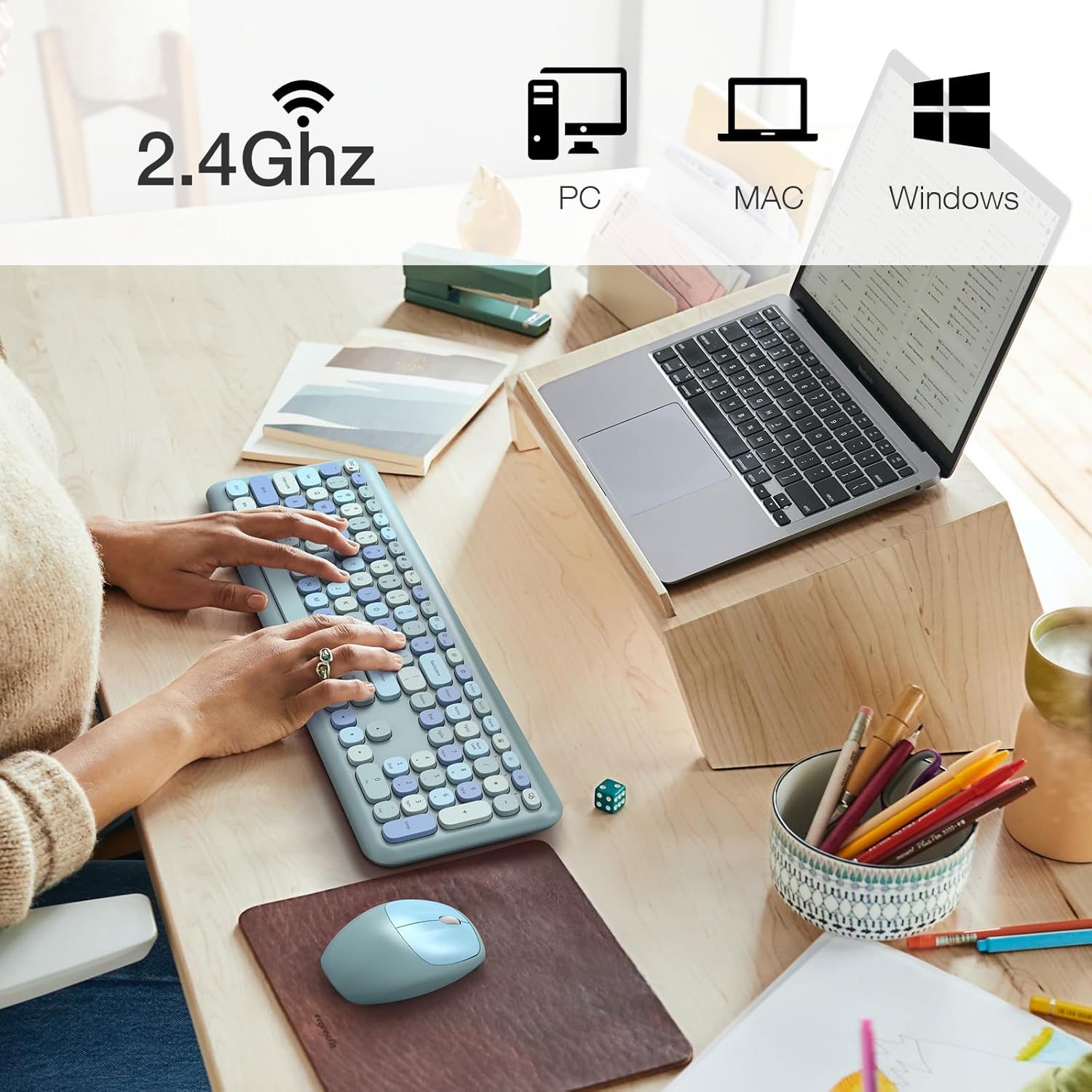
Image: Detailed dimensions of the full-sized keyboard (17.5 inches long, 1.2 inches high) and the mouse (2.7 inches wide, 4.1 inches long, 1.4 inches high).
Warranty and Support
For warranty information or technical support, please refer to the product packaging or contact MOFII customer service directly. Contact details can typically be found on the manufacturer's official website or through your purchase platform.