Introduction
This manual provides detailed instructions for setting up and using your MOFii Wireless Keyboard and Mouse Combo. Designed for comfort and efficiency, this combo offers a reliable 2.4GHz wireless connection, making it ideal for various computing tasks.
The MOFii Wireless Keyboard and Mouse Combo features a stylish multi-color design and is compatible with Windows XP/Vista/7/8/10 or later operating systems. It is also compatible with laptops, desktops, PCs, and notebooks. Please note that it is not fully compatible with Mac systems.
Setup Instructions
- Install Batteries: Open the battery compartment on the underside of both the keyboard and the mouse. Insert the required batteries (typically AA for keyboard, AAA for mouse, not included) ensuring correct polarity.
- Locate USB Receiver: The single USB receiver for both the keyboard and mouse is typically stored in the battery compartment of the mouse for convenience. Carefully remove it.
- Connect USB Receiver: Plug the USB receiver into an available USB port on your computer (PC, laptop, desktop, or notebook).
- Power On: Turn on the keyboard and mouse using their respective power switches (usually located on the underside).
- Automatic Connection: The keyboard and mouse should automatically connect to your computer within a few seconds. No additional software installation is required.
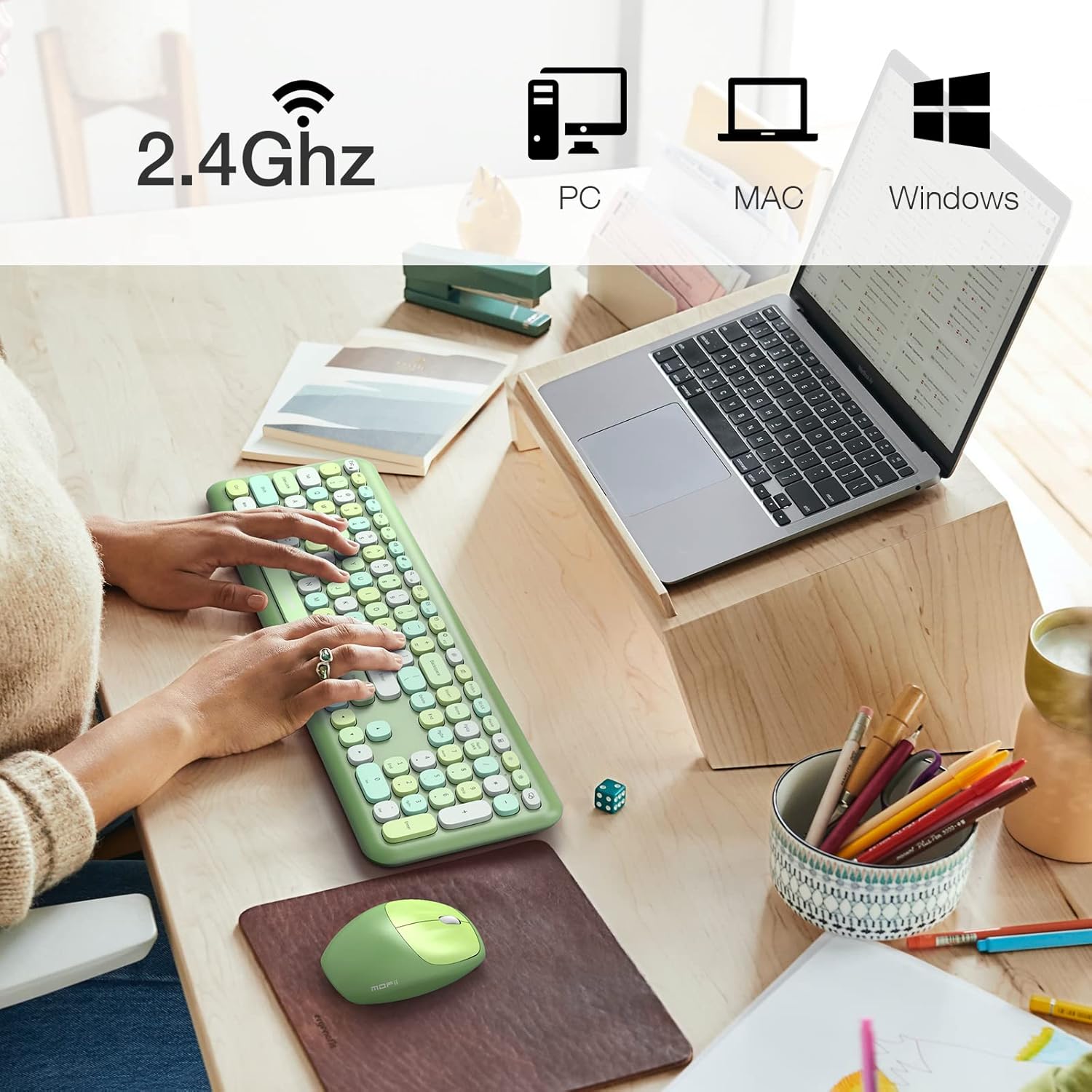
Image: The MOFii wireless mouse showing its battery compartment, where the USB receiver is stored, and indicating a 10-meter wireless range.
Operating Instructions
Keyboard Usage:
- Typing: The full-size keyboard provides a comfortable typing experience with responsive keys.
- Function Keys (Fn Combinations): Utilize the 'Fn' key in combination with other keys for various shortcuts. For example:
| Key Combination | Function |
|---|---|
| Fn + Esc | Lock Computer |
| Fn + F1 | Previous Track |
| Fn + F2 | Play/Pause Media |
| Fn + F3 | Next Track |
| Fn + F4 | Mute Audio |
| Fn + F5 | Volume Down |
| Fn + F6 | Volume Up |
| Fn + F7 | Open Web Browser |
| Fn + F8 | Search |
| Fn + F9 | Open Email Client |
| Fn + F10 | Open Favorites |
| Fn + F12 | Open Settings |

Image: A visual representation of the MOFii keyboard highlighting the 'Fn' key and its various shortcut combinations for enhanced productivity.
Mouse Usage:
- Clicking and Scrolling: The mouse provides precise tracking and quiet clicks for comfortable navigation.
- Automatic Power Saving: To conserve battery life, the mouse will automatically enter sleep mode after 15 minutes of inactivity. Press any button to wake it up instantly.

Image: The MOFii wireless mouse, emphasizing its quiet click feature, suitable for environments where minimal noise is desired.

Image: A diagram showing the automatic power-saving features of the MOFii wireless mouse, transitioning from active use to auto-sleep and reactivation.
Maintenance
- Cleaning: Use a soft, dry cloth to clean the surfaces of the keyboard and mouse. For deeper cleaning, a slightly damp cloth with mild soap can be used, ensuring no liquid enters the devices.
- Battery Replacement: When the devices become unresponsive or performance degrades, replace the batteries. Refer to the 'Setup Instructions' for battery compartment location.
- Storage: When not in use for extended periods, turn off the devices and store them in a cool, dry place. Consider removing batteries if storing for several months.
Troubleshooting
- No Connection:
- Ensure the USB receiver is securely plugged into a working USB port.
- Check if the batteries in both the keyboard and mouse are correctly installed and have sufficient charge.
- Make sure both devices are powered on.
- Try plugging the USB receiver into a different USB port.
- Lag or Intermittent Connection:
- Move the keyboard and mouse closer to the USB receiver.
- Avoid placing the receiver near other wireless devices (e.g., Wi-Fi routers, cordless phones) that might cause interference.
- Ensure there are no large metal objects between the devices and the receiver.
- Mouse Cursor Jumps or is Inaccurate:
- Clean the optical sensor on the underside of the mouse.
- Use the mouse on a clean, non-reflective surface or a mouse pad.
- Keys Not Responding:
- Check battery levels and replace if necessary.
- Ensure the keyboard is powered on and connected.
- Restart your computer.
Specifications
- Brand: MOFII
- Model: B09BFBCQWF
- Color: Green Mixed
- Connectivity Technology: 2.4GHz USB Wireless
- Special Feature: Cute Design, Automatic Power Saving
- Compatible Devices: Laptop, Personal Computer, Tablet (Windows XP/Vista/7/8/10 or later; not fully compatible with Mac System)
- Package Dimensions: 17.52 x 5.63 x 2.83 inches
- Item Weight: 1.89 pounds
- Mouse DPI: 1200
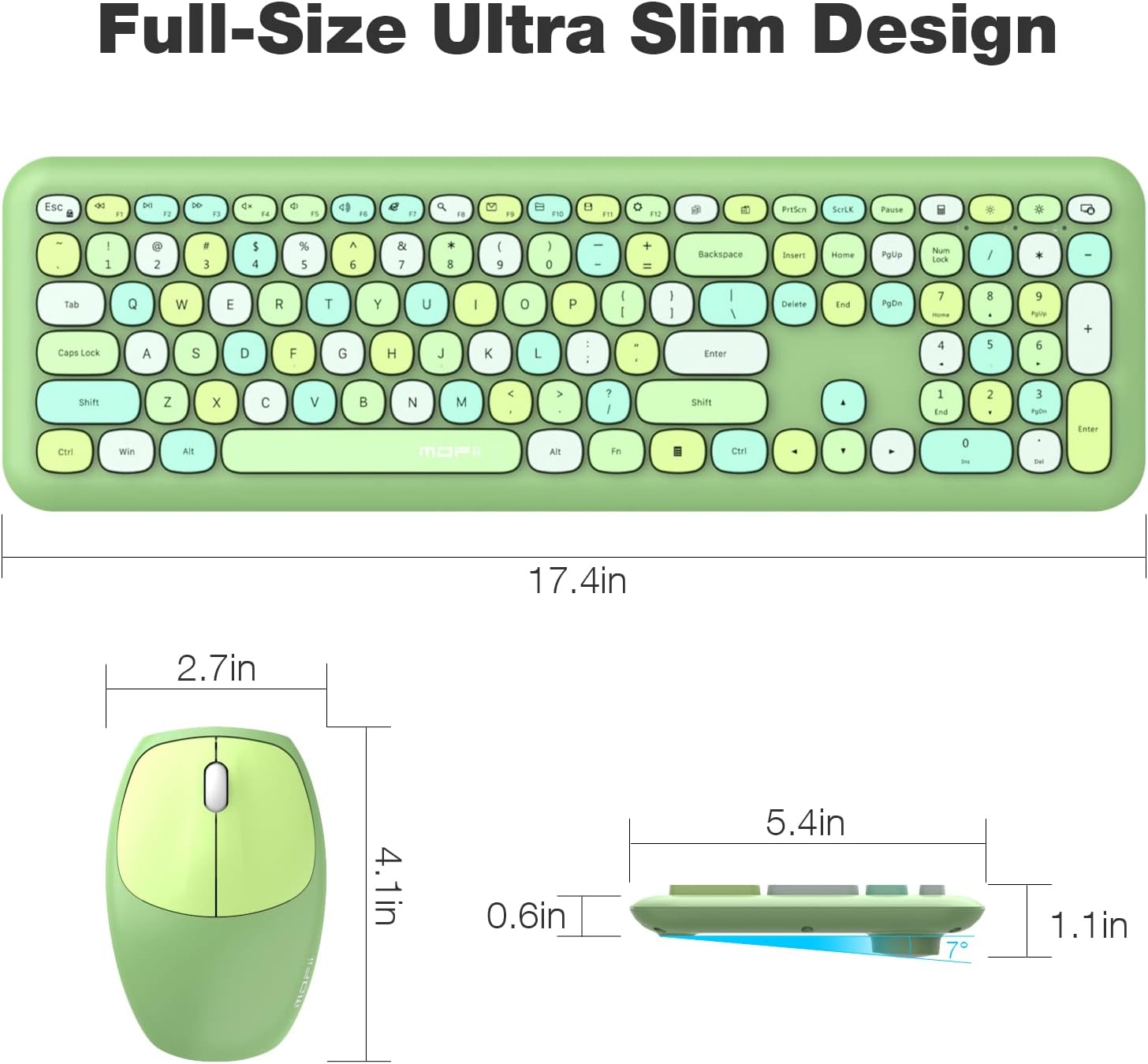
Image: Detailed dimensions of the MOFii wireless keyboard and mouse, illustrating their compact and ergonomic design.
Warranty and Support
For warranty information and customer support, please refer to the documentation included with your product packaging or visit the official MOFII website. Keep your purchase receipt as proof of purchase for any warranty claims.
If you encounter any issues not covered in this manual, please contact MOFii customer service for assistance.


