
Introduction
This manual provides detailed instructions for the setup, operation, maintenance, and troubleshooting of your MOFII Wireless Keyboard and Mouse Combo. Please read this manual thoroughly before using the product to ensure optimal performance and longevity.
Setup
1. Package Contents
- MOFII Wireless Keyboard
- MOFII Wireless Mouse
- USB Receiver (stored in the mouse battery compartment)
- User Manual
2. Battery Installation
The keyboard and mouse require batteries for operation. Batteries are not typically included and must be purchased separately.
- For the Mouse:
Locate the battery compartment on the underside of the mouse. Open the cover and insert one AA battery, ensuring correct polarity (+/-). The USB receiver is typically stored in this compartment. Remove the USB receiver before closing the cover. - For the Keyboard:
Locate the battery compartment on the underside of the keyboard. Open the cover and insert two AAA batteries, ensuring correct polarity (+/-). Close the cover securely.
3. Connecting the USB Receiver
The keyboard and mouse share a single USB receiver for wireless connectivity.
- Remove the USB receiver from the mouse battery compartment.
- Plug the USB receiver into an available USB port on your computer (desktop, laptop, PC).
- The system should automatically detect and install the necessary drivers. This process may take a few moments.
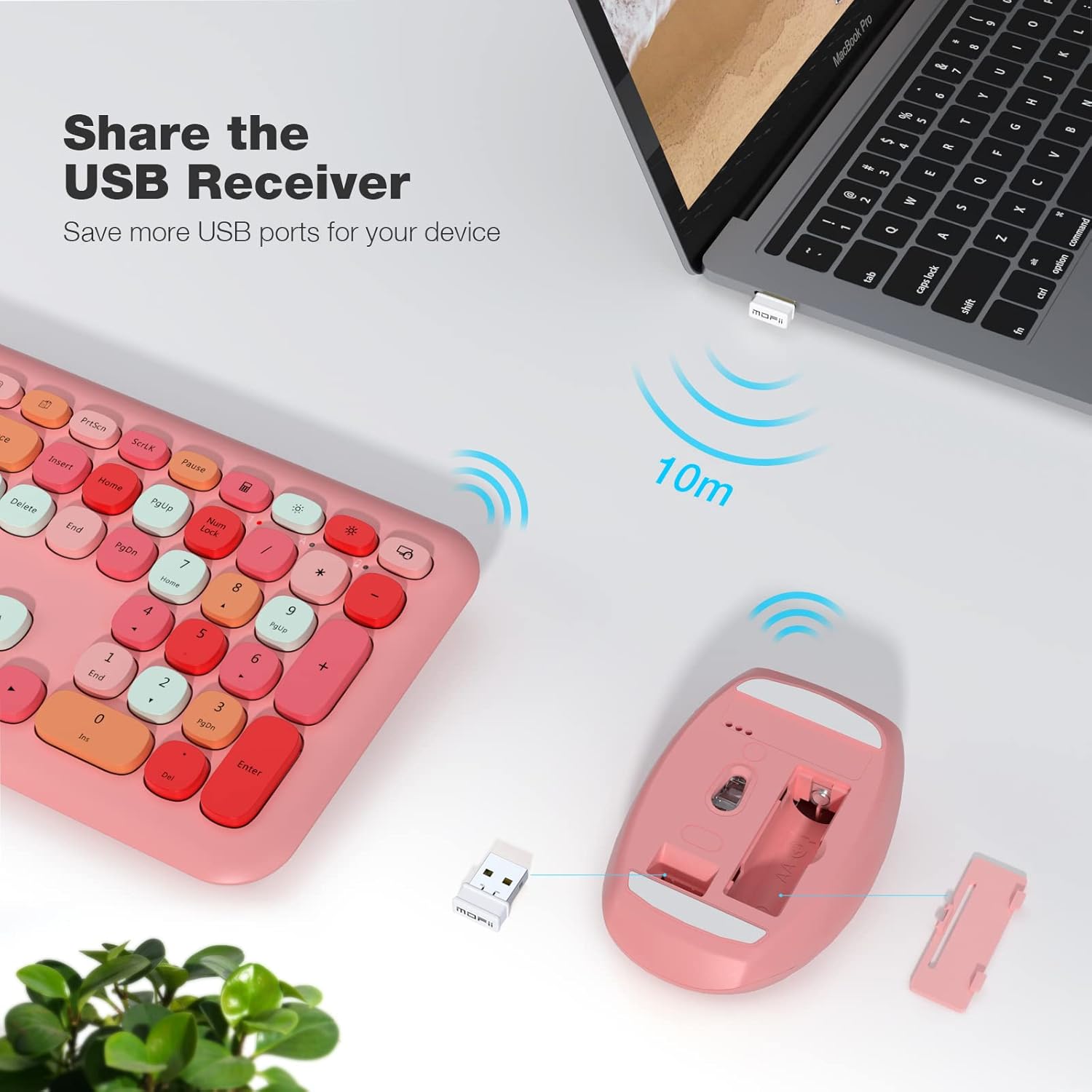
Image: The MOFII wireless mouse with its battery compartment open, showing the location of the USB receiver and where to insert the AA battery. The USB receiver is also shown plugged into a laptop, indicating a 10-meter wireless range.

Image: A MOFII wireless keyboard and mouse set up on a desk, connected to a laptop via the USB receiver. This illustrates the 2.4GHz wireless connection for PC, Mac, and Windows systems.
Operating Instructions
1. Power On/Off
- Keyboard: There is typically no dedicated power switch. The keyboard activates upon key press and enters sleep mode after inactivity.
- Mouse: Locate the power switch on the underside of the mouse. Slide it to the 'ON' position to activate.
2. Basic Usage
Once connected, the keyboard and mouse function as standard input devices. The keyboard features a full-size layout, and the mouse provides precise cursor control.

Image: A user's hands typing on the MOFII wireless keyboard, positioned comfortably on a desk next to the matching mouse. This highlights the ergonomic design for comfortable typing and clicking.
3. Function Keys (Fn Combinations)
The keyboard includes multimedia and shortcut keys accessible via the 'Fn' key. Press and hold the Fn key, then press the desired function key (F1-F12) to activate its secondary function.
- Fn + Esc: Lock
- Fn + F1: Previous Track
- Fn + F2: Play/Pause
- Fn + F3: Next Track
- Fn + F4: Mute
- Fn + F5: Volume Down
- Fn + F6: Volume Up
- Fn + F7: Web Browser
- Fn + F8: Search
- Fn + F9: Email
- Fn + F10: Favorites
- Fn + F12: Settings

Image: A diagram illustrating the various function key combinations (Fn + F1 through F12, and Fn + Esc) and their corresponding actions, such as media control, volume adjustment, and application shortcuts.
4. Automatic Power Saving
To conserve battery life, the keyboard and mouse will automatically enter sleep mode after approximately 15 minutes of inactivity. To wake them up, simply press any key on the keyboard or click any button on the mouse.
5. Compatibility
This combo is compatible with Windows XP/Vista/7/8/10 or later operating systems. It can be used with various devices including laptops, desktops, and PCs. Please note that it is not fully compatible with Mac systems; some function keys or features may not work as intended.
Maintenance
1. Cleaning
- Use a soft, dry cloth to wipe the surfaces of the keyboard and mouse.
- For stubborn dirt, slightly dampen the cloth with water or a mild, non-abrasive cleaner. Avoid excessive moisture.
- Do not use harsh chemicals, solvents, or abrasive materials, as these can damage the finish.
- Use compressed air to remove dust and debris from between the keyboard keys.
2. Battery Replacement
When the keyboard or mouse stops responding or exhibits erratic behavior, it may be time to replace the batteries. Follow the battery installation steps in the Setup section.
- Ensure to use new batteries of the correct type (AA for mouse, AAA for keyboard).
- Dispose of old batteries responsibly according to local regulations.
3. Storage
When not in use for extended periods, it is recommended to:
- Turn off the mouse using its power switch.
- Remove batteries from both devices to prevent leakage.
- Store the USB receiver in the mouse battery compartment to prevent loss.
- Store the combo in a cool, dry place away from direct sunlight and extreme temperatures.
Troubleshooting
1. No Response from Keyboard or Mouse
- Check Batteries: Ensure batteries are correctly installed and have sufficient charge. Replace if necessary.
- Check Power Switch: Ensure the mouse power switch is in the 'ON' position.
- Check USB Receiver: Ensure the USB receiver is securely plugged into a working USB port on your computer. Try a different USB port.
- Wake from Sleep: If the devices have been idle, press any key on the keyboard or click a mouse button to wake them up.
- Distance: Ensure the keyboard and mouse are within the effective operating range (approximately 10 meters) of the USB receiver.
- Interference: Move away from other wireless devices or large metal objects that might cause interference.
2. Lag or Intermittent Connection
- Battery Level: Low batteries can cause performance issues. Replace them.
- USB Port: Try plugging the USB receiver into a different USB port, preferably a direct port on the computer rather than a hub.
- Environmental Factors: Reduce obstacles between the devices and the receiver.
3. Mouse Cursor Erratic or Not Moving Smoothly
- Surface: Ensure the mouse is used on a clean, non-reflective, and uniform surface. A mouse pad is recommended.
- Optical Sensor: Check if the optical sensor on the underside of the mouse is clean and free from obstructions.
4. Keyboard Keys Not Functioning
- Battery Check: Ensure keyboard batteries are fresh.
- Connection: Verify the USB receiver is properly connected.
- Software Issues: Restart your computer to resolve potential software conflicts.
Specifications
| Feature | Detail |
|---|---|
| Model | B09BFB67L6 |
| Connectivity | 2.4G Wireless (USB Receiver) |
| Keyboard Dimensions | Approximately 17.5 x 5.5 x 1.2 inches (L x W x H) |
| Mouse Dimensions | Approximately 4.1 x 2.7 x 1.4 inches (L x W x H) |
| Item Weight | Approximately 1.83 pounds (combo) |
| Keyboard Power | 2 x AAA Batteries (not included) |
| Mouse Power | 1 x AA Battery (not included) |
| Compatibility | Windows XP/Vista/7/8/10 or later (Limited Mac compatibility) |
| Special Features | Ergonomic Design, Automatic Power Saving, Full-Size Layout |

Image: A diagram showing the physical dimensions of the MOFII wireless keyboard (17.5 inches long, 1.2 inches high, 0.6 inches at the front edge) and mouse (4.1 inches long, 2.7 inches wide, 1.4 inches high).

Image: An illustration highlighting the ergonomic design of the MOFII wireless keyboard, showing its slight incline and silicone non-slip feet on the underside, designed to reduce wrist pressure.
Warranty Information
For detailed warranty information, please refer to the documentation included with your product packaging or visit the official MOFII website. Warranty terms and conditions may vary by region and retailer.
Customer Support
If you encounter any issues or have questions not covered in this manual, please contact MOFII customer support through their official website or the retailer from whom you purchased the product. Please have your product model number (B09BFB67L6) and purchase details ready when contacting support.