1. Introduction
This manual provides essential information for the safe and efficient operation of your Samsung 43 Inch 4K Crystal UHD Smart LED TV, model UA43AU7000UXEG. Please read this manual thoroughly before using the product and retain it for future reference.
Your new television features a 43-inch 4K Ultra HD display, a Crystal Processor 4K for enhanced picture quality, PurColor technology for a wide spectrum of colors, and smart TV capabilities for accessing various online services.
2. Safety Information
Always follow basic safety precautions when using this television to reduce the risk of fire, electric shock, and injury.
- Do not expose this apparatus to rain or moisture.
- Do not block any ventilation openings. Install in accordance with the manufacturer's instructions.
- Do not install near any heat sources such as radiators, heat registers, stoves, or other apparatus (including amplifiers) that produce heat.
- Protect the power cord from being walked on or pinched, particularly at plugs, convenience receptacles, and the point where they exit from the apparatus.
- Only use attachments/accessories specified by the manufacturer.
- Refer all servicing to qualified service personnel.
3. Setup Guide
3.1 Unpacking and Assembly
Carefully remove the TV from its packaging. Ensure all components are present. If mounting on a stand, follow the instructions below. For wall mounting, consult a professional installer.

Image 1: Front view of the Samsung 43 Inch 4K Crystal UHD Smart LED TV with its stand. The screen displays vibrant colors, and the Samsung logo is visible on the bottom bezel. The TV is black with a slim design.
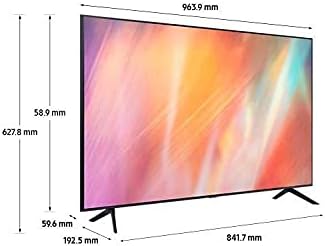
Image 2: Diagram showing the dimensions of the Samsung 43 Inch TV with its stand. The width is 963.9 mm, height with stand is 627.8 mm, and depth with stand is 192.5 mm. The screen thickness is 59.6 mm.
3.2 Connecting Peripherals
Connect your external devices such as a cable box, Blu-ray player, or gaming console to the appropriate HDMI ports. Ensure all connections are secure.
- Power Cable: Connect the power cable to the TV and then to a wall outlet.
- Antenna/Cable: For over-the-air broadcasts or cable TV, connect an antenna or cable to the "ANT IN" port.
- HDMI Devices: Use HDMI cables to connect devices like set-top boxes or game consoles.
- Network Connection: Connect an Ethernet cable for a wired internet connection, or proceed to wireless setup during initial configuration.
3.3 Initial Power On and Smart Setup
After connecting power, press the power button on the remote control. The TV will guide you through the initial setup process, including language selection, network connection, and channel scanning.
- Language Selection: Choose your preferred language.
- Network Setup: Select your Wi-Fi network and enter the password, or confirm wired connection.
- Samsung Account: Sign in or create a Samsung account to access all Smart TV features.
- Channel Scan: The TV will automatically scan for available channels.
4. Operating Instructions
4.1 Basic TV Functions
- Power On/Off: Use the power button on the remote control.
- Volume Control: Adjust volume using the Volume Up/Down buttons.
- Channel Change: Use the Channel Up/Down buttons or enter channel numbers directly.
- Source Selection: Press the Source button to switch between connected devices (HDMI 1, HDMI 2, TV, etc.).
4.2 Smart TV Features
Your Samsung Smart TV provides access to a variety of applications and online services.
- Smart Hub: Access the Smart Hub to find apps like Amazon Instant Video, Netflix, and YouTube.
- App Store: Download and install additional applications from the Samsung App Store.
- Web Browser: Use the built-in web browser to surf the internet.
- Mobile Mirroring (Tap View): Connect your compatible smartphone to the TV by tapping it against the TV's bezel. This allows you to mirror your phone's screen content directly onto the TV.

Image 3: A hand holding a smartphone tapping it against the side of a Samsung TV, illustrating the Tap View feature for mobile mirroring.
4.3 Picture and Sound Settings
Adjust picture and sound settings to optimize your viewing experience.
- Picture Mode: Select from various modes like Standard, Dynamic, Movie, or adjust custom settings.
- Sound Mode: Choose sound modes such as Standard, Adaptive Sound, or amplify dialogue.
- Crystal Processor 4K: This processor enhances content to near 4K resolution, optimizing color and contrast.
- PurColor: Experience a wide range of colors for an optimized picture performance.
- HDR (High Dynamic Range): Enjoy enhanced contrast and detail in both bright and dark scenes.

Image 4: A close-up image of the Samsung Crystal Processor 4K chip, highlighting its role in picture enhancement.

Image 5: A split image demonstrating the difference between conventional color and PurColor technology, showing richer and more vibrant colors with PurColor.

Image 6: A split image comparing High Dynamic Range (HDR) with Standard Dynamic Range (SDR), showing greater detail and contrast in the HDR image, particularly in bright and dark areas.

Image 7: A magnified comparison of Full HD (FHD) and 4K Ultra HD (UHD) resolutions, demonstrating the significantly higher pixel density and detail of 4K UHD.
5. Maintenance
5.1 Cleaning the TV
- Always unplug the TV before cleaning.
- Use a soft, dry microfiber cloth to gently wipe the screen and exterior surfaces.
- Do not use water, cleaning sprays, or chemical cleaners, as they may damage the screen or finish.
5.2 Software Updates
Periodically check for software updates to ensure optimal performance and access to the latest features. You can usually find this option in the TV's settings menu under "Support" or "Software Update."
6. Troubleshooting
If you encounter issues with your TV, refer to the following common solutions before contacting service.
6.1 No Power
- Ensure the power cord is securely plugged into both the TV and a working electrical outlet.
- Check if the outlet is receiving power by plugging in another device.
- Try pressing the power button on the TV itself, not just the remote.
6.2 No Picture or Poor Picture Quality
- Verify the correct input source is selected (e.g., HDMI 1, TV).
- Check all cable connections (HDMI, antenna) for looseness or damage.
- Adjust picture settings (brightness, contrast, sharpness) in the TV menu.
- If using an antenna, try repositioning it or rescanning for channels.
6.3 No Sound or Poor Sound Quality
- Ensure the volume is not muted and is turned up.
- Check audio cable connections to external sound systems.
- Adjust sound settings in the TV menu.
- If using an external soundbar, ensure it is properly connected and selected as the audio output.

Image 8: An illustration of a Samsung TV paired with a soundbar, depicting sound waves emanating from both devices, representing synchronized audio output (Q-Symphony feature).
6.4 Network Connection Issues
- Restart your router and modem.
- Go to the TV's network settings and try reconnecting to your Wi-Fi network.
- If using a wired connection, ensure the Ethernet cable is properly connected.
7. Specifications
| Feature | Specification |
|---|---|
| Brand | SAMSUNG |
| Model Number | UA43AU7000UXEG |
| Screen Size | 43 Inches |
| Resolution | 3840 x 2160 (4K UHD) |
| Display Technology | LED |
| Picture Processor | Crystal Processor 4K |
| Color Technology | PurColor |
| Connectivity Technology | Bluetooth, Wi-Fi (Built-in) |
| Supported Internet Services | Amazon Instant Video, Netflix, YouTube |
| Aspect Ratio | 16:9 |
| Dimensions with Stand (W x H x D) | 963.9 x 627.8 x 192.5 mm |
| Dimensions without Stand (W x H x D) | 963.9 x 558.9 x 59.6 mm |
| Item Weight | 7.8 kg |
8. Warranty and Support
For warranty information, please refer to the warranty card included with your product or visit the official Samsung website for your region. Keep your proof of purchase for warranty claims.
For technical support, product registration, or service inquiries, please contact Samsung Customer Service. Contact details can be found on the Samsung website or in the documentation provided with your TV.


