
SPRT SP-POS 887 E
SPRT SP-POS 887 E POS Receipt Printer User Manual
Model: SP-POS 887 E | Brand: SPRT
1. Introduction
Thank you for choosing the SPRT SP-POS 887 E POS Receipt Printer. This manual provides essential information for setting up, operating, and maintaining your printer to ensure optimal performance and longevity. Please read this manual thoroughly before using the device.
2. Key Features
- High-Speed Thermal Printing: Prints at up to 220 mm per second.
- High Resolution: 8 dots per inch for clear and legible receipts.
- Multiple Connectivity Options: Equipped with USB and Ethernet ports, and supports RS-232.
- Easy Paper Loading: Designed for quick and effortless paper roll replacement.
- Paper End Sensor: Alerts the user when the paper roll is running low.
- Compact Design: Slim and integrated design allows flexible placement.
- Wide Compatibility: Supports Windows and Linux operating systems.
3. Setup
3.1 Unpacking
Carefully remove the printer and all accessories from the packaging. Verify that all components are present:
- SPRT SP-POS 887 E Printer
- Power Adapter
- USB Cable
- Paper Roll (starter)
- User Manual (this document)
3.2 Connecting the Printer
- Connect the power adapter to the printer's power input port and then plug it into a power outlet.
- For USB connection: Connect one end of the USB cable to the printer's USB port and the other end to your computer.
- For Ethernet connection: Connect an Ethernet cable to the printer's LAN port and the other end to your network router or switch.
3.3 Loading Paper
The SPRT SP-POS 887 E uses standard thermal paper rolls. Follow these steps to load a new roll:
- Press the 'PRESS' button on the top cover to open the paper compartment.
- Insert the new thermal paper roll with the paper feeding from the bottom, ensuring the leading edge is straight.
- Pull a small amount of paper out past the cutter.
- Close the top cover firmly until it clicks into place.
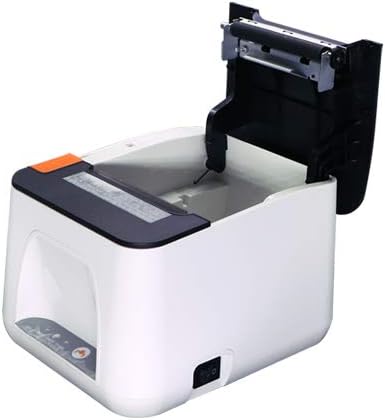
Figure 1: Paper compartment open for loading.
4. Operating Instructions
4.1 Powering On/Off
To power on the printer, ensure it is connected to a power source and press the power switch, usually located on the side or back of the device. To power off, press the power switch again.
4.2 Driver Installation
Before printing, you must install the appropriate drivers on your computer. Drivers for Windows and Linux operating systems are typically provided on a CD included with the printer or can be downloaded from the SPRT official website. Follow the on-screen instructions during installation.
4.3 Printing a Receipt
Once the printer is connected and drivers are installed, you can print receipts from your POS software or any application that supports printing. Select the SPRT SP-POS 887 E as your default printer and initiate the print command.
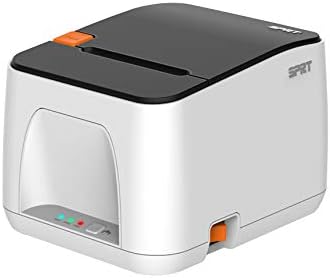
Figure 2: Front view of the SPRT SP-POS 887 E printer.

Figure 3: Side view of the SPRT SP-POS 887 E printer, showing paper output.
5. Maintenance
5.1 Cleaning the Printer
Regular cleaning helps maintain print quality and extends the printer's lifespan.
- Print Head: Use a cotton swab lightly dampened with isopropyl alcohol to gently wipe the thermal print head. Allow it to dry completely before use.
- Exterior: Wipe the exterior with a soft, damp cloth. Do not use abrasive cleaners or solvents.
- Paper Path: Remove any paper dust or debris from the paper path using a soft brush or compressed air.
5.2 Replacing Paper Roll
When the paper sensor indicates low paper, or when the current roll is depleted, replace it following the steps in Section 3.3.
6. Troubleshooting
| Problem | Possible Cause | Solution |
|---|---|---|
| Printer not printing | No power; Incorrect cable connection; Driver issue; Paper jam; Out of paper. | Check power cable and switch; Verify USB/Ethernet connection; Reinstall drivers; Clear paper jam; Load new paper roll. |
| Poor print quality | Dirty print head; Low quality paper; Incorrect driver settings. | Clean print head (Section 5.1); Use recommended thermal paper; Adjust print density settings in driver. |
| Paper jam | Improper paper loading; Foreign object in paper path. | Open cover, remove jammed paper, reload correctly; Inspect paper path for obstructions. |
| Printer not recognized by computer | Loose USB/Ethernet cable; Driver not installed or corrupted. | Ensure cables are securely connected; Reinstall printer drivers. |
7. Specifications
- Brand: SPRT
- Model: SP-POS 887 E
- Printer Technology: Thermal Line Printer
- Connectivity Technology: USB, Ethernet, RS-232
- Printer Output: Receipt Printer
- Print Speed: Up to 220 mm/s
- Resolution: 8 dots/inch
- Print Width: 72 mm
- Special Features: Network Ready, Paper End Sensor
- Controller Type: Linux (compatible with Windows)
- Item Weight: 540 g
- Package Dimensions: 22.2 x 10.6 x 9.8 cm
- First Available Date: July 27, 2021
8. Warranty and Support
For warranty information and technical support, please refer to the warranty card included with your product or visit the official SPRT website. You may also contact your local distributor or retailer for assistance.
Related documentsSP-POS 887 E


Ask a question about this manual
Ask about setup, troubleshooting, compatibility, parts, safety, or missing instructions. Manuals+ will review the question and use this page’s manual context to help answer it.