1. Introduction
This manual provides comprehensive instructions for the installation, operation, and maintenance of your 10Gtek AC600M USB WiFi Adapter. Please read this manual carefully before using the product to ensure optimal performance and longevity.
2. Product Overview
The 10Gtek AC600M USB WiFi Adapter is a compact and powerful wireless network adapter designed to provide high-speed internet connectivity to your desktop or laptop computer. It supports dual-band operation (2.4GHz and 5GHz) and the 802.11ac standard, ensuring fast and stable wireless performance for various applications, including online gaming and HD video streaming.

Figure 2.1: The 10Gtek AC600M USB WiFi Adapter, a compact device for wireless connectivity.
Key Features:
- Dual-Band Connectivity: Supports 5GHz (up to 433Mbps) and 2.4GHz (up to 150Mbps) for flexible and high-speed connections.
- 802.11ac Standard: Compatible with the latest Wi-Fi standard, backward compatible with 802.11 a/b/g/n.
- Compact Design: Miniature size for easy portability and discreet use.
- Wide Compatibility: Works with Windows 10/8/7/XP, MAC OS, and Linux.
- Controller: Features the Realtek 8811CU controller.
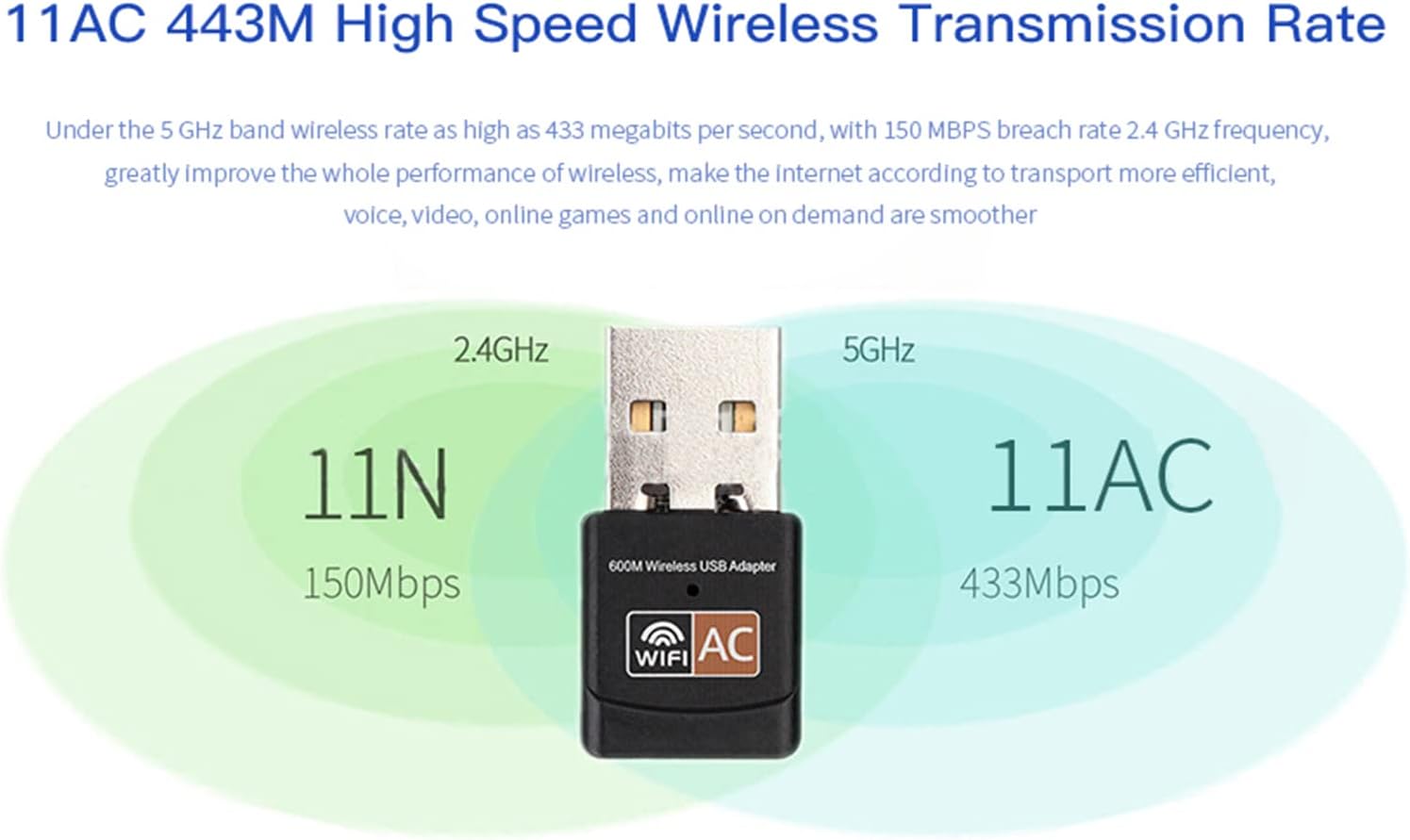
Figure 2.2: Diagram illustrating the high-speed wireless transmission rates of 433Mbps on 5GHz (802.11ac) and 150Mbps on 2.4GHz (802.11n).

Figure 2.3: The miniature design of the adapter, showing its small size when plugged into a laptop and held in hand, emphasizing portability.

Figure 2.4: Comparison of 2.4GHz and 5GHz Wi-Fi bands, indicating that 802.11n operates on both, while 802.11ac primarily operates on 5GHz.
3. Specifications
| Attribute | Value |
|---|---|
| Model Number | WD-4503AC |
| Brand | 10Gtek |
| Hardware Interface | USB |
| Data Transfer Rate | 600 Megabits Per Second (Mbps) |
| Compatible Devices | Desktop, Laptop, PC |
| Compatible Operating Systems | Windows 10/8/7/XP, MAC OS, Linux |
| Controller | Realtek 8811CU |
| Dimensions (Package) | 5.16 x 3.07 x 0.51 inches |
| Item Weight | 0.634 ounces |
4. Setup Instructions
Follow these steps to install your 10Gtek USB WiFi Adapter:
- Insert the Adapter: Plug the USB WiFi adapter into an available USB port on your desktop or laptop computer.
- Driver Installation:
- For Windows 10: The adapter may be plug-and-play, meaning drivers install automatically.
- For other operating systems (Windows 7/8/XP, MAC OS, Linux): Driver installation is required. Insert the included driver CD into your computer's CD-ROM drive and follow the on-screen instructions to install the necessary drivers. If you do not have a CD drive, drivers can typically be downloaded from the manufacturer's official website.
- Connect to Network: Once the drivers are installed, your computer will recognize the adapter. Scan for available wireless networks and connect to your desired Wi-Fi network by entering the password if prompted.

Figure 4.1: Visual guide for easy setup, showing the steps: 1. Install USB adapter into PC/laptop, 2. Install software with included CD, 3. Scan for available networks and connect.
5. Operating Modes
The 10Gtek USB WiFi Adapter supports two primary operating modes:
5.1. Station Mode (Receive Signal)
In Station Mode, the adapter functions as a client device, allowing your computer to connect to an existing wireless network provided by a Wi-Fi router. This is the most common mode for everyday internet access.
5.2. AP Mode (Transmit Signal)
In AP (Access Point) Mode, the adapter can transform your wired internet connection into a Wi-Fi hotspot. This allows other wireless devices (like smartphones, tablets, or other laptops) to connect to the internet through your computer's wired connection.
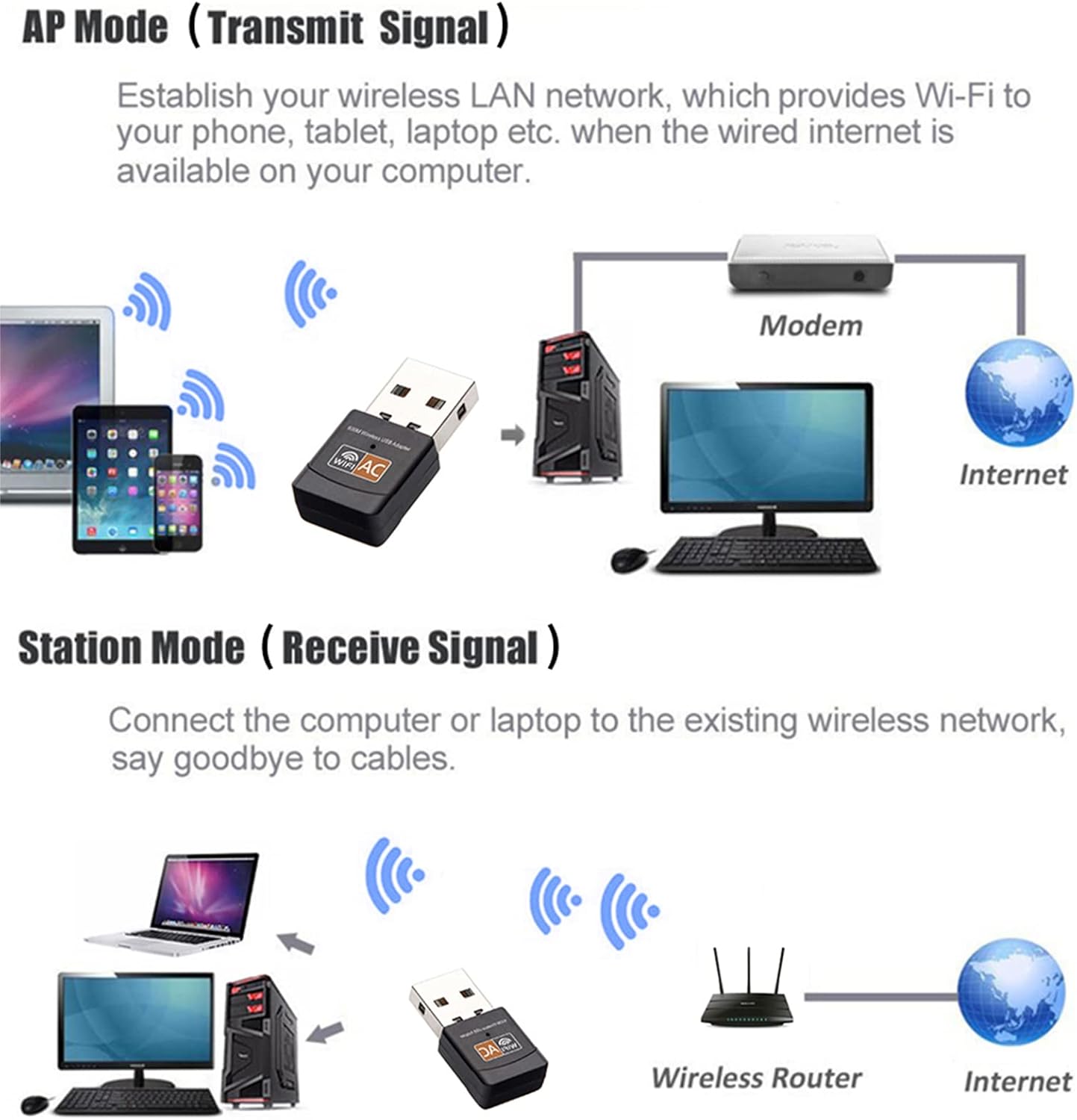
Figure 5.1: Diagram illustrating both AP Mode (transmitting Wi-Fi from a wired connection) and Station Mode (receiving Wi-Fi from a wireless router).
6. Maintenance
To ensure the longevity and optimal performance of your USB WiFi adapter, consider the following maintenance tips:
- Keep it Clean: Periodically clean the adapter's exterior with a soft, dry cloth. Avoid using liquid cleaners or solvents.
- Protect the USB Connector: When not in use, consider unplugging the adapter and storing it in a safe place to protect the USB connector from dust and damage.
- Avoid Physical Stress: Do not bend, drop, or apply excessive force to the adapter, as this can damage internal components.
- Optimal Ventilation: Ensure the USB port area on your computer has adequate ventilation to prevent overheating, especially during prolonged use.
- Driver Updates: Occasionally check the 10Gtek official website for updated drivers to ensure compatibility and performance improvements.
7. Troubleshooting
If you encounter issues with your USB WiFi adapter, refer to the following common problems and solutions:
- Problem: Adapter not detected or recognized by the computer.
- Solution:
- Try plugging the adapter into a different USB port.
- Ensure drivers are correctly installed. Reinstall drivers if necessary using the provided CD or by downloading from the 10Gtek website.
- Restart your computer.
- Problem: Cannot connect to Wi-Fi network or frequent disconnections.
- Solution:
- Verify that your Wi-Fi router is powered on and functioning correctly.
- Ensure you are entering the correct Wi-Fi password.
- Move closer to the Wi-Fi router to improve signal strength.
- If using a dual-band router, try connecting to the 5GHz band for better performance, especially if Bluetooth devices are also in use on the 2.4GHz band (potential interference).
- Update the adapter's drivers to the latest version.
- Problem: Slow internet speeds.
- Solution:
- Ensure you are connected to the 5GHz band if your router supports it, as it generally offers higher speeds.
- Minimize interference from other electronic devices (e.g., microwaves, cordless phones).
- Check your internet service provider's speed.
- Update router firmware.
8. Warranty and Support
For warranty information and technical support, please refer to the documentation included with your purchase or visit the official 10Gtek website. The manufacturer stands by its products and offers customer service for assistance with any issues or inquiries.
Manufacturer: 10Gtek
Website: Visit the 10Gtek Store on Amazon (for product information and support resources)


