
VÂNTOP NBM3XX-ITGY0A
Contents
VÂNTOP Nimbal M3 3-Axis Smartphone Gimbal Stabilizer
User Manual
Introduction
Thank you for choosing the VÂNTOP Nimbal M3 3-Axis Smartphone Gimbal Stabilizer. This manual provides essential information for setting up, operating, and maintaining your device. Please read this manual thoroughly before use to ensure proper operation and to maximize the performance of your gimbal.
Safety Information
- Do not expose the gimbal to water or moisture.
- Avoid dropping or subjecting the gimbal to strong impacts.
- Do not disassemble, repair, or modify the gimbal yourself. Contact authorized service personnel for assistance.
- Keep the gimbal away from heat sources, direct sunlight, and flammable materials.
- Ensure the smartphone is securely mounted before powering on the gimbal to prevent damage.
- Store the gimbal in a cool, dry place when not in use.
Package Contents
Please check the package contents upon unboxing to ensure all items are present:
- VÂNTOP Nimbal M3 Gimbal Stabilizer
- Mini Tripod
- Carrying Case
- USB Charging Cable
- User Manual

Image: Contents of the VÂNTOP Nimbal M3 package, including the gimbal, mini tripod, carrying case, USB charging cable, and user manual.
Product Overview
Familiarize yourself with the main components and controls of your Nimbal M3 gimbal:

Image: A detailed view of the Nimbal M3 gimbal, highlighting its 3-axis stabilization mechanism and ergonomic design.
- Smartphone Clamp: Securely holds your smartphone.
- Roll Axis Motor: Controls the roll movement of the smartphone.
- Tilt Axis Motor: Controls the tilt (up/down) movement.
- Pan Axis Motor: Controls the pan (left/right) movement.
- Control Panel: Includes joystick, mode button, power button, and zoom wheel.
- Handle: Ergonomically designed for comfortable grip.
- 1/4" Screw Hole: For attaching the mini tripod or other accessories.
Setup
1. Charging the Gimbal
Before first use, fully charge the gimbal using the provided USB charging cable. Connect the USB-C end to the gimbal's charging port and the USB-A end to a power adapter (not included). The indicator light will show charging status and turn off when fully charged.
2. Mounting Your Smartphone
- Extend the smartphone clamp.
- Carefully place your smartphone into the clamp, ensuring it is centered and secure.
- Ensure the phone's camera is not obstructed by the clamp.
3. Balancing the Gimbal
Proper balancing is crucial for optimal performance and battery life. After mounting your smartphone, adjust its position within the clamp until the phone remains level when the gimbal is powered off. This reduces strain on the motors.
4. App Installation and Connection
For full functionality and advanced features, download the 'Gimo' app from your smartphone's app store (iOS App Store or Google Play Store).
- Enable Bluetooth on your mobile phone.
- Power on your Nimbal M3 gimbal by pressing and holding the power button.
- Launch the 'Gimo' App.
- Follow the in-app instructions to connect to your Nimbal M3 via Bluetooth.

Image: Simple setup guide for the Nimbal M3, illustrating the steps to connect the gimbal to a smartphone via the Gimo app.
Operating the Gimbal
Power On/Off
- Power On: Press and hold the power button for 3 seconds.
- Power Off: Press and hold the power button for 3 seconds.
Control Panel Functions
- Joystick: Controls the pan and tilt movement of the gimbal.
- Mode Button: Cycles through different operating modes (e.g., Pan Follow, Lock Mode, POV). Refer to the Gimo app for detailed mode descriptions.
- Zoom Wheel: Adjusts the focal length (zoom in/out) of your smartphone camera within the Gimo app.
Operating Modes and Features
- Phone Go Mode: Allows the smartphone to quickly rotate with the handle for extremely fast transition effects. This mode is optimized for rapid response.
- Smart Tracking: The gimbal can automatically track a selected subject, keeping it in the frame. This is ideal for capturing dynamic scenes with moving objects.
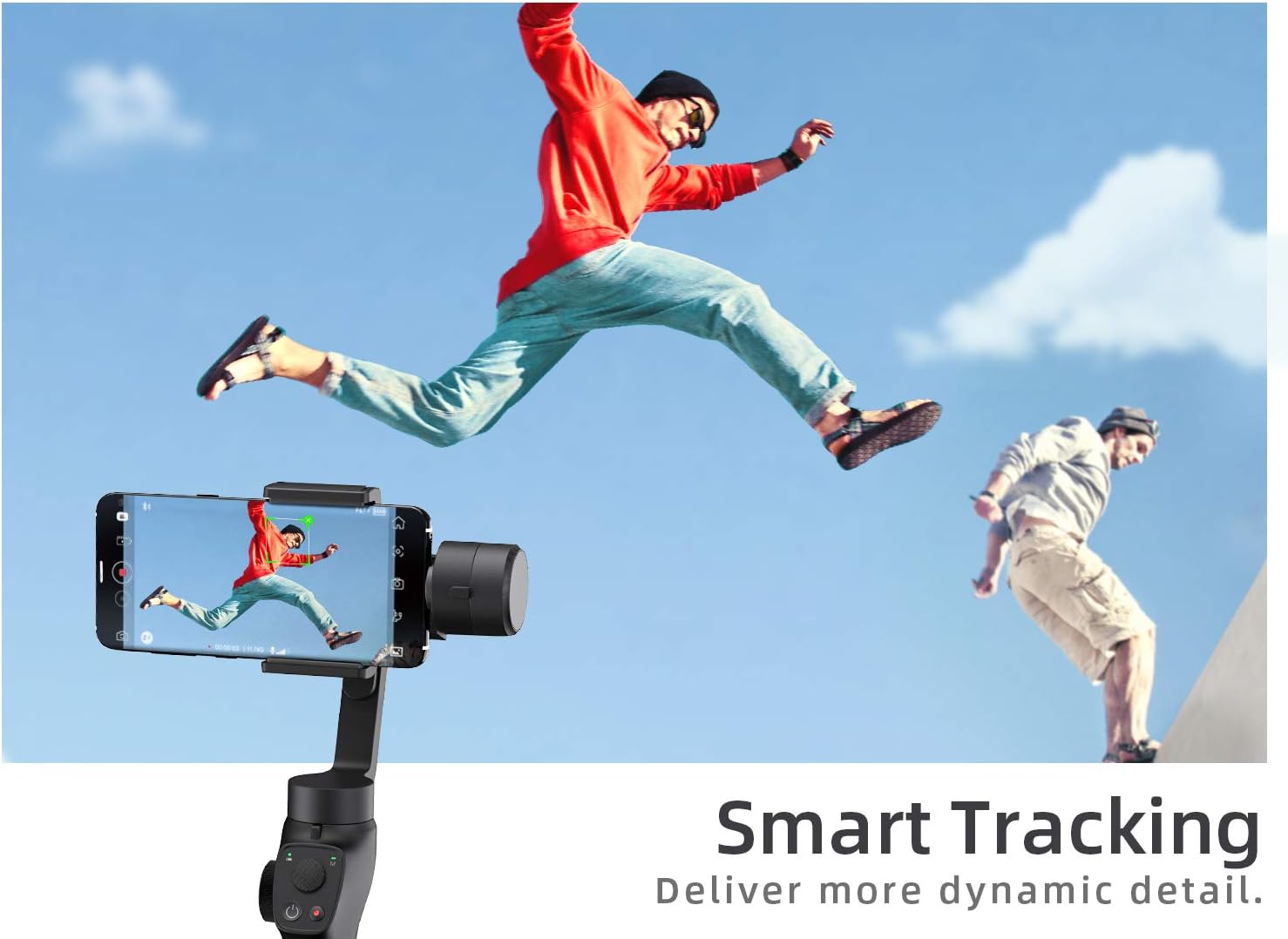
Image: The Smart Tracking feature in action, demonstrating the gimbal's ability to follow subjects for dynamic video capture.
- Action Mode: Optimized algorithm for faster response, allowing the gimbal to easily follow fast-moving objects and capture action scenes instantly.

Image: A visual comparison highlighting the effectiveness of Action Mode, showing how the Nimbal M3 captures clear footage of fast-moving subjects compared to unstabilized shots.
- Inception Mode: Creates a spinning camera effect, adding a dynamic and cinematic feel to your videos.
- Hitchcock Effect (Dolly Zoom): Achieves a dramatic visual effect where the background appears to zoom in or out while the foreground remains the same size.
Maintenance
- Cleaning: Use a soft, dry cloth to clean the gimbal. Do not use liquid cleaners or solvents.
- Storage: When not in use for extended periods, store the gimbal in its carrying case in a cool, dry place. Ensure the gimbal is powered off.
- Battery Care: To prolong battery life, avoid fully discharging the battery frequently. Charge the gimbal at least once every three months if not in regular use.
Troubleshooting
| Problem | Possible Cause | Solution |
|---|---|---|
| Gimbal does not power on. | Low battery; Power button not held long enough. | Charge the gimbal fully; Press and hold the power button for 3 seconds. |
| Unstable footage/vibration. | Smartphone not balanced; Overloaded motor. | Ensure smartphone is properly balanced; Check phone weight is within limits. |
| Cannot connect to Gimo App. | Bluetooth off; App not launched; Gimbal not powered on. | Enable Bluetooth; Relaunch app; Power on gimbal; Restart phone and gimbal. |
| Motors feel hot. | Prolonged use; Improper balancing. | Allow gimbal to cool down; Re-balance the smartphone. |
Specifications
| Model Name | Nimbal M3 |
| Model Number | NBM3XX-ITGY0A |
| Brand | VÂNTOP |
| Color | Black |
| Compatible Devices | Mobile Phones (iPhone, Samsung, Huawei, Xiaomi, etc.) |
| Stabilization | 3-Axis |
| Battery Life | Up to 15 Hours |
| UPC | 760932572142 |
| ASIN | B09B7K49PX |
Warranty and Support
The VÂNTOP Nimbal M3 Gimbal Stabilizer comes with a standard manufacturer's warranty. For detailed warranty terms, technical support, or service inquiries, please refer to the warranty card included in your package or visit the official VÂNTOP website. Please retain your proof of purchase for warranty claims.
Ask a question about this manual
Ask about setup, troubleshooting, compatibility, parts, safety, or missing instructions. Manuals+ will review the question and use this page’s manual context to help answer it.