
Introduction
This instruction manual provides comprehensive guidance for setting up, operating, and maintaining your KuWFi 4G LTE Cat4 Wireless Router, model CPF903-CP2-EU. Please read this manual carefully before using the device to ensure optimal performance and safe operation.

Image: The KuWFi 4G LTE Cat4 Wireless Router (CPF903-CP2-EU) positioned on a desk next to a laptop, illustrating a typical home or office setup.
Product Overview
The KuWFi CPF903-CP2-EU is a versatile 4G LTE router designed for both home and office environments. It offers easy connectivity and portability, providing high-speed internet access for 10 to 20 users simultaneously. Key features include:
- High-Speed Connectivity: Download speeds up to 150 Mbps, upload speeds up to 50 Mbps, and Wi-Fi speeds up to 300 Mbps.
- SIM Card Support: Simply insert a 4G SIM card to get online. Compatible with most European frequency bands (4G FDD-LTE B1/B3/B7/B8/B20).
- Dual Antennas: Equipped with two high-performance external antennas for stronger and more stable signal reception.
- Multiple Connection Methods: Supports both SIM card internet access and Ethernet cable connection.
- LCD Display: A 1.44-inch smart LCD display shows signal strength, operator, Wi-Fi users, received messages, SSID, password, traffic statistics, and current connection time.
- Security: Supports WPA/WPA2 Wi-Fi encryption methods.
- Compact Design: Elegant and slim, designed to integrate seamlessly into your environment.

Image: Front and rear views of the KuWFi 4G LTE Cat4 Wireless Router. The front shows the LCD screen and '4G' logo, while the rear displays the power input, LAN port, and SIM card slot.

Image: The KuWFi 4G Wireless Router highlighting key features such as low heating, dual antenna, virtual card function, and soft SIM.
Package Contents
Please check the box for the following items:
- 1 x KuWFi 4G LTE Cat4 Wireless Router (CPF903-CP2-EU)
- 1 x Power Supply (12V 1A DC)
- 1 x User Manual
Setup Guide
1. Insert SIM Card
- Locate the SIM card slot on the side of the router.
- Carefully insert your 4G SIM card into the slot until it clicks into place. Ensure the SIM card is activated and its PIN code is disabled (if applicable). The router does not support roaming, virtual SIM, or IoT SIM services.

Image: A close-up view of the router's SIM card slot, with a standard SIM card shown for reference, indicating where to insert the card.
2. Connect Power
- Connect the provided 12V 1A power adapter to the router's power input port.
- Plug the power adapter into a wall outlet. The router will power on automatically.
3. Initial Configuration (APN Settings)
Even with a compatible SIM card, you may need to configure the Access Point Name (APN) settings. Refer to your SIM card provider for the correct APN details.
- Connect a device (e.g., computer, smartphone) to the router via Wi-Fi or Ethernet cable. The default Wi-Fi SSID and password can be found on the router's label or LCD display.
- Open a web browser and enter the router's default IP address (usually
192.168.1.1or192.168.0.1). Refer to the router's label for the exact address. - Log in using the default username and password (commonly
admin/admin). - Navigate to the network settings or APN settings section.
- Enter the APN details provided by your mobile network operator.
- Save the settings and restart the router if prompted.
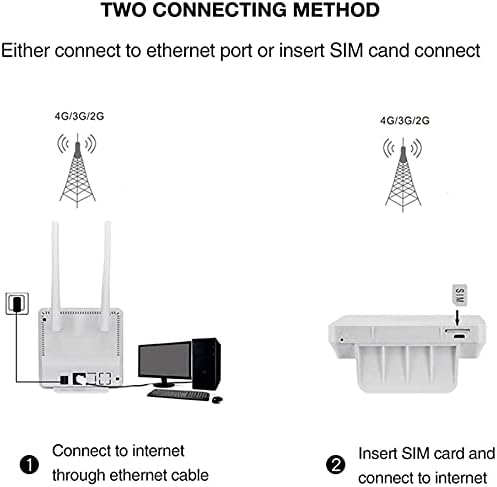
Image: A diagram illustrating two ways to connect to the internet using the router: via an Ethernet cable from the router to a computer, or by inserting a SIM card directly into the router for 4G/3G/2G network access.
Operating Instructions
Wi-Fi Connection
- Ensure the router is powered on and has an active internet connection (indicated by the LED indicators or LCD display).
- On your device (smartphone, laptop, etc.), search for available Wi-Fi networks.
- Select the SSID (network name) displayed on the router's LCD screen or label.
- Enter the Wi-Fi password (KEY) shown on the router's LCD screen or label.
- Your device should now be connected to the internet.
Ethernet Connection
For devices requiring a wired connection:
- Connect one end of an Ethernet cable to the LAN port on the back of the router.
- Connect the other end of the Ethernet cable to the Ethernet port on your computer or other network device.
- The device will automatically obtain an IP address and connect to the internet.
Understanding the LCD Display
The 1.44-inch LCD display provides real-time status information:

Image: A detailed diagram of the 1.44-inch LCD display, showing numbered indicators for Signal Strength, Operator, Ethernet Network Status, WiFi Users, Received Messages, SSID, Password, Traffic Statistics, and Current Connection Time.
- 1. Signal Strength: Indicates the strength of the 4G/3G signal.
- 2. Operator: Displays the name of your mobile network operator.
- 3. Ethernet Network Status: Shows if an Ethernet cable is connected and active.
- 4. WiFi Users: Number of devices currently connected via Wi-Fi.
- 5. Received Messages: Indicates new SMS messages (if supported by your SIM card).
- 6. SSID: Your Wi-Fi network name.
- 7. Password: Your Wi-Fi network password.
- 8. Traffic Statistics: Displays data usage (e.g., 00.12MB).
- 9. Current Connection Time: Shows how long the router has been connected to the internet.
Maintenance
- Placement: Place the router in an open area, away from obstructions and other electronic devices that may cause interference.
- Cleaning: Use a soft, dry cloth to clean the router. Do not use liquid cleaners or aerosols.
- Firmware Updates: Periodically check the manufacturer's website for firmware updates to ensure optimal performance and security.
- Power Cycle: If you experience connectivity issues, try power cycling the router by unplugging it from the power source for 10 seconds and then plugging it back in.
- Temperature: Operate the device within the recommended temperature range of -10℃ to 40℃.
Troubleshooting
| Problem | Possible Solution |
|---|---|
| No internet connection after SIM card insertion. |
|
| Weak Wi-Fi signal or frequent disconnections. |
|
| Cannot access router's web interface. |
|
| Slow internet speed. |
|
Specifications
| Brand | KuWFi |
| Model Number | CPF903-CP2-EU |
| Connectivity Technology | Wi-Fi |
| Data Transfer Rate | 300 Megabits per second (Wi-Fi) |
| 4G Download Speed | Up to 150 Mbps |
| 4G Upload Speed | Up to 50 Mbps |
| Frequency Bands (Europe) | 4G FDD-LTE B1/B3/B7/B8/B20, 4G TDD LTE B38/B40/B41, WCDMA B1/B5/B8, GSM 900/1800 MHz |
| Processor | MT6735WM 580 MHz |
| Storage | 64 Mbits SPI Flash, 4 GB EMMC + 512 MB DDR2 |
| Transmission Range | 50-100 meters |
| LAN Port | 1 x RJ45 |
| SIM Card Slot | 1 x Standard SIM slot |
| Power Supply | 12V 1A DC |
| Operating Temperature | -10℃ to 40℃ |
| Storage Temperature | -40℃ to 70℃ |
| Dimensions | 115 x 105 x 23 mm |
| Control Method | Application (Web Interface) |
| UPC | 734257440264 |
| GTIN | 734257440264 |
Warranty and Support
KuWFi provides the following warranty and support for the CPF903-CP2-EU router:
- 30-Day Refund Policy: Within 30 days of purchase, you may return your undamaged KuWFi product for a full refund for any reason.
- 12-Month Quality Warranty: For 12 months after the date of purchase, KuWFi covers all quality-related issues with a replacement or full refund.
- 2-Year Warranty Description: (As per product specifications)
For further assistance or technical support, please refer to the contact information provided with your purchase or visit the official KuWFi website.


