
1. Introduction
This manual provides essential instructions for the installation, operation, and maintenance of your Hikvision 8MP AcuSense WDR Mini Bullet Network Camera, model DS-2CD2083G2-IU. Please read this manual thoroughly before using the product and retain it for future reference.
Product Overview
The Hikvision DS-2CD2083G2-IU is a high-performance 8-megapixel (4K) network camera designed for advanced surveillance. It features AcuSense technology for accurate human and vehicle target classification, Wide Dynamic Range (WDR) for clear imaging against strong backlight, and a fixed 2.8mm lens for a wide field of view. Its IP67 rating ensures robust outdoor performance, and the integrated microphone allows for audio monitoring.
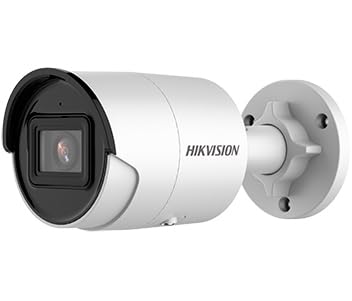
Figure 1: Hikvision 8MP AcuSense WDR Mini Bullet Network Camera (DS-2CD2083G2-IU)
This image displays the Hikvision 8MP AcuSense WDR Mini Bullet Network Camera, highlighting its compact bullet-style design suitable for various installation environments.
Key Features
- 8 Megapixel (4K) Resolution: Delivers high-quality, detailed video.
- AcuSense Technology: Reduces false alarms by accurately classifying human and vehicle targets.
- Wide Dynamic Range (WDR): Ensures clear images even in scenes with strong contrast.
- Fixed 2.8mm Lens: Provides a broad viewing angle.
- Infrared (IR) Illumination: Night vision up to 40 meters.
- IP67 Weatherproof Rating: Suitable for outdoor use in various weather conditions.
- Built-in Microphone: Enables audio monitoring.
- Integrated Card Reader: Supports local storage (microSD card not included).
2. Safety Information
Please observe the following safety precautions to prevent injury or damage to the product:
- Ensure the power supply meets the camera's requirements (6.5 Watts).
- Do not expose the camera to extreme temperatures, humidity, or corrosive environments.
- Avoid pointing the lens directly at strong light sources, as this may damage the sensor.
- Installation should be performed by qualified personnel in accordance with local electrical codes.
- Use only accessories specified by the manufacturer.
- Clean the camera lens with a soft, dry cloth. Avoid harsh chemicals.
3. Setup and Installation
3.1 Unpacking
Carefully unpack the camera and check for any signs of damage. Ensure all components are present. (Typical components include: camera unit, mounting template, screws, waterproof connector, quick start guide).
3.2 Physical Installation
The camera is designed for ceiling mounting. Select a suitable location that provides the desired field of view and is within reach of network and power cables. Due to its IP67 rating, it is suitable for outdoor environments.
- Use the provided mounting template to mark drill holes on the ceiling.
- Drill the necessary holes and insert wall plugs if required.
- Secure the camera base to the mounting surface using the supplied screws.
- Adjust the camera angle for optimal coverage.
3.3 Network and Power Connection
This is an IP network camera. It requires a network connection and power. Power over Ethernet (PoE) is typically supported, simplifying installation by delivering both power and data over a single Ethernet cable. If PoE is not used, a separate 12V DC power adapter (not included) will be required.
- Connect an Ethernet cable from your network switch/router to the camera's RJ45 port. Use the waterproof connector for outdoor installations.
- If not using PoE, connect a 12V DC power adapter to the camera's power input.
- Once connected, the camera will power on. Allow a few minutes for it to boot up.
3.4 Initial Configuration
Access the camera's web interface via a web browser using its default IP address (refer to the quick start guide or use Hikvision's SADP tool to discover the IP address). You will be prompted to set a strong password for security. Follow the on-screen instructions to configure network settings, date/time, and other basic parameters.
4. Operating Instructions
4.1 Live View and Recording
After initial setup, you can view the live feed from the camera through its web interface, a Network Video Recorder (NVR), or Hikvision's client software (e.g., iVMS-4200) or mobile app (Hik-Connect). Configure recording schedules and methods (continuous, motion-triggered) via the camera's settings or NVR.
4.2 AcuSense Smart Features
The AcuSense technology allows the camera to distinguish between humans, vehicles, and other moving objects, significantly reducing false alarms caused by animals, rain, or falling leaves. Configure these detection rules in the camera's event settings to receive more accurate alerts.
- Motion Detection 2.0: Set up detection zones and sensitivity for human and vehicle events.
- Intrusion Detection: Define virtual boundaries, and the camera will trigger an alarm if a human or vehicle crosses them.
- Line Crossing Detection: Similar to intrusion, but for a specific line.
4.3 Wide Dynamic Range (WDR)
WDR compensates for extreme lighting conditions, such as strong backlight, to ensure that both bright and dark areas of the image are clearly visible. This feature is typically enabled by default but can be adjusted in the image settings.
4.4 Infrared (IR) Night Vision
The camera automatically switches to IR mode in low-light conditions, providing clear black-and-white video up to 40 meters. Ensure no obstructions block the IR LEDs for optimal night vision performance.
4.5 Audio Monitoring
With its built-in microphone, the camera can capture audio from the surveillance area. Audio settings, including gain control, can be configured in the camera's web interface. Ensure local regulations regarding audio recording are followed.
5. Maintenance
- Cleaning: Regularly clean the camera lens and housing with a soft, damp cloth. Do not use abrasive cleaners.
- Firmware Updates: Periodically check the Hikvision official website for firmware updates. Keeping the firmware updated ensures optimal performance, new features, and security enhancements.
- Cable Inspection: For outdoor installations, periodically inspect cables and connections for wear or damage, especially the waterproof connectors.
- Password Management: Regularly change your camera's password to maintain security.
6. Troubleshooting
| Problem | Possible Cause | Solution |
|---|---|---|
| No image/camera offline | No power, network cable disconnected, incorrect IP address. | Check power supply and network cable. Verify IP address using SADP tool. Restart camera. |
| Poor image quality | Dirty lens, incorrect focus (if adjustable), poor lighting, network bandwidth issues. | Clean the lens. Ensure adequate lighting. Check network connection speed. Adjust image settings (WDR, exposure). |
| False alarms from motion detection | Sensitivity too high, environmental factors (trees, animals), AcuSense not configured. | Adjust motion detection sensitivity. Configure AcuSense human/vehicle detection. Adjust detection zones. |
| Cannot access web interface | Incorrect IP address, network connectivity issue, browser compatibility. | Verify IP address. Ensure camera and PC are on the same network segment. Try a different browser. |
If the problem persists after attempting these solutions, please contact Hikvision technical support.
7. Specifications
| Feature | Detail |
|---|---|
| Model Number | DS-2CD2083G2-IU |
| Image Sensor | CMOS |
| Max. Resolution | 8 MP (4K) |
| Lens | 2.8mm Fixed Lens |
| IR Range | Up to 40 meters |
| WDR | Supported |
| AcuSense | Human and Vehicle Target Classification |
| Audio | Built-in Microphone |
| Local Storage | Integrated Card Reader (MicroSD slot) |
| Weatherproof Rating | IP67 |
| Power Consumption | 6.5 Watts |
| Dimensions (L x W x H) | 15 x 15 x 8 cm (approximate) |
| Mounting Type | Ceiling Mount |
| Alert Type | Motion Only (configurable for human/vehicle) |
8. Warranty and Support
Hikvision products typically come with a limited manufacturer's warranty. Please refer to the warranty card included with your product or visit the official Hikvision website for detailed warranty terms and conditions specific to your region.
For technical support, firmware downloads, or further assistance, please visit the official Hikvision support portal or contact their customer service department. Ensure you have your product model number (DS-2CD2083G2-IU) and serial number ready when contacting support.
Official Hikvision Website: www.hikvision.com


