
SYMA X600W
SYMA X600W Drone with Camera
Instruction Manual
Introduction
The SYMA X600W is a foldable drone equipped with a 1080P FPV camera, designed for both adults and kids. It features user-friendly controls such as One Key Start/Landing, Altitude Hold, and Headless Mode, making it ideal for beginners. Advanced features like Flight Route Mode and Gravity Sensor control enhance the flying experience. This manual provides detailed instructions for setup, operation, maintenance, and troubleshooting to ensure optimal performance and safety.
Safety Information
Always operate the drone in a safe environment, away from people, animals, and obstacles. Ensure the drone is fully charged before each flight. Do not fly in strong winds or adverse weather conditions. In case of emergency, utilize the Emergency Stop function. Pay attention to the Low Power Alarm to prevent unexpected landings. Remove batteries from the remote control and drone when not in use for extended periods.
Package Contents
Verify that all items are present in the package:
- Helicopter (drone with included battery) x 1
- Remote control x 1
- USB charging cable x 1
- User manual x 1
- Extra battery x 1
- Propeller guards x 4
- Cell phone clip x 1
- Extra Propellers x 4
- Screwdriver x 1
- Propeller blade protectors x 4

Image: Overview of the SYMA X600W package contents.
Product Overview
The SYMA X600W drone features a compact and portable design with foldable arms for easy transport. It is equipped with a 1080P camera module for high-quality photo and video capture. The drone's body chamber houses the main electronics, while four propeller units ensure stable flight.
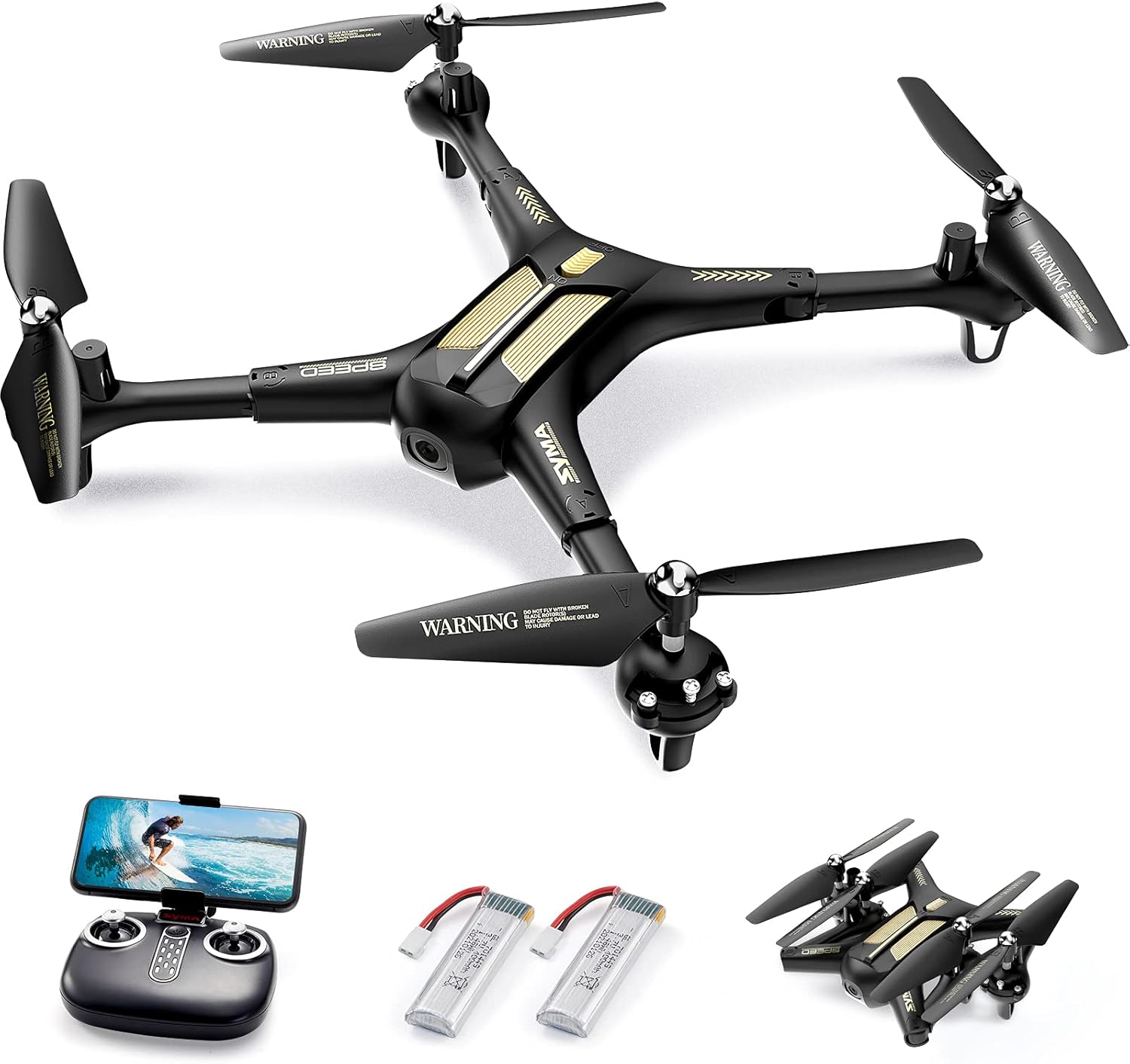
Image: The SYMA X600W drone, remote control, and batteries.
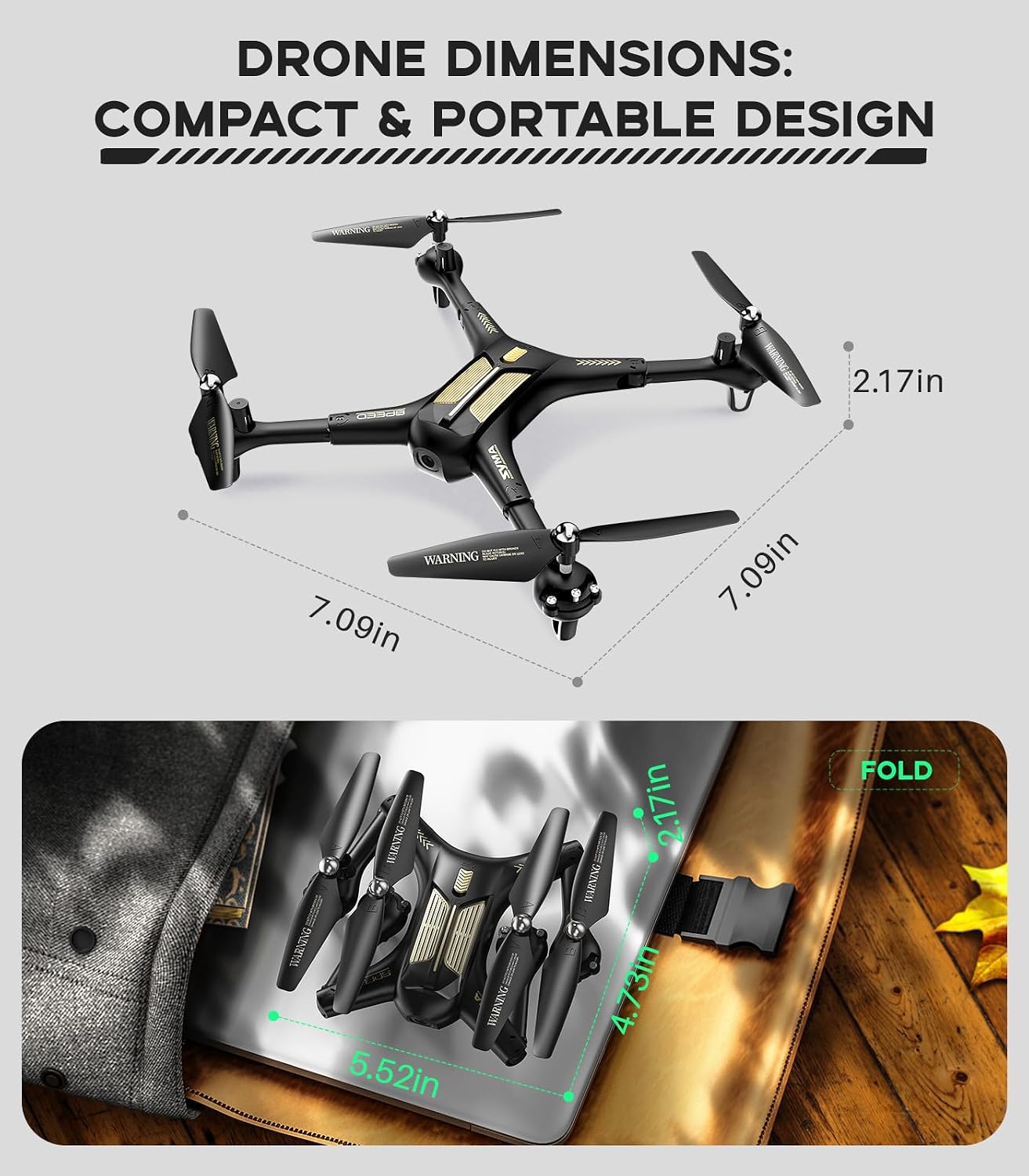
Image: Drone dimensions and compact foldable design.
Setup
1. Remote Control Battery Installation
- Utilize a screwdriver to open the remote control battery cover.
- Insert four new 1.5V AA batteries, ensuring correct polarity.
- Securely tighten the battery cover using a screwdriver.
2. Drone Battery Charging
- Pick up the USB charger cable and connect it to a USB power source (e.g., computer, USB wall adapter).
- Connect the charging cable to the drone battery.
- The indicator lights on the charger will illuminate during charging.
- The indicator lights will turn off when the battery is fully charged.
3. Drone Battery Installation
- Insert the charged battery into the drone's battery compartment.
- Close the battery compartment cover, ensuring the battery holder clicks into place.

Image: Step-by-step guide for battery installation and charging.
Operating Instructions
1. Connecting to Wi-Fi (App Control)
- Scan the QR code provided in the user manual to download the correct version of the SYMA FLY APP for your smartphone.
- After downloading, power on the drone.
- On your mobile device, go to Wi-Fi settings and connect to the network named "FPV_WIFI_XXXXX".
- Open the SYMA FLY APP, select "X600W" model in the top left corner.
- Tap "START" to enter the real-time display interface. The Wi-Fi connection is now established.
2. Pairing the Remote Control with the Drone
- Turn on the drone and the remote control. The indicator lights on both devices will flash rapidly.
- Push the left joystick (throttle) to the highest point, then pull it down to the bottom, and then reset it back to the center point.
- The indicator light will become solid, indicating successful pairing.
3. Basic Flight Controls
- One Key Start/Landing: Press the dedicated button to automatically take off or land the drone.
- Altitude Hold: This feature allows the drone to maintain a certain height, making it easier to control and capture stable footage.
- Headless Mode: Eliminates the need to adjust the drone's position before flight. The forward direction will be the direction the pilot is facing when the drone takes off.

Image: Demonstrating basic flight features like One Key Start, Altitude Hold, and Headless Mode.

Image: Visual representation of One Key Take-off/Landing and Altitude Hold.

Image: Explanation of Headless Mode and High/Low Speed Switch.
4. Advanced Features (via SYMA FLY APP)
- Flight Route Mode: Draw a desired flight path on the app screen, and the drone will automatically follow the path you set.
- Gravity Sensor: Use your smartphone's gravity sensor to control the drone's flying direction by tilting your phone.
- 360° Flip: Execute impressive aerial stunts with a single button press for a full 360-degree flip.
- Rotary Ascent: Perform a circular ascent maneuver.
- Speed Adjustment: Switch between different speed modes (High/Low) to suit your flying skill level and environment.

Image: Trajectory Flight and Gravity Control features.

Image: Custom Flight Path feature in action.

Image: APP Gravity Control demonstration.

Image: 360° Flip and Rotary Ascent maneuvers.
Video: This video demonstrates the advanced features available through the SYMA FLY App, including various control modes and flight capabilities.
5. Camera Operation
The integrated 1080P camera allows you to capture high-quality photos and videos from the drone's perspective. Connect your mobile device to the drone's Wi-Fi to enjoy a live panoramic view, review captured images and videos in your gallery, and easily share them on social media platforms.
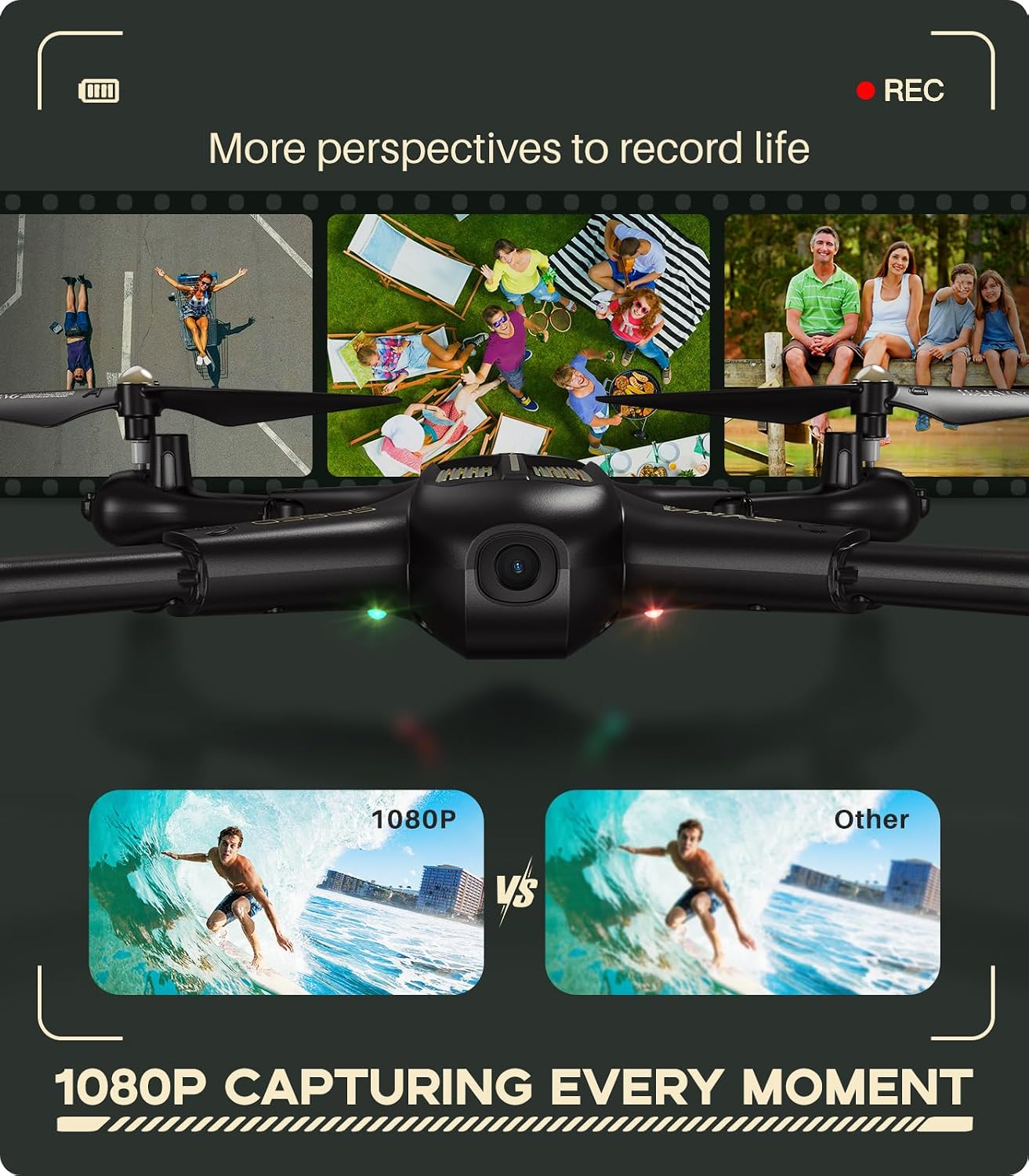
Image: 1080P camera capturing capabilities.

Image: Examples of shooting advantages with the drone's camera.
6. Applicable Environment
The SYMA X600W drone is suitable for indoor use and outdoor use in windless conditions. Its lightweight design allows for easy portability.

Image: Recommended environments for drone operation.
Maintenance
Proper maintenance ensures the longevity and optimal performance of your SYMA X600W drone. Follow these care instructions:
- When the drone's lights blink, indicating a low battery, return the drone to a safe landing spot immediately.
- Avoid outdoor flights in bad weather conditions (e.g., strong winds, rain) to prevent crashes and damage.
- Always turn off the drone when it is not in use.
- Remove batteries from the remote control when not using it for extended periods to prevent battery leakage.
Troubleshooting
Refer to the table below for common issues and their solutions:
| Issue | Reason | Troubleshooting |
|---|---|---|
| It does not work. | Improper operation; frequency not successfully linked; drone entered low-voltage protection; wrong battery usage; multiple collisions resulting in motor damage. | Power off, then power on to retune frequency. Charge up the drone. Use 4 new 1.5V AA for the remote control. Contact customer service to replace the motor. |
| The drone is unresponsive/out of control. | Power of the remote control is weak; interference with the same frequency; unstable air pressure under severe weather; battery is fully depleted; motor is damaged. | Change the batteries. Go to a place with no interference. Avoid flying under bad weather conditions, better in indoors or under windless conditions. Charge the drone or use 4 new 1.5V AA batteries when needed. Need to replace the motor. |
| Can't connect to APP. | Failed to connect to WiFi; downloaded app version is outdated; improper operation; unknown reasons. | Please restart and connect to WiFi "FPV_WIFI_XXXXX". Uninstall the APP, scan the QR code and re-download the correct version. Check the instructions or instructional video before operation. Contact customer service for help. |

Image: Troubleshooting solutions for common drone problems.
Specifications
| Brand | SYMA |
| Model Name | X600W |
| Special Feature | Foldable, Speed Adjustment, One Button Start/landing, 360° Flip and Rotate |
| Age Range (Description) | Adult, Kid |
| Color | Black |
| Video Capture Resolution | 1080p |
| Connectivity Technology | Wi-Fi |
| Included Components | propeller, camera |
| Skill Level | Beginner |
| Battery Capacity | 600 Milliamp Hours |
| Video Capture Format | MP4 |
| Remote Control Technology | Wi-Fi |
| Control Type | Remote Control |
| Media Type | SD |
| Material | Plastic |
| Wireless Communication Technology | Wi-Fi |
| Battery Cell Composition | Lithium Ion |
| Are Batteries Included | Yes |
| Supported Image Format | JPEG |
| Remote Control Included? | Yes |
| Optical Sensor Technology | CMOS |
| Rechargeable Battery Included | Yes |
| Product Dimensions | 11.1"L x 10.75"W x 2.17"H |
| Manufacturer | Syma |
| Item Weight | 15.8 ounces |
| Batteries | 2 Lithium Polymer batteries required. (included) |

Image: Detailed product features and specifications.
Warranty & Support
For any inquiries, technical support, or warranty claims, please contact SYMA customer service:
- Phone: +1 (718) 312-0558
- Email: usa@symatoys.com (USA)
SYMA is committed to providing high-quality products and customer satisfaction. We offer 24/7 customer support to assist you with any issues.

Image: SYMA customer support contact information.
Related documentsX600W


Ask a question about this manual
Ask about setup, troubleshooting, compatibility, parts, safety, or missing instructions. Manuals+ will review the question and use this page’s manual context to help answer it.