
1. Introduction and Overview
The XFX Speedster QICK308 Radeon RX 6600 XT is a high-performance gaming graphics card designed to deliver an exceptional visual experience. Featuring AMD's RDNA 2 architecture, 8GB of GDDR6 memory, and a robust triple-fan cooling system, this card is engineered for smooth gameplay and efficient operation. Its aerodynamic design prioritizes airflow to maintain optimal temperatures and performance during intensive use.

Figure 1: Angled view of the XFX Speedster QICK308 Radeon RX 6600 XT Graphics Card.
2. Setup and Installation
2.1 Package Contents
- XFX Speedster QICK308 Radeon RX 6600 XT Graphics Card
- Driver CD (Note: Latest drivers are recommended from the AMD website)
2.2 Pre-Installation Checklist
- Power Supply: Ensure your power supply unit (PSU) meets the minimum wattage requirement for the RX 6600 XT (typically 500W or higher, consult your PSU manual).
- Motherboard: Verify your motherboard has an available PCI Express x16 slot.
- Case Clearance: Check your PC case for adequate space to accommodate the card's dimensions (approximately 10.79 x 4.49 x 1.97 inches).
- Existing Drivers: Uninstall any previous graphics card drivers before installing the new hardware.
2.3 Physical Installation Steps
- Power Off: Shut down your computer and unplug it from the power outlet.
- Open Case: Remove the side panel of your computer case.
- Locate PCIe Slot: Identify an available PCI Express x16 slot on your motherboard. Remove any expansion slot covers from the back of the case that correspond to the card's position.
- Insert Graphics Card: Carefully align the graphics card with the PCIe slot and press down firmly until it is securely seated. You should hear a click from the slot's retention clip.
- Secure Card: Use screws or the case's locking mechanism to secure the graphics card to the case's expansion slot bracket.
- Connect Power: Connect the required PCIe power connectors from your PSU to the graphics card. The RX 6600 XT typically requires one 8-pin PCIe power connector.
- Close Case: Replace the side panel of your computer case.
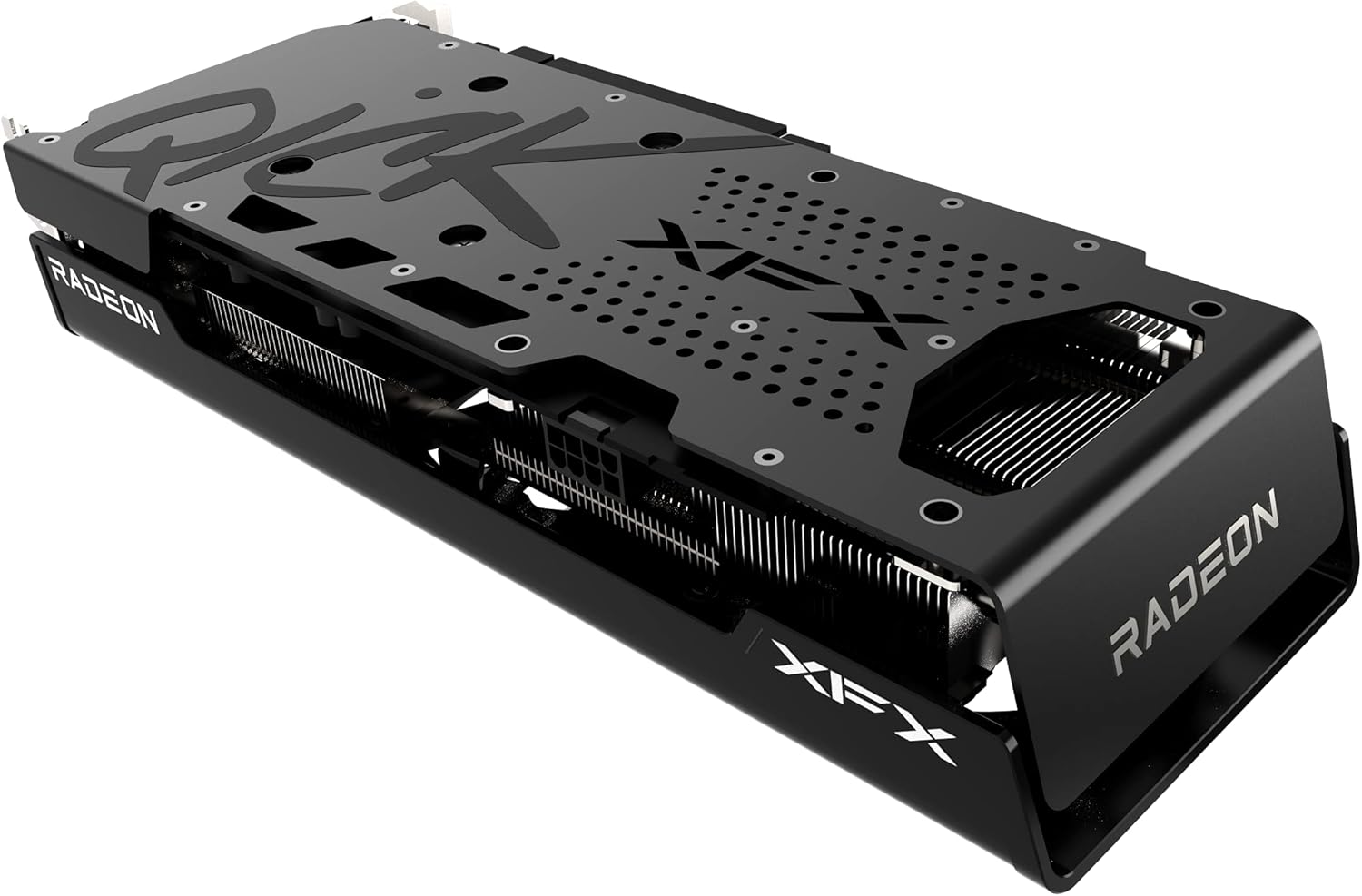
Figure 2: Side view illustrating the power connector and display output ports.
2.4 Driver Installation
- Connect Monitor: Connect your monitor to one of the graphics card's display outputs (HDMI or DisplayPort).
- Power On: Plug in your computer and power it on.
- Install Drivers: Insert the provided Driver CD or, for the latest version, download the AMD Radeon Software from the official AMD website. Follow the on-screen instructions to complete the driver installation.
- Restart: Restart your computer after the driver installation is complete.
3. Operating the Graphics Card
3.1 Basic Operation
Once drivers are installed, your operating system should automatically detect and utilize the XFX Speedster QICK308 Radeon RX 6600 XT. You can access the AMD Radeon Software through your desktop to manage display settings, gaming profiles, and other features.
3.2 Key Features
- AMD RDNA 2 Architecture: Provides enhanced performance and power efficiency for gaming and content creation.
- 8GB GDDR6 Memory: High-speed memory for demanding games and applications.
- Boost Clock: Up to 2607MHz for increased performance during peak loads.
- XFX Speedster QICK308 Triple Fan Cooling: Optimized cooling solution with three fans to maintain low temperatures and quiet operation.
- Display Outputs: Includes HDMI and DisplayPort connections for versatile monitor compatibility.
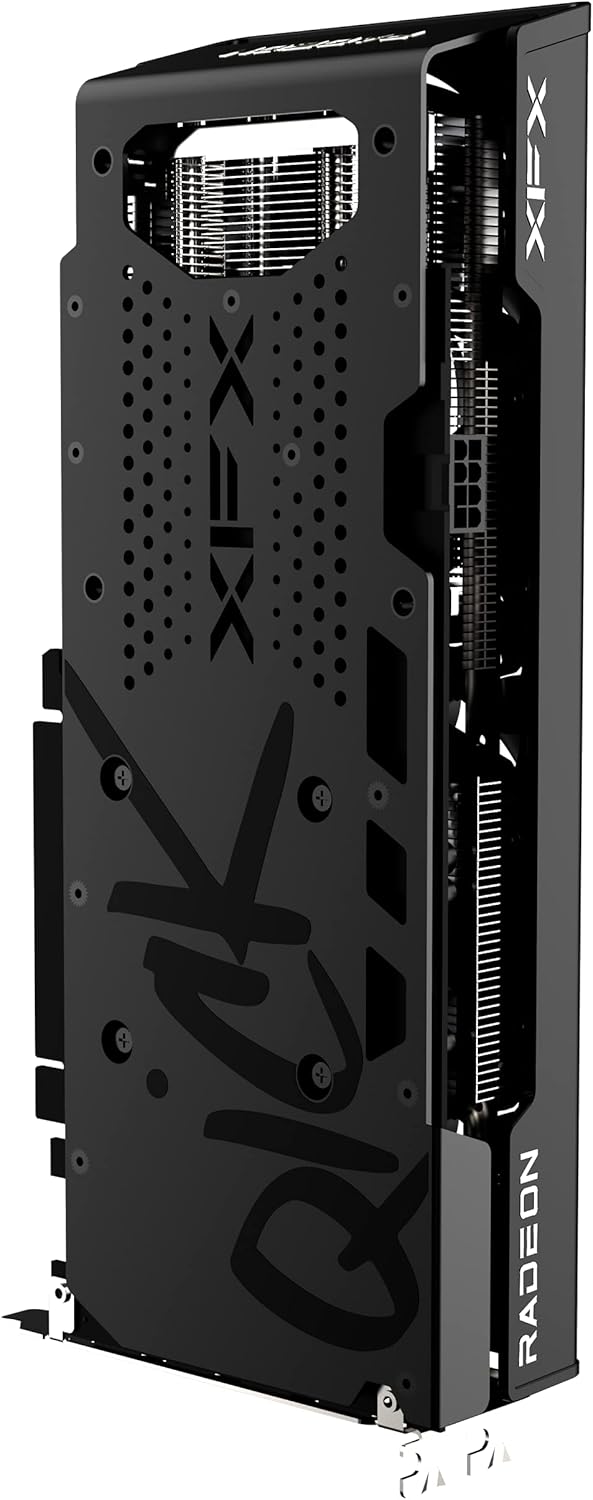
Figure 3: Rear view of the graphics card, highlighting the protective backplate.
4. Maintenance
4.1 Cleaning
Regular cleaning helps maintain optimal performance and extends the lifespan of your graphics card. Use compressed air to gently remove dust from the fans and heatsink fins. Ensure the computer is powered off and unplugged before cleaning. Avoid touching the circuit board directly.
4.2 Driver Updates
Periodically check the official AMD website for the latest graphics drivers. Keeping your drivers updated ensures compatibility with new games and applications, and often includes performance improvements and bug fixes.
4.3 Temperature Monitoring
Utilize the AMD Radeon Software or third-party monitoring tools to keep an eye on your GPU temperatures, especially during gaming or heavy workloads. Excessive temperatures can indicate insufficient airflow in your case or a need for cleaning.
5. Troubleshooting
5.1 No Display Output
- Check Connections: Ensure the monitor cable is securely connected to both the graphics card and the monitor.
- Power Cables: Verify that all PCIe power connectors are properly seated in the graphics card.
- Monitor Input: Confirm your monitor is set to the correct input source (HDMI/DisplayPort).
- Reseat Card: Power off and unplug the PC, then reseat the graphics card in its PCIe slot.
5.2 Poor Performance in Games
- Driver Update: Ensure you have the latest graphics drivers installed.
- Game Settings: Adjust in-game graphics settings. While the RX 6600 XT is powerful, some demanding titles may require optimization.
- Temperature: Monitor GPU temperatures. Overheating can lead to performance throttling.
- Background Applications: Close unnecessary background applications that may consume system resources.
5.3 Fan Noise or Overheating
- Clean Fans/Heatsink: Dust buildup can impede cooling. Refer to the cleaning section.
- Case Airflow: Ensure your PC case has adequate airflow with properly configured intake and exhaust fans.
- Fan Curve: Adjust the fan curve in AMD Radeon Software to a more aggressive setting if temperatures remain high.
6. Specifications
| Feature | Detail |
|---|---|
| Chipset | AMD RX 6600 XT |
| Graphics Processor Manufacturer | AMD |
| Architecture | AMD RDNA 2 |
| Memory | 8GB GDDR6 |
| Memory Speed | 16000 MHz |
| Boost Clock | Up To 2607MHz |
| Cooling | XFX Speedster QICK308 Triple Fan |
| Max Screen Resolution | 7680x4320 |
| Video Output Interface | HDMI, 3x DisplayPort |
| Item Model Number | RX-66XT8LBDQ |
| Item Weight | 2.81 pounds |
| Product Dimensions (LxWxH) | 10.79 x 4.49 x 1.97 inches |
7. Warranty and Support
For detailed warranty information and technical support, please refer to the official XFX website. Warranty terms and conditions may vary by region and retailer. It is recommended to register your product upon purchase to facilitate any future support needs.
XFX Official Website: https://www.xfxforce.com/


