
Introduction
The AtlasIED A-BT is a remote Bluetooth audio input designed for use with AtlasIED Atmosphere AZM processors. This device provides a convenient and reliable method for integrating Bluetooth audio sources into your audio system. It features intelligent plug-and-play operation, NFC pairing, and automatic audio setting adjustments by the AZM processor for optimal performance. The A-BT supports user-defined broadcast names (SSID) and can accommodate up to eight Bluetooth-equipped devices.
Safety Information
- Read all instructions carefully before installation and operation.
- Do not expose the device to moisture, rain, or extreme temperatures.
- Ensure proper ventilation around the device.
- Only use accessories specified by the manufacturer.
- Refer all servicing to qualified service personnel. Do not attempt to repair the unit yourself.
- Disconnect power before performing any maintenance or installation procedures.
Package Contents
Verify that all items listed below are present in your package:
- AtlasIED A-BT Remote Bluetooth Audio Input Wall Plate
- Mounting Screws (typically included with wall plate)
- Installation Guide (this manual)
Product Overview
The AtlasIED A-BT is designed as a standard wall plate for seamless integration into various environments. It features a single button for Bluetooth pairing and an NFC tag for quick connection.

Figure 1: Front View of A-BT Wall Plate. This image shows the front of the AtlasIED A-BT wall plate, featuring a central button with a Bluetooth icon, text "PRESS BUTTON TAP TO PAIR", an NFC logo, and the AtlasIED logo at the bottom. The plate is white with a grey button.
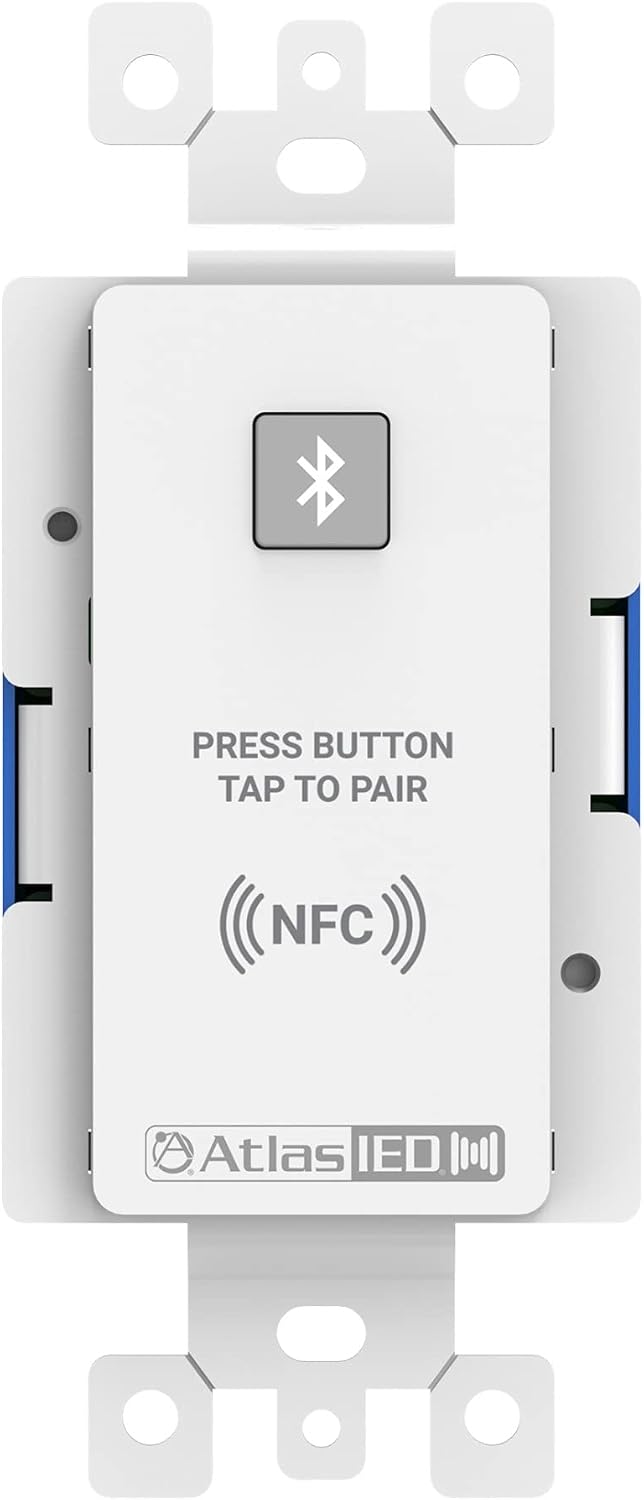
Figure 2: Front View with Mounting Tabs. This image displays the front of the A-BT wall plate, similar to Figure 1, but also clearly shows the metal mounting tabs on the top and bottom, designed for installation into a standard electrical box.

Figure 3: Rear View of A-BT Wall Plate. This image shows the back of the AtlasIED A-BT, revealing two RJ45 ports labeled "IN" and "OUT" within a blue housing. These ports are used for connecting the device to the Atmosphere AZM processor.
Key Components:
- Bluetooth Pairing Button: Initiates the Bluetooth pairing process.
- NFC Tag: Allows for quick pairing with NFC-enabled devices.
- RJ45 IN/OUT Ports: Used for connection to the Atmosphere AZM processor and daisy-chaining other compatible devices.
- Pairing Indicator: (Integrated into button/LED) Provides visual feedback on pairing status.
Setup
The A-BT wall plate is designed for easy installation into a standard single-gang electrical box.
- Preparation: Ensure power to the installation area is turned off at the circuit breaker.
- Wiring: Connect an Ethernet cable from the "IN" port of the A-BT to an available port on your AtlasIED Atmosphere AZM processor or a compatible network switch. If daisy-chaining multiple A-BT units or other Atmosphere accessories, connect the "OUT" port to the "IN" port of the next device.
- Mounting: Carefully insert the A-BT into the electrical box. Secure it using the provided mounting screws.
- Faceplate Installation: Attach a standard single-gang faceplate (not included) over the A-BT unit.
- Power On: Restore power to the circuit. The AZM processor will automatically detect the A-BT.
Note: The A-BT receives power and data over the Ethernet connection from the AZM processor or a PoE-enabled switch.
Operating
The AtlasIED A-BT simplifies Bluetooth audio integration with its intuitive pairing process.
Bluetooth Pairing:
- Activate Pairing Mode: Press and hold the Bluetooth button on the A-BT wall plate until the pairing indicator begins to flash (color/pattern may vary, refer to AZM software for specific status indications).
- Enable Bluetooth on Device: On your mobile device (smartphone, tablet, laptop), enable Bluetooth and search for available devices.
- Select A-BT: Locate and select the A-BT's broadcast name (SSID) from the list of available devices. The SSID can be customized within the Atmosphere AZM software.
- Confirm Connection: Once connected, the pairing indicator on the A-BT will typically show a solid light, and your device will confirm the connection.
NFC Pairing (Near Field Communication):
For NFC-enabled devices, pairing is even faster:
- Activate NFC: Ensure NFC is enabled on your mobile device.
- Tap to Pair: Gently tap your NFC-enabled device against the NFC logo area on the A-BT wall plate.
- Confirm Connection: Your device will prompt you to confirm the Bluetooth connection. Accept the prompt to establish the connection.
The AZM processor automatically applies appropriate audio settings, including makeup gain, EQ, and auto gain, for the connected Bluetooth source.
Maintenance
The AtlasIED A-BT requires minimal maintenance to ensure long-term performance.
- Cleaning: Use a soft, dry cloth to wipe the surface of the wall plate. Do not use liquid cleaners, aerosols, or abrasive materials, as these may damage the finish or internal components.
- Inspection: Periodically check the connections to ensure they are secure.
- Firmware Updates: Firmware updates for the A-BT are managed through the connected Atmosphere AZM processor. Refer to the Atmosphere AZM processor manual and AtlasIED's official website for information on firmware updates.
Troubleshooting
If you encounter issues with your AtlasIED A-BT, refer to the following common solutions:
| Problem | Possible Cause | Solution |
|---|---|---|
| No power/device not detected by AZM. | Incorrect Ethernet connection, no PoE, or faulty cable. | Verify Ethernet cable is securely connected to both the A-BT and the AZM processor/PoE switch. Ensure the AZM processor or switch provides Power over Ethernet (PoE). Try a different Ethernet cable. |
| Cannot pair Bluetooth device. | A-BT not in pairing mode, device too far, or interference. | Press and hold the Bluetooth button on the A-BT to enter pairing mode. Ensure your Bluetooth device is within range (up to 1,000 feet operating range). Reduce potential interference from other wireless devices. Check if the A-BT has reached its maximum of eight connected devices. |
| Poor audio quality/no audio. | Source device volume too low, incorrect AZM settings, or interference. | Increase volume on the connected Bluetooth device. Verify audio routing and settings within the Atmosphere AZM software. Ensure the A-BT is not too far from the source device. |
| NFC pairing not working. | NFC not enabled on device, incorrect tapping position, or device incompatibility. | Ensure NFC is enabled on your mobile device. Tap the device directly over the NFC logo on the A-BT. Some older devices may not support NFC pairing. |
Specifications
| Feature | Detail |
|---|---|
| Model Number | A-BT |
| Product Dimensions | 6.15 x 4.45 x 3.05 inches |
| Item Weight | 7.7 ounces |
| Color | White |
| Material Type | Hard Plastic |
| Connectivity | Bluetooth, NFC, Ethernet (PoE) |
| Operating Range | Up to 1,000 feet (Bluetooth) |
| Max Connected Devices | 8 |
| Compatibility | AtlasIED Atmosphere AZM Processors |
Warranty and Support
For warranty information and technical support, please refer to the official AtlasIED website or contact their customer service directly.
- Official Website: www.atlasied.com
- Customer Support: Refer to the "Support" or "Contact Us" section on the AtlasIED website for contact details, including phone numbers and email addresses.
- Product Registration: Register your product on the AtlasIED website to receive updates and support.
Please retain your proof of purchase for warranty claims.


