
VQ Dexter_variation
VQ Dexter Portable DAB & FM Radio User Manual
Model: Dexter_variation
Introduction
Thank you for choosing the VQ Dexter Portable DAB & FM Radio. This manual provides essential information for setting up, operating, and maintaining your radio. The Dexter radio combines classic design with modern digital audio broadcasting (DAB/DAB+) and traditional FM radio capabilities, offering a versatile listening experience both at home and on the go.
Key features include a clear LCD display, multiple power options (mains and battery), a retractable antenna, and the ability to store numerous radio presets. Please read this manual thoroughly to ensure proper use and to maximize your enjoyment of this product.

Image: Front view of the VQ Dexter Portable DAB & FM Radio, showcasing its light blue casing with a pink floral pattern, front speaker grille, LCD display, and control buttons.
Product Features
- DAB/DAB+ and FM Radio: Access a wide range of digital and analog radio stations.
- 3 Watt Speaker: Provides clear and crisp audio output.
- Dimmable LCD Screen: Adjustable backlight with three brightness settings (low, medium, high) for comfortable viewing.
- 60 Radio Presets: Store up to 30 DAB/DAB+ and 30 FM stations for quick access.
- Easy Auto-Scan: Automatically finds and lists available stations alphabetically.
- Headphone Jack: For private listening.
- Retractable Antenna: Neatly folds into the back of the radio when not in use.
- Dual Power Options: Operates via mains power (Micro-USB) or 4xAA batteries for portability.
- Premium Design: Features premium PU leather detail for a sophisticated look.

Image: A graphic highlighting key features of the VQ Dexter radio, including its 3-watt speaker, dimmable screen, 60 radio presets, and easy auto-scan tuning.
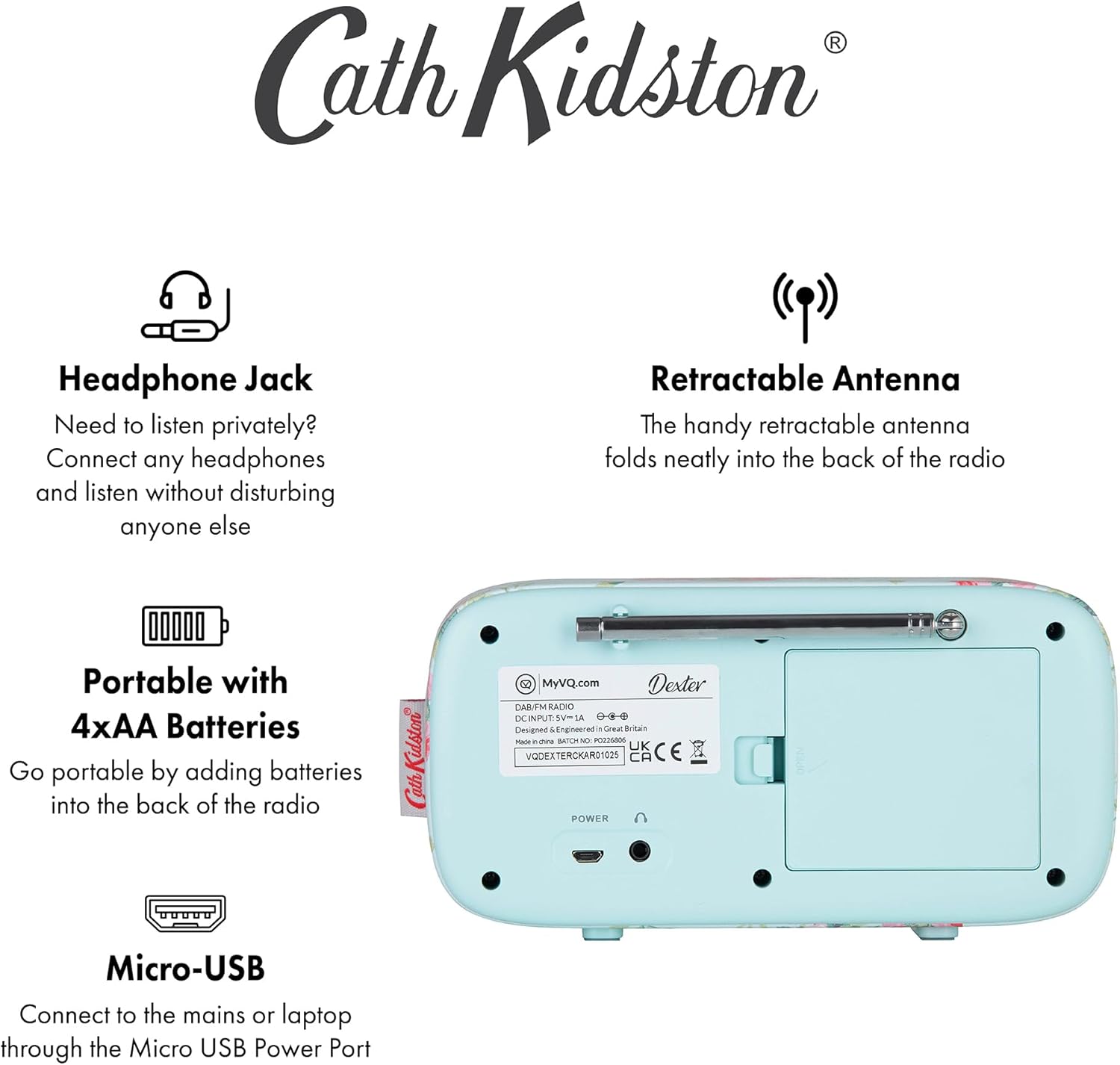
Image: A graphic detailing additional features such as the headphone jack, retractable antenna, portability with AA batteries, and Micro-USB power input.
Setup
1. Powering Your Radio
The VQ Dexter radio can be powered by either mains electricity or batteries.
- Mains Power: Connect the supplied Micro-USB cable to the Micro-USB power port on the back of the radio. Plug the other end into a suitable USB power adapter (not supplied) and then into a wall socket.
- Battery Power: For portable use, insert 4 x AA batteries (not supplied) into the battery compartment located on the back of the radio. Ensure correct polarity (+/-) as indicated inside the compartment.

Image: Rear view of the VQ Dexter radio, illustrating the retractable antenna, the battery compartment cover, and the Micro-USB power input port.
2. Extending the Antenna
For optimal reception, fully extend the telescopic antenna located on the back of the radio. Adjust its position for the best signal quality.
3. Initial Power On and Auto-Scan
Press the Power/Mode button to turn on the radio. If this is the first time powering on, or after a factory reset, the radio will automatically perform a full scan for DAB/DAB+ stations. This process may take a few minutes. Once complete, the radio will tune to the first available station.
The radio will also automatically set the time and date via the DAB signal.
Operating Instructions
Controls Overview
Familiarize yourself with the control buttons on the front of your Dexter radio:
- Power/Mode: Turns the radio on/off; switches between DAB, FM, and AUX modes.
- Menu: Accesses the menu options for the current mode.
- Scan: Initiates a scan for radio stations.
- Prev: Navigates to the previous station/menu item.
- Next: Navigates to the next station/menu item.
- Preset: Saves or recalls preset stations.
- Volume/Select Dial: Rotates to adjust volume or navigate menu options; press to select.
1. Switching Modes (DAB/FM)
Press the Power/Mode button repeatedly to cycle through DAB, FM, and AUX (if available) modes.
2. Tuning to Stations
- DAB Mode:
- After the initial scan, use the Prev and Next buttons to browse through the available DAB stations.
- To perform a full scan at any time, press the Scan button.
- FM Mode:
- Press the Scan button to automatically scan for the next available FM station.
- Alternatively, rotate the Volume/Select Dial to manually tune the frequency.
3. Saving and Recalling Presets
Your Dexter radio allows you to save up to 30 DAB/DAB+ and 30 FM stations as presets.
- To Save a Preset:
- Tune to the desired station.
- Press and hold the Preset button until "Preset Store" appears on the display.
- Use the Prev or Next buttons to select the desired preset number (1-30).
- Press the Volume/Select Dial to confirm and save the station.
- To Recall a Preset:
- Press the Preset button (do not hold). "Preset Recall" will appear.
- Use the Prev or Next buttons to select the desired preset number.
- Press the Volume/Select Dial to tune to the saved station.
4. Adjusting Volume
Rotate the Volume/Select Dial clockwise to increase volume and counter-clockwise to decrease volume.
5. Using the Headphone Jack
Connect standard 3.5mm headphones (not supplied) to the headphone jack located on the back of the radio for private listening. The internal speaker will automatically mute when headphones are connected.
6. Adjusting Display Brightness
To adjust the LCD display brightness:
- Press the Menu button.
- Use the Prev or Next buttons to navigate to "Display" or "Backlight" option. Press the Volume/Select Dial to select.
- Choose from Low, Medium, or High brightness settings using the Prev or Next buttons, then press the Volume/Select Dial to confirm.
Maintenance
- Cleaning: Wipe the radio with a soft, dry, or slightly damp cloth. Do not use abrasive cleaners, waxes, or solvents as they may damage the finish.
- Battery Replacement: If using batteries, replace all four AA batteries when the display indicates low power or the radio stops functioning. Always replace with new batteries of the same type. Do not mix old and new batteries.
- Storage: If storing the radio for an extended period, remove the batteries to prevent leakage and potential damage. Store in a cool, dry place.
- Antenna Care: Handle the retractable antenna carefully to avoid bending or breaking.
Troubleshooting
| Problem | Possible Cause | Solution |
|---|---|---|
| No power / Radio does not turn on. |
|
|
| Poor reception / Static sound. |
|
|
| No sound from speaker. |
|
|
| Display is blank or dim. |
|
|
Specifications
| Feature | Detail |
|---|---|
| Model | Dexter_variation |
| Brand | VQ |
| Radio Type | DAB/DAB+, FM |
| Speaker Output | 3 Watts |
| Power Input | Micro-USB (5V, 1A recommended) |
| Battery Type | 4 x AA batteries (not included) |
| Headphone Jack | 3.5mm Stereo |
| Product Dimensions (L x W x H) | 17.5 x 5.5 x 9 cm |
| Item Weight | 0.7 Kilograms |
| Display | LCD with adjustable backlight |
| Presets | 60 (30 DAB/DAB+, 30 FM) |

Image: Diagram showing the physical dimensions of the VQ Dexter radio: 17.5 cm in length, 5.5 cm in width, and 9 cm in height.
Warranty and Support
Your VQ Dexter Portable DAB & FM Radio comes with a standard manufacturer's warranty. Please refer to the warranty card included with your product for specific terms and conditions, or visit the official VQ website for detailed warranty information and support resources.
For technical assistance, troubleshooting beyond this manual, or to inquire about replacement parts, please contact VQ customer support through their official channels. Keep your proof of purchase for warranty claims.
Official VQ Website: www.myvq.com
Ask a question about this manual
Ask about setup, troubleshooting, compatibility, parts, safety, or missing instructions. Manuals+ will review the question and use this page’s manual context to help answer it.