
Introduction
This manual provides essential instructions for the safe and effective use of your Canon EOS 250D DSLR Camera. The EOS 250D is a versatile camera featuring a 24.1MP APS-C CMOS sensor and DIGIC 8 image processor, capable of high-resolution stills and UHD 4K video recording. It includes a wide ISO 100-25600 sensitivity range and Dual Pixel CMOS AF for quick and accurate focusing. Please read this manual thoroughly before operating the camera and keep it for future reference.
What's in the Box
Verify that all the following items are included with your Canon EOS 250D camera kit.

Image: All items included in the Canon EOS 250D kit.
- Canon EOS 250D DSLR Camera Body
- Canon EF-S 18-55mm Lens
- Canon LP-E17 Lithium-Ion Battery Pack
- Canon LC-E17 Charger for LP-E17 Battery Pack
- Canon RF-3 Body Cap
- Canon Eyecup EF
- Canon EW-400D-N Neck Strap
- (Note: Additional bundle items like a shoulder bag, memory card, and cleaning set may be included depending on your purchase.)
Setup
1. Charging the Battery
Before initial use, fully charge the LP-E17 battery pack.
- Insert the battery into the LC-E17 charger.
- Plug the charger into a power outlet.
- The charging indicator lamp will illuminate. It will turn off when charging is complete.
2. Inserting the Battery and Memory Card
Open the battery compartment cover on the bottom of the camera. Insert the charged battery until it clicks into place. Insert an SD, SDHC, or SDXC memory card into the card slot with the label facing the front of the camera until it clicks. Close the compartment cover.
3. Attaching the Lens
Remove the body cap from the camera and the rear cap from the lens. Align the red or white index mark on the lens with the corresponding mark on the camera body. Turn the lens clockwise until it locks into place.
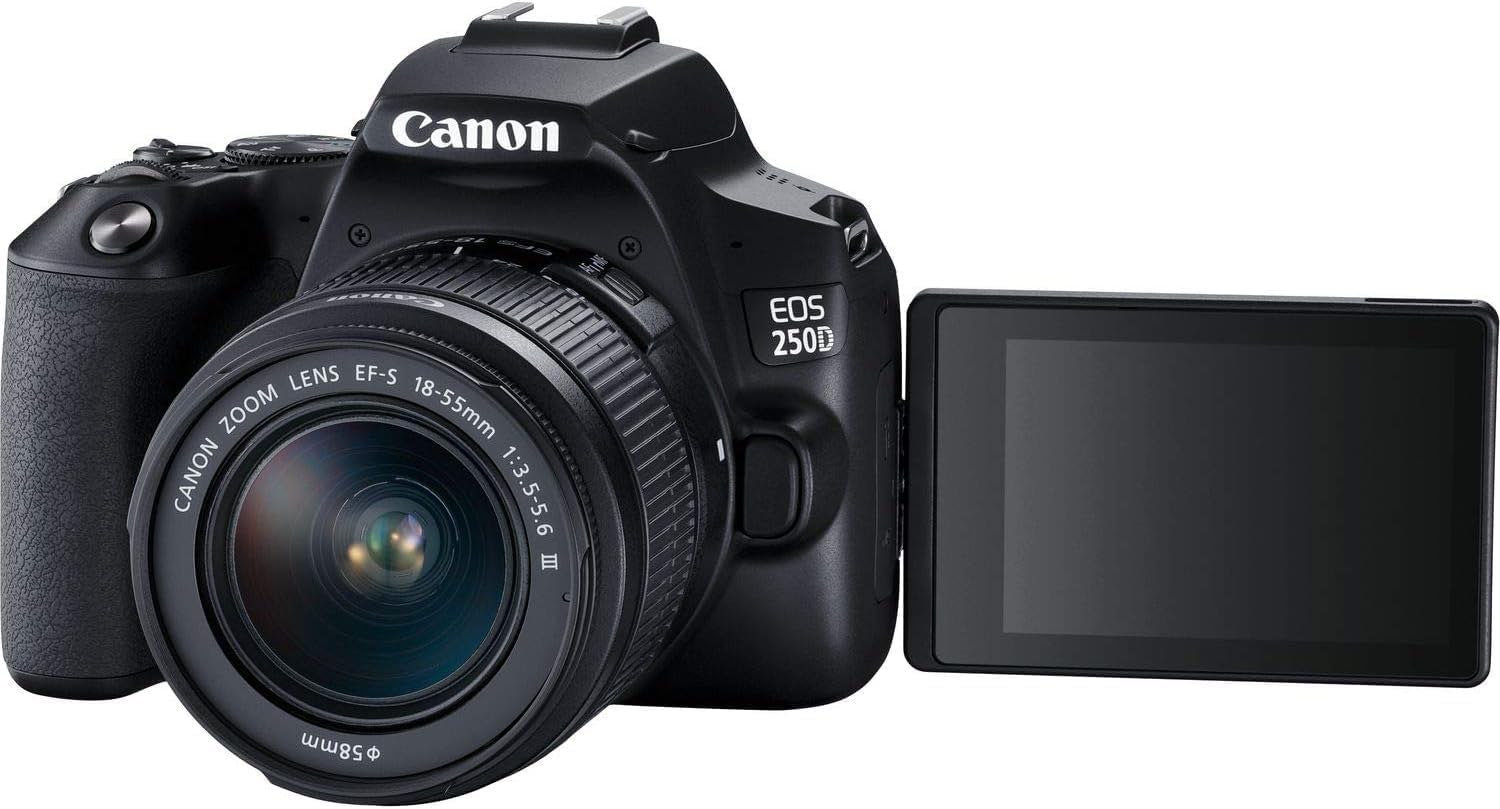
Image: Canon EOS 250D camera body and EF-S 18-55mm lens.
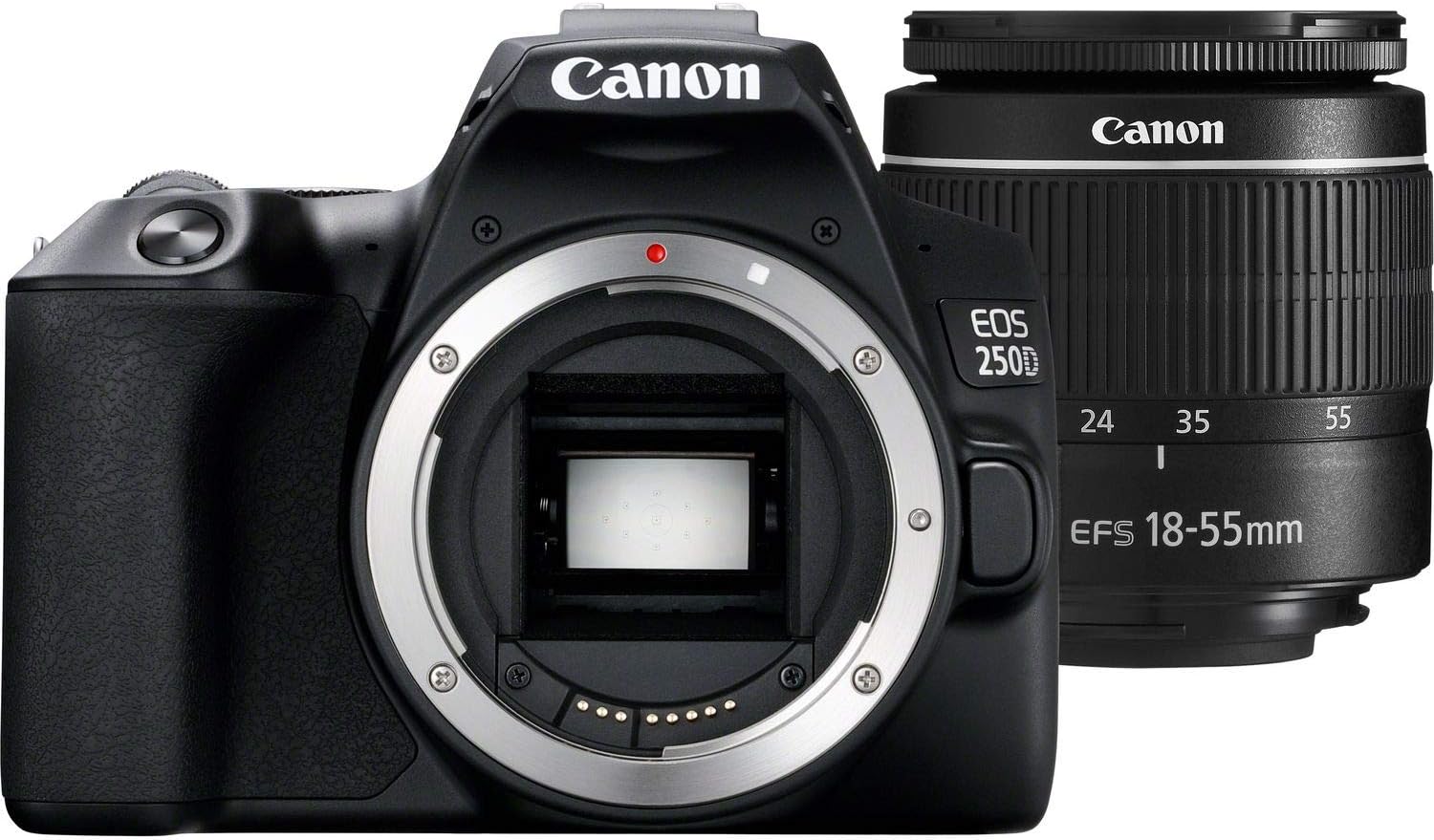
Image: Canon EOS 250D with lens attached.
4. Initial Power On and Basic Settings
Turn the power switch to ON. The camera will prompt you to set the date, time, and time zone. Follow the on-screen instructions using the vari-angle touchscreen or the control buttons.
Operating the Camera
1. Camera Controls Overview
Familiarize yourself with the main controls of the EOS 250D.

Image: Top view of the Canon EOS 250D.

Image: Rear view of the Canon EOS 250D with vari-angle screen.
- Mode Dial: Select shooting modes like Program (P), Shutter-priority (Tv), Aperture-priority (Av), Manual (M), and various scene modes.
- Shutter Button: Press halfway to focus, fully to take a picture.
- Vari-angle Touchscreen: Use for menu navigation, setting adjustments, and Live View shooting.
- MENU Button: Access camera settings.
- INFO Button: Change the information displayed on the screen.
2. Basic Photography
- Select a Shooting Mode: Rotate the mode dial to your desired mode (e.g., A+ for Scene Intelligent Auto for beginners, or P for Program AE).
- Compose Your Shot: Look through the optical viewfinder or use the Live View on the LCD screen.
- Focus: Press the shutter button halfway down. The camera will automatically focus.
- Capture: Press the shutter button fully to take the picture.
3. Video Recording
The EOS 250D supports UHD 4K video recording.
- Set the mode dial to the movie shooting mode (usually indicated by a movie camera icon).
- Use the LCD screen for Live View.
- Press the Movie Shooting Button (red dot icon) to start and stop recording.
4. Image Playback
To review your photos and videos:
- Press the Playback Button (triangle icon).
- Use the directional keys or touchscreen to navigate through images.
- Press the Zoom In/Out Buttons to enlarge or view multiple images.
5. Connectivity (Wi-Fi)
The camera features built-in Wi-Fi for transferring images to a smartphone or computer.
- Enable Wi-Fi in the camera's menu.
- Download the Canon Camera Connect app on your smartphone.
- Follow the app's instructions to connect to the camera and transfer files.
Maintenance
1. Cleaning the Camera
- Camera Body: Use a soft, dry cloth to wipe dust and smudges. For stubborn dirt, slightly dampen the cloth with water.
- Lens: Use a lens blower to remove dust. For smudges, use a lens cleaning solution and a microfiber cloth. Avoid touching the lens surface directly.
- Sensor: Sensor cleaning should ideally be performed by a qualified service technician. The camera has an automatic sensor cleaning function accessible via the menu.
2. Battery Care
- Store batteries in a cool, dry place when not in use.
- Avoid fully discharging batteries frequently to prolong their lifespan.
- Do not expose batteries to extreme temperatures.
3. Storage
When storing the camera for extended periods, remove the battery and memory card. Store the camera in a dry, well-ventilated area, preferably in a camera bag with desiccant to prevent mold and mildew.
Troubleshooting
| Problem | Possible Cause / Solution |
|---|---|
| Camera does not power on. | Battery is not charged or incorrectly inserted. Ensure battery is fully charged and correctly seated. |
| Cannot take pictures. | Memory card is full, locked, or not inserted. Check card status. Lens may not be attached correctly. |
| Images are blurry. | Camera shake, incorrect focus, or lens smudges. Use a faster shutter speed, ensure proper focus, clean lens. |
| Wi-Fi connection fails. | Ensure Wi-Fi is enabled on camera and smartphone. Check app settings and camera's network settings. |
| "Card Error" message. | Memory card may be corrupted or incompatible. Try formatting the card (this will erase all data) or use a different card. |
For more detailed troubleshooting, refer to the comprehensive user manual available on the Canon support website.
Specifications
| Feature | Detail |
|---|---|
| Model Name | EOS 250D (3453C002AA) |
| Sensor Type | 24.1 MP APS-C CMOS |
| Image Processor | DIGIC 8 |
| Video Resolution | UHD 4K24p |
| ISO Sensitivity | 100-25600 (Expanded) |
| Autofocus System | Dual Pixel CMOS AF (Live View), 9-point AF (Viewfinder) |
| Display | 3.0" 1.04m-Dot Vari-Angle Touchscreen LCD |
| Continuous Shooting | Up to 5 fps |
| Connectivity | Wi-Fi, USB, HDMI |
| Compatible Mountings | Canon EF-S |
| Weight | Approx. 4 Pounds (with battery and card) |
Warranty and Support
Warranty Information
This product is covered by a 90-day limited warranty. Please retain your proof of purchase for warranty claims. The warranty covers manufacturing defects under normal use. It does not cover damage caused by misuse, accidents, unauthorized repairs, or normal wear and tear.
Customer Support
For technical assistance, service, or further information, please visit the official Canon support website or contact Canon customer service in your region.