
Groov-e GVBT750BK
Groov-e Ultra Wireless Bluetooth Headphones Instruction Manual GVBT750BK
Introduction
Thank you for purchasing the Groov-e Ultra Wireless Bluetooth Headphones. These headphones are designed to provide a superior audio experience with features such as wireless connectivity, extended battery life, and comfortable design. This manual will guide you through the setup, operation, and maintenance of your new headphones.
Package Contents
Please ensure all items are present in your Groov-e Ultra headphone package:
- Groov-e Ultra Wireless Bluetooth Headphones
- USB Charging Cable
- 3.5mm Audio Cable
- User Manual (this document)
Product Overview
Familiarize yourself with the various components of your Groov-e Ultra headphones.
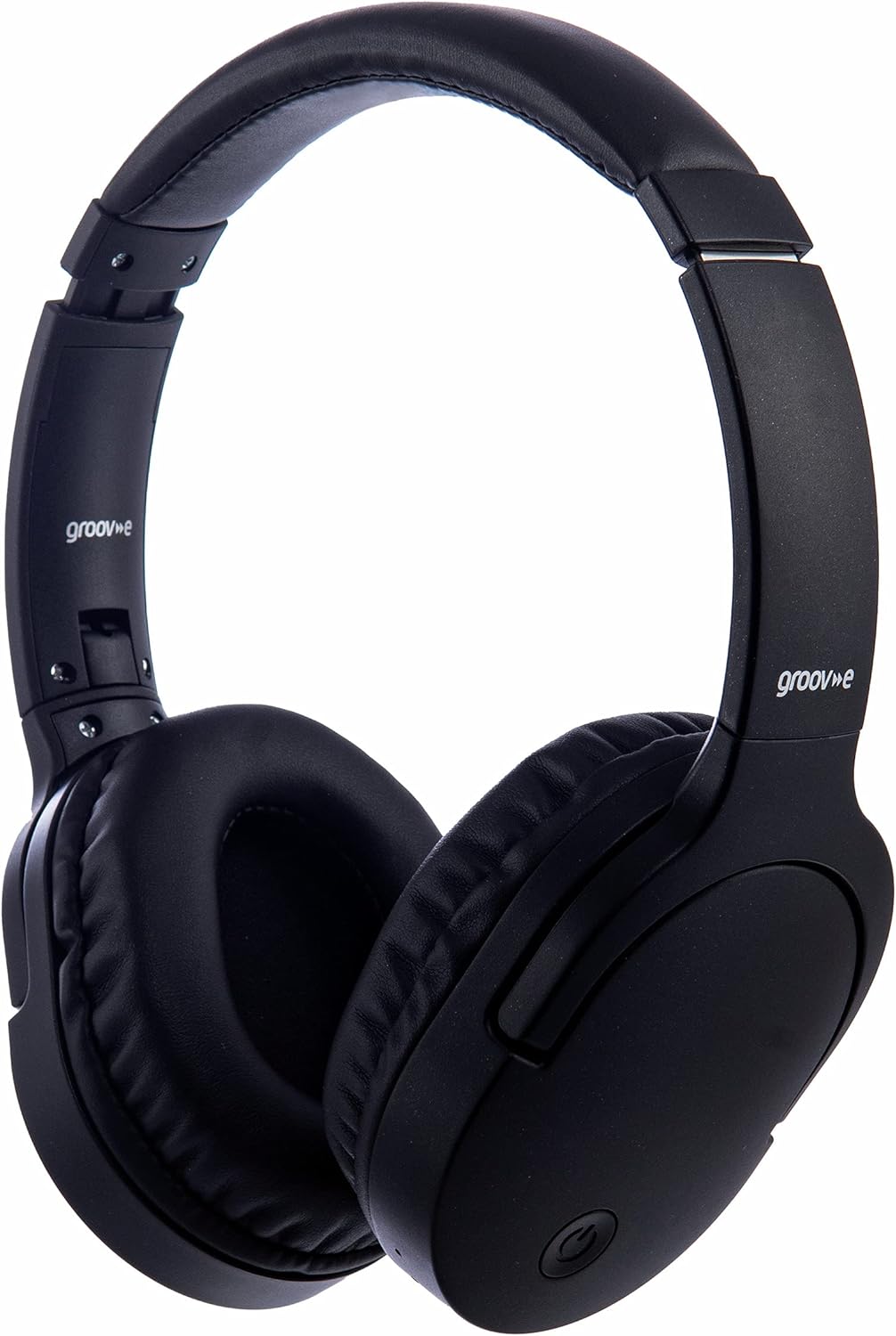
Image: Front view of the Groov-e Ultra Wireless Bluetooth Headphones in black.
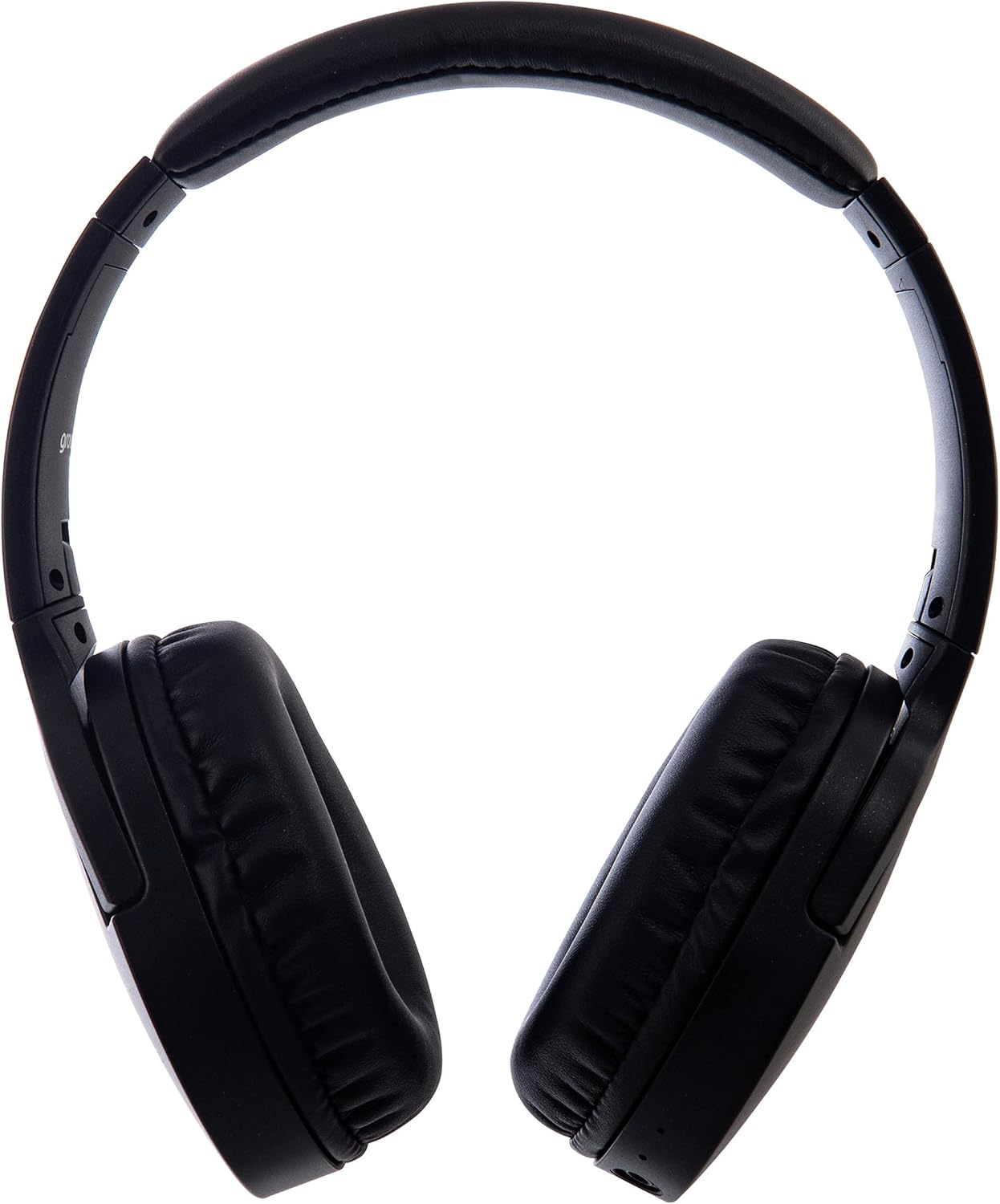
Image: Side view of the Groov-e Ultra Wireless Bluetooth Headphones, showing the earcups and headband.
Key features and controls include:
- Power Button: Located on the earcup, used for powering on/off and initiating pairing mode.
- Volume Controls: Buttons for adjusting audio volume.
- Multi-function Button: For play/pause, answer/end calls, and activating voice assistant.
- Microphone: Integrated for hands-free calling.
- 3.5mm Audio Jack: For wired connection to audio sources.
- USB Charging Port: For charging via the included USB cable.
- Wireless Charging Area: Located on the right earcup for compatible wireless charging pads.
- LED Indicator: Displays power, charging, and Bluetooth pairing status.
Setup
1. Initial Charging
Before first use, fully charge your headphones. The Groov-e Ultra headphones support both wired and wireless charging.
Wired Charging:
- Connect the supplied USB charging cable to the headphone's charging port.
- Connect the other end of the USB cable to a compatible USB power source (e.g., computer USB port, USB wall adapter).
- The LED indicator will illuminate during charging and turn off or change color when fully charged.
Wireless Charging:
- Place the right earcup of the headphones onto a compatible Qi-certified wireless charging pad.
- Ensure the headphones are correctly positioned on the charging pad for optimal contact.
- The LED indicator will illuminate during charging and turn off or change color when fully charged.
A full charge typically takes approximately 2 hours.
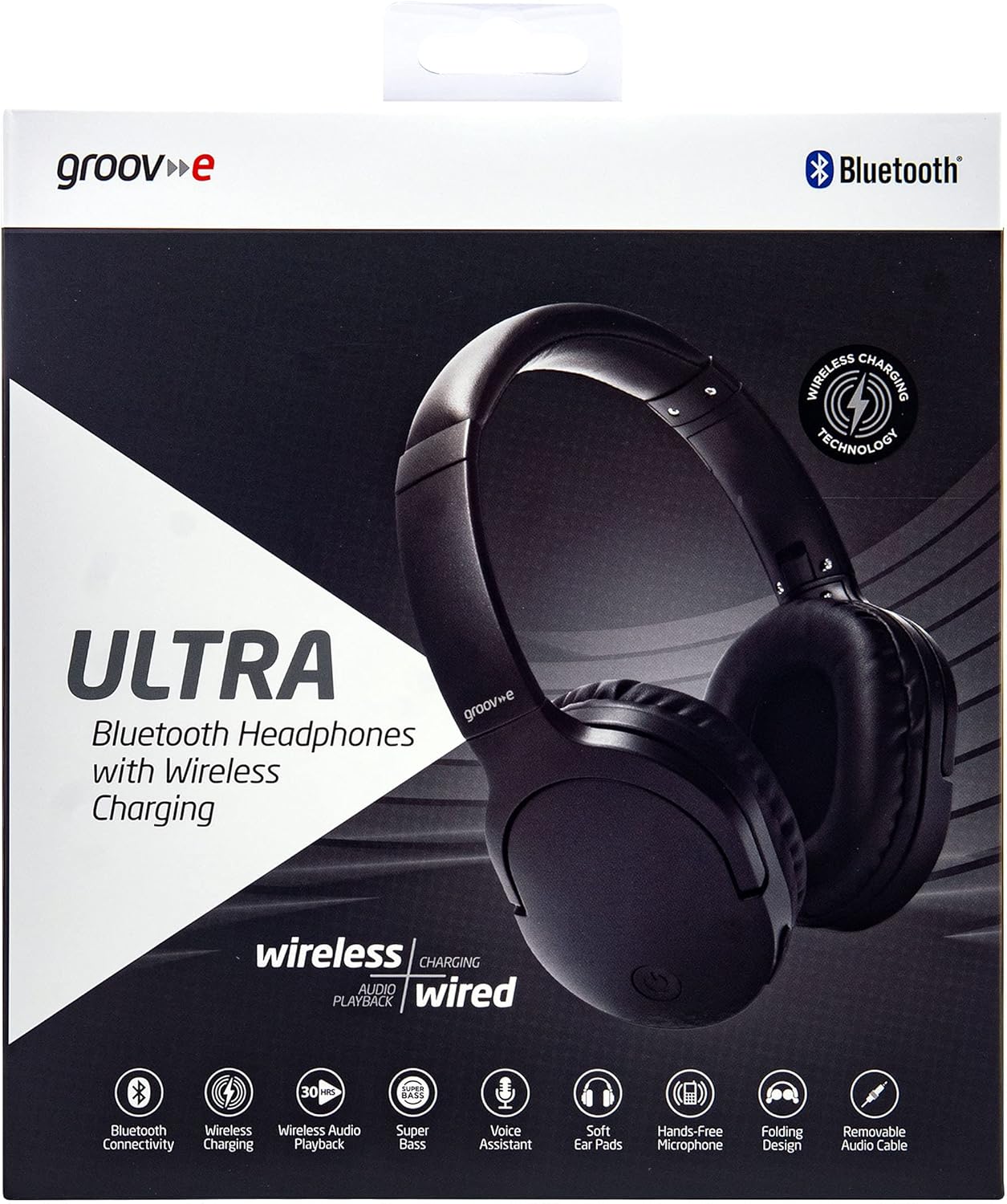
Image: Groov-e Ultra headphones charging wirelessly on a pad, with a laptop in the background.
Operating Instructions
1. Power On/Off
- Power On: Press and hold the Power button for approximately 3 seconds until the LED indicator flashes.
- Power Off: Press and hold the Power button for approximately 3-5 seconds until the LED indicator turns off.
2. Bluetooth Pairing
- Ensure the headphones are powered off.
- Press and hold the Power button for approximately 5-7 seconds until the LED indicator flashes red and blue alternately, indicating pairing mode.
- On your device (smartphone, tablet, laptop), enable Bluetooth and search for available devices.
- Select "Groov-e Ultra" from the list of found devices.
- Once paired, the LED indicator will flash blue slowly, and you may hear an audible confirmation.
- If prompted for a password, enter "0000".
The headphones will automatically attempt to reconnect to the last paired device when powered on.
3. Wired Connection (3.5mm Audio Cable)
For devices without Bluetooth or to conserve battery, you can use the supplied 3.5mm audio cable.
- Connect one end of the 3.5mm audio cable to the audio jack on the headphones.
- Connect the other end to the 3.5mm audio output of your device.
- The headphones will operate in passive mode, and Bluetooth functionality will be disabled.
4. Music Playback
- Play/Pause: Press the Multi-function button once.
- Next Track: Press and hold the Volume Up button.
- Previous Track: Press and hold the Volume Down button.
- Volume Up: Press the Volume Up button briefly.
- Volume Down: Press the Volume Down button briefly.
5. Call Management
- Answer/End Call: Press the Multi-function button once.
- Reject Call: Press and hold the Multi-function button for 2 seconds.
- Voice Assistant: Double-press the Multi-function button to activate your device's voice assistant (e.g., Siri, Google Assistant).
Maintenance
To ensure the longevity and optimal performance of your Groov-e Ultra headphones, follow these maintenance guidelines:
- Cleaning: Use a soft, dry cloth to clean the earcups and headband. Do not use abrasive cleaners or solvents.
- Storage: When not in use, store the headphones in a cool, dry place, away from direct sunlight and extreme temperatures. The foldable design allows for compact storage.
- Battery Care: To preserve battery life, avoid fully discharging the headphones frequently. Charge them regularly, even if not in constant use.
- Water Resistance: The headphones are rated as "waterproof" (as per specifications), but this typically refers to resistance against splashes or light rain. Avoid submerging them in water.
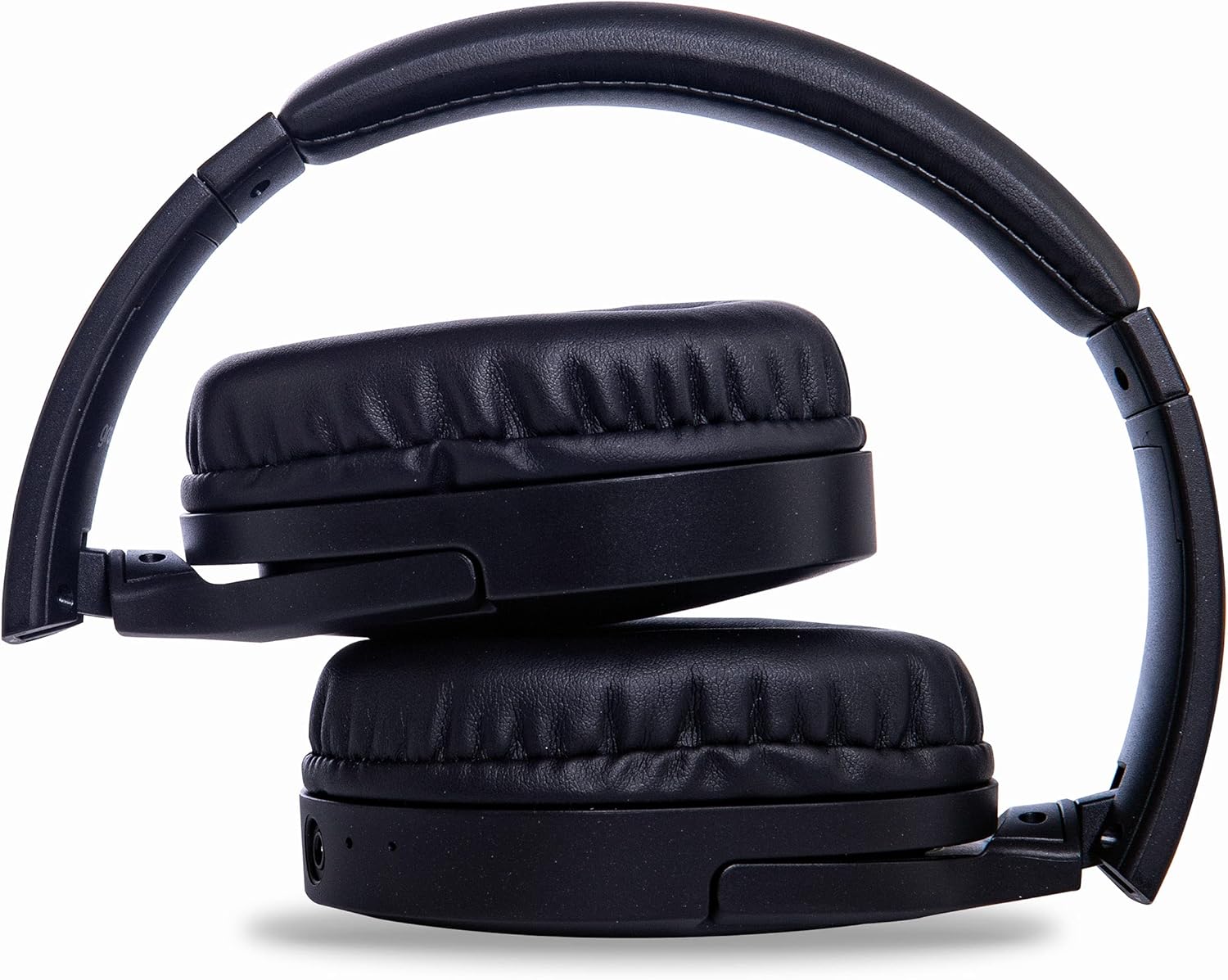
Image: Groov-e Ultra headphones folded, demonstrating their compact storage design.
Troubleshooting
If you encounter issues with your headphones, refer to the following common solutions:
| Problem | Possible Cause | Solution |
|---|---|---|
| Headphones do not power on. | Low battery. | Charge the headphones fully using either wired or wireless charging. |
| Cannot pair via Bluetooth. | Headphones not in pairing mode; device Bluetooth off; interference. | Ensure headphones are in pairing mode (flashing red/blue). Turn Bluetooth off and on on your device. Move closer to the device. |
| No sound or poor sound quality. | Volume too low; incorrect source; loose wired connection; Bluetooth interference. | Increase volume on headphones and device. Check if the correct audio output is selected. Ensure 3.5mm cable is fully inserted. Re-pair Bluetooth. |
| Wireless charging not working. | Headphones not positioned correctly; incompatible charging pad. | Adjust headphone position on the charging pad. Ensure the charging pad is Qi-certified and functioning. |
| Buzzing or too loud on Bluetooth. | Bluetooth signal issue; volume settings. | Try moving closer to the source device. Adjust volume levels on both the headphones and the connected device. |
| Cannot connect to Apple Mac Book Pro. | Compatibility issue or specific Bluetooth driver problem. | Ensure your Mac's Bluetooth drivers are up to date. Try resetting Bluetooth on your Mac. Consult Apple support or Groov-e support for specific compatibility advice. |
Specifications
| Feature | Detail |
|---|---|
| Model Name | Ultra |
| Model Number | GVBT750BK |
| Brand | Groov-e |
| Connectivity Technology | Wireless (Bluetooth) |
| Wireless Communication Technology | Bluetooth |
| Form Factor | Supra-Aural (Over-ear) |
| Ear Placement | Supra-auriculaire |
| Noise Isolation | Active Noise Suppression |
| Headphone Jack | 3.5 mm Jack |
| Special Features | Microphone included, Sweat resistant |
| Battery Life | Up to 30 hours (wireless audio playback) |
| Charging Time | Approximately 2 hours |
| Control Method | Tactile (Touch) |
| Frequency Range | 20 Hz - 20,000 Hz (Possible) |
| Water Resistance Level | Waterproof |
| Compatible Devices | Smartphones, laptops, tablets, car audio systems, music production equipment, televisions |
| Material | Leather |
Safety Information
Please read and follow these safety guidelines to prevent damage to your headphones or personal injury:
- Do not expose headphones to extreme temperatures, humidity, or corrosive environments.
- Avoid dropping or subjecting the headphones to strong impacts.
- Do not attempt to disassemble or modify the headphones. This will void the warranty.
- Keep away from children and pets.
- Prolonged listening at high volumes can cause hearing damage. Adjust volume to a safe level.
- Exercise caution when using headphones in situations requiring awareness of your surroundings (e.g., driving, cycling, walking in traffic).
- Use only approved charging cables and power adapters.
Warranty and Support
Groov-e products are designed and manufactured to the highest standards. For warranty information, please refer to the warranty card included with your purchase or visit the official Groov-e website.
For technical support, troubleshooting assistance, or general inquiries, please contact Groov-e customer service through their official channels. Contact details can typically be found on the product packaging or the Groov-e website.
Online Support: www.groov-e.co.uk/support
Related documentsGVBT750BK


Ask a question about this manual
Ask about setup, troubleshooting, compatibility, parts, safety, or missing instructions. Manuals+ will review the question and use this page’s manual context to help answer it.