
1. Product Overview
The MZHOU JMB582 2-Port SATA PCIe 3.0 Expansion Card is designed to provide additional SATA 6Gbps ports to your computer system, enabling the connection of more storage devices such as SSDs and HDDs. This expansion card is ideal for users looking to expand their storage capabilities without replacing their motherboard, offering high-speed data transfer and broad compatibility with various operating systems.

Figure 1: MZHOU JMB582 2-Port SATA PCIe 3.0 Expansion Card with included low-profile bracket.
2. Features
- Meets Serial ATA 3.0 specification, backward compatible with SATA 2.0 and SATA 1.0.
- Complies with PCI-Express v2.0 specification, backward compatible with PCI-Express v1.0.
- Supports 6.0Gbps, 3.0Gbps, and 1.5Gbps communication speeds.
- Supports Gen 1i, Gen 1x, Gen 2i, Gen 2m, Gen 2x, and Gen 3i.
- Provides two (2) SATA ports for connecting additional storage devices.
- Supports AHCI 1.0 mode and IDE mode.
- Native Command Queue (NCQ) support.
- Supports FIS based on port multiplier switch or command switch.
- Compatible with SATA 6G, 3G, and 1.5G hard drives.
- Plug-and-Play installation with hot-plugging support.

Figure 2: The integrated heatsink effectively reduces the chip temperature for stable operation.

Figure 3: Key components of the expansion card, including the PCI-E 3.0 GEN3 x1 slot and two SATA 3.0 ports.
3. Specifications
| Attribute | Detail |
|---|---|
| Product Name | 2-Port SATA PCI-E 3.0 GEN3 Expansion Card |
| Master Chip | JMICRON + JMB582 |
| Product Interface | 2 x PCI-E 3.0 GEN SATA interface |
| Card Slots Supported | PCI-E 1X/2X/4X/8X/16X |
| Supported Systems | Windows XP / Server 2003 / Vista / 7 / 8 / 10 / 11 / Linux |
| System Requirements | Available PCI Express X1 slot (also supports X2, X4, X8, X16 slots) |
| Dimensions (LxWxH) | 4.72 x 3.94 x 0.98 inches (12 x 10 x 2.5 cm) |
| Item Weight | 2.46 ounces (70 grams) |
| Color | Red-2SATA |
| UPC | 770346736535 |
4. Package Contents
Verify that all items are present in the package:
- 1 x MZHOU 2-Port SATA PCI-E 3.0 GEN3 Extension Card
- 1 x Low-profile Bracket
5. Installation Guide
5.1 Pre-installation Checklist
- Ensure your computer is powered off and unplugged from the wall outlet.
- Open your computer case to access the motherboard.
- Locate an available PCI Express (PCI-E) slot (X1, X2, X4, X8, or X16).
- Gather necessary tools, such as a Phillips head screwdriver.
- Discharge any static electricity by touching a grounded metal object before handling components.
5.2 Physical Installation Steps
- Carefully remove the computer case side panel.
- Identify an empty PCI-E slot on your motherboard. If necessary, remove the corresponding metal slot cover from the back of your computer case.
- Align the gold contacts of the SATA expansion card with the PCI-E slot.
- Gently but firmly press the card straight down into the slot until it is fully seated. Ensure the card is securely in place.
- Secure the card to the computer case using the screw or retention clip provided by your case manufacturer. If installing in a small form factor PC, you may need to replace the standard bracket on the card with the included low-profile bracket.
- Connect your SATA hard drives or SSDs to the available SATA ports on the expansion card using standard SATA data cables.
- Ensure all power connections to your drives are also properly made from your power supply unit.
- Replace the computer case side panel.
- Reconnect all peripherals and the power cable to your computer.

Figure 4: The expansion card installed in a desktop PC, showing SATA cables connected to the ports.
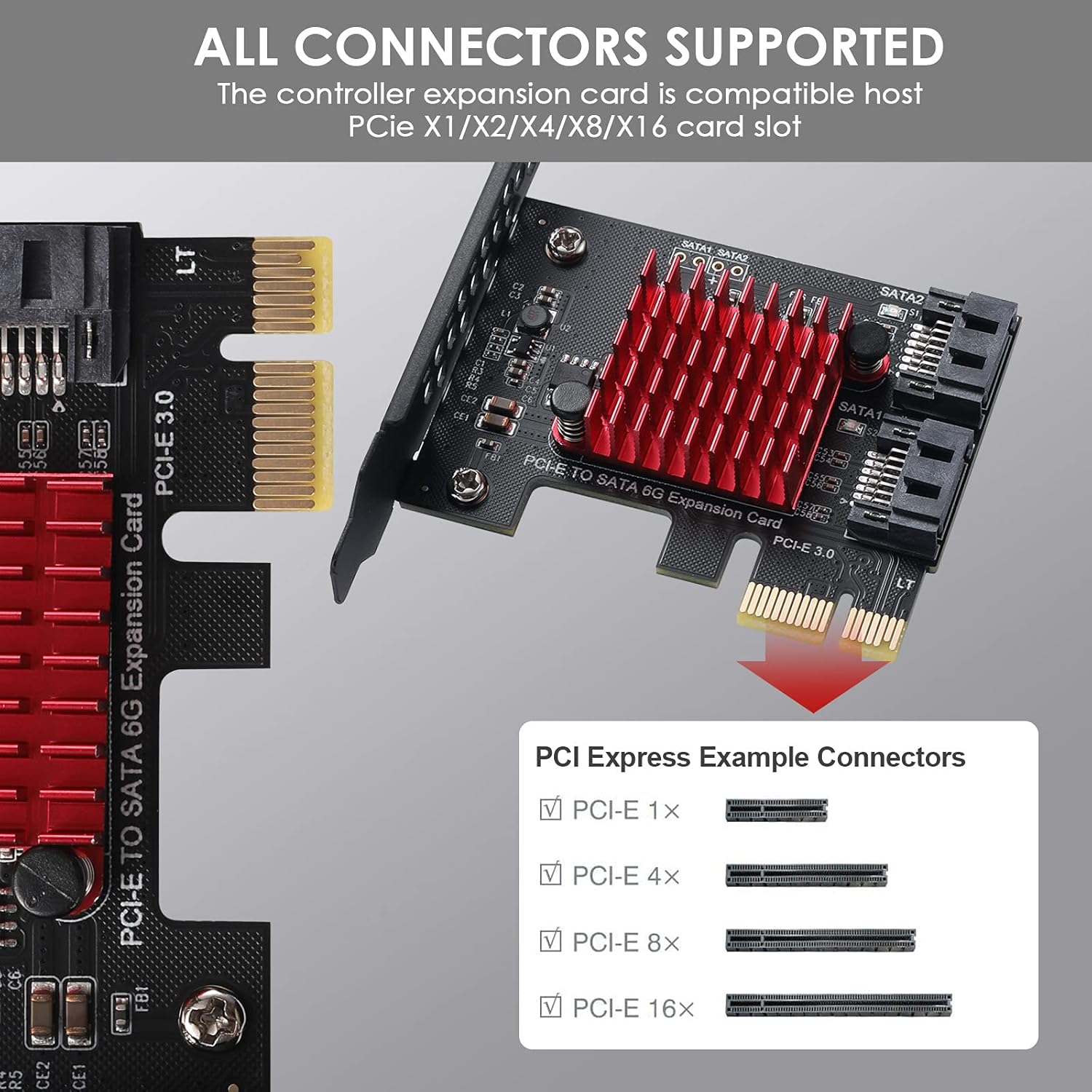
Figure 5: The card is compatible with various PCI Express slot types, including X1, X2, X4, X8, and X16.
6. Operating Instructions
6.1 Initial Power-On and Driver Installation
After physical installation, power on your computer. The MZHOU JMB582 expansion card is designed for plug-and-play operation on most modern operating systems (Windows 10/8/7/Vista/XP/Server, Linux). This means drivers are typically installed automatically by the operating system.
- Upon booting, your operating system should detect the new hardware.
- For Windows, the necessary drivers are usually included within the OS. You can verify installation in Device Manager under 'Storage controllers' or 'IDE ATA/ATAPI controllers'. Look for a controller named 'JMicron JMB582' or similar.
- For Linux, the card should be recognized by the kernel. You can verify its presence using commands like
lspcior checking system logs.
6.2 Using Connected Drives
Once the card is recognized, any connected SATA drives will appear in your operating system. You may need to initialize and format new drives before they can be used.
- For Windows: Open Disk Management (right-click Start button > Disk Management). New drives will appear as 'Unallocated'. Right-click on the unallocated space, select 'New Simple Volume', and follow the wizard to format and assign a drive letter.
- For Linux: Use disk utility tools like
fdisk,gparted, orgnome-disksto partition and format the new drives.
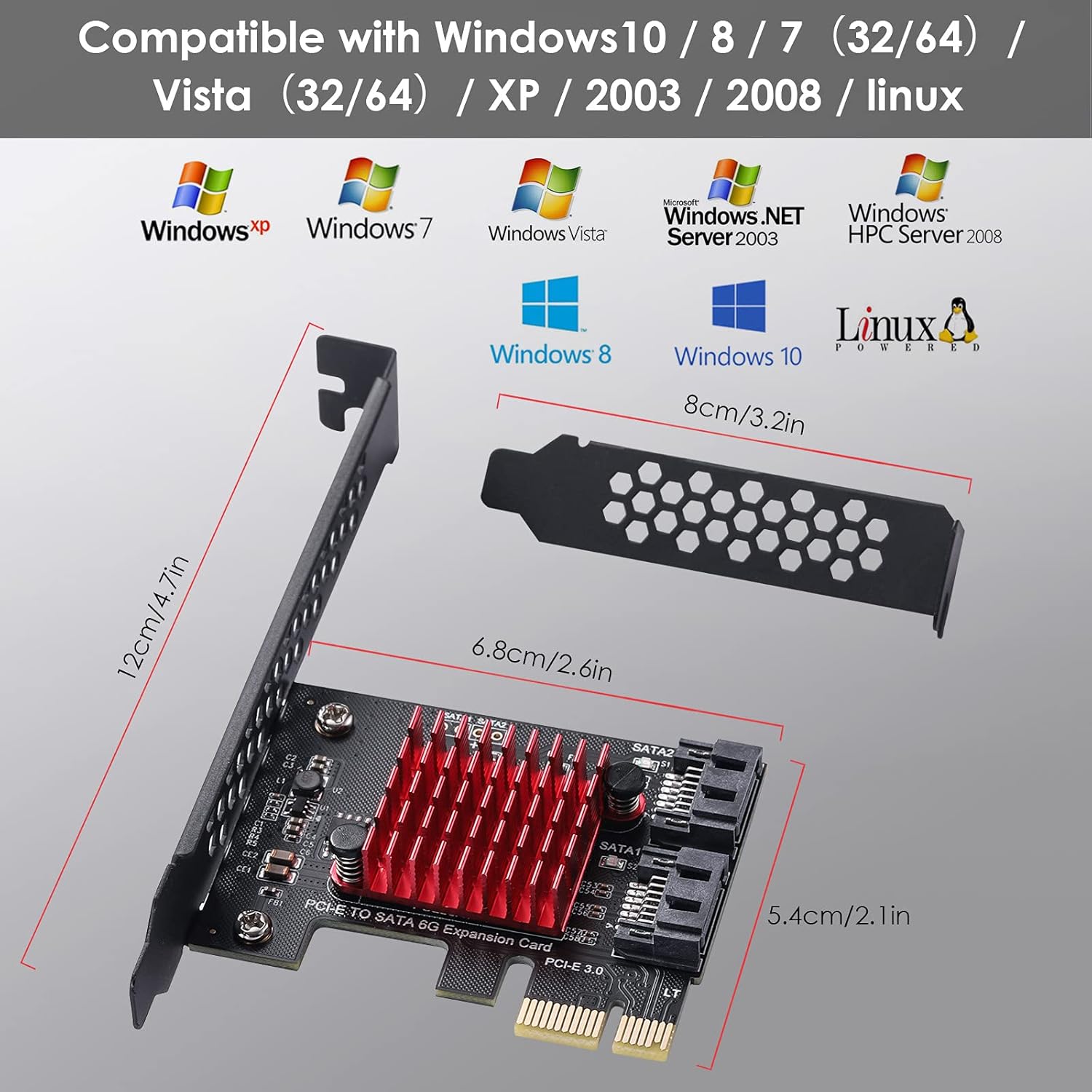
Figure 6: The expansion card offers broad compatibility with a range of Windows and Linux operating systems.
7. Maintenance
The MZHOU JMB582 expansion card requires minimal maintenance. Follow these general guidelines to ensure optimal performance and longevity:
- Keep it Clean: Periodically clean the inside of your computer case to prevent dust buildup on the card and other components. Dust can impede airflow and lead to overheating. Use compressed air to gently remove dust.
- Proper Handling: Always handle the card by its edges to avoid touching the components or gold contacts. Static electricity can damage electronic components.
- Secure Connections: Ensure all SATA data and power cables connected to the card and drives are securely fastened to prevent intermittent connectivity issues.
- Environmental Conditions: Operate the computer in a well-ventilated area with stable temperature and humidity to prevent component stress.
8. Troubleshooting
If you encounter issues with your MZHOU JMB582 expansion card, refer to the following common problems and solutions:
8.1 Card Not Detected by System
- Check Seating: Ensure the card is fully and correctly seated in the PCI-E slot. Remove and re-insert it firmly.
- Try Another Slot: If available, try installing the card in a different PCI-E slot on your motherboard to rule out a faulty slot.
- BIOS/UEFI Settings: Check your motherboard's BIOS/UEFI settings to ensure the PCI-E slot is enabled and configured correctly. Some motherboards may require specific settings for expansion cards.
- Power Supply: Ensure your power supply unit (PSU) has sufficient wattage to power all connected components, including the new card and drives.
8.2 Connected Drives Not Appearing
- Check SATA Cables: Ensure all SATA data cables are securely connected to both the expansion card and the drives. Try different SATA cables if possible.
- Check Drive Power: Verify that the connected drives are receiving power from your PSU. Listen for drive spin-up or check drive indicator lights.
- Initialize/Format Drives: For new drives, they must be initialized and formatted in Disk Management (Windows) or a disk utility (Linux) before they can be used. Refer to Section 6.2.
- Driver Verification: Confirm that the card's drivers are correctly installed in Device Manager (Windows). If there's a yellow exclamation mark, try updating or reinstalling the driver.
8.3 Slow Performance
- SATA Cable Quality: Ensure you are using high-quality SATA 6Gbps cables. Older or damaged cables can limit transfer speeds.
- Drive Health: Check the health of your connected drives. Failing drives can exhibit slow performance.
- System Resources: Ensure your system has adequate CPU, RAM, and other resources. High system load can impact drive performance.
- PCI-E Slot Bandwidth: While the card supports various PCI-E slots, ensure the slot you are using is not sharing bandwidth with other high-demand devices, which could limit overall throughput.
9. Warranty and Support
MZHOU products are designed for reliability and performance. For warranty information or technical support, please contact the manufacturer directly.
9.1 Manufacturer Contact Information
- Manufacturer: Meizhou Technology (Shenzhen) Co., Ltd
- General Support Email: qijujin@outlook.com
- EU Representative Email: jadestar.eu@gmail.com
- UK Representative Email: KOVA_Compliance@outlook.com
When contacting support, please provide your product model (PCE2PCIE A01) and a detailed description of the issue you are experiencing.

Figure 7: Product packaging displaying manufacturer and contact information for support.


