1. Introduction
Thank you for choosing the WellToBe WiFi Automatic Pet Feeder. This device is designed to provide convenient and reliable feeding for your pets, ensuring they receive their meals on schedule, whether you are home or away. With smart app control, flexible meal planning, and a dual power supply, this feeder simplifies pet care.

Image: The WellToBe WiFi Automatic Pet Feeder in white, shown with a smartphone displaying its control application. The feeder has two stainless steel bowls filled with dry pet food.
Key Features:
- Smart Feeding Settings: Supports iOS and Android apps for remote control and meal planning.
- 4L Standard Capacity: Holds 1.6kg of dry food, suitable for small cats and dogs for 15-20 days.
- Flexible Meal Planning: Schedule up to 6 meals per day, with 1 to 48 portions (approx. 8 grams each) per meal.
- 10-Second Voice Recorder: Record a personalized message to call your pet at meal times.
- Dual Power Supply: Operates via power adapter or 4 D-type batteries (not included) for uninterrupted feeding.
- Detachable and Washable Components: Easy to clean for hygiene.
- Movable Single and Double Basin: Includes a 2-way splitter to feed two pets simultaneously or can be used as a single feeder.
- Infrared Detection Technology: Helps prevent food from getting stuck or overflowing.
- Low Food Warning: Visual indicator when food levels are low.
2. Setup
2.1 Unpacking and Components
Carefully remove all components from the packaging. Ensure you have the following:
- Main Feeder Unit
- Food Storage Container (4L)
- Lid with Desiccant Compartment
- Food Dispenser Base
- 2 Stainless Steel Bowls
- Bowl Holder
- 2-Way Food Splitter (optional for two bowls)
- Power Adapter
- User Manual

Image: An overview of the feeder highlighting its key features such as app control, WiFi connectivity, voice recording, and dual power options.
2.2 Power Supply
The feeder supports a dual power supply system to ensure continuous operation.
- Adapter Power: Connect the provided power adapter to the feeder's power port and plug it into a wall outlet.
- Battery Backup: For backup power during outages, insert 4 D-type batteries (not included) into the battery compartment at the bottom of the feeder. Ensure correct polarity.
When both power sources are connected, the feeder will primarily use adapter power. In case of a power interruption, it will automatically switch to battery power.

Image: A detailed view of the feeder's dual power supply system, illustrating where to connect the power adapter and insert the D-type backup batteries.
2.3 Assembly
Assemble the feeder components as follows:
- Place the main feeder unit on a stable, flat surface.
- Attach the food dispenser base to the bottom of the main unit.
- If feeding two pets, insert the 2-way food splitter into the dispenser outlet. Otherwise, use it as a single feeder.
- Place the bowl holder in front of the dispenser. Insert the stainless steel bowls into the holder.
- Open the lid of the food storage container. If a desiccant pack is included, place it in the designated compartment in the lid to keep food fresh.
- Fill the food storage container with dry pet food. Ensure the food kibble size is between 5-12mm to prevent jamming.
- Close the lid securely.

Image: The feeder demonstrating its flexibility to be used with a single bowl or with a two-way splitter for two bowls, along with product dimensions.
2.4 App Installation and Wi-Fi Connection
To utilize the smart features, download the WellToBe app and connect the feeder to your home Wi-Fi network.
- Download the "WellToBe" app from the App Store (iOS) or Google Play Store (Android).
- Register an account and log in.
- Ensure your smartphone is connected to a 2.4GHz Wi-Fi network. The feeder does not support 5GHz networks.
- Follow the in-app instructions to add your device. This typically involves pressing and holding a button on the feeder to enter pairing mode, then confirming the Wi-Fi network and password in the app.
- Once connected, the feeder's Wi-Fi indicator light will stabilize, and you can control it via the app.

Image: Screenshots of the WellToBe smartphone application, demonstrating its interface for controlling pet meals from various locations, emphasizing the need for a 2.4GHz network.
3. Operating Instructions
3.1 Setting Meal Schedules
You can program up to 6 meals per day with customizable portion sizes.
- Open the WellToBe app and select your feeder.
- Navigate to the "Feeding Plan" or "Schedule" section.
- Set the desired time for each meal.
- Adjust the number of portions for each meal (1 portion is approximately 8 grams).
- Save your settings. The feeder will automatically dispense food at the scheduled times.
- Manual scheduling is also possible directly on the feeder's control panel if app access is unavailable. Refer to the feeder's display and buttons for manual programming.

Image: A visual guide to setting up meal schedules, showing example times and key specifications like food capacity and kibble size recommendations. It also highlights the infrared detection system.
3.2 Voice Recording
Record a 10-second voice message to call your pet when food is dispensed.
- In the WellToBe app, go to "Voice Message" or "Voice Recording" settings.
- Press the record button and speak your message (e.g., "Fido, time to eat!").
- You can choose to enable or disable this feature. When enabled, the message will play before each scheduled meal.

Image: The feeder with a cat, illustrating the 10-second voice recording function that allows owners to call their pets for meals.
3.3 Manual Feeding
To dispense food immediately outside of the schedule:
- Use the "Feed Now" button in the WellToBe app to dispense a single portion.
- Alternatively, press the manual feed button on the feeder's control panel to dispense one portion.
3.4 Low Food Warning
The feeder is equipped with a sensor that detects low food levels. A blue light indicator will flash when the food in the container is running low, signaling that it's time for a refill.
4. Maintenance
4.1 Cleaning
Regular cleaning ensures hygiene and proper functioning of the feeder.
- Unplug the feeder and remove any batteries.
- Disassemble the food storage container, lid, food dispenser base, splitter, bowl holder, and stainless steel bowls.
- Wash all detachable parts with mild soap and water. Rinse thoroughly.
- Wipe the main unit with a damp cloth. Do not immerse the main unit in water.
- Ensure all parts are completely dry before reassembling.
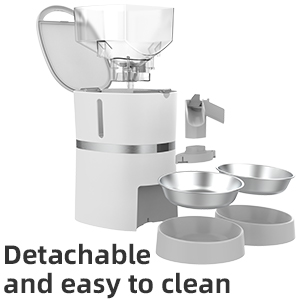
Image: The feeder disassembled into its main components, illustrating how easily it can be taken apart for thorough cleaning.
4.2 Desiccant Replacement
The desiccant pack in the lid helps keep the pet food fresh. It is recommended to replace the desiccant pack every 15-30 days, depending on humidity levels, to maintain food quality.

Image: A composite image showcasing various features of the feeder, including the desiccant compartment in the lid designed to keep food fresh.
5. Troubleshooting
- Feeder not dispensing food:
- Check if the power adapter is securely connected or if batteries are installed and have sufficient charge.
- Ensure the food container is not empty.
- Verify that the kibble size is appropriate (5-12mm) to prevent blockages.
- Clean the dispenser mechanism to remove any stuck food.
- Check the app for any error messages or if the feeding schedule is correctly set.
- Wi-Fi connection issues:
- Ensure your router is broadcasting a 2.4GHz Wi-Fi signal. The feeder does not support 5GHz.
- Move the feeder closer to your Wi-Fi router.
- Restart your router and the feeder.
- Try re-pairing the feeder with the app.
- Voice recording not playing:
- Ensure the voice recording feature is enabled in the app settings.
- Check the volume settings in the app.
- Food overflowing or not enough:
- Adjust the portion sizes in the app.
- Ensure the infrared sensor is clean and unobstructed.
6. Specifications
| Feature | Detail |
|---|---|
| Product Dimensions | 25.5 x 19.8 x 36 cm |
| Product Weight | 2.4 kg |
| Model Number | WB S36D |
| Material | PET |
| Food Capacity | 4 Liters (approx. 1.6 kg dry food) |
| Recommended Kibble Size | 5-12 mm |
| Max Meals per Day | 6 |
| Portions per Meal | 1-48 (approx. 8g per portion) |
| Power Supply | AC Adapter, 4 x D-type Batteries (not included) |
| Connectivity | 2.4GHz Wi-Fi |
| Special Features | WiFi Connection, App Control, Timer, Sound Recording, Dual Power System |
7. Warranty and Support
7.1 Warranty Information
This product comes with a standard warranty. For details regarding warranty claims, returns, or defective products, please refer to the retailer's return policy or contact the manufacturer directly.
Note: If you wish to return a product within 30 days of receipt because you have changed your mind, please consult the retailer's help page. If you have received a defective or damaged product, please consult the retailer's help page. For specific information on purchases made on the Marketplace, please consult the retailer's help page.
7.2 Customer Support
For any questions, technical assistance, or support regarding your WellToBe Automatic Pet Feeder, please contact our customer service team:
Email: WellToBe@hotmail.com