
1. Introduction
This manual provides detailed instructions for the setup, operation, and maintenance of your vretti 420B Ethernet Network Thermal Label Printer. The vretti 420B is designed for efficient label printing, supporting various operating systems including Windows, Mac, and Linux, and is suitable for a wide range of applications.
2. Package Contents
Please verify that all items listed below are included in your package. If any items are missing or damaged, please contact customer support.
- vretti 420B Thermal Label Printer
- Power Adapter and Power Cord
- USB Cable
- Label Spindle and Guides
- Quick Start Guide
- USB Drive (containing drivers and manuals)
- Sample Labels (may vary)

Figure 2.1: Contents of the vretti 420B printer package. This image displays the printer unit, power supply, USB cable, label guides, a USB drive, and a quick start guide.
3. Setup
3.1 Physical Connection
- Place the printer on a stable, flat surface.
- Connect the power adapter to the printer's power port and then plug the power cord into an electrical outlet.
- Connect the printer to your computer using either the provided USB cable or an Ethernet cable for network printing.
- Turn on the printer using the power switch.
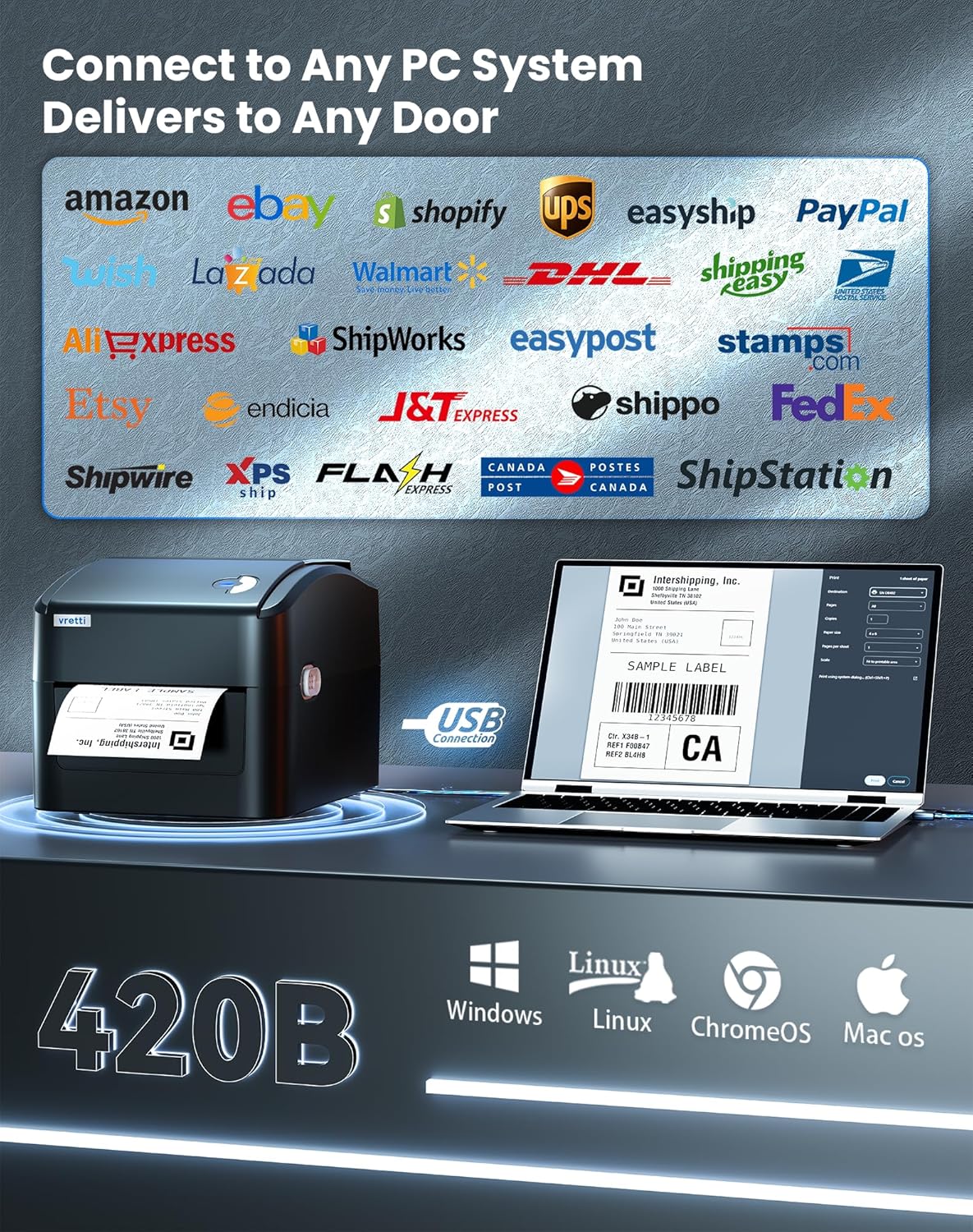
Figure 3.1: The vretti 420B printer connected to a computer, illustrating its compatibility with various PC systems and shipping platforms.
3.2 Loading Labels
- Open the printer's top cover.
- Place the label roll onto the adjustable spindle inside the built-in paper bin. Ensure the labels feed from the bottom of the roll.
- Adjust the guide rails to fit the width of your labels, ensuring the labels are snug but can move freely.
- Pull the leading edge of the labels through the printer mechanism until it extends slightly past the print head.
- Close the top cover.
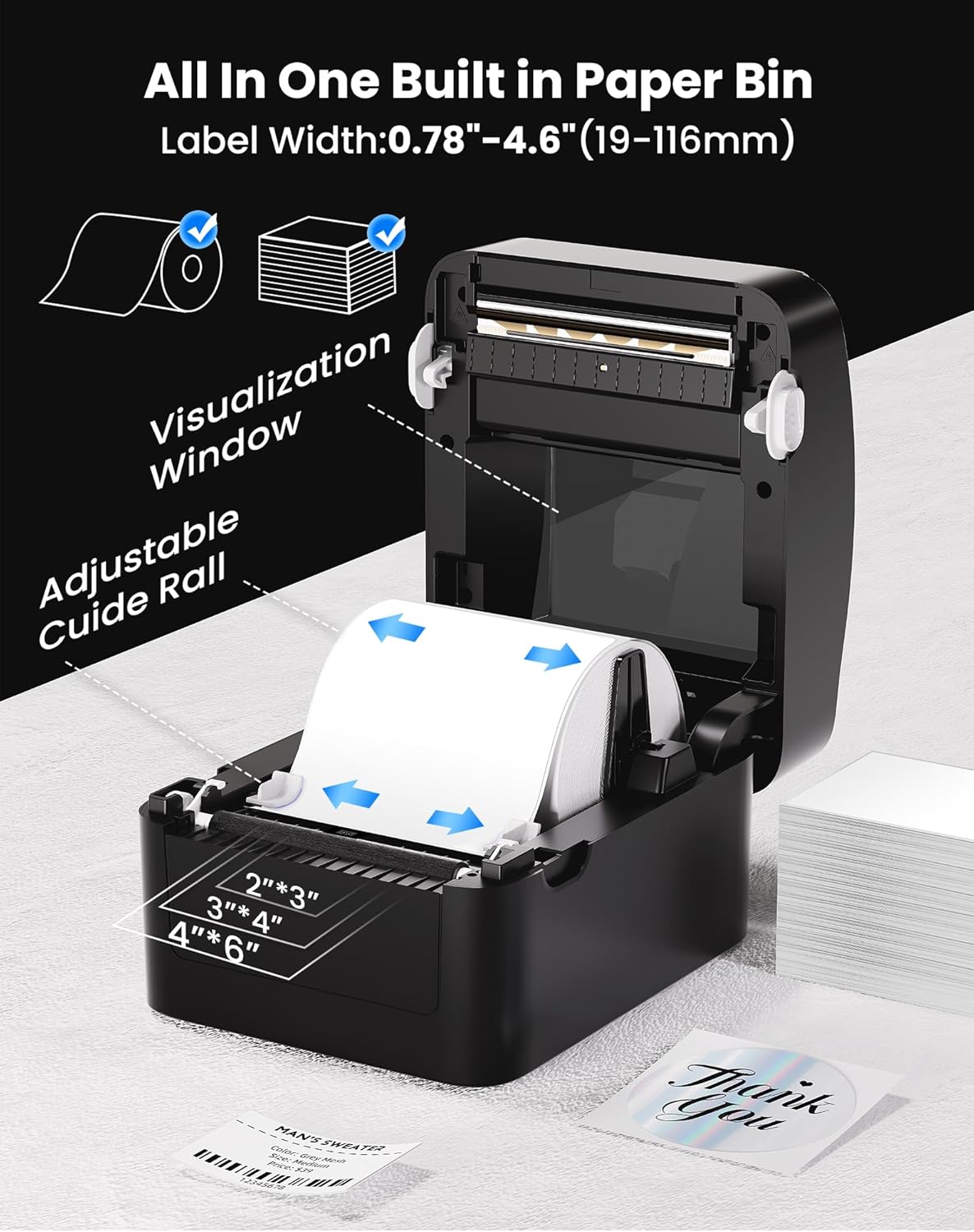
Figure 3.2: Illustration of the label loading process, showing the adjustable guide rails and the visualization window for monitoring label supply. The printer supports label widths from 0.78 to 4.6 inches (19-116mm).
3.3 Driver Installation
Before printing, you must install the appropriate printer driver for your operating system.
- Windows/Linux: Insert the provided USB drive into your computer and follow the instructions to install the driver. Alternatively, download the latest driver from the official vretti website.
- Mac OS: The driver from the provided USB drive is recommended for Mac OS. If issues arise, contact vretti customer support for the latest compatible Mac driver.

Figure 3.3: A user setting up the vretti 420B printer, demonstrating the ease of installation.
3.4 Label Calibration
After loading labels, it is crucial to calibrate the printer to recognize the label size.
- With the printer powered on and labels loaded, press and hold the feed button (usually the single button on the top of the printer) until the printer emits a beep or the status light changes.
- Release the button. The printer will feed a few blank labels to detect the label gaps and calibrate itself.
- Once calibration is complete, the printer is ready for use.
4. Operating Instructions
4.1 Printing a Label
- Ensure the printer is connected to your computer and powered on.
- Open the document or application from which you wish to print.
- Select "Print" from the application's menu.
- Choose the "vretti 420B" printer from the list of available printers.
- Adjust print settings (e.g., label size, orientation) as needed within the printer preferences or application settings.
- Click "Print" to send the job to the printer.
4.2 Supported Platforms
The vretti 420B printer is compatible with a variety of operating systems:
- Windows
- Mac OS
- Linux
- ChromeOS
4.3 Print Quality and Speed
The vretti 420B offers high-quality thermal printing with efficient speed.
- Resolution: 203 x 203 DPI, ensuring clear and scannable barcodes and text.
- Print Speed: Up to 152 mm/s (72 labels per minute), optimizing workflow efficiency.

Figure 4.1: Close-up view of a printed label, demonstrating the 203 DPI print resolution and the high scannability of barcodes.

Figure 4.2: The vretti 420B printer in operation, illustrating its capability for high-volume printing at 152 mm/s (72 labels per minute).
5. Maintenance
The vretti 420B is a direct thermal printer, meaning it does not require ink or toner cartridges. Regular maintenance primarily involves cleaning.
5.1 Cleaning the Print Head
- Turn off the printer and disconnect the power cord.
- Open the top cover of the printer.
- Wait a few minutes for the print head to cool down if the printer has been recently used.
- Gently wipe the print head with an alcohol swab or a soft, lint-free cloth dampened with isopropyl alcohol.
- Allow the print head to dry completely before closing the cover and reconnecting power.
Caution: Do not touch the print head with bare hands as oils can transfer and affect print quality. Use only isopropyl alcohol for cleaning.
6. Troubleshooting
This section addresses common issues you might encounter with your vretti 420B printer.
6.1 Printer Not Responding
- Ensure the power cord is securely connected and the printer is turned on.
- Verify the USB or Ethernet cable is properly connected to both the printer and the computer/network.
- Check the printer's status light. If it's flashing or red, refer to the quick start guide for error codes.
- Restart both the printer and your computer.
6.2 Poor Print Quality
- Ensure you are using high-quality direct thermal labels.
- Clean the print head as described in the Maintenance section.
- Recalibrate the labels (Section 3.4).
- Check printer driver settings to ensure optimal print density and speed are selected.
6.3 Labels Not Feeding Correctly
- Verify labels are loaded correctly and the guide rails are adjusted snugly against the label edges.
- Perform a label calibration (Section 3.4).
- Ensure there are no obstructions in the label path.
6.4 Mac Driver Issues
If you experience issues with the Mac driver, particularly if the one from the website is outdated, please use the driver provided on the USB stick that came with the printer. If problems persist, contact vretti customer support for assistance.
7. Specifications
| Feature | Specification |
|---|---|
| Brand | vretti |
| Model Name | 420B |
| Connectivity Technology | Ethernet, USB |
| Printing Technology | Thermal |
| Printer Output | Monochrome |
| Maximum Print Speed | 152 mm/s (72 labels/min) |
| Resolution | 203 x 203 DPI |
| Label Width | 0.78" - 4.6" (19-116mm) |
| Compatible Devices | PC (Windows, Mac, Linux, ChromeOS) |
| Item Dimensions (D x W x H) | 8"D x 6.69"W x 5.9"H |
| Item Weight | 10.92 Kilograms |
| Wattage | 600 watts |
| Model Number | AZ-420B-B-UK |
| UPC | 602309953690 |
8. Warranty and Support
For information regarding the product warranty, please refer to the warranty card included in your package or visit the official vretti website.
For technical support, driver updates, or further assistance, please visit the official vretti support website or contact their customer service department. Contact details can typically be found on the vretti website or in the quick start guide.


