
1. Introduction
This manual provides comprehensive instructions for the JOYACCESS Multi-Device Wireless Bluetooth Keyboard (Model KB2US). This keyboard is designed for versatile use across multiple operating systems and devices, offering both 2.4G wireless and Bluetooth connectivity options.
Key Features:
- Multi-Device Connectivity: Supports simultaneous connection to up to three devices via 2.4G wireless (using a USB receiver) and two Bluetooth channels (BT3.0 + BT5.0). Easily switch between connected devices.
- Wide Compatibility: Compatible with various operating systems including Windows, Mac, iOS, and Android, making it suitable for laptops, PCs, smartphones, and tablets.
- Ergonomic and Slim Design: Features a thin profile and an ergonomic back stand to reduce wrist pressure during extended typing sessions.
- Quiet Scissor-Switch Keys: Utilizes scissor-switch technology for a quiet typing experience and comfortable key response.
- Auto-Sleep Mode: Automatically enters a power-saving sleep mode after 30 minutes of inactivity to conserve battery life.

Figure 1: JOYACCESS Multi-Device Wireless Bluetooth Keyboard (Wine Red)

Figure 2: Overview of JOYACCESS Multi-Device Wireless Keyboard features, highlighting 2.4G wireless connection, Bluetooth connection, 3 devices connection, multi-system compatibility, scissor-switch design, and long battery life.
Video 1: Demonstrates the multi-device switching capabilities and quiet typing of the JOYACCESS wireless Bluetooth keyboard.
2. Setup
2.1. Battery Installation
- Locate the battery compartment on the underside of the keyboard.
- Insert two AA batteries (not included), ensuring correct polarity.
- Turn on the keyboard using the power switch, typically located on the back or side.
2.2. Connecting via 2.4G USB Receiver
- Ensure batteries are installed and the keyboard is powered on.
- Locate the USB receiver, typically stored in the battery compartment of the keyboard.
- Plug the USB receiver into an available USB port on your computer or device.
- The keyboard should automatically connect. To select 2.4G mode, press Fn + 3.

Figure 3: Keyboard connected to a laptop using the 2.4G stable wireless mode via a USB receiver.
2.3. Connecting via Bluetooth
- Ensure batteries are installed and the keyboard is powered on.
- Press and hold Fn + 1 (for BT1) or Fn + 2 (for BT2) for 5 seconds. The corresponding LED indicator will blink, indicating pairing mode.
- On your Bluetooth-enabled device (computer, tablet, smartphone), search for Bluetooth devices. You should find "BT3.0 Keyboard" or "BT5.0 Keyboard". Select the appropriate option to pair.
- Once paired, select the correct operating system mode by pressing and holding the following key combinations for 3 seconds:
- Fn + Q for iOS devices
- Fn + W for Mac devices
- Fn + E for Windows devices

Figure 4: Keyboard demonstrating connection to two devices via Bluetooth.
3. Operating Instructions
3.1. Switching Between Devices
To switch between your connected devices, use the following key combinations:
- Press Fn + 1 to switch to Bluetooth Device 1.
- Press Fn + 2 to switch to Bluetooth Device 2.
- Press Fn + 3 to switch to 2.4G Wireless Device.
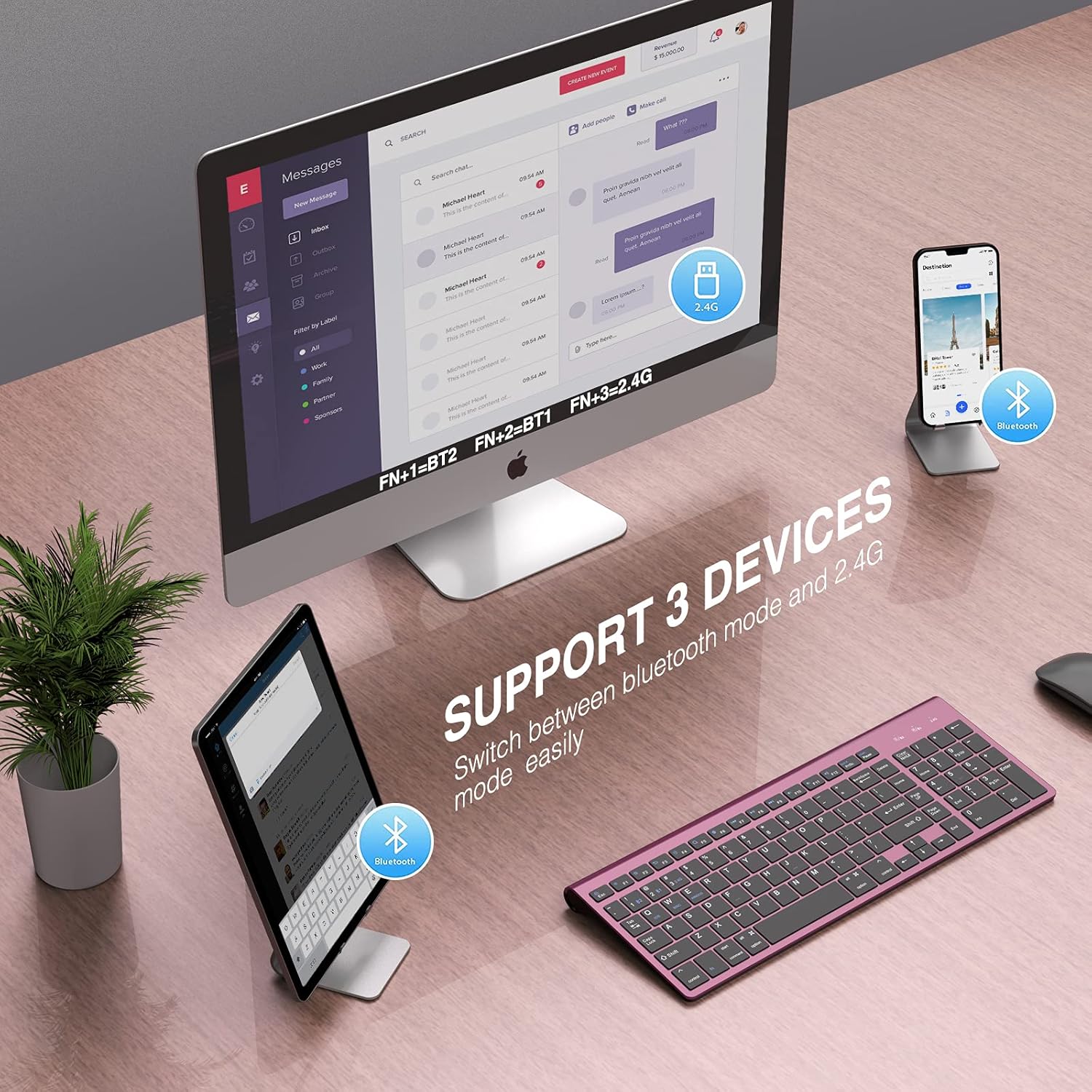
Figure 5: Keyboard supporting connection to three devices, with easy switching between Bluetooth and 2.4G modes.
3.2. Multimedia Keys
The keyboard includes dedicated multimedia keys for convenient control:
- F1: Brightness Decrease
- F2: Brightness Increase
- F3: Return
- F4: Select All
- F5: Search for File
- F6: Switching Input
- F7: Previous Track
- F8: Play and Pause
- F9: Next Track
- F10: Mute
- F11: Volume Down
- F12: Volume Up

Figure 6: Keyboard with clearly labeled multimedia function keys.
4. Maintenance
4.1. Battery Management
The keyboard operates on two AA batteries. To maximize battery life, the keyboard features an auto-sleep mode. If there is no activity for 30 minutes, the keyboard will automatically enter a power-saving state. To reactivate, simply press any key.

Figure 7: Keyboard illustrating the auto-sleep mode feature for battery saving.
4.2. Cleaning
To clean the keyboard, power it off and gently wipe the keys and surface with a soft, damp cloth. Avoid using harsh chemicals or excessive moisture.
5. Troubleshooting
5.1. Bluetooth Connection Issues
If you experience difficulty connecting the keyboard via Bluetooth, follow these steps:
- Verify that the batteries are charged and correctly installed, and the keyboard's power switch is in the ON position.
- Ensure the keyboard and your electronic device are in close proximity to each other.
- Confirm that your electronic device's Bluetooth signal is stable and enabled.
- On your device, delete any previously paired Bluetooth keyboard signals and attempt to re-pair the keyboard following the steps in Section 2.3.
6. Specifications
| Feature | Detail |
|---|---|
| Product Dimensions | 15.04 x 5.63 x 1.65 inches |
| Item Weight | 1.23 pounds |
| Manufacturer | J JOYACCESS |
| Batteries | 2 AA batteries required |
| Compatible Devices | Laptop, Mac, PC, Smartphone, iPhone, iPad, Tablet |
| Connectivity Technology | Bluetooth, 2.4G USB-A |
| Keyboard Description | Bluetooth/2.4G USB Dual |
| Special Feature | Keyboard with Number Pad, Multi-OS, Multi-devices, Quiet Click |
7. Warranty and Support
For warranty information or technical support, please refer to the documentation included with your product packaging or contact JOYACCESS customer service directly. Specific warranty terms may vary by region and retailer.
