
Introduction
This manual provides detailed instructions for the safe and efficient operation of your Prixton Picasso Portable Projector. Please read this manual thoroughly before using the device and retain it for future reference.
What's in the Box
Upon unpacking, please ensure all the following items are present:
- Prixton Picasso Portable Projector
- Remote Control
- HDMI Cable
- USB Cable
- (Optional: 100" Projection Screen, if included in your package)

Image: Prixton Picasso portable projector with a projection screen.
Safety Information
- Do not look directly into the projector lens when the lamp is on.
- Ensure proper ventilation to prevent overheating.
- Keep the device away from water or other liquids.
- Use only the provided power adapter.
- Do not attempt to disassemble or repair the projector yourself. Contact qualified service personnel.
Product Overview
The Prixton Picasso is a portable Full HD projector designed for versatile use. It features a high-quality LED lamp and multiple connectivity options.
Key Features:
- Full HD 1920 x 1080 native resolution.
- 9000 lumens brightness (260 ANSI lumens).
- 3000:1 contrast ratio.
- LED lamp life of over 50,000 hours.
- Projection distance: 1 to 7 meters.
- Projection size: 30" to 210".
- Wireless connectivity for Android and iOS devices.
- Multiple input ports: 2x HDMI, USB 2.0, TF card, Jack, AV IN, DC IN.

Image: Prixton Picasso projector shown with its remote control.

Image: Top view of the projector, highlighting the lens and control buttons.
Setup
1. Placement
Place the projector on a stable, flat surface. Ensure there is adequate space around the projector for ventilation. The optimal projection distance is between 1 and 7 meters, allowing for a screen size from 30 to 210 inches.

Image: Visual guide for projection distance and screen size.
2. Power Connection
Connect the power adapter to the DC IN port on the projector and then plug it into a power outlet.
3. Initial Power On
Press the power button on the projector or the remote control to turn on the device. The indicator light will illuminate.

Image: Projector displaying its brightness specification.

Image: Projector powered on and projecting light.
4. Focus and Keystone Adjustment
Adjust the focus ring on the projector lens until the image is clear. Use the keystone correction dial (if available) to correct any trapezoidal distortion of the image.

Image: Projector emphasizing Full HD compatibility, relevant for image clarity.
Operating Instructions
1. Input Source Selection
Use the "Source" button on the remote control or the projector to select your desired input: HDMI 1, HDMI 2, USB, TF Card, or AV.
2. Connecting Devices
- HDMI: Connect your laptop, gaming console, or other HDMI-enabled devices using an HDMI cable.
- USB/TF Card: Insert a USB drive or TF card into the respective port to play media files directly.
- AV: Use the AV input for older devices with composite video output.
3. Wireless Connection (Screen Mirroring)
The projector supports wireless screen mirroring for both Android and iOS devices.
- Select the "Screen Mirroring" or "Wireless Display" option from the projector's main menu.
- For iOS devices, enable "Screen Mirroring" or "AirPlay" on your device and select the projector from the list.
- For Android devices, enable "Wireless Display," "Smart View," or "Cast" on your device and select the projector.
- Ensure both the projector and your mobile device are connected to the same Wi-Fi network for optimal performance.
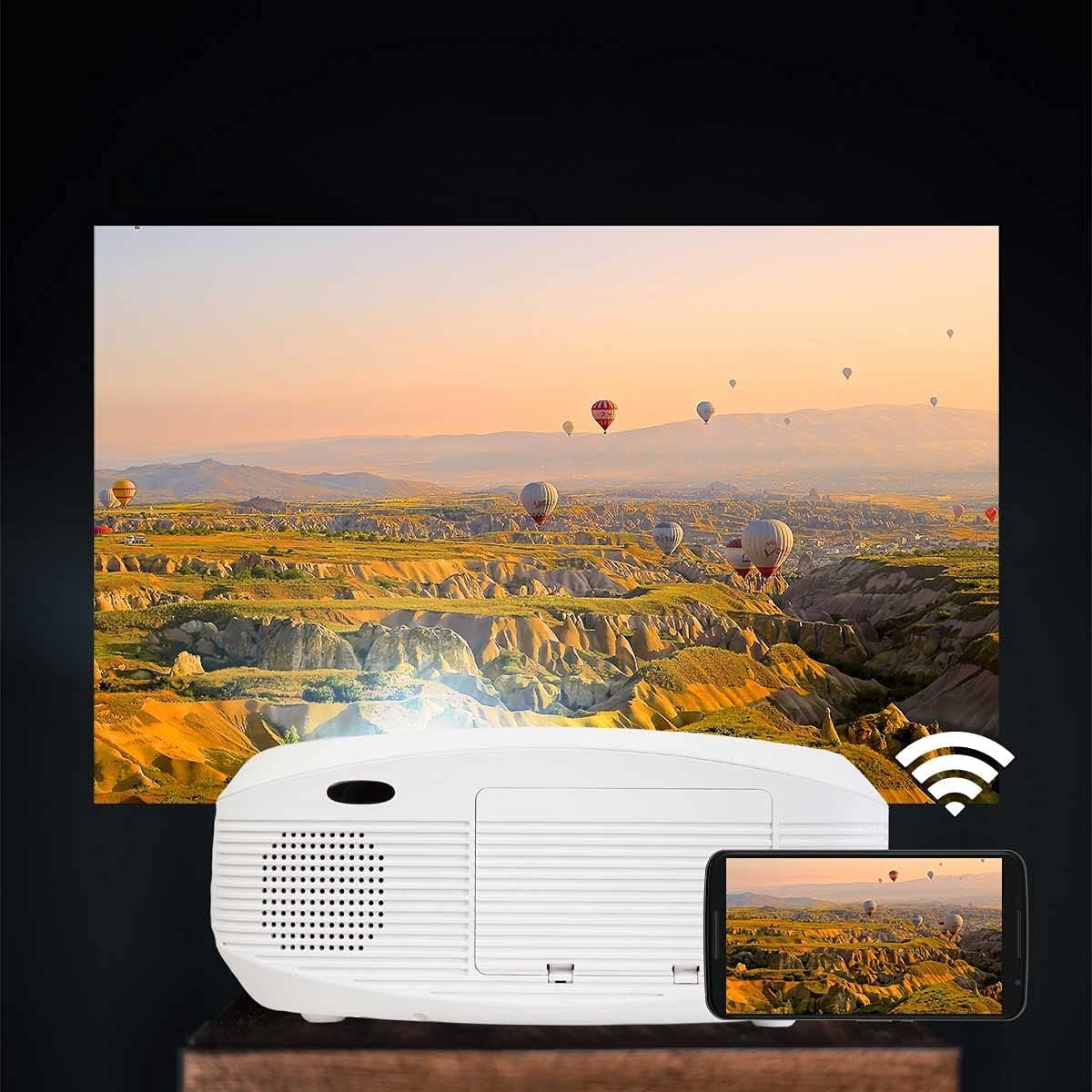
Image: Projector connected wirelessly to a smartphone.

Image: Wireless connectivity icon and smartphone mirroring.
4. Audio Output
The projector has built-in speakers. You can also connect external speakers or headphones via the 3.5mm audio jack for enhanced sound.
Maintenance
- Cleaning the Lens: Use a soft, lint-free cloth specifically designed for optical lenses to gently wipe the projector lens. Avoid using abrasive cleaners.
- Cleaning the Casing: Wipe the projector's exterior with a soft, dry cloth. Do not use liquid or aerosol cleaners.
- Ventilation: Regularly check that the ventilation openings are not blocked by dust or debris to ensure proper airflow and prevent overheating.
- Storage: When not in use for extended periods, store the projector in a cool, dry place, protected from dust.
Troubleshooting
| Problem | Possible Cause | Solution |
|---|---|---|
| No image displayed | Power not connected; incorrect input source; cable not connected properly. | Check power connection; select correct input source; ensure HDMI/USB/AV cables are securely connected. |
| Image is blurry | Focus not adjusted; projector too close/far from screen. | Adjust the focus ring on the lens. Adjust projection distance. |
| Image is distorted (trapezoid shape) | Projector not perpendicular to the screen. | Adjust keystone correction dial. Reposition the projector. |
| No sound | Volume too low; audio cable not connected; source device muted. | Increase projector volume; check audio cable connections; unmute source device. |
| Cannot connect to Wi-Fi / Screen Mirroring issues | Incorrect Wi-Fi password; devices not on the same network; device compatibility issues. | Verify Wi-Fi password; ensure both devices are on the same 2.4GHz Wi-Fi network; restart both devices. |
| Spot on the lens / projected image | Dust or debris on the lens or inside the projector. | Gently clean the lens with a soft, lint-free cloth. If the spot is internal, contact customer support. |
Specifications
| Feature | Detail |
|---|---|
| Brand | Prixton |
| Model Name | Picasso |
| Recommended Use | Home cinema |
| Special Feature | Portable, Wireless Connection |
| Connectivity Technology | HDMI, USB |
| Display Resolution | 1920 x 1080 (Full HD) |
| Maximum Display Resolution | 1920 x 1080 |
| Display Type | LCD |
| Form Factor | Portable |
| Mounting Type | Floor Mount |
| Brightness | 9000 Lumens (260 ANSI Lumens) |
| Wattage | 85 Watts |
| Control Device Type | Remote Control |
| Compatible Devices | Laptop, Smartphone |
| Contrast Ratio | 3000:1 |
| Maximum Projection Distance | 7 Meters |
| Light Source Life | 50,000 Hours |
| Maximum Image Size | 210 Inches |
| Minimum Projection Distance | 1 Meter |
| Minimum Image Size | 30 Inches |
| Video Encoding | H.264 |
| Country of Origin | China |
Warranty and Support
Your Prixton Picasso Portable Projector is covered by a standard manufacturer's warranty. Please refer to the specific warranty terms provided at the time of purchase for details on coverage duration and conditions.
For technical support, troubleshooting assistance, or warranty claims, please contact Prixton customer service. Contact information can typically be found on the official Prixton website or on your purchase documentation.
Return Policy: This product is eligible for return or replacement within 30 days of purchase, subject to the retailer's return policy.


