
Introduction
This manual provides detailed instructions for the setup, operation, and maintenance of your Microdigit MD310WK Wireless Keyboard and Mouse Combo. Please read this manual thoroughly before using the product to ensure proper functionality and longevity.
Package Contents
- 1 x Microdigit MD310WK Wireless Keyboard
- 1 x Microdigit Wireless Optical Mouse
- 1 x USB Receiver (typically stored inside the mouse battery compartment)
- Batteries (1x AA for mouse, keyboard batteries not specified but typically 2x AAA)
- User Manual (this document)
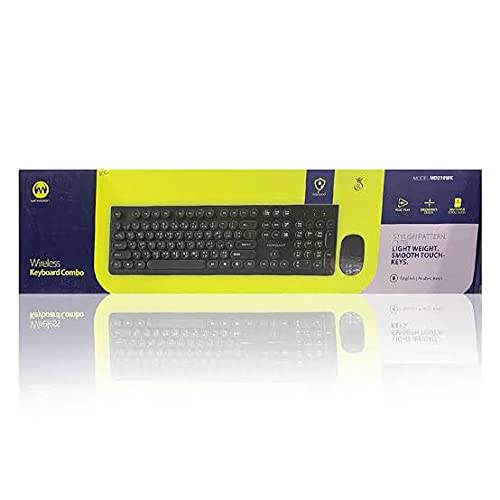
Image: The Microdigit MD310WK Wireless Keyboard and Mouse Combo packaging, showing both devices.
Setup
1. Installing Batteries
For the Mouse:
- Locate the battery compartment cover on the underside of the mouse.
- Slide or lift the cover to open the compartment.
- Insert one (1) AA battery, ensuring the polarity (+/-) matches the diagram inside the compartment.
- Replace the battery compartment cover.
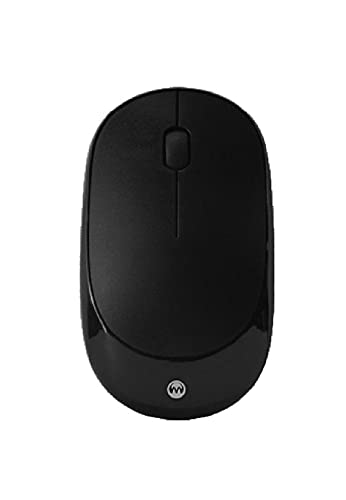
Image: Top view of the Microdigit Wireless Optical Mouse.
For the Keyboard:
- Locate the battery compartment cover on the underside of the keyboard.
- Slide or lift the cover to open the compartment.
- Insert the required batteries (typically two AAA batteries), ensuring the polarity (+/-) matches the diagram inside the compartment.
- Replace the battery compartment cover.
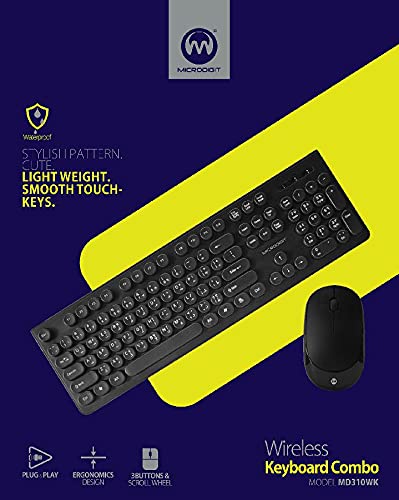
Image: Top view of the Microdigit MD310WK Wireless Keyboard, showing both English and Arabic key legends.
2. Connecting the USB Receiver
- Locate the USB receiver. It is often stored in a small slot within the mouse's battery compartment for safekeeping during transport.
- Plug the USB receiver into an available USB port on your computer (PC or Laptop).
- Your operating system should automatically detect and install the necessary drivers. This is a "Plug and Play" installation.
- Turn on the mouse using the power switch (if available, usually on the underside). The keyboard typically activates automatically once batteries are inserted and the receiver is connected.

Image: The Microdigit MD310WK Wireless Keyboard and Mouse, showcasing their slim design.
Operating Instructions
Keyboard Usage
- The keyboard features both English and Arabic key legends, supporting multi-language input.
- Keys are designed for a smooth and quiet touch.
- The keyboard is designed to withstand over 50 million keystrokes, ensuring durability.
- Standard modifier keys and function keys (F1-F12) are present for typical computer operations.
Mouse Usage
- The mouse is a high-speed wireless optical mouse operating on 2.4G wireless technology.
- It features 3 buttons (left click, right click, scroll wheel click) and a scroll wheel for navigation.
- The DPI (Dots Per Inch) is 1200, providing responsive cursor control.
- The mouse is designed for right-hand orientation.
Compatibility
This wireless combo is compatible with the following operating systems:
- Windows XP
- Windows Vista
- Windows 7
- Windows 8
- Windows 10
- Mac OS
Maintenance
Cleaning
- To clean the keyboard and mouse, use a soft, dry, lint-free cloth.
- For stubborn dirt, slightly dampen the cloth with water or a mild, non-abrasive cleaning solution. Avoid excessive moisture.
- Do not immerse the devices in water or spray cleaning solutions directly onto them.
- Ensure the devices are powered off before cleaning.
Battery Replacement
- When the keyboard or mouse performance degrades (e.g., delayed response, erratic cursor movement), it may be time to replace the batteries.
- Follow the battery installation steps outlined in the "Setup" section.
- Dispose of used batteries responsibly according to local regulations.
Troubleshooting
No Response from Keyboard or Mouse
- Check Batteries: Ensure fresh batteries are correctly installed in both the keyboard and mouse, observing polarity.
- Power Switch: Make sure the mouse's power switch (if present) is in the "ON" position.
- USB Receiver: Verify that the USB receiver is securely plugged into a working USB port on your computer. Try a different USB port.
- Proximity: Ensure the keyboard and mouse are within the effective range of the USB receiver (typically up to 10 meters, but closer is better for troubleshooting).
- Interference: Move the devices away from other wireless devices or large metal objects that might cause interference.
- Restart Computer: Sometimes a simple computer restart can resolve connectivity issues.
Erratic Cursor Movement or Delayed Input
- Low Battery: Replace batteries in the affected device.
- Surface: For the mouse, ensure you are using it on a suitable, non-reflective surface.
- Interference: As mentioned above, check for potential wireless interference.
Specifications
General
- Connectivity Technology: Wireless (2.4G)
- Installation: Plug and Play
- Compatible Devices: PC, Laptop
- Operating Systems: Windows XP, Vista, 7, 8, 10, Mac OS
- Power Source: Battery Powered
Keyboard
- Model: MD310WK
- Keyboard Layout: QWERTY (English/Arabic)
- Key Durability: Over 50 Million Keystrokes
- Special Features: Slim, Light Weight, Smooth Touch Keys, Multi-language support
Mouse
- Type: High-Speed Wireless Optical Mouse
- DPI: 1200
- Buttons: 3D (3 buttons + scroll wheel)
- Weight: 47g
- Dimensions: 105 x 60 x 28 MM (Length x Width x Height)
- Battery: 1 x AA
- Movement Detection: Optical
- Hand Orientation: Right
Warranty and Support
For warranty information or technical support, please refer to the product packaging or contact your retailer. Specific warranty terms and support contact details may vary by region and purchase location.
You may also visit the official Microdigit website for further assistance or updated information.