1. Introduction
This manual provides essential information for the proper installation, operation, and maintenance of your MT-VIKI 2-in-1 USB HDMI KVM Cable. This cable is designed to connect a computer to a compatible KVM (Keyboard, Video, Mouse) switch, consolidating HDMI video and USB keyboard/mouse signals into a single connection point on the KVM switch.
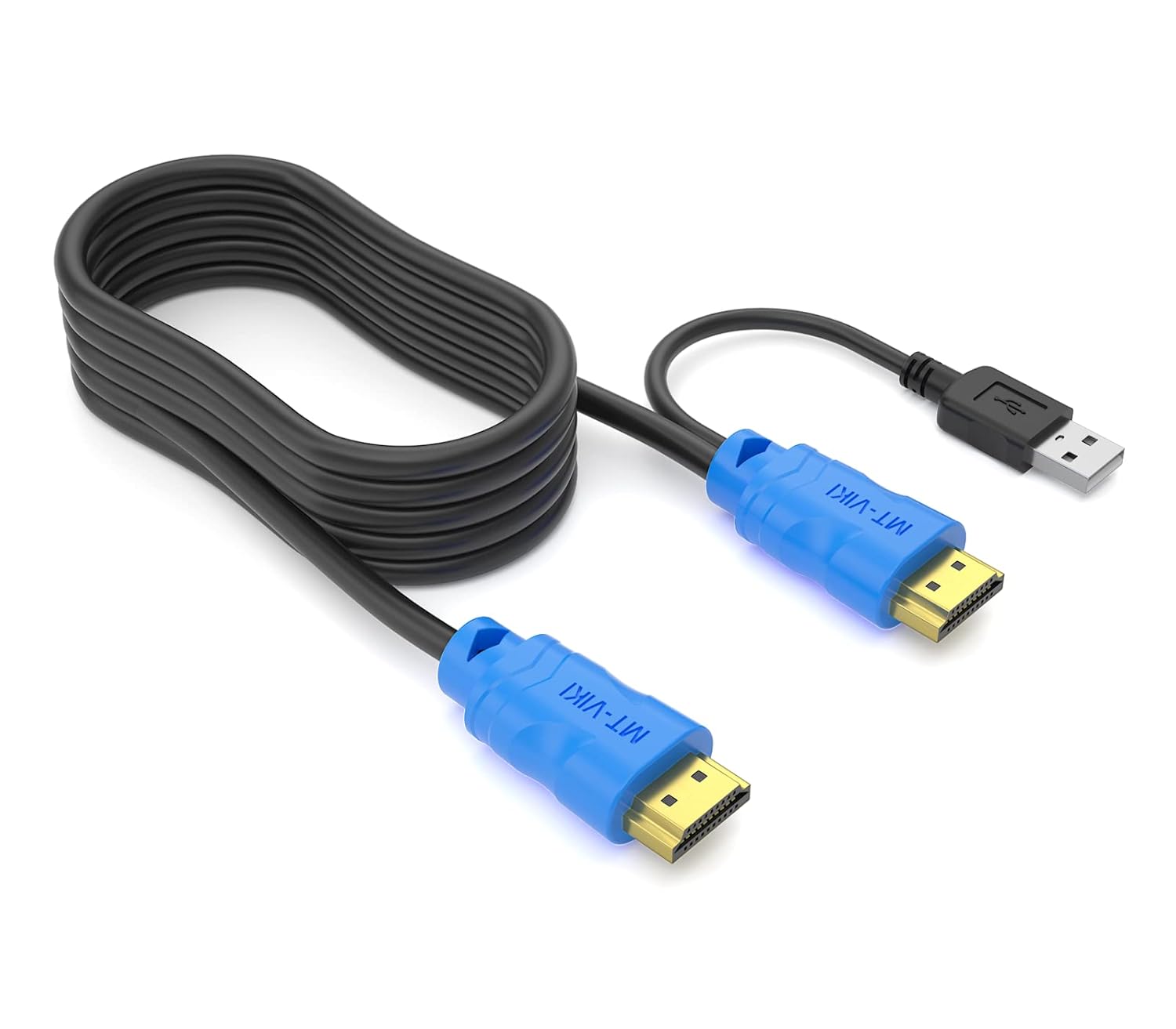
Image 1.1: Overview of the MT-VIKI 2-in-1 USB HDMI KVM Cable.
2. Product Features
- Integrated Connectivity: Combines HDMI video and USB 2.0 signals into a single cable for streamlined connection to KVM switches.
- Compatibility: Specifically designed for use with MT-VIKI 2/4/8/16 Port HDMI KVM Switches (e.g., ASINs: B08DR2SHCP, B08DR3CLJ9, B08K9235LJ, B0C1BSY8B1, B0C1BT7G54, B09B9SPK7L, B09B9QBQT7). Note: This cable may not be compatible with KVM switches from other manufacturers.
- Dual Functionality: Can be used as a dedicated KVM cable or as a standard HDMI cable.
- Durable Construction: Features a fully coated and shielded PVC outer layer for enhanced protection and signal integrity.
- High-Quality Signal Transmission: Oxygen-free copper conductors help prevent ghosting, flickering, signal loss, and water ripple effects.
- Length: This cable measures 5 meters (16 feet) in length.
3. Package Contents
- 1 x MT-VIKI 2-in-1 USB HDMI KVM Cable (5m/16ft)
4. Setup Instructions
Follow these steps to properly connect your MT-VIKI KVM cable:
- Identify Cable Ends: The cable has two distinct ends. One end features both an HDMI connector and a USB Type-A connector (often referred to as a 'pigtail' USB). The other end has only an HDMI connector.
- Connect to Computer: Plug the end with both the HDMI connector and the USB Type-A connector into the corresponding HDMI output port and a free USB port on your computer.
- Connect to KVM Switch: Plug the single HDMI connector end of the cable into an available HDMI input port on your MT-VIKI KVM switch.

Image 4.1: Illustration of connecting the cable to a PC and a KVM switch.
Ensure all connections are secure. Once connected, your KVM switch should detect the computer's video and USB signals.
5. Operating Instructions
After successful setup, the MT-VIKI 2-in-1 USB HDMI KVM Cable facilitates the transmission of video and USB data from your computer to the KVM switch. The operation of switching between connected computers is managed directly by your KVM switch. Refer to your specific MT-VIKI KVM switch's manual for detailed instructions on how to switch inputs, use hotkeys, or utilize front panel buttons.
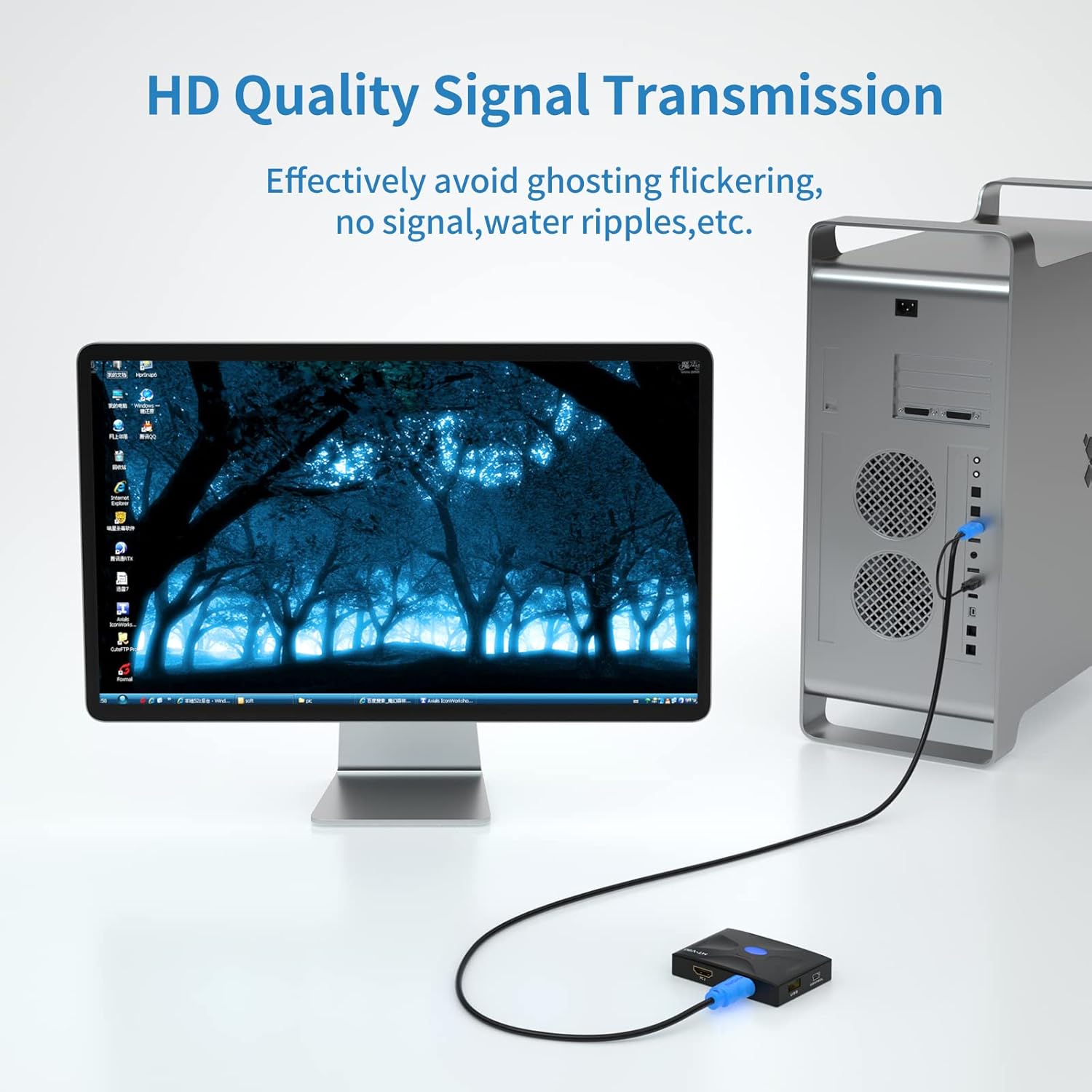
Image 5.1: Example of a monitor displaying content, indicating successful signal transmission.
6. Maintenance
To ensure the longevity and optimal performance of your KVM cable, follow these maintenance guidelines:
- Handle with Care: Avoid excessive bending, twisting, or pulling of the cable, especially near the connectors.
- Keep Clean: Regularly wipe the cable and connectors with a soft, dry cloth to remove dust and debris. Do not use liquid cleaners directly on connectors.
- Proper Storage: When not in use, coil the cable loosely and store it in a dry, cool place away from direct sunlight and extreme temperatures.
- Inspect Regularly: Periodically check the cable and connectors for any signs of damage, such as frayed insulation or bent pins.
7. Troubleshooting
If you encounter issues while using your MT-VIKI KVM cable, consider the following troubleshooting steps:
- No Video Signal / Flickering Display:
- Ensure both HDMI connectors are fully seated in their respective ports on the computer and KVM switch.
- Verify that the KVM switch is powered on and correctly configured to the input channel connected to the cable.
- Test the computer's HDMI output with a different cable or directly to a monitor to rule out computer-side issues.
- Confirm that your KVM switch is an MT-VIKI model compatible with this cable. Incompatibility with other brands can lead to signal issues.
- Keyboard/Mouse Not Responding:
- Ensure the USB Type-A connector is securely plugged into a functional USB port on your computer.
- Check the KVM switch's USB ports and ensure they are active and correctly assigned to the input channel.
- Try connecting the keyboard/mouse directly to the computer to confirm they are working.
- USB Over-voltage Error:
- This error can occur if the KVM switch or computer's USB port cannot supply adequate power or if there's an incompatibility.
- This cable is specifically designed for MT-VIKI KVM switches. Using it with KVM switches from other manufacturers (e.g., Network Technologies INC) may result in power-related issues or non-functionality.
- Ensure the KVM switch itself is receiving sufficient power.
8. Specifications

Image 8.1: Cable length and dimensions.
| Feature | Detail |
|---|---|
| Brand | MT-VIKI |
| Model Name | 2in 1 USB HDMI KVM Cable (KH50) |
| Connector Type | HDMI, USB |
| Cable Type | USB, HDMI |
| Connector Gender | Male-to-Male |
| Cable Length | 5 meters (16 feet) |
| Compatible Devices | Monitor, PC (with compatible MT-VIKI KVM switches) |
| Special Feature | Low Voltage, Shielded, Oxygen-free copper conductors |
| Outer Material | Polyvinyl Chloride (PVC) |
| Color | Black and Blue |
| Maximum Voltage | 5 Volts (DC) |
| Item Weight | 227 g |
9. Warranty and Support
For warranty information, technical support, or service inquiries regarding your MT-VIKI 2-in-1 USB HDMI KVM Cable, please refer to the official MT-VIKI website or contact their customer support directly. Keep your purchase receipt as proof of purchase for any warranty claims.


